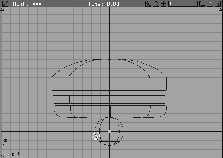
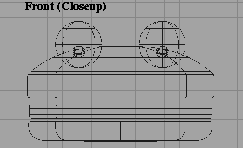
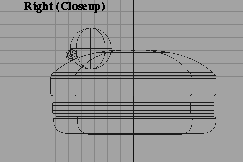
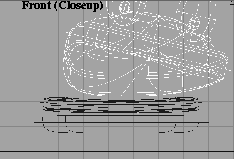
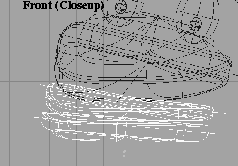
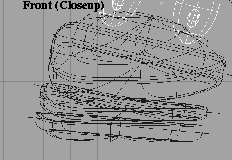
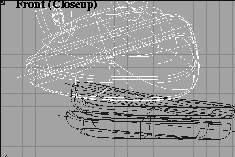
This lesson shows you how to use the deformation control capabilities of Alias to bring a hamburger to life. With curve and axis deformation, you can change the shape, size, or location, as well as other characteristics of an object over time. Like the CV sets from Lesson 18 to animate the wine glass, these deformations offer smooth and seamless surface animation. Deformation control also offers some more advanced capabilities.
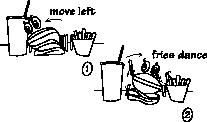
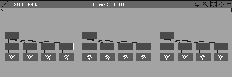
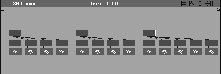
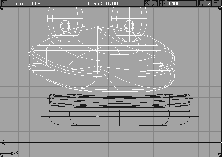
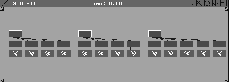
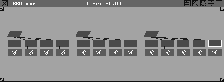
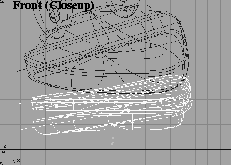
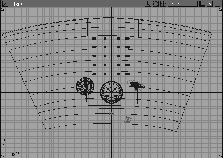
The storyboard below illustrates the purpose of this lesson: to create an animated hamburger and to orchestrate his facial movements along with the movements of the dancing french fries.
This lesson illustrates the use of clusters of CVs. Clusters are an animation method that is more powerful than CV sets. CVs assembled into cluster groups behave like normal objects. They have their own pivot points and can be moved down motion paths. With the Deformation Control menu, you can manipulate the clusters with a variety of handles such as curves, skeletons or axis. This lesson shows you how to use some of these deformation handles to animate the movement of this character. You then use another technique, randomization, to make the french fries dance.
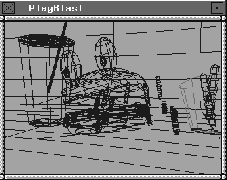
To get a clear idea of the scope of this tutorial, you should preview a flipbook of the rendered animation.
Animation menu, select Flipbook. In the File lister, double-click on the flipbook file L22_Hamburger.bk.
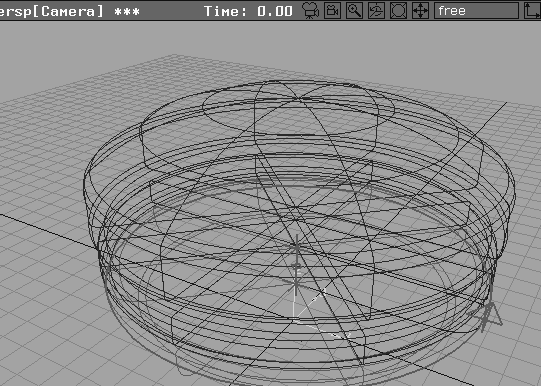
This lesson begins with three prepared curves that represent the profiles of the hamburger bun and patty. You can turn these into surfaces from the Animation menu level.
L22_Hamburger, then click on the Open button.
First, you build a simple model of the hamburger. Note that you don't require a complicated surface to animate interesting deformations.
 Select Surfaces
  Revolve-
 . Click on
 Z for the revolve axis. Click Go.
 Now, select Pick Nothing then Pick Component-. Turn all the options off and then click on the
 Curves option. Click Go.
Delete menu, select Del active.
| Note: This removes the construction history, which is not required to animate the surfaces. In fact, construction history cannot be animated at all-so if you expect to deform surfaces, history should be removed. |
 Select Objects Primitives Sphere.
a 0, 0, 0 to place the eye at the origin.
 Select Xform
 Scale. In the right widow, click-drag to scale the sphere until it is the right size for the hamburger's eye.
 Select
 Objects Primitives Sphere and place another sphere at the outer edge of the original sphere.
 Select Xform Scale to scale the sphere down to the size of a pupil.
 Select Xform Local Set Pivot. Enter
 0, 0, 0 to place the pupils' pivot at the origin and, as a result, at the center of the eyeball.
 Select Xform Rotate, and with the left mouse button, click-drag to rotate the pupil along the edge of the eyeball.
| Note: You can get more interesting deformations, later in this lesson, if you place the pivot point for the pupil at the center of the eyeball. |
 Select
 Pick Object. Click on the first sphere so that the two spheres are picked.
 Select Xform Move and click-drag in the Right window to move the eye up to the top left edge of the hamburger bun. Click-drag in the Top window to move it to one side of the bun.
 Select
 Xform Move and click-drag in the Front window with the middle mouse button to move the second eye to the other side of the burger. You now have surfaces to be deformed.
Next, you set up curves for use as a deformation frames in the animated deformation. The frames are linked to specific CV clusters on the surface. By controlling how these clusters are created, you can effect deformation when animating the frames.
You need to create a frame type to set up the deformation.
 Select Pick
 Object Types All obj/lights to pick everything. Click on the top bun to unpick it.
 Select
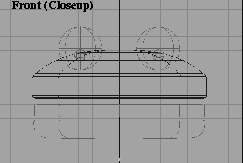
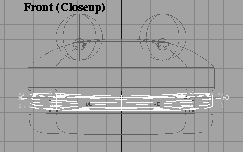
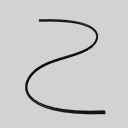
 Curves New Curves New Curve (edit pts). In the Front window, press the Alt key to temporarily turn on grid snap and click two points, from left to right, to place a new curve across the middle of the top bun.
 Select Pick Object and click on the new curve.
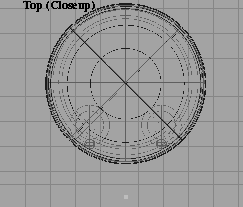
 Select Xform Move. Click-drag with the right mouse button in the Top window to move the curve down to the bottom of the window.
 With Nothing picked, select Object.
. Choose
With Nothing picked, select Object.
. Choose Active, turn all the options OFF, then the CV option ON. Click GO to make the bun's CVs visible. Keep the Control window open, as you'll use it again.
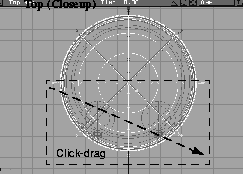
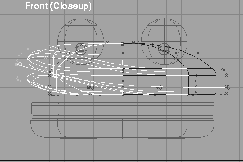
 With Nothing picked, select Pick PointTypes CV. With the left mouse button, click-drag a pick-box around the CVs that represent the front to the middle area of the bun. They highlight yellow, to indicate their selection. Don't pick the edit point curve.
Curve as your frame type and change the effect range to Single Cluster. Leave the remainder of the options at the default settings.
Attach from the Deformation Control menu. Click on the edit point curve when prompted. When it is highlighted, click on Go to attach the CVs.
 Select Pick Object. Click on the edit point curve. In the Control window, click Go. The edit point curve now displays small circles to indicate it is being used as a deformation frame.
The system has created several green cluster icons that represent the groupings of the CVs.
| Note: This node is totally separated from both the curve and the surface geometry in the scene. Clusters are treated as objects in their own right and can be transformed accordingly. |
 With Nothing picked, select Pick Object and click on one of the brown nodes just above a green cluster icon. This picks some of the CVs on the surface and part of the deformation curve.
 Select Xform Move. Click-drag in the Front window to move it up and down in the vertical direction.
Notice that the deformation is still tied to the original surface geometry. This process lets you selectively deform all or parts of your models by moving, scaling or rotating these clusters. The menu options for percentage values let you set thresholds for the falloff the cluster CVs receive. You can also control whether the CVs can be members of many clusters or one exclusive cluster.
menu, select Undo to return the bun to its original shape.
 With Nothing picked, select Pick Object. Click on the top node of the Cluster group to pick it.
menu, select Information Information window. A pop-up menu appears with a field called name. Click in this field and type: TOPLIP.
This lets you select cluster information later on quickly, without having to hunt through the SBD.
Having completed one Attach operation, you can repeat the procedure with the bottom of the bun and then the patty.
 With Nothing picked, select Pick Object. Click on the top bun and its deformation curve (the straight line created earlier).
 Now select Pick Template and click on the bottom bun.
Curves New Curves New Curve (edit pts). In the Front window, press the middle key to constrain the two points from left to right, to place a new curve across the middle section of the bottom bun.
Object and click on the new curve.
Move and in the Top window, use the right mouse button to drag the new curve down until it is underneath the original templated deformation curve.
 With Nothing picked, select Pick Object. Click on the bottom bun.
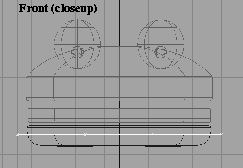
 With Nothing picked, select Pick Point Types CV. With the left mouse button, click-drag a pick-box around the CVs that represent the front to the middle area of the bun. (These highlight yellow to indicate your selection.) Don't pick the edit point curve.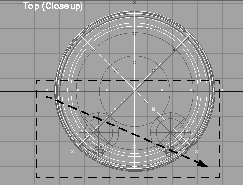
Curve is the frame type.
Frame Control Attach from the Deformation Control menu. Click on the edit point curve when prompted. When it is highlighted then click Go to attach the CVs.
 Select Pick Object. Click on the top node of the new Cluster group in the SBD window.
Information window.... Rename the group
Select Pick Object. Click on the top node of the new Cluster group in the SBD window.
Information window.... Rename the group BOTLIP and close the Information window.
 With Nothing picked, select Pick Object. Click on the bottom bun and its deformation curve.
ObjectDisplay menu, select Template to template these pieces.
 Select Pick Template and click on the patty in the middle of the buns. From the ObjectDisplay menu, select Template to untemplate this piece.
Curves New Curves New Curve (edit pts). In the Front window, press the middle key to constrain the two points from left to right, to place a new curve across the middle of the patty
Object and click on the new curve.
 Select Xform
 Move. In the Top window, use the right mouse button to drag the new curve down until it sits between the other two templated deformation curves.
 With Nothing picked, select Pick Object. Click on the patty to pick it. In the Control window choose
 Active, and click Go, to make the bun's CVs visible. Close the Control window.
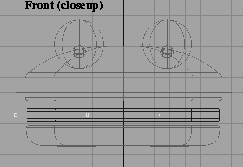
Point Types CV. With the left mouse button, click-drag a pick box around the CVs that represent the front to the middle area of the bun. They highlight yellow to indicate your selection. Again, don't pick the edit point curve.
Curve is the frame type and set the Effect Range to single cluster. Select Frame Control Attach from the Deformation Control menu. Click on the edit point curve when prompted. When it is highlighted, click Go to attach the CVs.
menu, select SBD.
 With Nothing picked, select Pick Object.
Information window.... Rename the group
With Nothing picked, select Pick Object.
Information window.... Rename the group PATTY and close the Information window. Now these pieces have been attached to deformation curves.
 With Nothing picked, select Pick Object. Click on the two cluster nodes at the outer edges of the hamburger patty which are attached to the two end points of the curve.
| Note: The order of the clusters in the SBD window may not be in the same as seen in the diagram above. Be sure to select and de-select the cluster nodes until only the outer two points are selected. |
 Select Xform Move and use the right mouse button to drag the chosen clusters up. This gives the patty some shape to start. Notice how picking the patty components creates a deformed shape.
With all three of the main hamburger elements attached using curve deformations, you work on the eyes next. To set up the required eye movement (of up and out when deformed), you use an axis deformation instead of a curve deformation.
 With Nothing picked, select Pick Object and click on the patty and its deformation curve.
 Select Pick Template and click on the two eyeballs.
 Select Pick Object and again click on the two eyeballs.
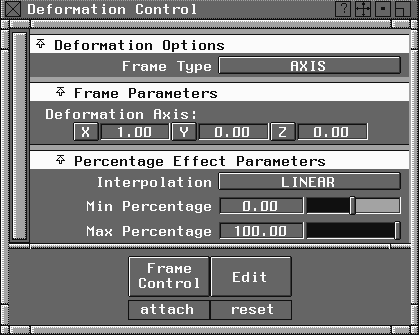
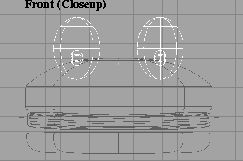
Axis as the Frame Type. In the Frame Parameters section below, click on the Z-axis to turn it on. This changes its value to 1.0, which indicates that it is turned on.
Attach from the deformation control menu, and the eyeball geometry CVs are clustered so they can stretch as they move vertically.
 With the new cluster group picked, select Xform Move. Use the right mouse button and click-drag in the Front window to stretch the eyes in the vertical direction. This is the starting position for the eyes.
One of the advantages of clusters is that you can group them together like regular objects. Now that you have clustered the eyes, you need to group it with the cluster belonging to the top bun. This allows for a more organized approach when moving the clusters into the various keyframe positions later on.
 With Nothing picked, select Pick Template and click-drag a pick-box around the hamburger and eyes, including the deformation curves.
menu, select Template to untemplate these pieces.
. In the Control options, choose ALL under scope. Click all OFF and click Go. Close the Control window.
Windows menu, select SBD to open it.
 With Nothing picked, select Pick Object and click on the cluster group that represents the eyeballs and one of the cluster components that you created for the top bun, called
 TOPLIP.
Edit menu, select Group-. Click Beside under Null Node Grouping and click Go. This groups the eyeball cluster group within the cluster group of the bun.
 Now, select Xform Move and click-drag in the Front window. The eyes and the bun now move together.
| Note: While the eyes move with the hamburger bun, they don't bulge when the cluster group moves. This is because the axis deformation is only controlled at the lower node level. When you set keyframes later, you'll select this lower node to deform the eyes, while the upper node keeps them locked to the top of the bun. |
Edit menu, select Undo to return the burger to its original shape. If you have Xformed the object more than once and want to return it to its original shape, from the Windows menu, select Information Information window... and change all the transformation values to their defaults.
Now that you have created clusters for the various pieces of the animation, you can move the character and set keyframes. Animation keyframes can be set for the individual cluster nodes to create the required motion.
 With Nothing picked, select Pick
 Object. Click on the upper nodes of the three cluster groups to pick them.
menu, select Set keyframe-. Set the object settings to Active, the Parameters to Local, and the Hierarchy to none. Also, change the Frame to prompt. Click Go.
1 30 60. This creates keyframes for these positions, where the eyes return to these points.
Notice that the cluster nodes in the SBD window now indicate nodes are being animated.
 With Nothing picked, select Pick Object. Click on the cluster node belonging to the eyeballs.
1 30 60 to set keyframes for the eye deformation.
| Note: You can set keyframes for the inner nodes of a deformation. As usual, hierarchical rules apply to how the animation is executed. |
 With Nothing picked, select Pick Object. Click on the
 TOPLIP cluster group node in the SBD to pick the top lip and the eyes. Remember that you have to pick these from the SBD window. If you click on the objects in the modeling window, you pick the underlying geometry instead of the cluster groups.
 Select Xform Move and move the top lip and eyeballs up and to the right in the Front window. (Click in the window, NOT on objects.)
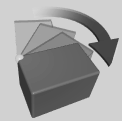 Select Xform Rotate and use the middle mouse button to drag up and rotate the deformation.
| Tip: Use these two Xform tools until you have the desired look. Don't worry if the burger goes beyond the frame of the front window. You can alter this view later. |
menu, select Set keyframe. Enter 20 for the top bun. Note that you now have a slower motion from frame 1 to 20 and a faster motion from 20 to 30. This sort of uneven motion creates a more interesting character animation.
 With Nothing picked, select Pick Object. Click on the
 BOTLIP and PATTY cluster group nodes in the SBD.
 Select Xform Move. Move the bottom lip and patty a little up and to the right in the Front window.
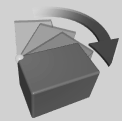 Select Xform
 Rotate. Use the middle mouse button to drag up and rotate the deformation a little.
 Pick Object. Click on the
 BOTLIP node to unpick it.
 Select Xform Move. Move then rotate the patty up a little more so that it and the lower bun move differently.
 Select Pick Object. Make sure that both the
 BOTLIP and PATTY nodes are picked.
20 for the selected pieces. They should now move with the Top lip.
 Select Pick Nothing then Pick Object. Click on the eye cluster group node in the SBD.
Move and move them up and to the right in the Front window to exaggerate their shape.
Select Pick Nothing then Pick Object. Click on the eye cluster group node in the SBD.
Move and move them up and to the right in the Front window to exaggerate their shape.
20 50 for the eyes.
This sets the exaggerated motion for these two important frames.
Having set the motion for the first part of the sequence, you need to set keyframes for keyframe 50 to complete the motion. After that, you can cycle the motion to create a repeating pattern, and finally preview the motion.
 With Nothing picked, select Pick
 Object. Click on the TOPLIP cluster group node in the SBD.
 Select
 Xform Move and move it up and to the left in the Front window.
 Now select Xform Rotate and use the middle mouse button to drag down and rotate the deformation. Use these two Xform tools until you have the right look.
50 for the top bun.
 Select Pick Nothing then Pick Object. Click on the
 BOTLIP and PATTY cluster group nodes in the SBD.
 Select Xform Move and move them up and to the left in the front window.
 Now select Xform Rotate. Use the middle mouse button to drag down and rotate the deformation.
 Select Pick Object and click on the
 BOTLIP node to unpick it.
 Select Xform Move. Move then rotate the patty down more so it moves a little differently than the lower bun.
 Select
 Pick Object and make sure that both the BOTLIP and PATTY nodes are picked.
50 for the selected pieces. They should now move with the top lip.
 Select Pick Nothing.
 stop button. Click on the First Frame button to return to frame 1.
 With Nothing picked, select Pick Object and click on the top node of all the cluster groups.
menu, select Long menus to see all the menu options.
New cycles warp-.
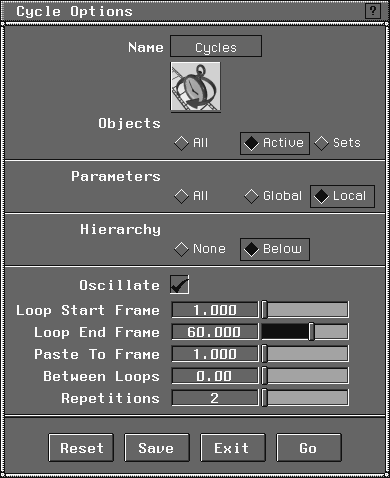
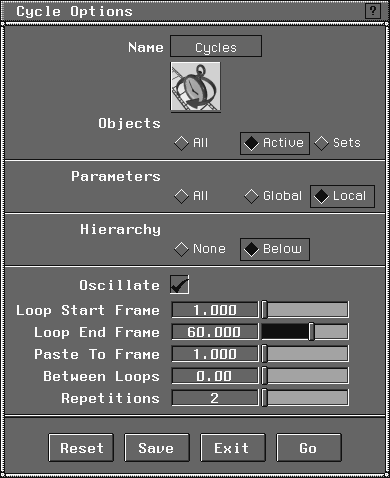
Cycles Option box, set the Objects to Active, the Parameters to Local and the Hierarchy to below, so that the eyeballs are also cycled.
Oscillate option ON. Set the Loop Start Frame to 1 and the Loop End Frame to 60. Set a Repetition factor of 2 and click Go.
| Note: The animation is now 237 frames long. The original sequence was oscillated to create 119 (60+59) frames that were then repeated twice to create the new frame count. |
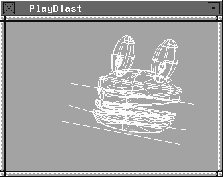
Show Playblast to ON. Click the Compress option and then click the play button on the Time slider.
stop button to stop the Playblast. Return to Frame 1 and close the Preview window.
 Select Pick Nothing.
Randomize is a function that works from the Action window. Randomizing lets you select a certain number of keyframes from one or more objects and then introduce a random offset to them. This gives the motion of the objects a certain variable quality that makes the animation more interesting. In this section, you start by retrieving some more geometry into your scene and randomizing their motion.
File menu, select Import File-. Click Keep Windows, Cameras and Background to OFF. Click Import File.
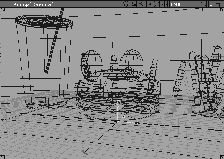
L22_Fries. This is a file of animated french fries with pre-built background elements.
 Select
 Pick Nothing then select Pick Object. Click on the four french fries sitting behind the hamburger. You may need to dolly and pan the views to see all of the new objects.
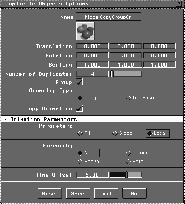
menu, select Duplicate object-. Enter 5 in the Y Translation field. Click Copy Animation to show the Animation Parameters. Change the Animation Parameters to Local. Edit the Number of Duplicates to 4, and edit the Time Offset to be 5 frames. Click Go.
 Select
 Pick Nothing. Select
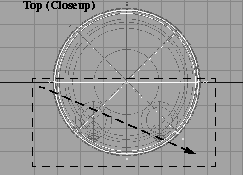
 Pick Object. In the Top window, click drag a pick-box around the twenty french fries to pick them. Since you picked the floor at the same time, click on it to unpick it.
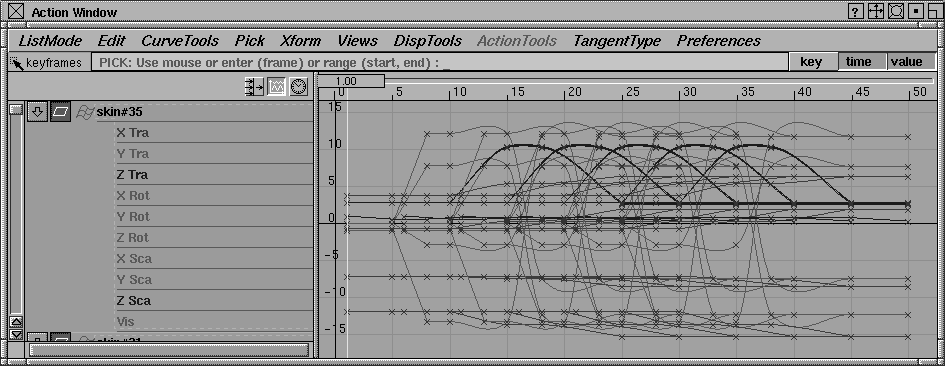
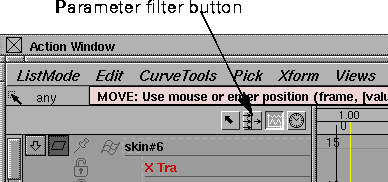
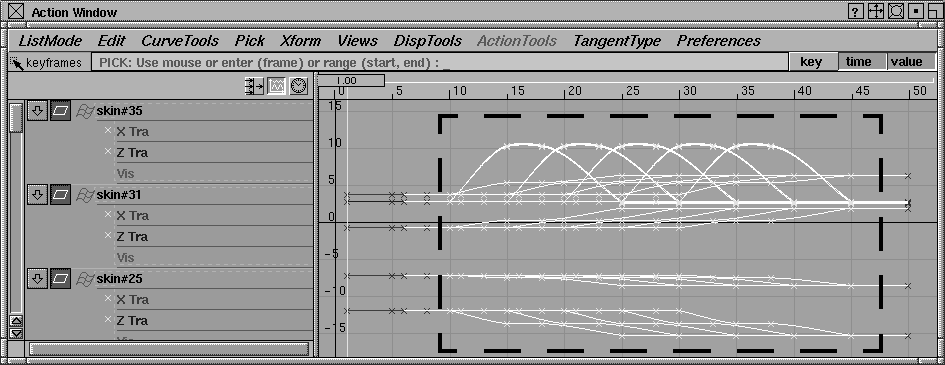
Views Look at from the Action window menu. This centers the display within the Action window. The left hand side shows the names of the selected fries and their animated channels.
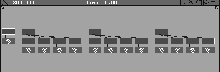
Nothing, then Pick Keyframe. Click-drag a pick-box around all of the keyframes as shown in the diagram below.
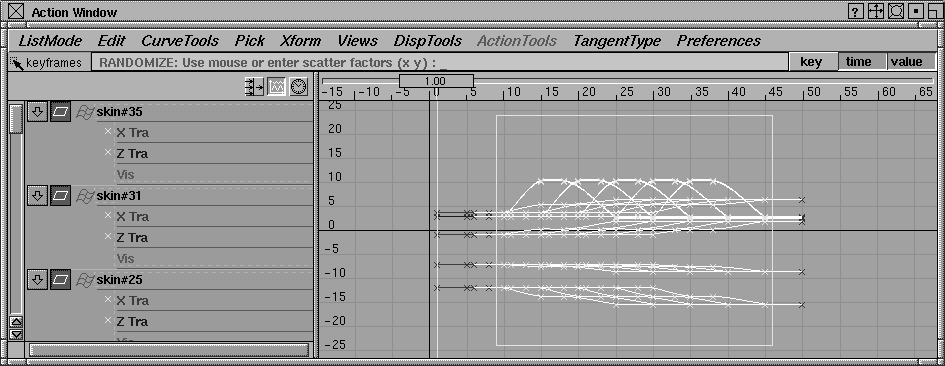
Randomize from the Action window menu.
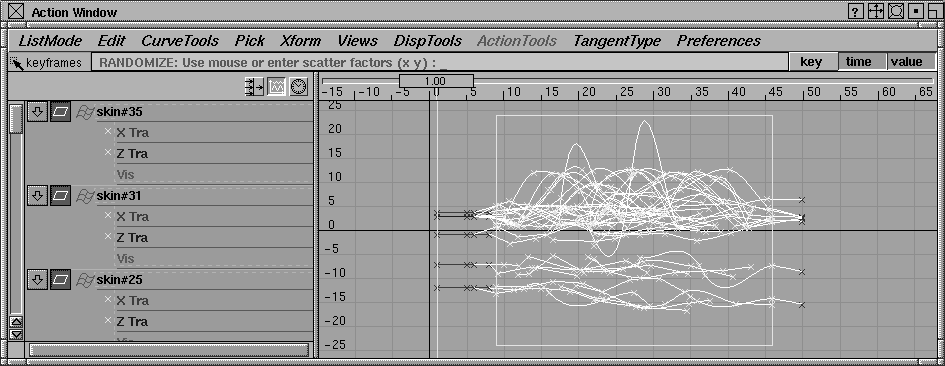
Action window prompt line, you are asked for two scatter factors. Type 5 5, and press Enter. The keyframes are randomly dispersed by a small value. This creates the random motion.
Action window to close it.
New cycles warp-. Set Objects to Active, and Parameters to Local. Click Oscillate on and set 2 repetitions. Set the Loop Start Frame to 1 and the Loop End Frame to 60. Click Go.
play button in the time slider. After the system has gone through its initial frame-by-frame computations, the entire animation plays back.
stop button to close the Preview window.
Next you create a shader for the bun and retrieve an existing shader for the hamburger patty. The rest of the model already has shaders assigned to them.
Windows menu, select the Multi-lister Shaders.... Here you'll find some existing shaders that belong to the background geometry.
New Shader.
Shader Name. Click in this field and enter Bun as the new name.
Map... button next to color. The texture window appears. Scroll down to the Solid section and click to open it. Click Granite to choose this texture.
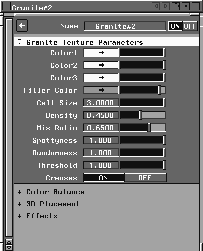
Color1 and change its color to white. White has a Hue of 0, a Saturation of 0, and a Value of 1.0. Now change Color2 and Color3 to white.
Filler Color to golden brown.
Cell Size to 3.0, the Density to 0.45, the Mix Ratio to 0.65, and the Spottiness, Randomness and Threshold all to 1.0.
File Save from the Shader lister menu. This saves the texture to your hard disk.
Bun shader has updated to show the new color settings. It also shows the Granite texture that is providing the color information.
Bun shader icon.Click on the Special Effects section of the Shader Editor to open it. Click on the Map button next to Bump.
Browse button. In the File lister, click on Granite#2 then click on Use Texture so the same attributes can be applied as a bump map. A bump map adds the appearance of "seeds" to the bun.
 Select Pick Object and click on the top and bottom buns in the Front window.
Assign Shader from the Shader lister menu and the Bun shader is now assigned to the bun geometry.
Select Pick Object and click on the top and bottom buns in the Front window.
Assign Shader from the Shader lister menu and the Bun shader is now assigned to the bun geometry.
A shader and a spotlight have already been provided for the other elements in the tutorial. Once you assign existing shaders to the whites of the eyes and the pupils, retrieve an existing shader for the hamburger patty, a variation of the Granite texture.
 With Nothing picked, select
 Pick Component-.
ON and click on Go. In the Front window, click on the two large spheres being used as eyeballs. Make sure that the smaller pupils are not picked.
whites shader in the Multi-lister. Select Shading Assign shader to assign this shader to the eyes.
Nothing and then Pick Component.
pupils shader in the Multi-lister. Select Shading Assign Shader to assign this shader to the eyes.
File Shader Browse. In the File lister choose the Patty_shader shader and click Load Shader.
Patty_shader in the Multi-lister to select it.
 With Nothing picked, select Pick Object and click on the hamburger patty in the front window. Select Shading Assign Shader to assign the shader to the patty.
| Tip: If several open windows are cluttering the workspace, you can close them now. |
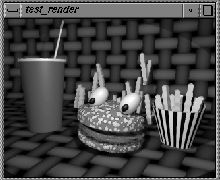
Now that you have assembled all the elements together, do a final render of the entire scene.
 Select Cameras World Move camera Tumble and move the camera into an appropriate view.
Render menu, select Globals. Open the Image File Output section, then scroll down to the Predefined resolutions and click on the Add button to add a new resolution to the list.
User Defined box and press the Esc key to delete the current name. Change it to test and press Enter.
X resolution to 320 and the Y resolution to 240. The X Resolution and Y Resolution settings above automatically change to these new values.
Render Globals window.
render status.
menu, select Show render. When the rendering starts, this shows the image as it progresses.
close button to close the Render Control window.
| Note: If you have enough disk space and would like to see your work animated, you should follow the steps outlined in earlier lessons to create a complete rendering of the dancing hamburger. |
In this lesson you have worked with clusters and have deformed them using curve and axis deformation. You have also seen how to randomize motion in the Action editor and how to create an interesting shader effect for a hamburger bun.