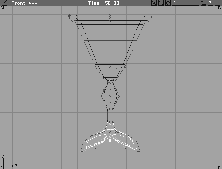
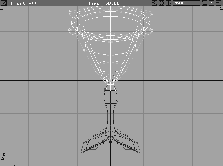
This lesson shows you how to use Alias' metamorphosis capabilities to bring a wine glass to life. Over time, metamorphosis can change the object's shape, size, and location. You can apply metamorphosis to a whole object or to specific parts.
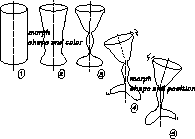
The hand-drawn storyboard below illustrates the goal of this lesson. You start with a glass tumbler that "morphs" into a wine glass. The wine glass then begins bobbing its "head" as it starts to walk. In addition to this movement, you can change its color over time.
You begin this lesson by retrieving the profile curves provided for the tumbler and the wine glass. After using the profiles to create the 3D shapes, you set up the morphing animation. Next, you manipulate the "head" and "feet" to make the glass appear to walk. You then complete the piece by animating the shader.
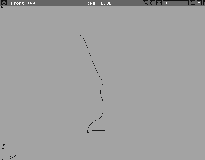
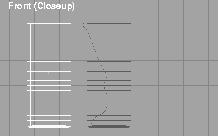
This lesson begins with two prepared curves that represent the outlines of the tumbler and the wine glass. These profiles are revolved to create the 3D forms needed for metamorphosis.
L18_GlassWalker from the CourseWare directory. The file contains the two profile curves needed for the lesson.
Note that the two curves have the same number of CVs and edit points.
| Note: If you can't see CVs and edit points, pick the curves, then turn on the CVs and edit points in the Control box in the ObjectDisplay menu. |
The curves must also have the same U direction. This ensures that the resulting surfaces have the same number of CVs, to be used for setting the keyshape.
 Select Surfaces
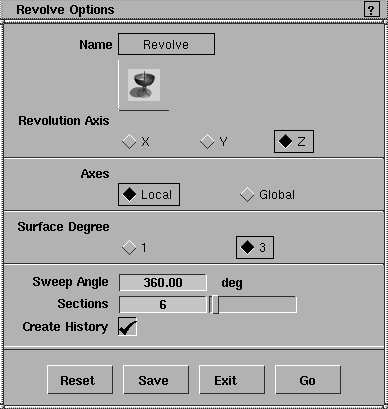
  Revolve-
 . Change
 Sections to 6, and make sure you are using 360 degree revolution around the Z-axis.
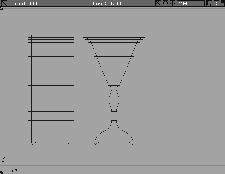
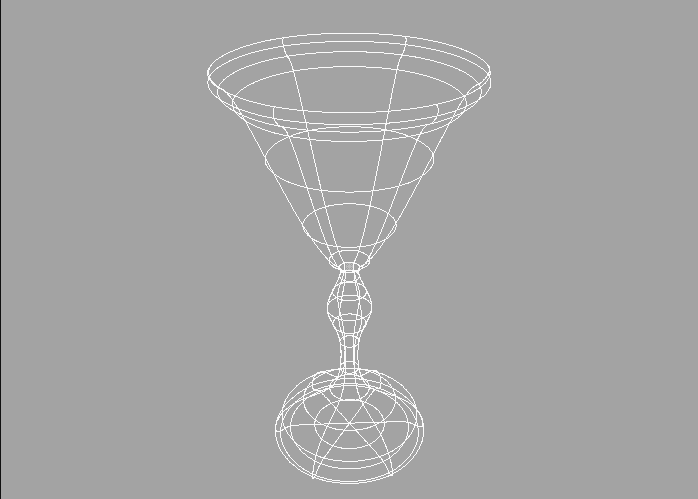
When the revolutions are completed, you'll have two separate surfaces-a glass tumbler and a wine glass-that occupy the same space.
 Select Pick Object and click on the curves so that both revolves are selected.
 With nothing picked, select Object. Pick the glass tumbler.
 Select Xform Move and use the middle mouse button to move it to the left of the wine glass. The wine glass and tumbler should not be touching.
Nothing to make sure nothing is active in the window.
Select Xform Move and use the middle mouse button to move it to the left of the wine glass. The wine glass and tumbler should not be touching.
Nothing to make sure nothing is active in the window.
The Set key shape command is used to morph from the tumbler to the wine glass. This morphing completes the first half of the storyboarded animation.
| Note: The two surfaces you are working with have an identical number of CVs and isoparm patches. Only two surfaces that are perfectly matched in this way can have a Set key shape applied to them. |
 Select Anim Set key shape-. Make sure that the
 Shape Center option is set to Centroid. This creates the best intermediate shapes.
Pick the curves or surfaces which are to change shape. Press Go when ready.
50 in response and press Enter. This sets the final frame for this sequence at frame 50.
1 and press Enter. This ensures that the wine glass looks like the tumbler at frame 1.
 The glass tumbler is no longer needed for the animation. With nothing picked, select Pick Object.
Start/End button at the left end of the time slider and change it to Min/Max.
Play button to play back the animation. Alias now interpolates the shapes needed to change the glass tumbler to the wine glass.
First Frame button to return to frame 1.
 With nothing picked, select Pick Template. Click-drag a pick box around the templated profile curves to pick them.
Note: It is generally good practice to keep profile curves until you are happy with the resulting animation. If you don't like the results from the first Set keyframe, you could use the profiles to start again. |
Play button in the time slider to watch the metamorphosis in three dimensions. Stop playback by clicking on the Stop button. Click on the Last Frame button to go to frame 50, or type 50 in the frame field.
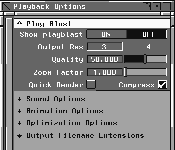
From the Animation Preview window, you can set up a Play Blast to test animation of work completed so far. Alias loads this test animation into memory in its first pass so it can play back quickly during successive previews.
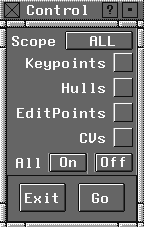
. In the Control window, click on all the options to turn them off.
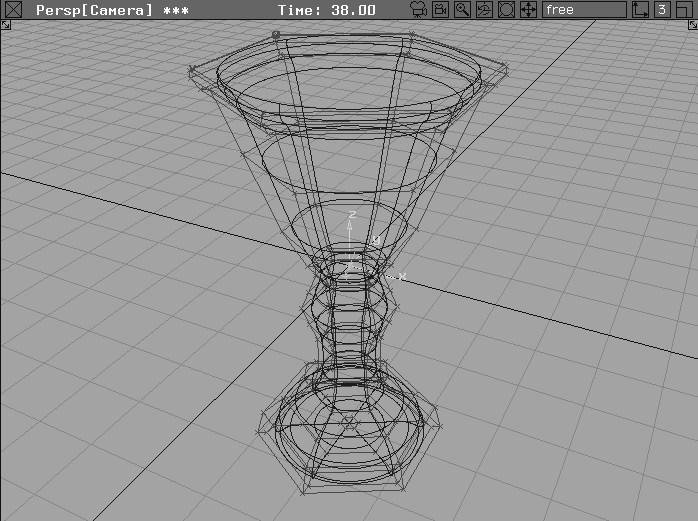
Playback Options window so you can see the wine glass in the perspective window, as well as all of the Playback options.
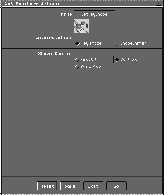
Play Blast in the Playback options window to display the Play Blast options. Make sure that a check mark appears in the Compress box.
| Note: A Play Blast's output resolution is a percentage of the originating window size, so yours may be slightly different. |
Show Playblast ON and then click the Play button in the time slider and watch the shaded object change from a tumbler to a wine glass.
The initial playback is displayed frame-by-frame as the system computes and stores the animation in memory. After it has played through once, the animation plays back faster.
Stop button to pause the playback, and then click-drag the current frame slider (the black triangle) to interactively control the movement.
Stop button to close the Play Blast window. Click Show Playblast OFF then close the Playback Options window.
Object and pick the glass.
. Set Scope to Active and set All to On. You need to see the object's CVs in the next section of the lesson.
With the initial metamorphosis finished, you can start to group various CVs, to prepare for the walking motion.
 Select Pick Nothing to ensure nothing is active.
 Select Anim View frame and type
 50 after the prompt. Although it is not necessary to perform this step to animate CVs, it makes it easier to select the appropriate CVs for the four sets.
Note: You can also type 50 in the frame field of the time slider, or click the Last Frame button of the time slider. |
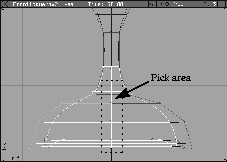
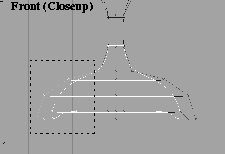
 Select Pick Point Types CV and drag a pick box around the middle group of CVs (as shown below).
| Tip: This is a set; that is, an object made up of the active CVs. In the following steps in this lesson, you can pick this set of CVs easily. |
By assembling CVs, you can animate specific areas of an object over time. Assembling CVs into a set is similar to a group, except that a set does not show up as a node in the SBD window. On the other hand, all items in a set have a common pivot point that can be used for transformations. In this part of the lesson, you are going to assemble various CVs into sets, in order to create the walking wine glass.
Edit set....
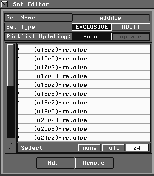
The Set Editor window appears on the screen, listing the CVs assembled in this first set.
Set Name field and type a new name, middle, for this set.
Set Editor window.
 With nothing picked, select Pick Point Types CV and click-drag a pick box around the CVs on the left side of the wine glass base, as shown below.
Edit set and in the
With nothing picked, select Pick Point Types CV and click-drag a pick box around the CVs on the left side of the wine glass base, as shown below.
Edit set and in the Set Editor window, name this set leftfoot. Close the Set Editor window.
 With nothing picked, select Pick Point Types CV and click-drag a pick box around the CVs on the right side of the wine glass base, as shown below.
Edit set. In the
With nothing picked, select Pick Point Types CV and click-drag a pick box around the CVs on the right side of the wine glass base, as shown below.
Edit set. In the Set Editor window, name this set rightfoot. Close the Set Editor window.
 Select Pick Nothing. Track the view down so that you can see the top of the wine glass.
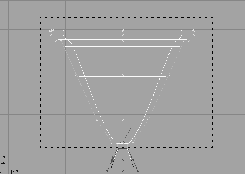
 Select Pick Point Types CV and click-drag a pick box around the CVs on the top of the wine glass to create the final set.
Edit set. In the
Select Pick Point Types CV and click-drag a pick box around the CVs on the top of the wine glass to create the final set.
Edit set. In the Set Editor window, name the final set top.
Set Editor window.
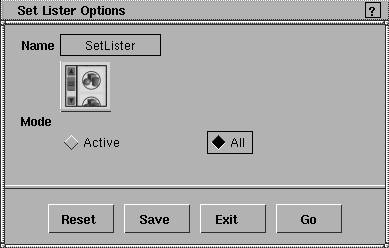
Set lister-.
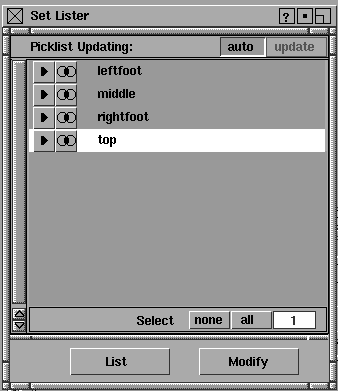
Mode is set to All, then click Go. The Set List Window appears on the screen.
|
Note: When you click on the name of a set, the CVs that make up the set are highlighted in the front window. Select Pick Nothing to make sure nothing is active. |
Next, you animate the grouped CVs, to make the wineglass walk. The walking motion is created by executing several Xforms on the CV groups and then setting keyframes.
 Select Pick Nothing. In the
 Set List window, click on the set named middle.
YES to confirm the overwriting of earlier data for  Select Anim View frame and type
 60.
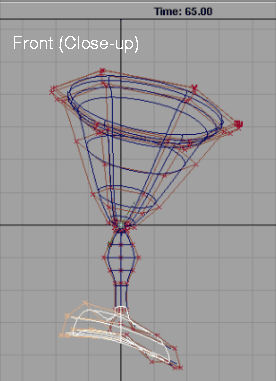
 Select Xform Nonp scale and enter absolute keyboard values for the non-proportional scaling by typing:
 a1 0.3 0.8.
Set Lister, click on the top set to pick it.
 Select Xform Rotate. From this point on, you should enter relative values for Xform functions. Type
 r -22.5 to rotate the top of the wine glass.
 Select Anim View frame and type 70. Select Set keyframe.
 Select Anim View frame and type 80. Select Set keyframe. This sets two more keyframes for this position.
 Select Anim View frame and type
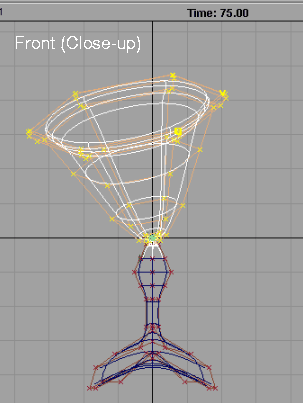
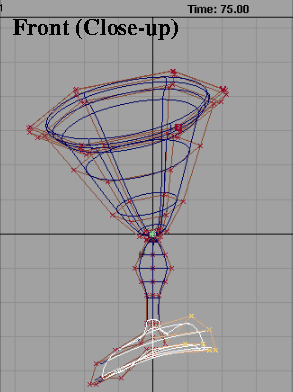
 75. Select Xform Rotate and enter rotation values of
 0 0 -30. The movement of the wine glass top needs to be modified further, by inserting keyframe values between the major keyframe set in the last step.
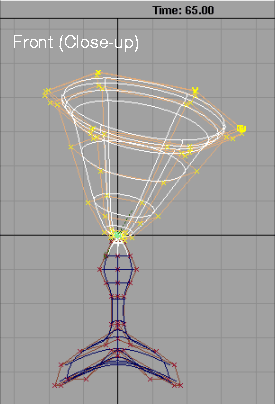
65.
 Select Xform Rotate and enter rotation values of
 0 0 30.
 Select Pick Nothing to ensure nothing is active.
60.
Set Lister, pick leftfoot.
70.
65.
 Use Xform Move and move these CVs in relative mode by
 0 0 1.
 Select Pick Nothing to deactivate the CVs.
70.
Set Lister, pick rightfoot.
80.
75.
 Select Xform Move and move them by
 0 0 1.
 Select Pick Nothing to ensure nothing is active.
Start/End button. Enter 50 for the Start value and 80 for the End.
This means that only the last 30 frames (the walking sequence) will be shown when the animation is played back.
play button in the time slider to see the walking wine glass.
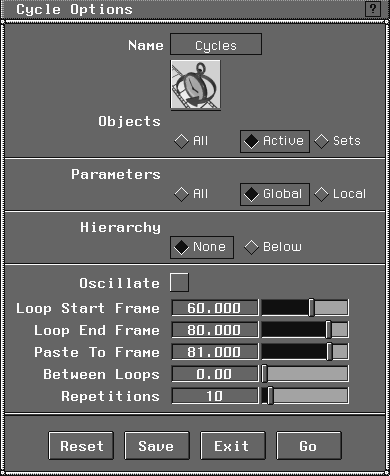
To lengthen the animation and repeat the walking motion of the glass, you use a function called Cycles. This function lets you reapply the animation to a selected object or group of CVs over a period of time.
Set Lister, select leftfoot, rightfoot and top. The CVs that correspond to these sets are highlighted on the wine glass.
New cycles warp-. The option box appears. In the option box, set the Loop Start frame to 60 and the Loop End frame to 80.
Paste To Frame to 81 so that the cycles are added after frame 80. Set the Repetitions to 10.
Min/Max to change back to Min and Max fields. The Max field now reads 281, since the entered cycle options cause the walking wine glass sequence to repeat 10 times after the original 80 frame animation.
Frame to 1.0 and click on the Play button to view the full animation.
Stop button to finish the playback.
Set Lister window.
 Select Pick Nothing to make sure nothing is active on the screen.
Next, you animate the glass color from a dark blue to a golden yellow. To ensure that only the shaders are animated, you can use a local setting from the parameter controls.
Parameter Control window, you can modify a number of variables from either a global or local perspective.
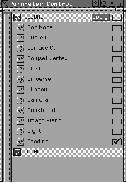
GLOBAL Parameters to display its options.
| Note: Unlike the following illustration, some parameters may already be set. If so, do not uncheck them. |
GLOBAL Parameters option list is a field for Shading Parameters. To the right of this field is a small box. Click in this box to assign a check mark. This indicates that you want to animate the shading parameters.
Parameter Control window.
 Select Anim View frame and type 1 after the prompt. The wine glass reverts to the original glass tumbler.
Shaders... to display the
Select Anim View frame and type 1 after the prompt. The wine glass reverts to the original glass tumbler.
Shaders... to display the Shader Lister window.
Shader to display its shading parameters.
Common Shader Parameters section, click the default blue color to open the Color Palette.
Shader Editor and Color Palette windows open.
Shift key and click on the name Color in the Shader Editor.
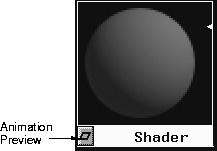
Key button at the top of the Editor. A small parallelogram appears next to the word Color to indicate that keyframes have been set.
Color highlighted in the Shader Editor, again click on the Key button at the top of the Editor.
This previews the shader being animated (frames 1 to 50) before you apply it to the scene.
Note: This preview goes faster if the Shader Editor and the Color Editor are closed. |
You can playblast the animation to preview it.
 Select Anim View frame and type 1 after the prompt.
Model to toggle off the model.
. Turn off all the control displays.
Select Anim View frame and type 1 after the prompt.
Model to toggle off the model.
. Turn off all the control displays.
Play Blast section. Turn the Show playblast option to ON and make sure the Compress box is check marked.
Play button in the time slider. After the system has gone through its initial frame-by-frame computations, the object changes from a dark blue tumbler to a golden wine glass, then the wine glass goes through 10 walking cycles.
In this lesson you have learned how to:
You have now seen the power of setting keyframes and setting up CV sets. This lesson is the first that deals with live action objects. Animating objects through either metamorphosis or CV sets is the first step in building characters in 3D. In the following lessons you will learn about other Alias features that can be used to give characters life.