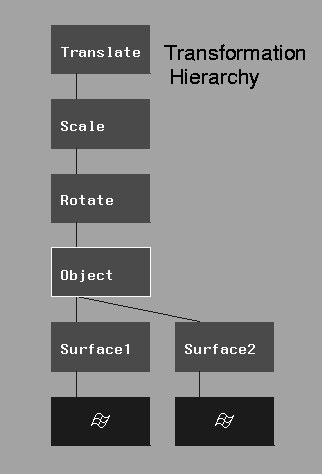
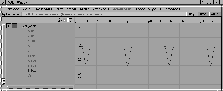
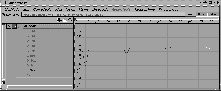
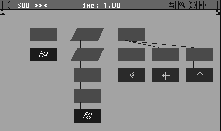
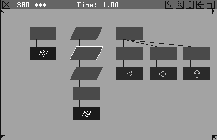
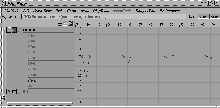
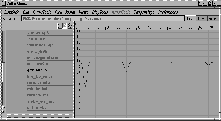
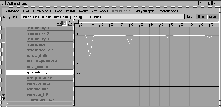
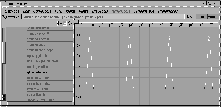
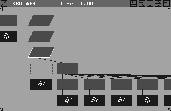
Grouping an object under several nodes and then applying animation to the appropriate node of the hierarchy is a general technique for using transformation hierarchies. Objects often need to rotate, scale and move within a single animation. As a result, nodes are usually created for each of these transformations. This, in turn, lets you focus on each of these transformations and set different pivot points for each. For example, an object can scale based on one pivot point while it rotates based on another. When the animation takes place, the motion begins at the lowest node of the hierarchy, then moves its way up.
In this lesson, you create a bouncing beach ball and apply translational, scaling and rotational transformations to different levels of the hierarchy. As you work through this lesson, pay close attention to the way objects are grouped and how the hierarchy nodes are selected when animating.
At the end of this lesson, the ball is replaced with a more complex model, transferring the animation from the original hierarchy by copying its animation curves. To further enhance it, glows are added and the animation is raytraced to obtain reflections and shadows.
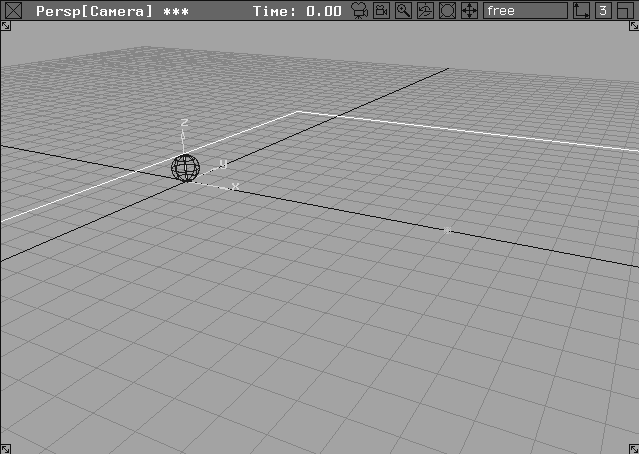
Beginning with an empty scene, you build the basic pieces and set up the animation.
 All (Studio).
 Select Objects Primitives Sphere. Type
 0 0 0 and press Enter. This places a sphere at the origin.
 Select Xform Move, and type
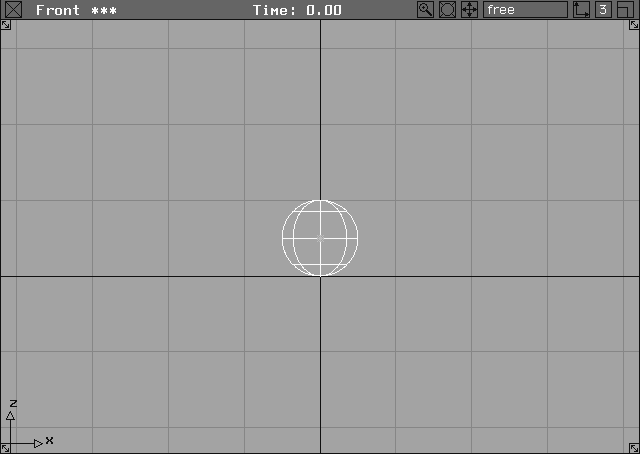
 0 0 0.5 to move the sphere up so that the bottom is at the origin. (Default spheres have a 0.5 unit radius.)
| Note: The pivot point for the first node you created is at the center of the ball. Since this node carries the rotation of the ball, the pivot should be at the center. The upper two nodes use pivot points that sit at the base of the sphere. |
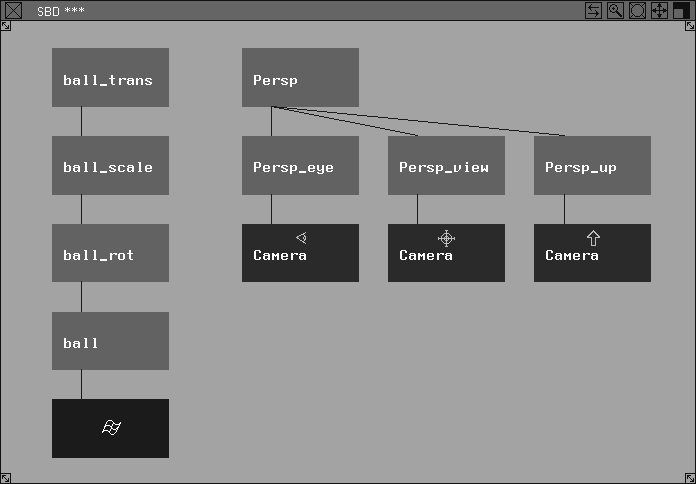
Information window.... Click in the name field, press Esc and type ball_trans. This node will carry the movement or translation.
ball_scale, to indicate the scaling node of the hierarchy.
ball_rot to indicate the rotation of the hierarchy.
ball. This node remains untouched during the transformations, as the upper nodes do all the work.
Rotation is the lowest transformation node, then scaling, and finally translation. This is the preferred order to ensure good hierarchical relationships.
 Select Objects Primitives Plane. At the prompt, type
 10, 0, 0 and press Enter. The default plane appears in the scene.
 Select Xform Scale and type
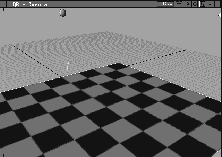
 25 to scale the plane by this amount. The plane covers an area large enough for the bouncing ball.
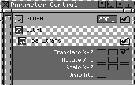
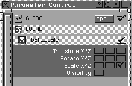
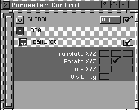
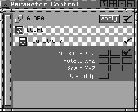
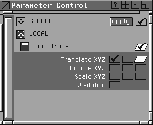
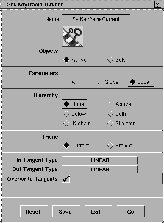
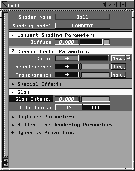
Each object has 10 parameters: XYZ translate (3), XYZ rotate (3), XYZ scale (3), and visibility (1). The Parameter Control window lets you restrict and choose the parameters you wish to animate, so that only the chosen parameters receive keyframes.
 With Nothing picked, select Pick Object and in the SBD window, pick the
 ball_trans (the top) node. Note that the ball_trans parameters appear in the Parameter Control window.
ball_scale. The ball_scale appears in the Parameter Control window.
ball_rot. The ball_rot appears in the Parameter Control window.
Y rotate, by clicking in the boxes.
You start by animating the translation of the beach ball. The translation animation is added to the top node, ball_trans, of the ball. There are two parameters involved, the Z translation for the "up and down" movement, and X translation for the forward movement. To start, bounce the beach ball in the Z direction only.
ball_trans node to make the top node active.
 Select Anim View Frame. At the prompt, enter 10. You'll set your first keyframe at this frame.
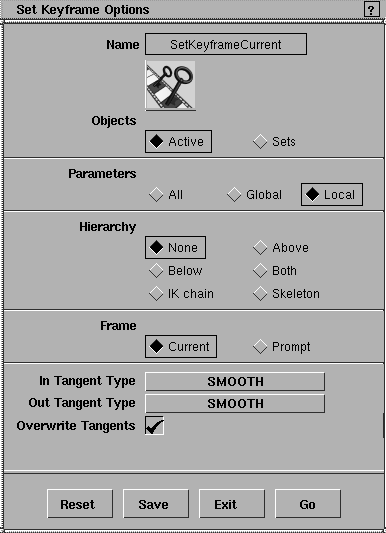
 . Since you are using very specific parameters to animate, you must set the keyframes for
 Local.
. A keyframe is set for ball_trans node has been animated. The node is shown as a skewed box. The Parameter Control window also shows that the Z translate parameter has received keyframes by skewing the parameter boxes.
 Select Anim View Frame. At the prompt enter
 0. You'll set your next keyframe at this frame.
 Select Xform Move. Type
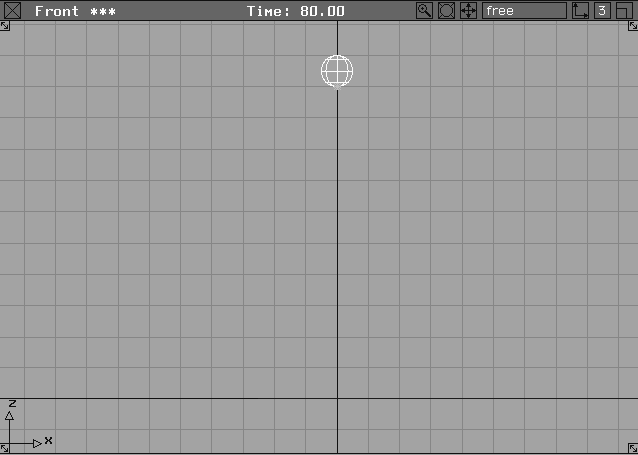
 0 0 10 and press Enter to move the ball_trans up 10 units. This is where the ball begins to bounce. Dolly and track in the Front window until you can see the ball and the ground.
ball_trans is set at this height for the chosen frame in the Z direction only.
| Note: Even if you had translated the ball in the X or Y directions, only the Z value would be recorded. When using parameters to animate you must be sure which ones need to be animated and set them accordingly. If you don't set the parameter, a keyframe is not set. |
| Note: The prompt line asks for the start frame, then the repeat, gap and end values. When pasting, the end frame value is not needed and should not be entered. The only values you need are the start frame, repeat value, and gap value. |
Start/End button on the Time Slider and change it to Min/Max. Next click the Play button to play the animation in the modeling windows.
|
Note: If the time slider is not visible, select Animation Tgl time slider. |
Stop button to stop playback. Then return to frame 0 by clicking the First Frame button, or by typing 0 in the frame field.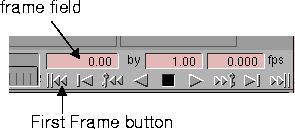
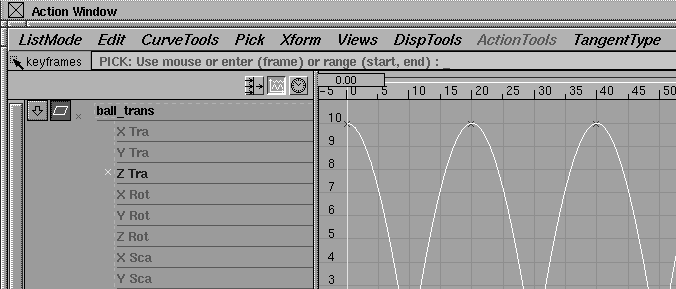
The ball's movement is smooth and "floats" from keyframe to keyframe instead of the "hard" impact you would expect in a bouncing ball. You still have to adjust the action curves between the keyframes. You also have to adjust the height of the ball at each bounce to make it look more realistic.
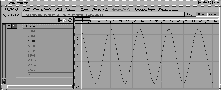
Look at to see the Z translate curve completely.
Keyframes from the Action window menu. Click-drag a pick box around all the keyframes at Z = 0 (those at frames 10, 30, 50, 70, 90).
Fast seg in from the Action window menu. The character of the curve changes as it goes towards the keyframes. Fast seg in makes an action curve accelerate towards a keyframe.
Fast seg out. That same character has now been added to the action curves "leaving" keyframes. Fast seg out lets an action curve accelerate from a keyframe.
Keyframes.
Move. Enter 20, 8 to move the keyframe to a Z value of 8. The first bounce only reaches a height of 8 units.
Move and enter a position of 40, 5 to make the second bounce reach a height of 5 units.
60, 2 and 80, 1, respectively. The ball now bounces less and less with time.
| Tip: The action curve resembles the motion of a bouncing ball. There is often a direct correlation between an action's curve and its motion in the scene. |
Play button to play back the animation. The ball bounces five times in progressively smaller bounces. The ball hits the ground plane hard but changes direction softly at its peaks.
Stop button to stop the playback. Click the First Frame button to return to frame 0.
You can now give the ball some lateral movement by animating it in the X direction. This requires you to change your parameter settings for the selected node from Z to X translation. This process of choosing a parameter, animating it and then moving to another parameter is a good way to slowly build up an animation while maintaining control over the parts.
Z translate and turn on the X translate. The keyframes do not adjust the Z translate action curve, but they do add the X translate.
 Select Anim View Frame. At the prompt, enter
 0 to set the first keyframe.
ball_trans still active, select Set keyframe from the Animation menu to set a keyframe for the ball_trans node at X = 0.
 Select Anim View Frame. At the prompt, enter
 90. This is where the next keyframe will be set.
 Select Xform Move and enter
 20 to move the ball in the X direction. This represents the range of the movement forward.
ball_trans at frame 90. The ball_trans node now moves between 0 to 20 in the X direction over 90 frames. This movement has been added to the movement in the Z direction set earlier.
Play button on the Time slider to playback the animation in the modeling windows. Again, the ball still bounces five times in progressively smaller bounces (the keyframes have not changed the Z translate animation), but the ball is now moving forward.
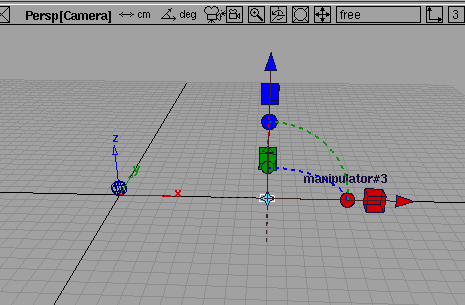
Stop button in the time slider and use the dolly and tumble icons on the Perspective window title bar to orient the camera so the beach ball drops in at the top of the screen and leaves the scene at the right during the fifth bounce. After each change of the view, click the Play button to restart the animation and test the view.
Stop button, then return to frame 0.
Having set the translation of the beach ball, you can now scale the ball every time it hits the ground plane, animating the next node down the hierarchy, ball_scale. Because you grouped with the pivot point at the bottom of the beach ball for the ball_scale node, the beach ball compresses to this point, maintaining contact with the ground plane.
 With Nothing picked, select Pick Object. Click the
 ball_scale node in the SBD window. 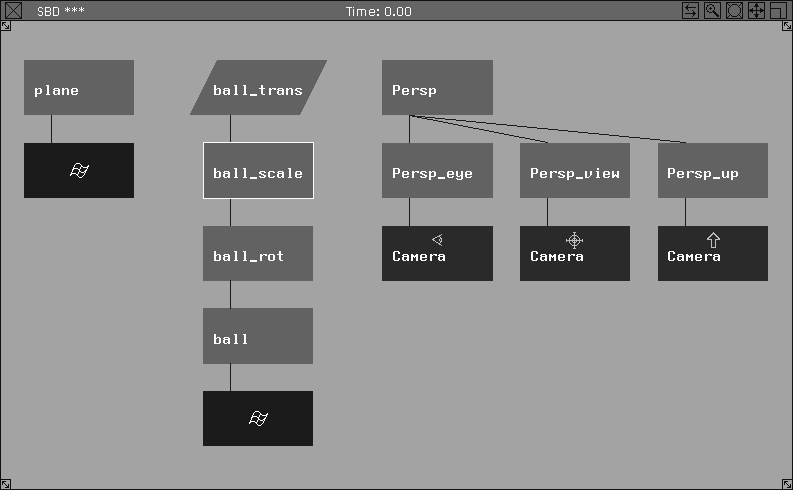
 Select Anim View Frame. At the prompt, enter 8. This is where your first keyframe will be set.
and set
Select Anim View Frame. At the prompt, enter 8. This is where your first keyframe will be set.
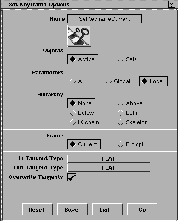
and set In Tangent Type to FLAT.
Note: The Out Tangent Type automatically changes to FLAT. Earlier, you changed the tangent type in the Action window. You can also set the tangent type before setting the keyframe. |
 Select Anim View Frame. At the prompt, enter 10 and press Enter. You will set your first keyframe at this frame.
 Select Xform Nonp scale. Type
 1 1 0.6 and press Enter to squash the ball_scale in the Z direction.
28 3 16 and press Enter. This pastes the copied values at frame 28, repeats the copies 3 times and puts a 16 frame gap between each of the copies.
|
Tip: These curves can be adjusted by using Views Look at. |
 Select Pick Keyframes In the Action window, select Xform Move, and click the keyframe at frame 30. Type a position of
 30, 0.85 and press Enter to scale it less at this frame.
50 and 70, moving them to 50, 0.92 and 70, 0.96. The ball_scale should squash progressively less as the bounce becomes smaller.
Play button on the Time Slider, to play the animation back in the modeling windows.
Stop button to halt the playback. Return to frame 0 by clicking the First Frame button.
The final addition is the beach ball's rotation. Like the X translate, the Y rotate just needs two keyframes to let the beach ball rotate throughout the animation. You can make sure the rotation is constant by setting the action curve to have linear in and out tangents.
 With Nothing picked, select Pick Object. Click the
 ball_rot node in the SBD window or type in the name and press Enter at the prompt line.
. Set the In and Out Tangent Types to LINEAR. This makes sure that the action curve between the keyframes is a straight line.
 Select Anim View Frame. At the prompt, enter 90. This is where your second keyframe will be set.
 Select Xform Rotate. Enter
 0 720 0 and press Enter to rotate the ball_rot two full revolutions. The sphere appears unchanged because it has been rotated twice around.
ball_rot is now set to rotate two full revolutions over the 90 frame animation.
Stop button to halt the playback.
First Frame button.
Having completed the animation, you can now create shaders for the beach ball and ground floor. These will give the beach ball a colorful ramp texture and the ground a reflective checker pattern.
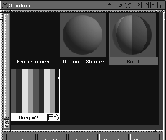
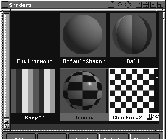
Shaders... to open the Multi-lister with only shaders.
New Shader to create a new shader. Double-click the new shader's name and enter Ball.
Map... button next to the Color field to open the Shader Color map window.
Ramp, which applies the ramp texture as a color texture map. The Ramp texture is now active in the Shader Lister, so the editor contains the attributes of the Ramp texture.
U Ramp and the Interpolation to NONE. This ensures that the ramp goes in the U direction and there is no transition between colors.
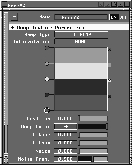
Currently there are three colors in the ramp (black, red, and blue). Each color component in the ramp has a circular color handle on the left side of the ramp, and a square color icon on the right side of the ramp. The active color has a white border around its color handle. To edit a color, click its color handle.
Position to 0, click the Ramp Color swatch and set the RGB values in the Color Editor to 255 0 0.
Position to 0.25, and Ramp Color to 0 0 255.
Position to 0.50 and Ramp Color to 255 255 0.
Position to 0.75 and Ramp Color to 0 255 0.
The resulting ramp gives the ball its bands of color.
Ball in the Multi-lister.
 With Nothing picked, select Pick Object.
Assign shader in the Multi-lister menu to assign the shader to the beach ball.
With Nothing picked, select Pick Object.
Assign shader in the Multi-lister menu to assign the shader to the beach ball.
 With Nothing picked, select Pick Object and click the ground plane.
New Shader to create a new shader. Double-click the name and enter a new name of
With Nothing picked, select Pick Object and click the ground plane.
New Shader to create a new shader. Double-click the name and enter a new name of Ground. Note that the Shader Editor now displays the new shader's attributes.
PHONG, the Diffuse to 0.3, Shinyness to 100, and the Reflectivity to 1.0 to create a shader that reflects objects without diffusing the light.
Map... button beside the Color field to open the Shader Color map window.
Checker, which applies the Checker texture as a color texture map.
Color2.
RGB values for the color to 0 20 0. This creates a white and dark green checker texture map. (Shadows will be more visible against dark green than black.)
Blur section. Set the Blurmult to 0.1 to reduce blurring.
Assign shader from the Multi-lister menu to assign the shader.
You`ll set the shader glow in the environment and animate the glow in the beach ball shader. The effect is for the beach ball to glow every time it impacts the ground. Set the glow attributes in the environment
Environment shader in the Shader Lister to place the Environment parameters in the editor.
ShaderGlow section to show the shader glow parameters. Click the Glow section.
Color swatch to open the Color Editor. Set the RGB values to 255 255 255.
Glow section. Set the Spread to 0.1 and the Star Level to 2.0. This gives objects emitting glows a small white glow in the form of a star.
Glow section to close it, then the Halo section to open it.
Color swatch to open the Color Editor. Set the RGB values to 255 169 169.
Halo section and set the Spread to 0.4, and the Star Level to 0.4. This gives the objects a larger reddish halo also in a star, but much less defined.
Halo section to close it, then the Radial Effects section to open it. Set the Star Points to 5. This creates five star points.
The animation curve of the beach ball scaling is copied to use as the basis of the glow animation.
 With Nothing picked, select Pick Object and click the
 ball_scale node so it is active.
Ball shader.
The Action window shows the animation curve for the Z scale of the ball_scale as well as the Ball shader.
Look at to see the complete curve.
Curves in the Action window and click on Z scale in the list so that it highlights.
Copy to copy the Z-scale action curve into the Action window clip board.
glow_intensity parameter under the shader. (You may have to scroll down the list of parameters.)
Paste to paste the curve to the glow_intensity. The parameter name turns black.
 select Pick Nothing to unpick all objects.
glow_intensity action curve.
Curves and click the glow_intensity action curve.
Move and click-drag with the right mouse button to move the glow_intensity action curve down to 0.0.
Nothing, then Pick Keyframes. Click the keyframes at frames 10, 30, 50, 70 of the glow_intensity action curve.
Move. Click-drag up with the right mouse button to move the active glow_intensity keyframes to 1. With the value snap turned on, the keyframes should snap to 1. The beach ball shader now glows at each bounce impact as the intensity reaches 1.
Note: The last few steps showed how you can use an animation curve as the basis for another. Copying the scaling curve into the glow_intensity channel gave you the proper keyframes already set. You needed only a few clicks to set the proper values. |
After completing the motion, you can turn on the shadows of a directional light, allowing it to cast shadows in the RayTracer. Two default lights - one ambient and one directional - are created in a QuickRender. In this example, you only need the directional light. Finally, by raytracing the animation you can see the results.
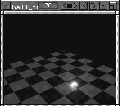
. Set the Shading Frequency to 10 and click Go. Two default lights are placed in the scene once the QuickRender begins.
| Note: The quality of the checker texture is poor in this rendering. You need to create more subdivisions to make this texture render more smoothly. |
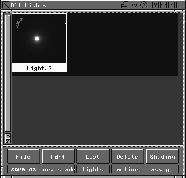
Lights to change to the Light lister.
Active, to delete the ambient light.
Active Effects and set Shadows to ON. This allows the light to cast shadows in the RayTracer.
| Note: Directional lights do not cast shadows in the RayCaster. |
ball_01 and click Save Wire.
This is the same procedure as the rendering and flipbook section of Lesson 14, except that by raytracing the animation you can obtain reflections in the ground plane and shadows from the direction light.
ON, Global Quality Level to MEDIUM, and under Image File Output, set X Resolution to 250, and the Y Resolution to 200.
| Note: You are about to render a full animation. Normally, you should render a still image to confirm that your shaders have been placed correctly and that your lighting is appropriate. For now, proceed as if you have already tested this scene. |
. Click Raytracer, then click Go. Name the file ball_test and click on Save SDL.
You have now completed a hierarchical animation where each node affects the nodes below. Another powerful use of the hierarchy is the ability to add (and subtract) geometry from within this hierarchy.
In this section, you can try this by replacing the beach ball with an existing figure, named L17_Bonhomme. You can also transfer the ShaderGlow animation from the beach ball shader to the Body shader of the bonhomme. Since the bonhomme is the same size as the sphere, it is a little hard to see. By scaling it and adjusting its relative location, you'll be able to see it and keep it above the ground plane.
File-, and set Keep Windows, Keep Cameras, and Keep Background to OFF, so that when you retrieve the file, you do not override or add backgrounds, windows or cameras. Click Import File.
L17_Bonhomme and click Retrieve. A figure named bonhomme appears at the origin.
 With Nothing picked, select Pick Object. Enter
 bonhomme to pick this piece.
 Select Pick Component and enter the name
 ball. This picks the lowest node on the hierarchy.
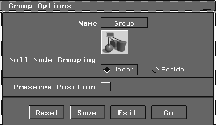
, and turn off the Preserve Position. Grouping without Preserve Position ensures that the bonhomme inherits all the transformations in the upper nodes. Click Go.
 Select Pick Component and enter
 ball again so that only the ball node is active.
Play button on the Time slider to play the animation back in the modeling windows.
Stop button to stop the playback. Return to frame 0.
Shaders to open the shader lister. Double-click the Ball shader to open the editor.
Glow to show the Glow Intens. parameter.
Shift key and click Glow Intens. so that it is selected and displays in darker gray.
| Tip: Once a parameter is selected and copied, any existing animation it may have are also copied. |
Shift key, click the Body shader in the Shader lister. It becomes active with a gray outline. This indicates where the parameter is copied to.
Copy Parameters. The animation is copied into Body.
 Select Pick Object and enter the name
 bonhomme to pick this node in the SBD window.
 Select Xform Scale and type in a value of
 4. The bonhomme is now four times bigger. However, because of our previous settings, the figure will pass through the ground plane at impact. You must compensate for this.
 Select Pick Object and pick one node higher so that
 ball_rot is active.
Information window... and open the Transform info section. This window reports the node's movement relative to the nodes above it. Change the translate values to read 0 0 2.0.
Note: Initially, when you grouped the beach ball, you moved this node by 0 0 0.5 so that the pivot point would be at the bottom of the sphere. You are doing the same thing here except that the object is now four times larger and must be moved up to a height of 2.0. |
Play button in the Time slider. When finished press the Stop button.
You have now seen how to animate a scene using hierarchical relationships. This method is very important to successfully organizing an animated sequence and should be used in your own work. Note how the translation, scaling and rotation are separated and how parameter controls are used.
You have also seen how to copy curves between parameters and how to insert an object under an existing hierarchy node.