Almost all Alias animation uses keyframe animation, in one form or another. Keyframes let you set the main points of action in a scene, so Alias can interpolate the action between the keyframes to create the complete animation.
Another important animation concept is motion path, which enables you to indicate the exact path your animated object follows.
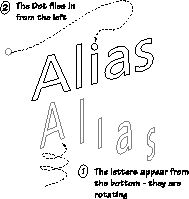
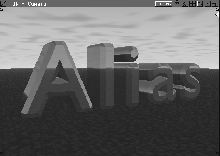
This lesson illustrates the concepts of keyframe and motion path animation as you create a 3D flying logo sequence. You first build the logo using beveling text, and then use keyframes to capture the translation and rotation of the letters. Next, you use a motion path to dot the "i" as the final action of the animation. You also animate an environment texture with keyframing. Finally, you render the sequence and view it as a flipbook.
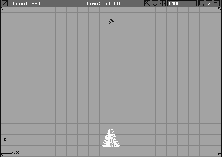
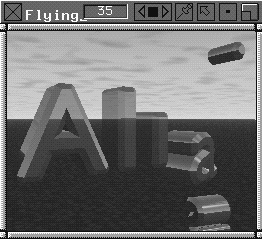
You can preview the final animation created in this lesson by running the flipbook.
L16_FlyingLogo.bk. in the CourseWare/pix directory.
A small movie menu appears and the animation plays automatically. Once you are finished, close the Flipbook.
Although this lesson focuses on animation, you need to build the logo first.
You first model the "Alias" logo by beveling text. Because the animation requires separate movement of the "i" and its dot, the "i" is modeled separately. You set up the animation by adjusting each group's pivot point and, for clarity, naming each group.
 Select Objects
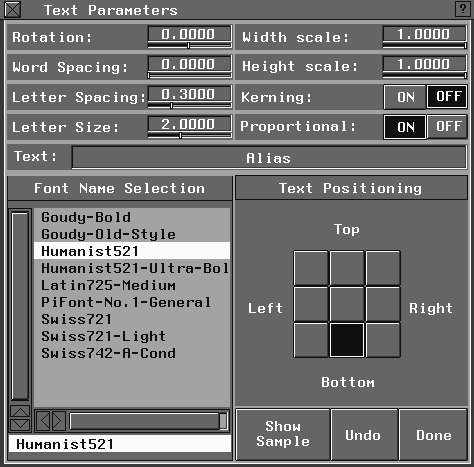
  Text... to open the Text Parameter window.
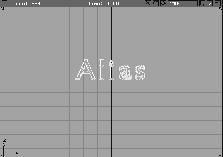
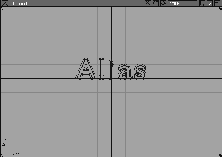
Esc key. Type Alias and choose one of the available fonts. By placing the cursor over one of the modeling windows, you can see the chosen font.
| Note: The fonts shown in this lesson may differ from those available in your version of Alias. |
Letter Spacing to 0.3, the Letter Size to 2.0, and the Text Positioning to Bottom center.
Alt key to temporarily turn on grid snap and click near the origin to place the text. The text appears as splines with faces. Close the Text window.
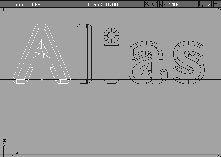
 Select Curve Edit Create Duplicate curve, and pick the edge of the body and dot of the "i". This superimposes two curves on the edge of the "i".
 Select Pick Object, and click-drag a pick-box around the letter "i" to make the face active. In the SBD window, make sure that the nodes belonging to the new curves have been unpicked.
 Select Pick Object, and click-drag a pick-box around all the letters.
 . In the control window, turn off all the model's CVs, hulls and edit points. Click Go and close the control window.
 Select Surfaces Set planar-, and set the
 Surface Type to Face. Click Go. This makes sure that the parts of the "i" become faces just like the other letters.
Nothing to create a face for it.
 Re-select Surfaces Set planar, and pick the dot, making it a second face. Select Pick Nothing to create a face for the dot.
 Select Pick Object and click-drag a pick-box around all the faces to pick them.
 Select Surfaces Fillet surfaces Bevel-. In the option box, turn the
 Keep Originals option OFF. This deletes the original faces when the Bevel is generated. Click Go.
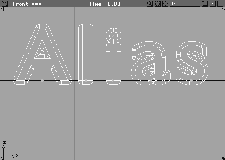
Go button to confirm the bevel. You now have six grouped objects, in addition to the original text faces.
 Select Pick Nothing.
 Select Pick Object and click the letter A to pick it.
 Select Xform Local Set pivot.
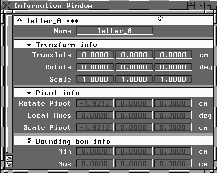
Information window, to open the information window.
Select Xform Local Set pivot.
Information window, to open the information window.
letter_A in the name field. The group of objects representing the letter A is named letter_A. This will help you identify the letter later when it is animated.
letter_l.
letter_i, letter_a and letter_s. By using the same prefix for all five letters, you can use wildcards to select the text.
 Pick the dot above the letter "i", and with Xform Local Set pivot, move the dot's pivot point to the dot's center, and name it
 dot. (This keeps it out of the wildcard selection).
 With Nothing picked, select Pick Object. Type
 letter* and press the Enter key. The "*" is a wildcard that picks all the text except for the dot on the "i."
Letters.
Letters Layer pop-up menu, select Assign to place all of the selected letters on this new layer.
 With Nothing picked, select Pick Object and pick the dot.
Dot. From the Layer pop-up menu, select Assign.
The model is divided into the two sets that will be animated in different ways.
The final frame for this animation displays the text as currently shown. To make the current positions of the text represent the final state, you can animate backwards (that is, set the last keyframe of the animation first). By moving the text and then setting the earlier keyframes, the text appears as if it is coming together.
 Select Anim View Frame from the Tool Palette. Enter 60 to move to this frame.
 With Nothing picked, select Pick Object. Type
 letter* and press the Enter key, or select Pick Objects from the Letters Layer pop-up menu.
| Note: Keyframes are only set for picked objects. So you haven't set a keyframe for the dot. |
 Select Anim View Frame. Enter 1 to move to this frame.
 With the letters still active, select Xform Move. Enter
 0, 0, -10 to move them all to the same position.
 Select Xform Rotate. Enter
 0, 0, 360 to rotate the letters around their individual pivot points.
It appears as if the letters haven't been rotated because they were rotated a full circle. You`ll see this when the animation is played back.
| Note: All Xform transformations can be animated by setting keyframes. This means that objects can move, scale, and rotate during an animation. |
This is similar to how traditional cel animators work. The animator draws images at important "key" frames, then passes these to junior animators, who draw the in-between frames. With Alias animation, you set up the main actions and Alias does the in-betweening.
 Select Anim View Frame. Enter 60 to move back to this frame.
Tgl time slider to toggle on the Time slider .
Select Anim View Frame. Enter 60 to move back to this frame.
Tgl time slider to toggle on the Time slider .
The Time Slider bar below the prompt line shows a preset frame range of 100 frames and has several buttons for controlling playback of your animation. For more information on these functions, see Time Slider in Animating in Alias.
Min/Max. Now the time slider range is from 1 to 60.
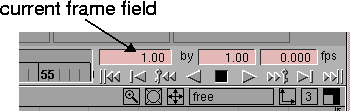
Double-click in the current frame field (located in the top right corner of the slider), type 1, and press Enter to return to the first frame.
| Note: The playback is faster if only one window is expanded to full screen, so you may want to expand the Perspective window. If you do, remember to return to four view windows when you are finished. |
The animation has all the letters moving at the same time and speed to the final position. In fact, most of the letters don't appear in the Perspective window until the last few seconds. To make the animation more interesting, you will copy and paste keyframes from frame 60 to other times so that the letters each animate differently.
 Select Anim View Frame. Enter
 60 to go to this frame.
Tip: You can also enter this value in the current frame field or press the Last Frame button in the time slider. |
Object and click letter_A to make it active.
60 to copy the keyframe at frame 60.
10 at the prompt line. The keyframe positions from Frame 60 have been copied to Frame 10.
letter_l with the middle mouse button so that it is picked and the letter_A is unpicked.
20 at the prompt line. The keyframe positions from Frame 60 have been copied to frame 20.
Because all the values of all parameters for the letter A matched the values for the other letters at frame 60, you can paste the same values into these other frames. If the parameters at frame 60 had been different for the various letters, you would have to recopy the keyframes for each.
letter_i with the middle mouse button so that it is picked and the letter_l is unpicked.
letter_a with the middle mouse button so that it is picked and the letter_i is unpicked.
letter_s with the middle mouse button so that it is picked and the letter_a is unpicked.
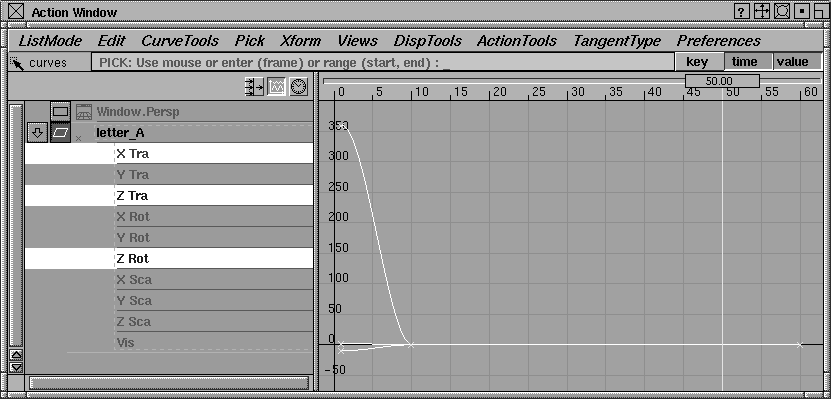
In the animation, the letters overshoot their target before returning in the final frame. To make the letters hit their final position more directly, you can edit the in-between motion of the letters using the Action editor window. The Action editor contains all the action curves that represent the transformation values between keyframes. The Action editor is then used to modify or "clean-up" the animation.
 With Nothing picked, select Pick Object. Click the capital
 letter_A, to make it active.
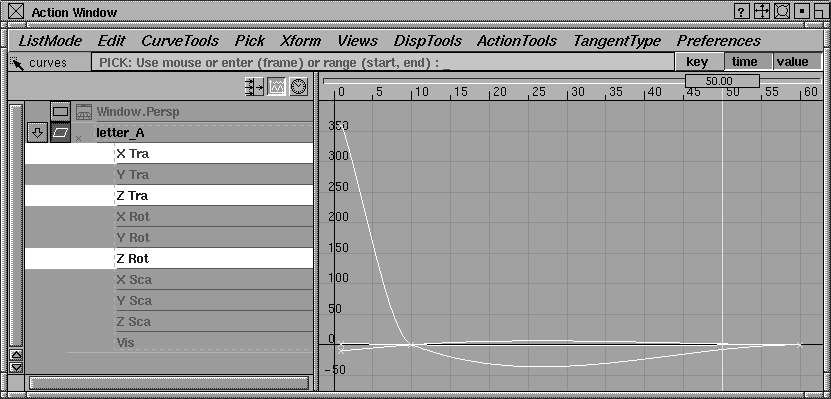
Look at to bring all the Action curves into view.
The total animation of the letter A is represented by individual curves illustrating translation, rotation and scaling along individual axes. The little x's on the curves represent the keyframes. Note the keyframes for the letter A are at frame 1, 10 and 60.
The vertical side of the Action graph (Y) represents the value of the parameter. For example, it could be a translation of 3 units or a rotation of 90 degrees. This part of the graph does not have a fixed unit, since the values represented here change, depending on whether you are translating, rotating or scaling. The horizontal axis, representing time, consistently uses frames as the base unit.
YES when the dialog box is displayed.
Curves, hold down the Shift key and click the names X Tra, Z Tra and Z Rot to pick the appropriate curves in the action window. Both the name and graphical representation of the three action curves become active.
Flat to "flatten" the curves. The tangent type controls the tangent of the action curves going into and leaving a keyframe. Flat ensures that the curve is horizontal when it passes through the keyframe.
| Tip: Because the action curves were drawn as splines, the object's curves overshot their targets. By using linear curves, the action will animate in a more predictable manner. |
play button on the Time slider to play back the animation. Notice that the letter_A stays at the final position, while the other letters still overshoot their targets.
 With Nothing picked, select Pick Object and click the rest of the letters (except the dot) in a modeling window.
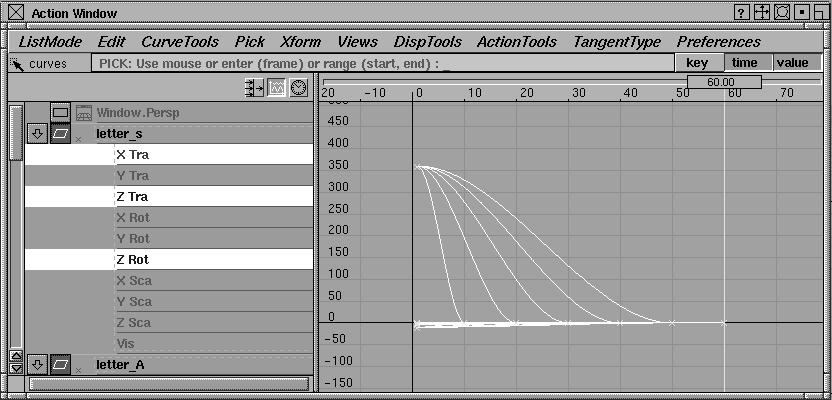
Curve and click-drag a pick-box around all the curves in the graph. All the curves and their names are now picked. You can pick the curves either using their names or the curves themselves.
With Nothing picked, select Pick Object and click the rest of the letters (except the dot) in a modeling window.
Curve and click-drag a pick-box around all the curves in the graph. All the curves and their names are now picked. You can pick the curves either using their names or the curves themselves.
| Note: There are no static actions associated with these objects because the Del static actions function affects the whole animation. |
Flat to "flatten" these curves to linear segments. You can display many action curves at the same time in this window. This makes it easier to compare the actions of several objects at the same time. (Too many action curves, however, can slow down the Action window.)
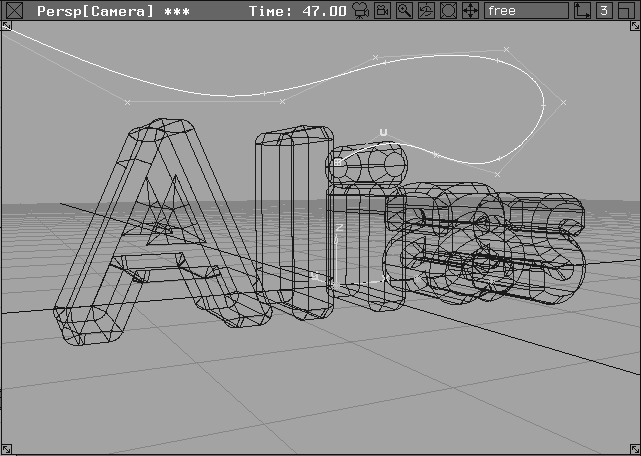
A motion path is a NURBS curve that represents the path along which you can animate an object. A motion path is used to generate the movement of the dot.
| Note: When using motion paths you must follow a few simple rules. One is that you must place the object and its pivot point at the origin because it is the pivot point that follows the motion path. Since the dot is not currently placed at the origin, it follows the motion path with an offset. So you must move the dot to the origin, and then group the object, to give it a new node. This places a new pivot point at the origin and lets you treat the dot as a new object. The grouped dot will follow the motion path through the new pivot point, which sits at the origin. This ensures that there is no offset. |
The second rule is to properly set the direction of the motion path curve. Objects follow in the direction the curve was created. If the curve is not going in the desired direction, you may need to reverse the curve's direction.
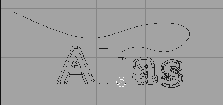
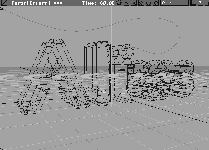
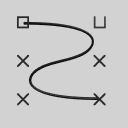 Select Curves New Curves New Curve (cvs). Draw a curve that starts at the center of the dot and then loops around, going off the screen at the top left of the Perspective window. (Front and Perspective views follow.)
The curve has been placed on the Dot Layer which is still highlighted as the construction layer.
 With Nothing picked, select Pick Object and click the dot.
 point is at its center by selecting Xform Local Set pivot and dragging with the right mouse button pressed.
 Select Xform Move. Type:
 a 0, 0, 0 to place the dot at the origin.
| Tip: Grouping an object to itself creates another node (visible in the SBD window) that can be used to control the object. |
Letters Layer pop-up menu, select Playback to uncheck it.
| Note: By turning off the playback for the letters, the animation of the dot along the motion path can be evaluated in relation to the letters in a static position. The speed of the playback is also increased with only the one element animated, allowing its motion to be better evaluated. |
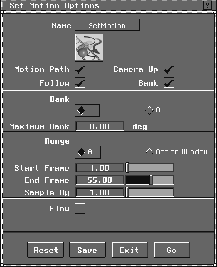
 With the dot still active, select Anim Set motion- to open the Set Motion Options window. Set the
 End Frame to 55, so the dot follows the motion path from frame 1 to 55.
play button in the Time slider to view the animation.
Stop button.
 Select Object Edit Reverse direction. Click the motion path curve and the Reverse One button to reverse it.
 Select Pick Object and click the
 play button. The animation is now playing correctly.
Letters Layer pop-up menu, select Playback. This allows all of the elements to be animated together.
Flying_logo and click Save wire. Remember to save your work at key points in your work.
Once the animation is complete, it needs to be rendered. The first step in rendering, however, is creating and assigning shaders to the letters. In this lesson, you need to create a shiny and highly reflective shader.
Shaders... to display the shaders.
New Shader, to create a new shader.
 With Nothing picked, select Pick Object and select all the letters including the dot on the i.
Assign shader in the lister menu to place the new shader on the letters.
With Nothing picked, select Pick Object and select all the letters including the dot on the i.
Assign shader in the lister menu to place the new shader on the letters.
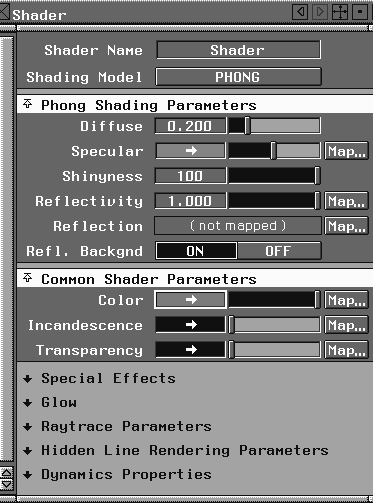
PHONG. Go to the Common Shader Parameters section and click the patch next to Color to open the Color editor. Choose a color in the Color editor.
Diffuse to 0.2, Shininess to 100, and Reflectivity to 1.0. These settings create a very shiny shader to reflect the surroundings.
Refl. backgnd option to ON. This ensures that the letters reflect the Environment shader when they are rendered.
Next, you create an environment shader using the sky procedure. This procedure creates a horizon and lets you set the environmental sky and ground. This environment is the reflected background in the new shader.
Map... button next to the Color. This opens the Environment Color Map window.
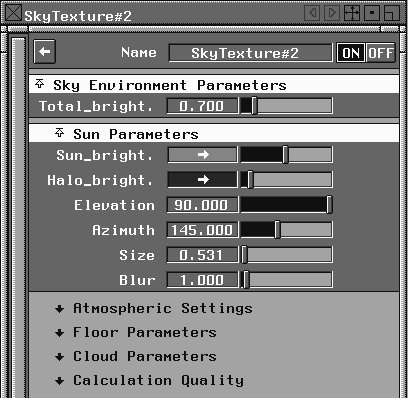
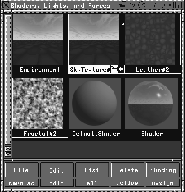
Environments section and click on Sky. A sky texture appears in the Shader editor, and the Shader editor becomes the SkyTexture editor. The default sky is in the background.
Sky Environment Parameters section, set the Total_bright to 0.7. This reduces the environment's brightness. In the Sun Parameters section, set the Elevation to 90.
Floor Parameters section, click the Map... button next to Floor texture to choose a floor map.
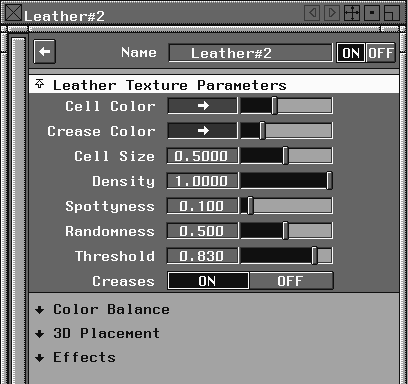
Solid section under Texture Procedures, and click on Leather. The Leather texture appears in the Shader lister and is assigned as the floor.
SkyTexture#2 to change the editor.
Cloud Parameters section, click the Map... button beside the Cloud texture to choose a cloud map.
Surface section and click on Fractal. The Fractal texture appears in the Shader Editor. This is used to calculate the cloud coverage.
SkyTexture#2, to change the editor back to the sky texture.
Density to 2.0, to create more dense clouds.
 With Nothing picked, select Pick Object and click the green texture grid to make it active.
 Select Xform Move to move the environment icon to
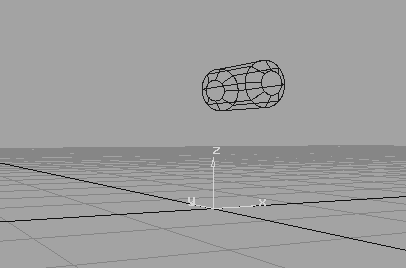
 0 0 -10. The environment floor is now below the flying logo in the Perspective view.
to open the Global Quick Rendering option window.
Background on, so that the background is included in the quick render. Set the Shading Frequency to 10 and click Go. The render may take a couple of minutes.
Setting keyframes does not only apply to animating objects. In Alias, you can set keyframes for shaders, textures and the even the environment. Next, you animate the clouds by animating the offset parameter in the fractal map. Shader attributes are animated by setting keyframes for the appropriate parameters.
 Select Pick Nothing to ensure that no objects are currently picked (since you are animating the Fractal Map). In the Shader Editor, double-click the fractal map to open the fractal texture editor.
 Select Anim View Frame. Enter
 1 to move to this frame. Since you want to set your first keyframe for this frame you should set it as the current frame.
Fractal#2 to turn on the fractal attributes for animation. This lets you animate the fractal map attributes. If you click the down arrow on the left of the fractal, you can see all the attributes are turned on.
| Note: The parameter control window lets you choose parameters to animate. If you already knew which Fractal parameters you wanted to animate, you could have checked only those. |
 .
. 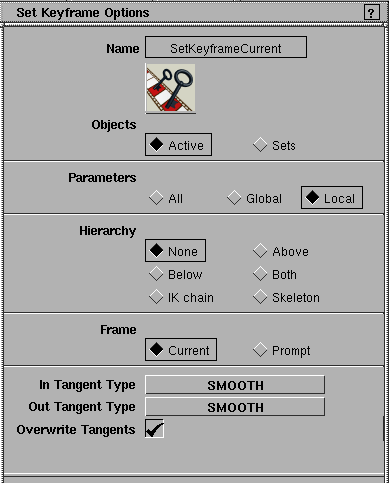
In the Set Keyframe Options window, set Parameters to Local.
Note: When you restrict the Parameter controls using the animatable parameters, you must use local when setting keyframes. (This uses the "local" parameter settings of the Fractal instead of all of them.) |
 Select Anim View Frame. Enter
 60 to move to this frame.
0.1. By displacing the Fractal map that generates the clouds, the clouds move.
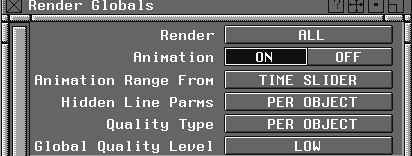
Rendering an animation is very similar to rendering a still image, except that you render a sequence of images. To create this sequence, you must tell Alias that you want to render the animation, as opposed to a still image of the currently viewed frame. By rendering this animation in low resolution, you'll be able to play it back in real-time.
ON, so that the animation sequence is rendered.
Geometry Source is set to Modeler.
LOW. When you render a final version, remember to increase the quality to HIGH.
Image File Output section to open it. Set the X Resolution to 250, and the Y Resolution to 200. This sets up a small test animation.
Tip: For final recording, increase the resolution to NTSC or PAL. |
Flying_test and click the Save SDL button. The resulting animation files will be named Flying_test.001, Flying_test.002, and so on.
After the SDL file is saved, the raycast starts. This may take several minutes.
Render status from the DisplayTgls menu.
You can view animations with the flipbook utility, which loads in the animation sequence and plays it back at a specified frame rate.
Flying_test.1, to automatically load the sequence into the flipbook. Once it loads all the frames, flipbook plays them back at 30 frames a second.
Frame Rate to 15. This slows down the animation to 15 frames per second.
This lesson has shown you how to set keyframes and to use motion paths for objects. You have also learned how to animate the environment shader. As you work with Alias, you will continue to use keyframing as your main animation tool.