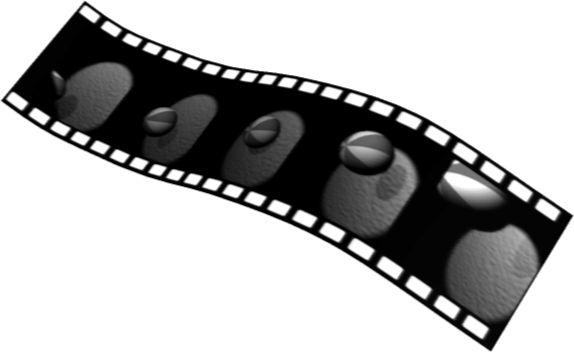
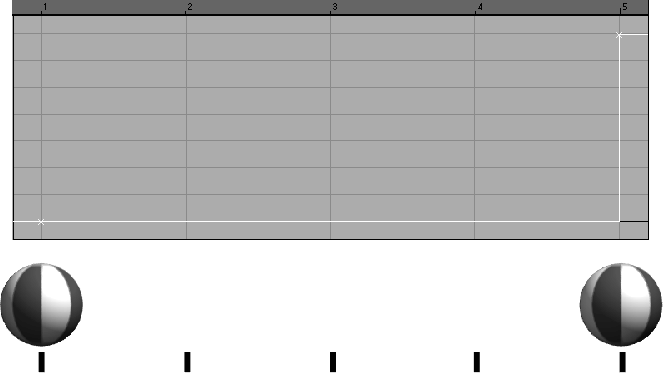
Animating an object means that one or more characteristics or attributes of the object changes over time. An object generally has many attributes, or animation parameters, that can be animated. In Alias, you can animate objects as well as lights, cameras, shaders, and other objects to create animated sequences.This ability to animate virtually everything lets you unleash your creativity to produce dynamic results.
For more information, see Animating in Alias.
The basic unit of measure for all animations is the frame. For a typical animation, you will set a specific number of frames per second and this will determine the timing of the motion and the length of the animation in frames. Typically, video is set at 30 frames per second and films are set at 24 frames per second.
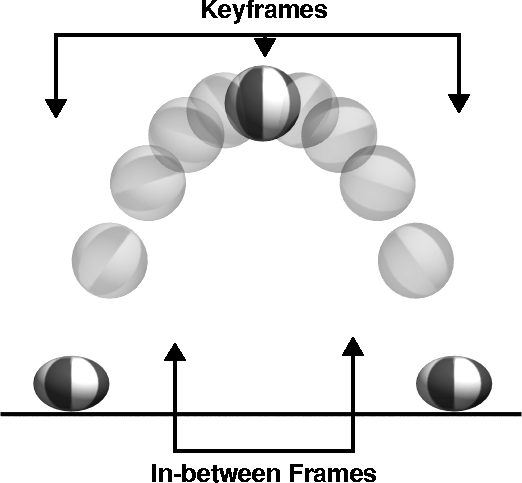
To animate any object, light, camera, shader, or other object, you must set keyframes. Keyframes are frames that specify the parameters of an item at specific key points. Once you have set a few keyframes, Alias interpolates the action for the frames between the keyframes. This is very similar to how a traditional cel animator works. A senior animator (you) creates and sets the key poses for your objects and characters, then passes them to a junior animator (Alias) who draws the "in-between" frames.
Keyframes are the foundation of all animation. Learning to set, edit and control keyframes is very important to successfully animating in Alias.
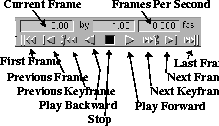
To create the keyframes in an animation, use the Time slider. The Time slider consists of a group of controls which let you easily play back an animation or view a specific frame within an animation. To open the Time slider, choose Tgl Time slider in the Animation menu.
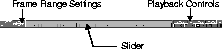
The Time slider is made up of three main areas - the frame range settings, the frame playback controls and the slider - that help you work with the fourth dimension of time.
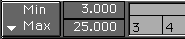
Frame range - You can specify the range of animation the Time slider should display by selecting the Start/End or Min/Max popup menus in the frame range area of the Time slider. If you select Start/End, the Start and End values are editable. You can change these values to alter the range of animation that will be viewed in a playback. 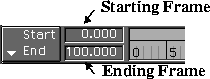
If you select Min/Max, the Min and Max values are the minimum and maximum values over which all current animation is defined. You cannot edit the Min and Max fields.
Playback Controls - The playback controls let you preview an animation in the modeling windows. You can play and stop a preview, go to the start or end of the frame range, or cycle through the animation one frame at a time. You can also cycle through the keyframes of the animation.
This is also where you set the frames per second (fps) of the playback. By default, Alias plays the animation as fast as it can. You may need to set the fps yourself if it is going too fast or too slow.
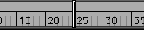
Slider - The slider, or current time bar, is the thick vertical bar in the Time slider. It represents the current time. You can change the current time by clicking and dragging on the slider. The views of the model are updated dynamically as the slider is moved.
To set keyframes for an item in a scene, pick the item you want to animate and specify its parameters for the first keyframe in the animation. For instance, if you want to animate a ball, move it into place and set the Time slider to the particular frame at which you want to set the first keyframe. Then choose Set Keyframe from the Animation menu. Then set the second keyframe: move the ball again, click-drag the Time slider to a different frame, and choose Set Keyframe from the Animation menu. Repeat this operation a few times to create an animated sequence.
When working with animated sequences it is often necessary to copy a sequence from one object to another, or to repeat a sequence. In Alias, you can Cut, Copy, and Paste a range of keyframes to transfer the animation information from one object to itself or to other objects.
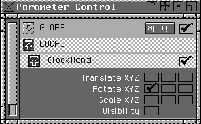
An attribute of an item that can be animated is called an animation parameter. When an animation parameter of an item is animated, a channel is created which belongs solely to that animation parameter. The channel describes how its animation parameter changes values over time. For instance, to animate the hands of a clock, one of the animation parameters is the rotation of the minute hand in the X plane. You can set keyframes for this animation channel in the Parameter Control window. Use this window to set both the global parameter settings and local settings for each picked object.
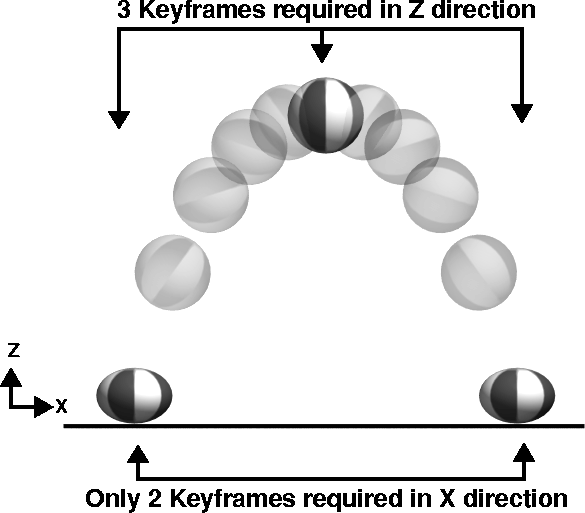
Within a single object, different parameters may require different keyframe settings. If you consider a ball bouncing as it moves forward, you see that in the Z channel, keyframes are set for a number of frames over time. For the forward motion of the ball, only two keyframes are required for the X channel. If you were to set many keyframes for the X channel, you would end up with an action curve that is unneccesarily complex. Only two keyframes are required to describe the X parameter's motion.
Use the Parameter Control window to first set keyframes for the Z channel, then edit the parameter settings, and then create new parameters for the X channel.
Animation channels are represented graphically in the Action Window. Animated channels are represented as curves or sloping straight lines. Unanimated channels are represented as flat lines originating at the origin. These channels do not add to the quality of the animation, and you can delete them from the Action Window by choosing Static Actions from the Delete menu.
Hierarchical animation helps you control animations as they become more complex. This process uses the grouping of objects to assist in controlling how upper and lower nodes react when they are animated. Using different nodes also gives you the ability to use a different pivot point for each level of the hierarchy. The upper and lower nodes of items in a scene are displayed in the SBD and ASBD windows.
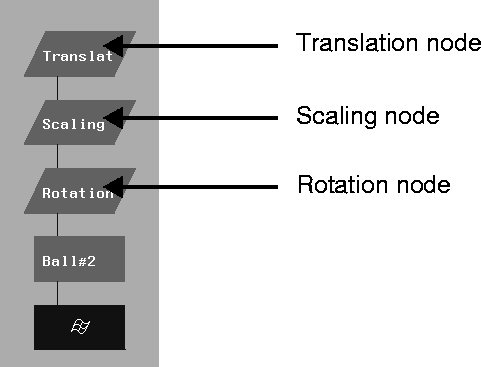
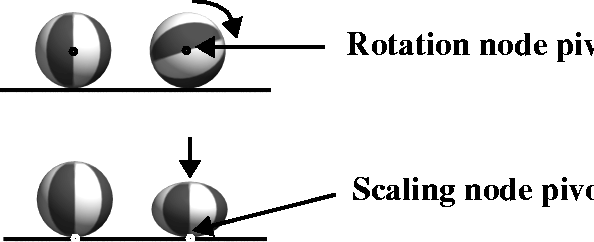
Hierarchical animation can be best understood by again looking at the bouncing ball example. By grouping the ball under three dag nodes, you can set one parameter type to each node. The top node controls translation, the next node controls scaling and the lower node controls rotation. By using hierarchical animation, you can use a central pivot point for the rotation node and an offset pivot point for the scaling node.
The correct order for setting up a hierarchical animation is to set a rotation node, then a scaling node, then a translation node and finally a motion path node. This order should be maintained so that the animation channels are read in the correct order.
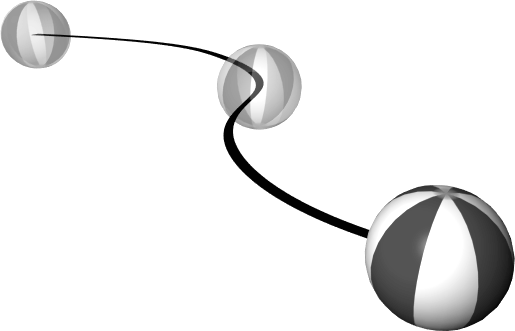
In some cases, you know exactly the path on which you want to move an object. Motion Paths let you draw a curve to represent the path of movement and then send the object along it. This action is similar to a train rolling along tracks except your tracks don't have to be straight. You can even attach objects, CVs, lights and cameras to a motion path for exciting effects.
The Action Window offers a graphical description of your animation. It charts parameters such as translation, rotation, scale, and visibility against time, which is measured in frames. The result of this mapping is a set of animation curves that describe how various parameters will animate.
In the Action Window, you can see keyframes and the interpolated curves between these keyframes.
You can pick keyframes and change the "in-betweening" motion of the animation curve. As a result, you can make objects speed up or slow down simply by changing the shape of the animation curve. You can also add, remove, or edit keyframes to refine the animation or action curve.
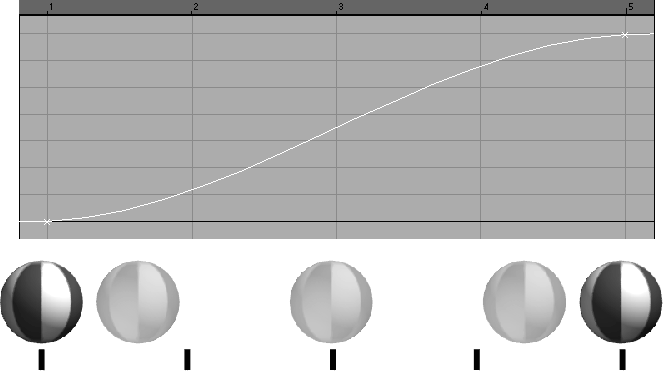
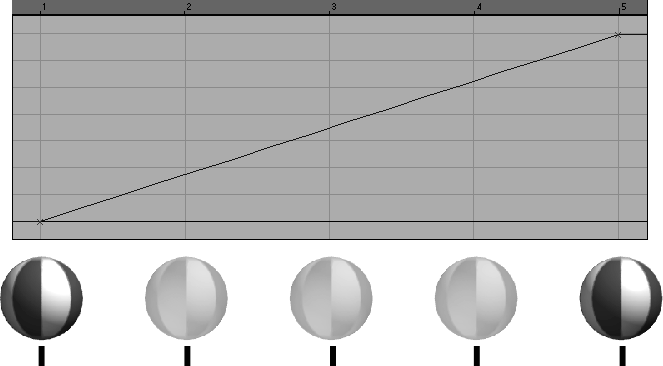
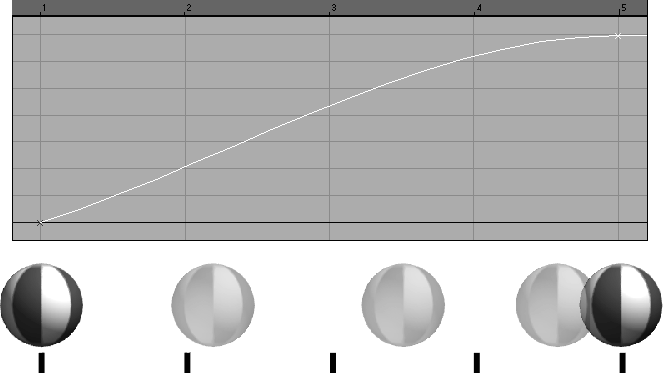
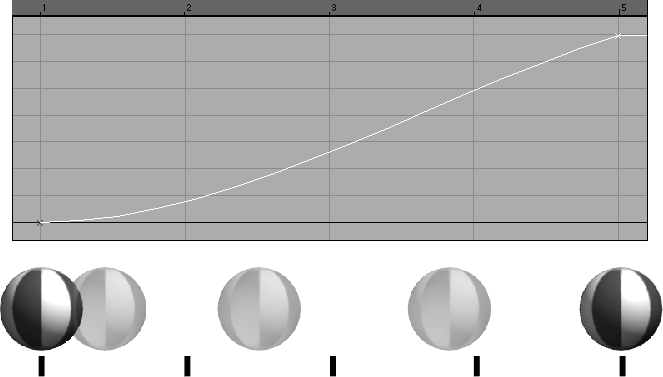
When working with animation curves in the Action Window, there are several tangent types that can be used to affect the look of an animation. Below are a few of the tangency options that let you control the motion between keyframes:
Smooth - This tangent type creates a smooth motion that can make your objects appear to "float." This tangent type can also cause the animation channel to overshoot a keyframe and create exaggerated movement in your objects. This causes acceleration and deceleration within the keyframes.
Linear - This tangent type creates a very mechanical motion that seems "hard." Some animators like to start with this very neutral tangent type and then edit the quality of the curves using more subtle tangency types.
Slow in/Fast out - This tangency type creates a flattening out of the curve near the chosen keyframes. As the curve gets flatter, the motion gets slower. You can use this motion to create a feeling of deceleration.
Fast In/Slow Out - This tangency type creates a steep slope near the chosen keyframes. As the curve gets steeper, the motion gets faster. You can use this motion to create a feeling of acceleration.
Step - This tangency type has no slope, therefore the motion changes instantly at the keyframe. It can be used to animate visibility or to create camera cuts.
Lights can be animated two ways in Alias. You can animate the basic positioning parameters of a light so it moves around a scene. You can also animate lighting parameters, such as intensity, dropoff, and any OptiF/X parameters (such as effects that make a light appear to sparkle or explode).
Cameras can be animated in a manner similar to lights. You can animate the position of the camera, its center of interest, eye point or up vector, or you can animate parameters such as view angle. You can even animate the parts of the camera along a motion path. If you animate the visibility of several cameras, this creates the effect of camera cuts.
Shaders can be animated. You can animate a change in color, add glows over time, or give an object an animated bump map.
In earlier lessons, you learned how you can pick and move CVs to manipulate the shape of a surface. CVs can also be animated by setting keyframes for the translation parameters of the chosen CVs. While rotation and scaling parameters are not available, the ability to animate the positions of CVs lets you start to deform objects over time.
With the Set Key Shape function, you can animate the morphing of one shape into another. Using two shapes that have the same number of isoparm patches but different shapes, you can use this function to force one of the surfaces to "morph" into the shape of the second in a linear manner.
Expressions are mathematical equations that are used to define a link between the animation of one parameter to the animation of another. Expressions are entered in the Action Window and are used to replace animation curves for chosen parameters. An example of a useful expression is to link the rotation of a car's wheels to the forward motion of the car. By applying an expression to the rotation channels of the wheels that relates to the X translation of the car, you can make the wheels rotate in relation to the speed of the car. As the car stops, the wheels stop. Making the rotation of the wheels dependent on the motion of the car lets you focus on the motion of the car and will simplify your work if you need to edit any keyframes.
Expressions require some knowledge of basic animations. They can become quite complex. While expressions are not necessary, they are very powerful and help streamline the animation process.
| Note: Expressions are not available with the base Alias Animator product. When using Animator, keyframes must be set for each channel using traditional techniques. |
Alias' animation holds infinite potential because you can animate almost everything in your scene quickly and easily. When you complete an animation, you can set Animation to On in the Render Globals and the renderer will create a rendering for each frame of the animation. You can then string these individual images together to play back the animation in Flipbook.