This lesson shows you how to bring the model and shaders together to create a photo-realistic image. In this lesson, two main rendering techniques, RayTracing and RayCasting, are introduced so you can explore the benefits and limitations of each method.
Up to this point you have quick rendered your scene to evaluate objects and shaders. Once you start using the renderer, however, you can test effects that are usually beyond quick render capabilities.
This lesson continues from Lesson 12. Start by opening the file you saved and rendering it.
myfruitbowl4 from the CourseWare project folder in the File Lister.
L13_Fruit4 file in the CourseWare directory. It contains the necessary wire model and shaders.
Before you render, you must set the render subdivisions of objects in the scene. Render subdivisions determine how many times each isoparm patch is subdivided when rendered. A high number of subdivisions eliminates any faceting or "flat spots" on the edges of rounded objects.
 With Nothing picked, select
  Object types All obj/lights to quickly select every item.
Render stats to open the
Object types All obj/lights to quickly select every item.
Render stats to open the Object Rendering Parameters window.
Notice that defaults are assigned to all objects in the scene. The rendering settings you should take note of for this lesson are the maximum and minimum subdivision settings.
Rounded or high-degree curvature surfaces, in particular, respond to changes in the maximum and minimum subdivision settings. When you increase the maximum settings, Alias uses them to subdivide the object. You can also set the minimum value to a high number, which forces the system to subdivide the object by at least that minimum amount. This may not be recommended for every situation, since a high number of subdivisions can increase both the rendering time and the amount of memory required to render the scene.
Deciding how much to subdivide a surface depends on how close it is to the camera and the effect you want to create. For objects that are far away from the camera that won't be seen in detail, there is no advantage to increasing the subdivision amounts. But for tight shots of a surface with high curvature that must look smooth, a more realistic looking result is worth the slower render time.
| Note: The minimum and maximum settings only work when you subdivide adaptively. Adaptive subdivisions divide a surface by evaluating where it curves the most. This is a very common type of rendering. |
Object Rendering Parameters window in the Object Names column, and without releasing the mouse button, drag the mouse to highlight all listed objects.
faceA, faceB, faceC, faceD, faceE and faceF.
Shift key and click on each of these objects to de-select them. These faces represent the table components, which are flat and don't have to be further subdivided.
Maximum Subdiv column for the first highlighted item, change the maximum setting to 8 and press Enter.
This setting provides nicely rounded edge profiles. The settings for all the other objects are changed automatically.
Object Rendering Parameters window to close it.
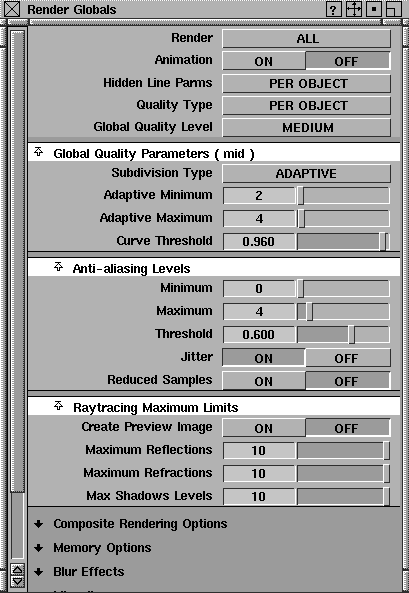
To prepare for a RayCast rendering, you need to set up global rendering parameters. These include the render quality and the final output size of the image.
Render Globals window.
Global Quality Parameters section. Scroll to the to the top of the window if necessary.
Global Quality Level to HIGH. Notice how the other values in this window automatically change to accommodate this increase in quality, and that the Subdivision type is set to ADAPTIVE.
Tip: The HIGH, MEDIUM and LOW settings are arbitrary, but they provide a quick way to change the overall render quality. |
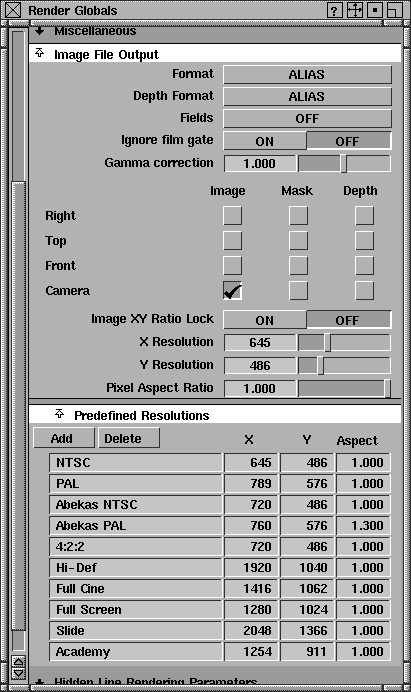
Image File Output section. Confirm that the NTSC X and Y resolutions are set to 645 and 486 in the Predefined Resolutions section.
Several common settings have already been predefined. You can add or delete settings from this list.
Some defaults have different aspect ratio settings, depending on which device the image outputs to. The Alias default is 1.0 (square pixels). Sometimes, this would have to change. For example, if you want to output from Alias to an Abekas digital disk recorder, you need a pixel aspect ratio of 0.9.
| Note: Rendering an image that is output or stored on an Abekas recorder at an aspect ratio other than 0.9 results in a squashed image. |
Render Globals window. You can now test render the fruit bowl image.
Before you jump ahead and perform a
high-resolution render, it is a good idea to try a low-resolution test render to check all lights, shaders, and so on. Generally, the more time you spend refining the test render, the better the final results.
 . The
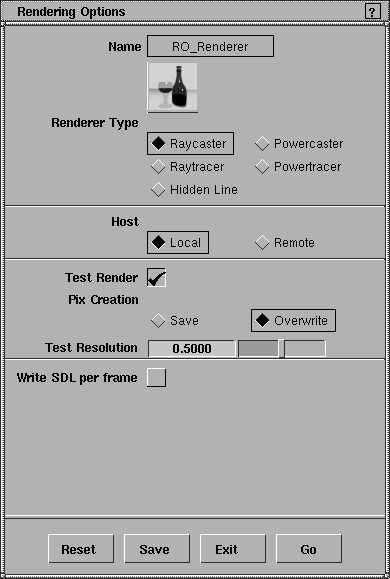
. The Rendering Options window is displayed.
Renderer Type to Raycaster, toggle Test Render on and make sure Image Creation is set to Overwrite. Change the Test Resolution to 0.5 and click Save.
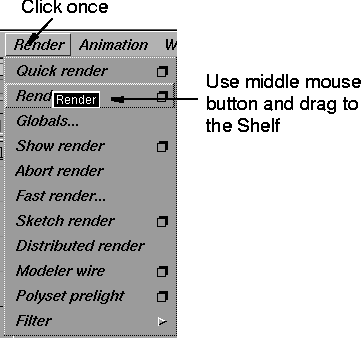
Since you will be test rendering quite often in this lesson, this provides you with a single-click test render tool.
| Note: The settings for the test Render function on the Shelf will not change if you change the settings in the menu Render function. Shelf icons keep their settings. |
The Render status line shows you how the rendering is progressing.
|
Tip: The status line can be hidden or displayed by selecting Render Toggles Render Status from the DisplayTgls menu. |
RayCast renderings generate images relatively quickly but, as a result, sacrifice some realism. Most notably, a RayCast rendering lacks true reflections and refraction on transparent objects. The only lights that generate shadows in a RayCast rendering are spotlights. However, despite this loss, there are often times when a fast render is crucial.
. In the Rendering Options box, toggle Test Render off and click Go.
raycast to name the SDL (Scene Description Language) file, and click Save SDL.
| Note: This SDL file contains the information necessary for the renderer to render your scene - all geometry, shader, lighting, and texture information. SDL files are saved in a special SDL directory. They can be re-rendered at any time, but cannot be opened from the Alias modeling windows. |
Render Status from the DisplayTgls menu.
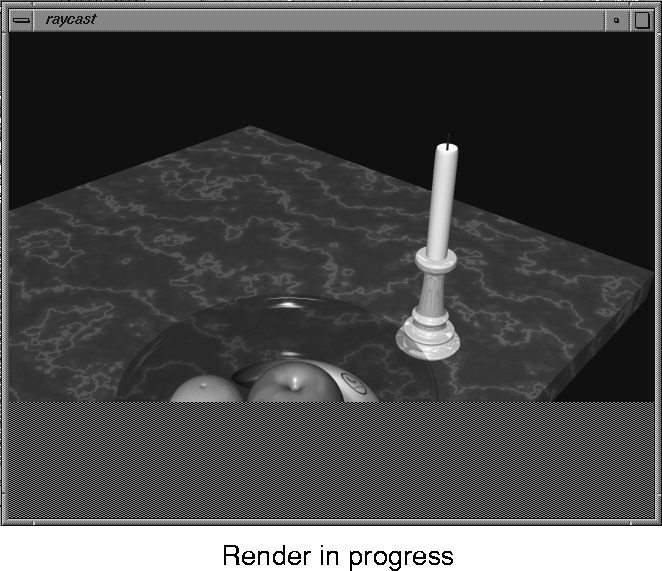
You can watch the image being rendered line by line. This can help to evaluate the render in progress, so you can Abort it (Render Abort render) and correct problems without having to wait for the entire image to render.
| Note: You won't see the candle glow until the end of the test render (when the renderer is 100% done.) Glows are added to a scene at the end. |
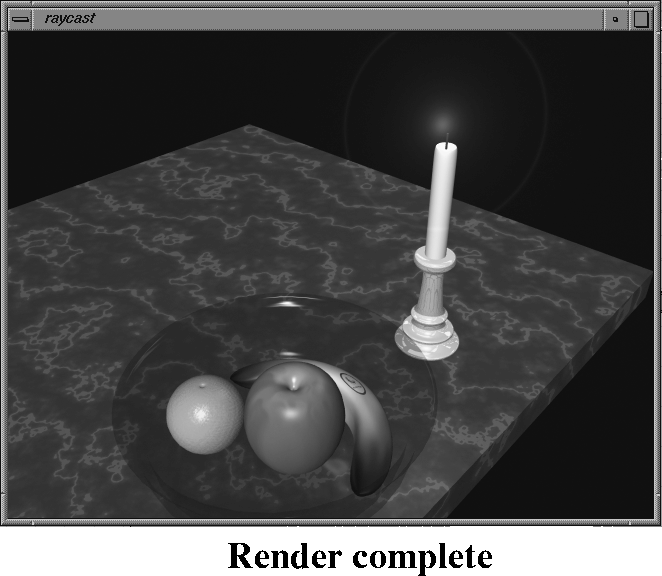 |
Some of the raycasting limitations are noticeable when the image is fully rendered. For instance, although the glass bowl is transparent, it has no refraction of light passed though it. It's as if the bowl were made of air. Also, shadows do not exist in the scene because there are no spotlights, and the candlestick reflections are not true reflections, but rather reflections generated with an environment map. Under certain circumstances, such as if the scene were to be animated, most of these limitations would go unnoticed. Often, the reduced rendering time can let you meet deadlines that you might not meet when raytracing.
Render Status toggled on, since you'll need it for RayTrace rendering.
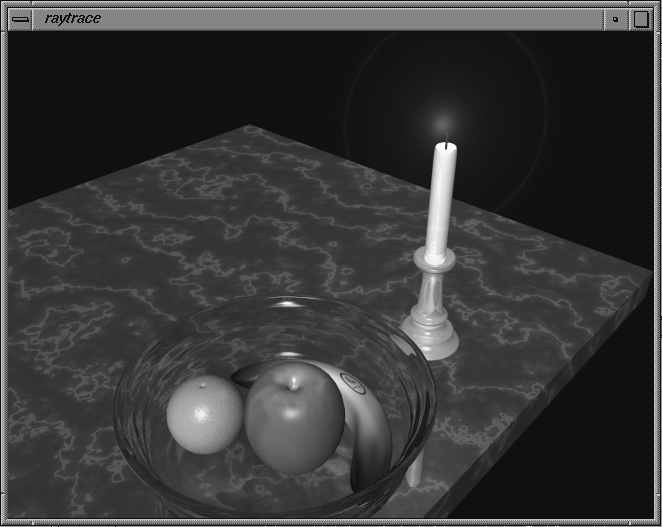
RayTrace renderings produce the highest quality images including reflections, refractions and shadows that bring an image to life. Shadows can also be cast from all lights, except for ambient lights. Raytracing lets you see how these differences affect the final rendered image.
. In the Rendering Options window, select Raytracer as the Rendering Type, make sure Test Render is toggled off, and click Go.
raytrace for the file name, and click the Save SDL button. The scene starts to render.
Pix.
raytrace file then click Show in the File Browser. Click to drag the render window near the upper left corner of the screen.
Show Pix again, choose the raycast file from the File Lister, then click Show in the File Browser. Place this image near the bottom right corner of the screen.
There is a noticeable difference in the appearance of the glass bowl. There are also shadows in the raytraced image, and the reflections on the candlestick and glass bowl are actual reflections of other objects in the scene.
myfruitbowl5 to use in the next lesson.
You have now taken a project from wire model to rendered image. You have applied shaders, and rendered those images photo-realistically. The important aspects of rendering covered in this lesson were setting render subdivisions, render quality and render size.