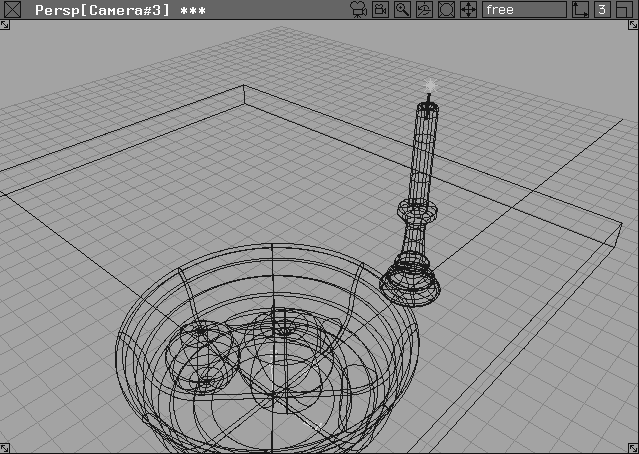
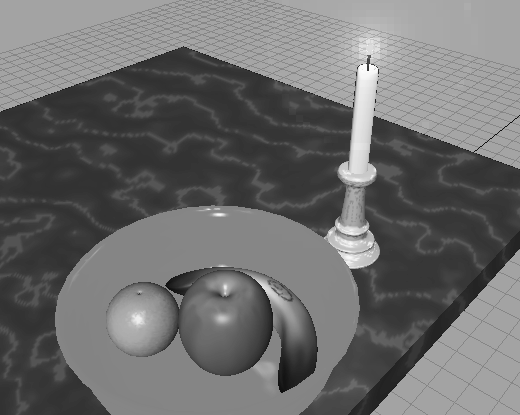
This lesson shows you how to use lighting to add character and atmosphere to the scene. In the real world, light is what defines the shape and form of objects. This lesson introduces you to various lighting models and effects.
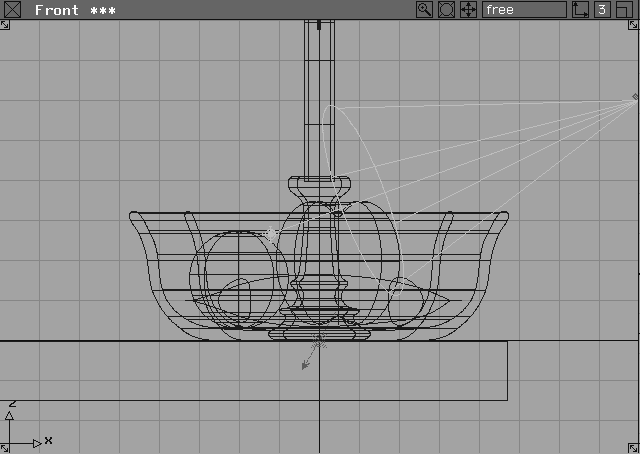
You may have already noticed two light icons in the fruitbowl scene in the modeling windows. These icons represent a directional light and an ambient light, which were placed automatically when you performed a quick render. If these lights had not been added automatically, the scene would have been rendered as a black image. In this lesson you add a spotlight, change it to a point light, and then add special effects to make it look like a flame.
You start by opening the fruitbowl file from Lesson 11.
myfruitbowl3 from the CourseWare project folder in the File Lister.
L12_Fruit3 file in the CourseWare directory. It contains the necessary wire file and shaders.
 File-
File- from the File menu.
Import File Options window, set Keep Windows to OFF and click the Import File button at the bottom of the window.
L12_Candle file icon.
| Note: You have merged these two files into one 3D scene so they can be saved together. |
 Select Pick Object from the Tool Palette and click on the candle to select it.
L1 button on the title bar and change the name to candle.
candle Layer popup menu, select Assign. This places the candle on the new layer.
Next, you add a spotlight to the scene. Spotlights are directional, and have the following unique properties:
 Select Objects Lights Spot from the Tool Palette, and click in any orthographic window to place the light in the scene.
Move, type
Select Objects Lights Spot from the Tool Palette, and click in any orthographic window to place the light in the scene.
Move, type 8 0 6 and press Enter to move the light into position.
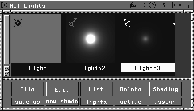
Lights from the Windows menu. The Multi-lister only displays lights and is referred to as the Light-lister.
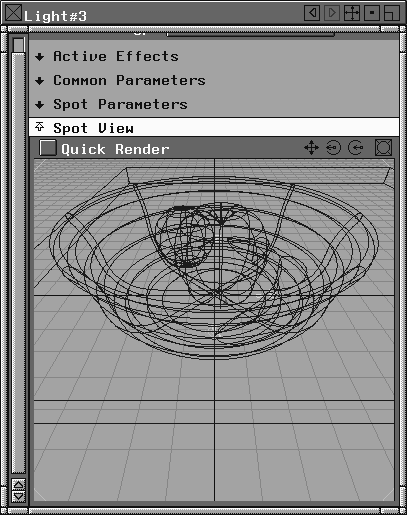
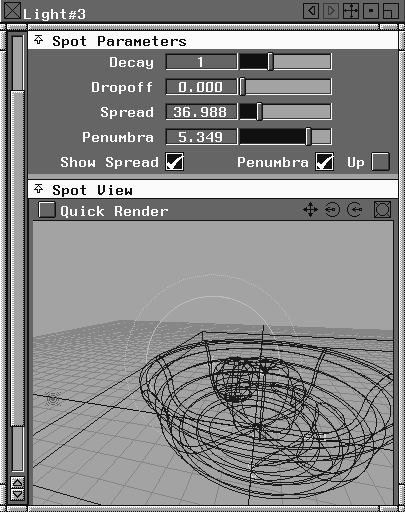
Light#3 icon to open the Light editor and open the Spot View section.
Tip: If you can't see the whole Spot View window, resize the Light editor. |
The view corresponds to the objects on which the light is shining. This can help you place the light and its components with accuracy.
 Select Pick Nothing from the Tool Palette, then select Pick Object.
 Select Xform Move from the Tool Palette.
Spot View window automatically changes.
Spot View window.
Spot Parameters section of the Light editor.
Spread slider to change the spotlight's spread.
As you drag the slider, the cone that represents the spotlight spread widens and narrows in the modeling windows. The spot circle is also updated in the Spot View window, showing the extent of the spotlight from its point of view.
| Tip: By varying the spotlight spread, you can create a tight spotlight that points at a specific object, or you can flood a scene with light. |
Spot Parameters section of the Light editor, click the button next to Penumbra to see it in the Spot View window.
Penumbra slider. Notice how it affects the circle inside the main spotlight cone. When negative values are used, the penumbra circle is displayed inside the Spot View and displayed outside when positive values are used.
The edge of the spotlight's shadow can be either sharpened or softened by the Penumbra setting. As the penumbra gets smaller, the edge of the spotlight gets harder.
| Tip: Some softness is generally preferred, since hard-edged shadows are rarely found in real life. |
Active Effects section.
On button next to Shadows to use this light to cast shadows. Click this button to toggle the spotlight's shadow casting on and off.
| Note: Spotlights are the only type of lights that cast shadows in the Raycast rendering mode. The next lesson illustrates the differences between Raycast and RayTraced renderings and how lights are used accordingly. |
Multi-lister icon to open (or maximize) the Light-lister.
| Tip: Spotlights are an effective way to add realistic light to a scene. Spotlights are also useful as the lightsource for a table lamp in RayCast mode, where it would be otherwise impossible to recreate the light cut off by the lampshade. Because you have a great deal of flexibility in defining all its parameters and direction, the spotlight is perhaps the most controllable light source. |
Next, change the spotlight to a point light and link it to an object. Any light can be linked to any object, exclusively or non-exclusively. Light linking can create an effect where one or two objects in a scene are lit only by a specific light. This results in only certain objects receiving a particular shadow, lighting effect, color enhancement or glow. Without light linking, all objects receive the general lighting cast by other lights in the scene.
POINT in the editor. Notice how the parameters change when you change the light type.
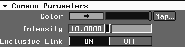
Common Parameters section of the editor.
Intensity of the light to 10 and click on the Color sample to open the Color editor.
Hue to 110, Saturation to 1.0, and Value to 1.0.
 Select Pick Nothing to deselect all objects.
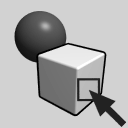 Select Pick Object and click both the orange and the point light you just created.
Light#3, when the icons are set to large.)
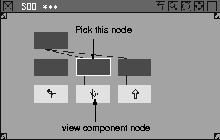
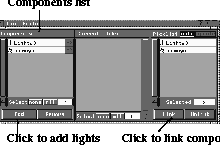
Light links to open the Link Editor. When the Link Editor is first opened, it only displays active objects and lights.
You can add objects and lights to the Picklist by picking them in the modeling window and clicking the Add button in the Components section of the Link Editor.
Link button.
from the Render menu, make sure it is set to All, Turbo Assist is off, Shading frequency is set to 10, and then click the Go button.
Note: You cannot use Turbo Assist since it uses its own lighting and ignores the lights set in the Light-lister. |
Notice how the shading on the orange has changed. This is because it is now receiving light only from the point light, and not the direction and ambient lights. However, the point light is not exclusive to the orange. It also provides additional green light to the other objects in your scene. Let's assume that you only want it to affect the orange.
Common Parameters section of the point light's editor, turn Exclusive Link ON.
This feature allows the light to shine only on the object it is linked to (in this case, the orange).
Unlink button in the Link Editor, and turn Exclusive Link OFF in the Light editor.
Link Editor.
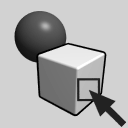 With Nothing picked, select Object and select the point light.
Active in the Light-lister.
With Nothing picked, select Object and select the point light.
Active in the Light-lister.
Using the glow and halo features, you can make a point light look like a candle flame. The glow effects are also animatable so you can also make the candle flicker. While the following settings produce a realistic candle flame, keep in mind that there are also many other ways to simulate a flame in Alias.
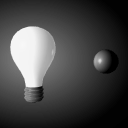 Select Objects Lights Point, then click in the Front window to place the point light at the top of the candle wick.
 In the Top window, move the point light using Xform Move to place it at the proper position at the tip of the candle.
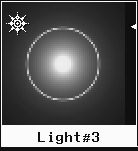
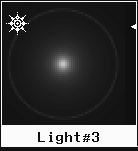
Active Effects section, change the Glow to SPECTRAL, and notice how the icon in the Light-lister changes.
Glow to EXPONENTIAL and notice how the icon reflects the change. Although the Light-lister previews the final light, you'll still need to create test renderings to see how the light affects the entire scene.
Glow to LINEAR, then change the Halo to RIM HALO.
Common Parameters section and change the Intensity value to 2.
Hue to 56, Saturation to 0.675, and Value to 1.
Glow Effects section, then open the Glow sub-section. Make sure the Intensity and Spread values are set to 1.
Halo section. Change the halo Intensity to 0.10 and Spread to 1.50.
from the Render menu. Set Quality to High, Shading Frequency to 10, and toggle Turbo Assist on. Also toggle Glow Pass on to include the new light.
Save as. Name this file myfruitbowl4 and click the Save Wire button.
You can use this file in the next two lessons as you explore rendering and animation for design.
You have now seen the basic effects of lights and how they can be applied to a scene. You have linked lights and modified the parameters affecting them. Alias has other lighting effects such as halo and fog that you can explore on your own. Next, you'll render this scene fully to see your work as a photo-realistic image.