Once the geometry for a scene has been modeled, and shaders have been created and applied, you are ready to render. To render a scene, you must set the lights and choose the type of Alias renderer. It's like lighting and filming a movie: you set up the lights, aim the camera, and shoot.
For more information on lighting and rendering, see Rendering in Alias.
Lights illuminate objects. If your scene contains no lights, then it will render entirely black (unless, for example, you are using shaders with incandescence). You can also use lights to:
When you create lights, they are listed in the Multi-lister. Just like shaders, each light has parameters that can be edited. All lights in a particular scene can be listed by choosing Multi-lister  Lights from the
 Windows menu.
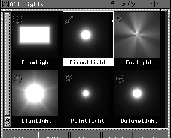
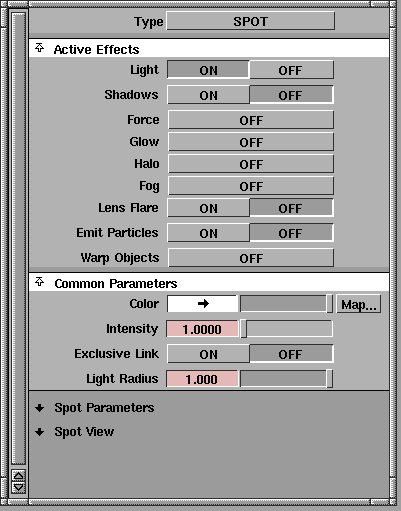
When you double click on a Light icon in the Multi-lister, you open the Light editor. This is where you can set and edit the various light parameters. These values are set in a similar manner to the shader editor. Any changes made in this window are reflected in the Multi-lister icons, although the icons are not a true representation of how the light will illuminate the scene. Test renderings are the only possible method for truly seeing the effect of a light source.
Alias includes several light types that can be chosen in the light editor. You can change a light from one type to another at any time.. Each light type has different properties that affect how it illuminates objects and casts shadows. Each light type also has a special icon to distinguish it in the Multi-lister and in the SBD view. The light types and their icons are listed below.
Ambient - An ambient light is a non-directional light that fills the dark sides of objects and gives scenes a natural appearance. Since light doesn't bounce off surfaces in Alias, ambient light is an effective way of simulating the reflected light you see in real life. Ambient light is often used as a secondary light source, supporting a stronger light type such as a directional light or spotlight.
Directional - A directional light is similar to a distant light source such as the sun. It is made up of parallel rays of light that all follow the same direction.
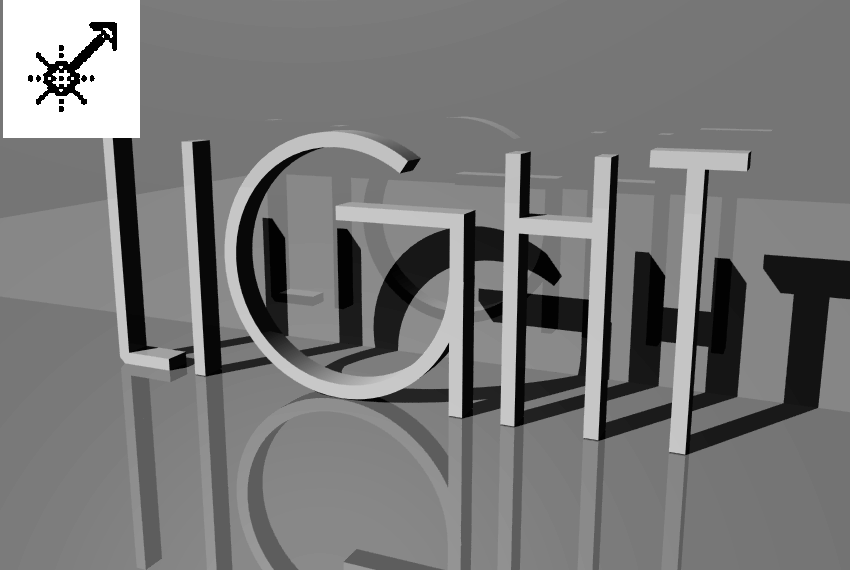
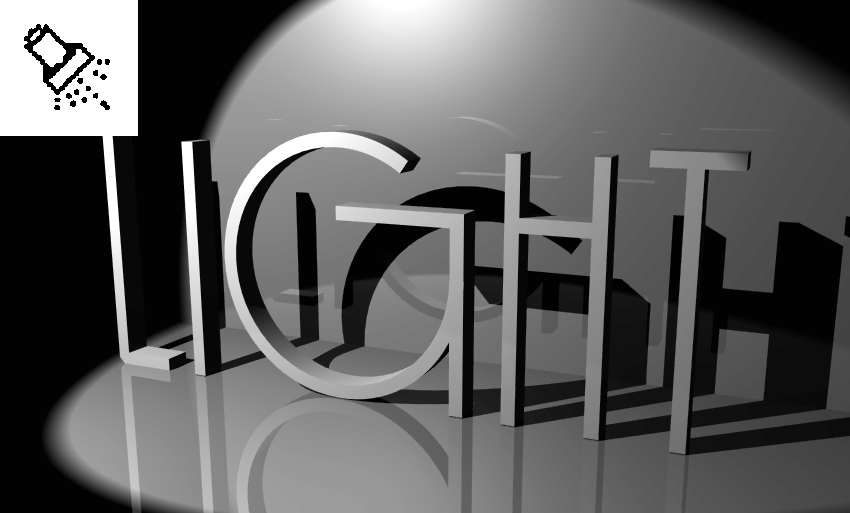
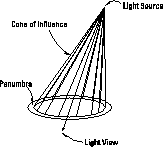
Spot - A spot light is pointed in a specific direction and has a cone of illumination. You can set this cone to any angle you desire. Spotlights have an eyepoint, look at point and up vector in the same manner as cameras, and each of these components can be picked and moved. Spotlights are the only light type that can cast shadows when raycasting.
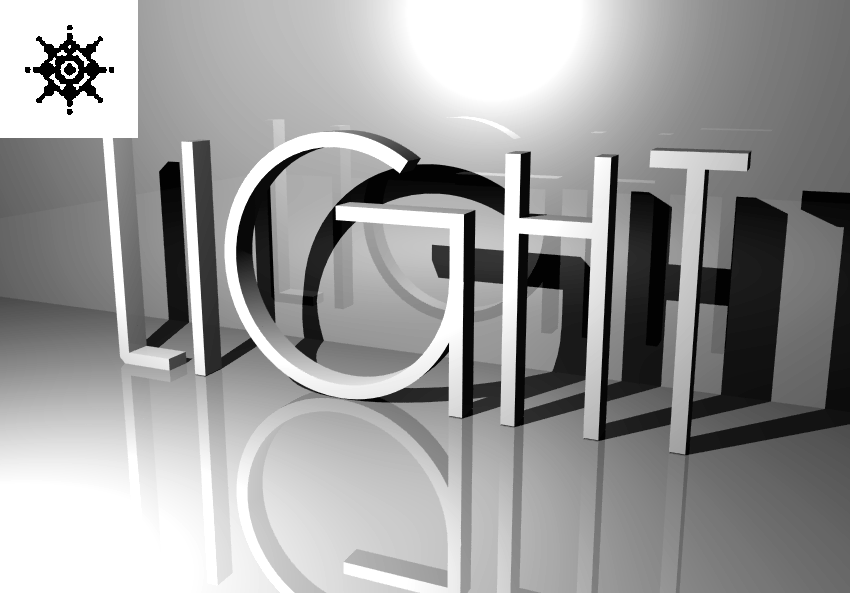
Point - A point light is similar to a light bulb or a candle, emitting light from a single point. Point lights can only cast shadows in RayTrace-quality renderings.
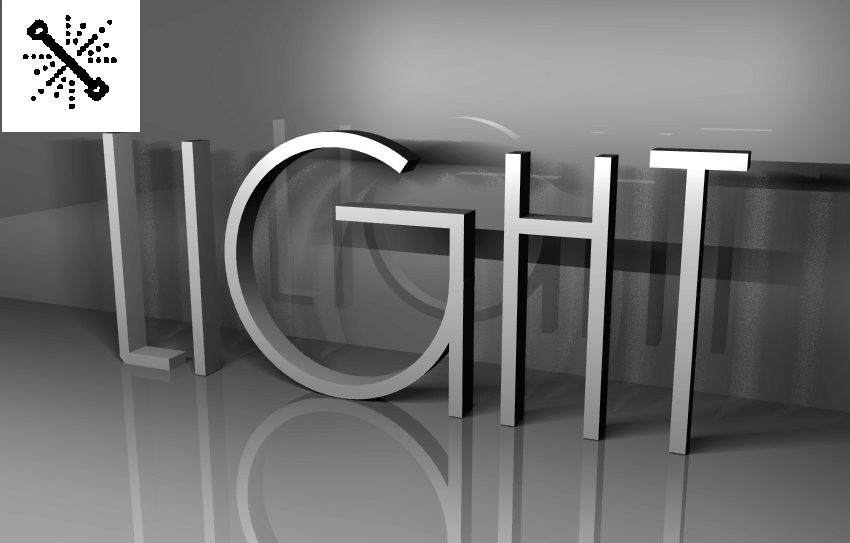
Linear - A linear light is a series of point lights all in a row that can be placed into the scene as a line. This light source mimics a fluorescent tube. Because linear lights are equivalent to a number of point lights, they can increase rendering time significantly.
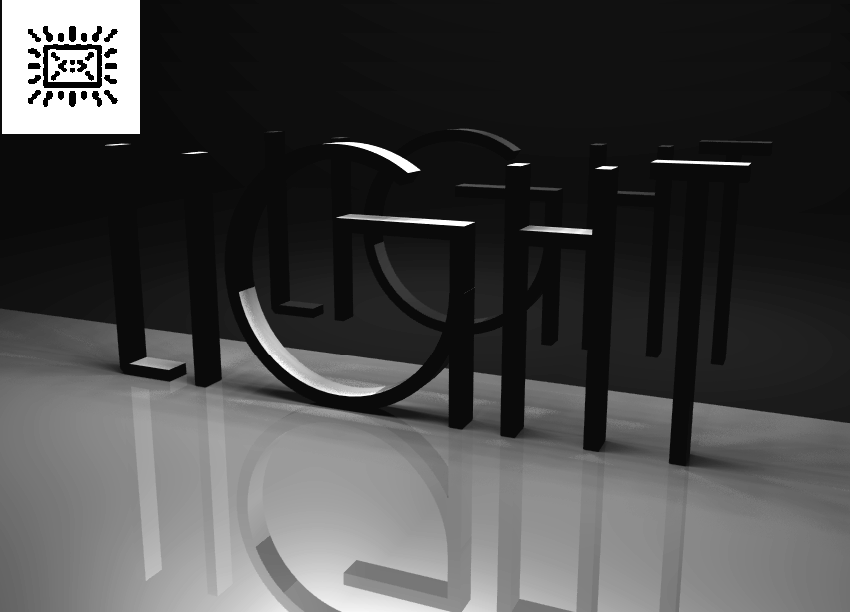
Area - An area light is a series of point lights that are placed into the scene as a small surface. This light source is similar to a light box. Like linear lights, area lights can also increase rendering time significantly.
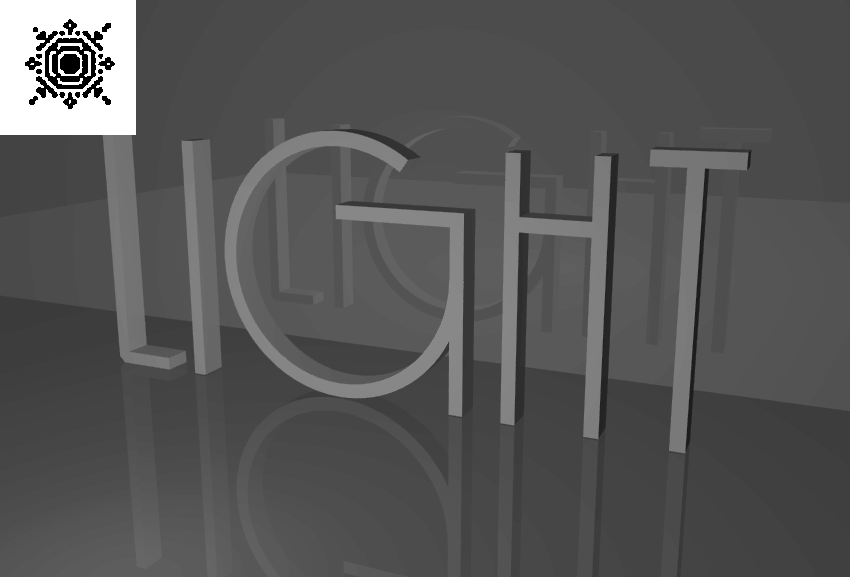
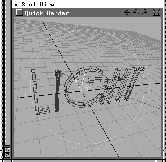
Volume - A volume light restricts the emission of light to a volumetric area in your scene. You can choose from several primitive shapes to define the area of illumination. In the example below a spherical volume light was scaled and placed just in front of the text.
The light is emitted from the center of the light and its intensity and decay work within a scalable light icon placed in the modeling view.
Each light has parameters that affect how it illuminates a scene. The following parameters are available for different lights.
Intensity - The intensity of a light defines the strength of illumination. The intensity value must be set to work with the size and scale of the scene being modeled, especially if a dropoff value is being used. With volume lights, you can scale the intensity by scaling the light icon in the modeling views.
Shadows - Shadows can be turned On and Off for all lights. When Raytracing, all light sources can be used to cast shadows. When Raycasting, only spotlights can be used to cast shadows.
Color - You can add color to a light to create more subtle lighting effects. You can also add a color map to create a projection effect from the light.
Spotlights have special parameters that are not available for other light sources. A spotlight emits light in a conical manner, which can create a sharp or soft lighting effect. The basic spotlight parameters are as follows:
Spread - The spotlight spread determines the angle of the cone of influence that is emitted from the spot source.
Penumbra - The penumbra is an area of light at the edge of the cone of light that creates a partial lighting effect at the edge of the spot.
Dropoff - The dropoff value determines how fast the light starts to fade as it gets further away from the center of illumination.
In the Light Editor, you can also open up the Spotlight view, which shows you a view of the scene from the light's point of view. You can edit this view to alter the positioning of the light to ensure that you are lighting the appropriate parts of the scene.
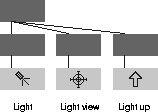
When positioning spotlights, you can position the whole light, or its parts. Parts of the light can be picked in the modeling views, if you make lights visible using Tgl Lights from the Display menu. You can also pick the light components from the SBD view.
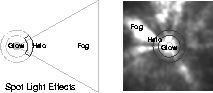
Among the various light parameters, you can set special parameters for OptiF/X. OptiF/X lets you create lights that use glows, explosions and other special effects. When setting up glow effects, three main components are used:
Glow - glow is what the light looks like when you look at it directly.
Halo - halo effects are the effects that surround the light.
Fog - fog effects are found within the beam that is emitted by the light.
After you have created objects, lights and shaders, you can bring these elements together in the final rendering process. Alias offers various industry standard sizes and types of rendering that offer you different levels of quality. Generally, the better the rendering quality required, the longer the renderer takes.
The rendering process requires that you set up surfaces, cameras, lights, and possibly animation channels. When a rendering is executed, all of the information about the scene is transferred into a special file called the SDL or Scene Description Language file. This file is usually rendered immediately, although it can be saved and rendered later using distributed rendering techniques. Those people with programming experience can also edit the SDL file to change how it will render.
Once an SDL file starts to render, the geometry, shaders and lights are combined to create the final rendering. To decide what kind of look you want, you must decide which rendering type is required for your work.
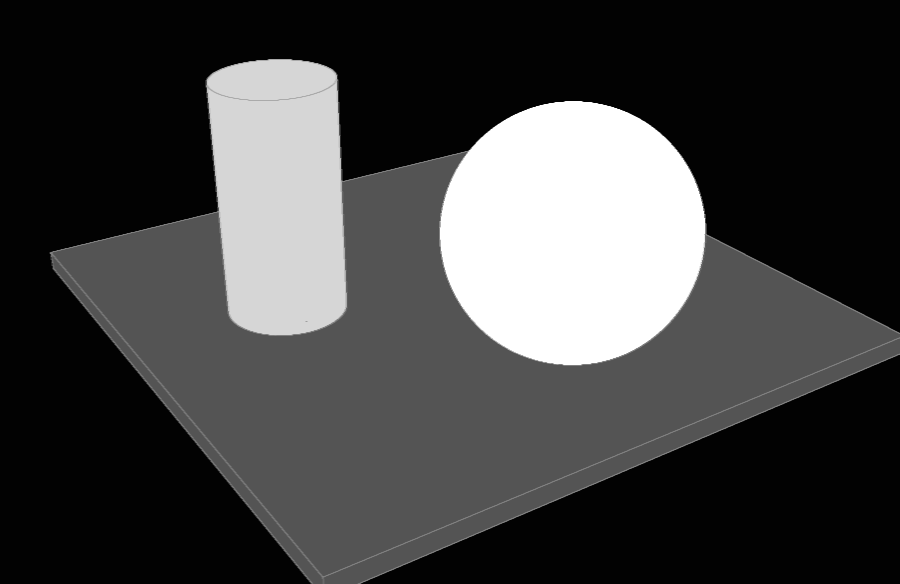
Hidden-line - This rendering type gives an outline rendering of the scene and renders objects using a flat unshaded color.
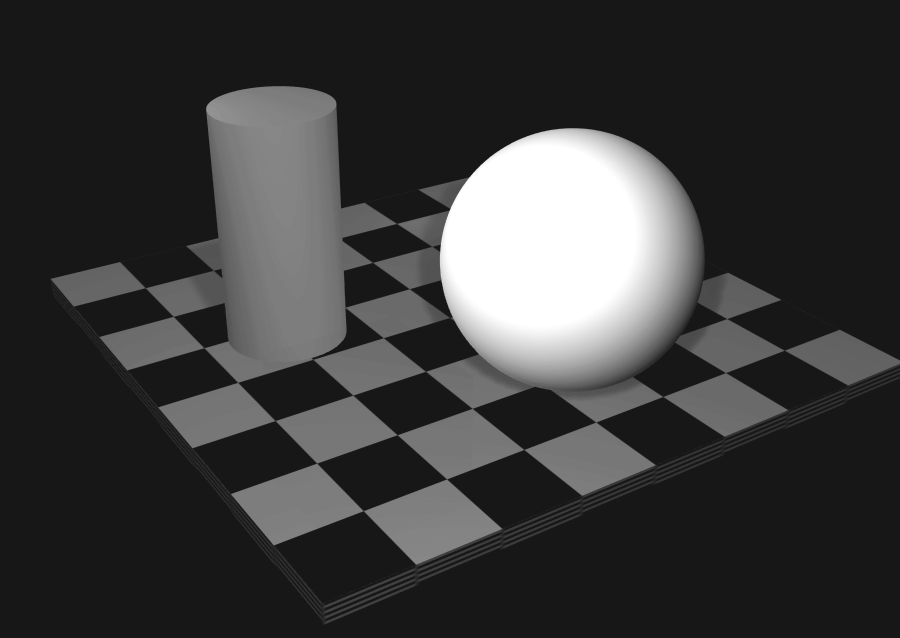
Ray cast - This rendering type gives a smooth shaded rendering of the scene that includes shadowing capabilities. This rendering type is faster than Raytracing but lacks the extra realism added by true reflections and refractions. If required, reflections can be simulated in a Raycast rendering using environment maps and linear transparency. For long animations, Raycasting is often required to keep the per frame rendering time to a reasonable length.
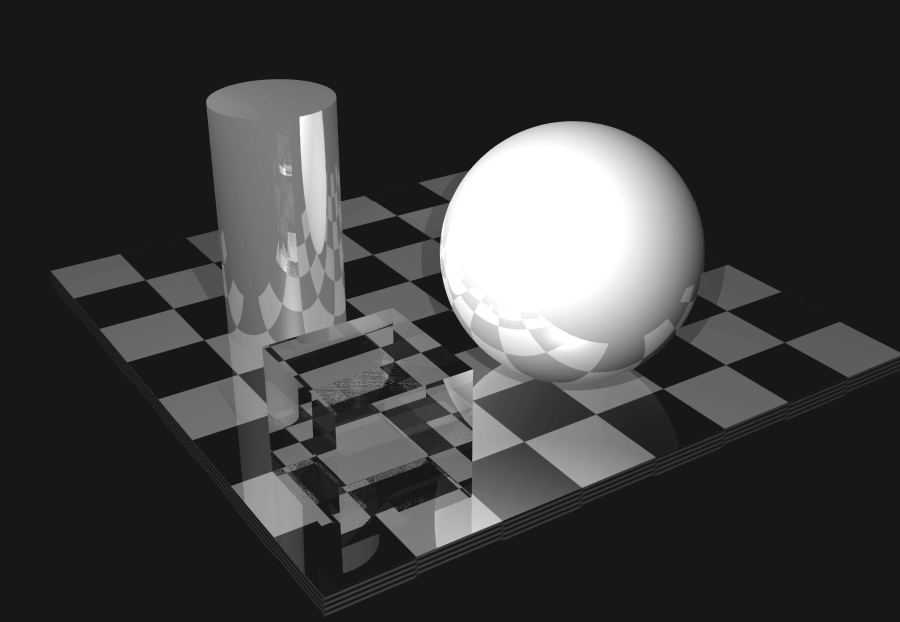
RayTrace - This rendering type gives a smooth shaded rendering of the scene that includes reflections, refraction, and shadows.
When a project is in progress, a quick rendering is a means of getting instant feedback about the color and lighting of a scene. In a QuickRender, quality is sacrificed to make the render as fast as possible.
When rendering, you must decide how detailed the image quality will be. In the Render Globals window you set the quality and resolution of the image. Since high quality and large images take longer, you must balance the need for size with that for quality.
Renderings are created as bitmap images. Bitmaps are made up of small pixels that each hold a particular color. By default, your monitor displays bitmaps at 72 pixels per inch. This concentration of pixels creates the look of the final image when viewed at its proper size. In the Render Globals, you can set how many pixels are created when you render.
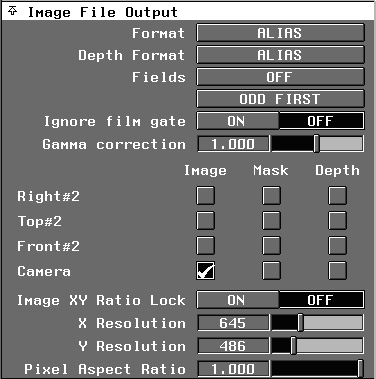
Image File Output - In the Image File Output section, you can set which Cameras and/or Orthographic views will be rendered and how big the rendered images will be.
The final size of a rendering is set in pixels. This determines the number of colored squares along the X and Y axis of the rendering. For video, the best image resolution is 645 x 486 which defines the NTSC standard. The Render Globals contains a comprehensive list of image size standards that you can choose from.
If you want to render for print, you will need to render at a pixel resolution that will give you enough pixels for a printing job. Many print jobs use the standard of 300 pixels per inch (ppi) as a standard. To determine the final resolution you must multiply the resolution by the desired image size in inches. For instance, a 3" x 4" rendering would require a resolution of 900 (3 x 300) x 1200 (4 x 300) pixels. If you use the metric system then your standards may be a little different. Try not to render any larger than you have to. Adding even a few extra pixels to the render resolution can add significantly to your render time.
Antialiasing - Since bitmap images are made up of pixels that are small squares of color, diagonal and curved lines can render in a stepping pattern that does not look realistic. Antialiasing is designed to soften this stepping by altering the color of pixels that surround the line so that it blends with its surroundings and appears more realistic. Higher antialiasing settings create more realistic results but take longer to render.
A greater degree of antialiasing is more important for lower resolutions such as video (72 ppi) where you can see more of the pixels. For printing jobs (300 ppi) you don't need as much antialiasing since the density of pixels does a better job of smoothing out the lines.
Raytracing Limits- Another Render Global section that is very important is the raytracing limits. In this section, you determine how many reflection and refraction calculations are completed for each pixel. By default a medium or high render quality setting gives you 10 levels of reflection and 10 levels of refraction.
A setting of 10 reflections means that when the renderer encounters a reflective object, it must check the color of any objects being reflected, then check the color of objects being reflected in the reflecting objects and so on up to 10 times. If you set this value down to 1 or 2, you will still get reflections but only one or two levels deep. You may want to perform a test render to check the results with these lower settings before committing yourself to more reflections.
The refraction setting is similar. If you have no transparent objects you can turn this setting to 0. Otherwise, add one level for every transparent surface that is overlapped. Therefore a transparent sphere would need a setting of 2 - one for the front surface of the sphere and one for the back. If you had two spheres - one in front of the other - the setting would have to be raised to 4. These settings give you the bare minimum for speeding up rendering. A higher refraction limit is required for extra realism. See Rendering in Alias for information on the "True" settings for detailed refractions.
Reflection, refraction, and shadow limits can be set in the Render Globals window or an objects Shader editor. When rendering, the lower of the two settings will be used.
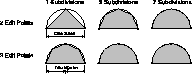
During a render operation each surface must be broken down, or subdivided, because the renderer needs small pieces to evaluate all the rendering information. The smaller the subdivisions, the more information is available to the renderer.
Subdivisions are determined based on the number of isoparm spans combined with the render subdivision settings. For instance, a surface with a few spans may need more subdivisions than a surface with many. Alias lets you set these subdivisions on an object-by-object basis.
When Alias renders a surface, it converts the smooth surface patch information into triangle vertices. These triangle vertices are what is actually rendered for the final image.
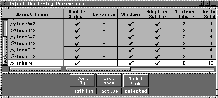
The number of triangles that are created are based on how high the render subdivision value is set in the Render Stats window. You can set subdivisions for all objects in the scene.
The higher the render subdivisions value for a particular surface, the more triangles are created and the smoother the surface in the finished rendering.
| Tip: Try to remember to set the subdivisions low when you are test rendering. Increasing the amount of subdivisions increases the number of triangles produced, which takes more time to render and uses more memory. |
Subdivisions are set to be adaptive or uniform.
By default, adaptive subdivisions are automatically set for most surfaces in a model. Adaptive subdivisions test each patch for a given level of flatness. If this level is not met, it subdivides the patch and tests the subdivided pieces again. The system keeps dividing until a threshold criterion is met. This threshold value is between 0 and 1 (0= plane, 1=cusp).
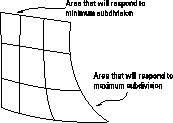
If a surface has an area of high curvature, the part of the surface that is flatter tries to meet the criterion of the Minimum Subdivision setting, while the area of the surface with high curvature tries to meet the criterion of the Maximum Subdivision setting.
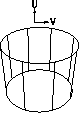
Non-adaptive, or uniform, subdivisions do not consider the shape of the surface. Instead, the software does a blanket division of each patch based on what is set for the U and V parameterization. There is no discretion in terms of the shape of the surface, so uniform subdivisions would generally be used on a surface that has regular curvature, such as a cylinder.
Trimmed surfaces must be adaptively subdivided because triangles must be created that exactly match the trimmed edge.
Planar surfaces, or faces, are essentially one dimensional objects (they have a U direction but no V direction) and cannot be adaptively subdivided. You can make the edge of a face smoother by adjusting the Uniform Subdivision U level.
Faces are triangulated differently than patches. Since faces are only described by boundaries, the triangles that describe one always have to span the whole face. If this is not desired, you can set the options in the Set Planar Options box to create the face as a trimmed surface.
Subdivisions should be set so that facets and gaps are not noticeable in the finished image, yet they should be low enough that rendering times are reasonable. This process is known as "optimization" and should be applied to all your models.
As you continue through the rendering process, try to observe which surfaces require increased subdivisions and which do not so you can optimize your rendering time.
The following are issues you may want to consider:
How curved is the surface? - A general rule is: the more curvature on the surface the more subdivisions required. If a surface is completely flat, it may not need many subdivisions.
Is the curvature constant in both the U and V parametric directions along the surface? - If the curvature is less along one parametric direction you may be able to apply uniform subdivisions to the surface, which lets you specify subdivisions for the U and V separately.
Does the model have any trimmed surfaces? - Trimmed surfaces and their bordering neighbors may require more subdivisions to define the trimmed region accurately.
How large or important is the object in the scene? - If an object is small or plays a less significant or "environmental" role within the scene, it may not require high subdivisions.
The time it takes for Alias to complete a rendering is a combination of many factors. As you work, you must balance these factors to ensure that you complete your work on time to the highest quality possible. You may sometimes have to sacrifice in one area to gain in another. The following factors affect rendering time and should be taken into account when you set up a rendering.
Test Renderings - Test renderings are very important to successfully manage the rendering process. If you start a complex rendering without testing the lights, shaders and model, you may be unpleasantly surprised and as a result have to abort your first few renders. Test renderings using low anti-alias, subdivision, and render type settings make it possible to evaluate a rendering before committing to a final render. Do not forget to test render often before starting final renders.
Computer System - The power and speed of your computer hardware is an important factor when determining how long your renderings will take. If you have a powerful system with lots of memory, you can achieve more complex renderings faster. If your system is less powerful, you may have to sacrifice some of the factors listed below in favor of speed.
Number of objects - Rendering time is also affected by the number of objects in the scene. More objects take longer to render. If any objects are in the scene but not visible in the camera or in any reflections, be sure to make them invisible.
Geometry - The number of isoparm patches on a surface also affects rendering time as more complex geometry takes longer to render. As you know, the number of isoparm patches must be balanced with the render subdivision setting.
Trimmed Surfaces - Trimmed surfaces are more complex than they appear because they contain hidden geometry. Many trimmed surfaces will slow down your rendering.
Textures - If your textures are based on external images, the size of the texture can affect the rendering speed. If a texture has a pixel size significantly larger than the final size of the rendered image, you are wasting time since you won't see the extra detail in the texture. Try to create textures that suit the object being mapped. Objects that are far away need only small texture maps to look convincing.
Solid Projection textures also take longer to render than parametric maps. You should consider using the Convert Solid texture function in the Multi-lister before rendering so that all your textures are parametric.
Backdrops - If you want to use a backdrop image plane for your renderings, it would be better to render with a matte and use a compositor (for example, Composer).
Lights - Scenes with many light sources take longer to render. Make sure that you keep your lighting efficient and use as few lights as you can to achieve the effects you want. On the other hand, if lots of lights are needed to set the mood, you may be willing to sacrifice speed for quality. Glows and other OptiF/X also add to rendering time and should be used strategically.
Shadows - Shadow casting requires calculations that slow down rendering time. If possible, limit the number of lights that cast shadows. You can also reduce the resolution of your shadow maps in the Light lister.
Animation - Rendering animations takes the longest time since each frame must be rendered individually. Since there are generally about 30 frames per second of animation, the number of frames in a typical animation quickly begins to add up. Being efficient when rendering is much more important when rendering animations than when you are working on a still image.
Render Subdivisions - High render subdivision settings create smoother surfaces at the expense of rendering speed. If objects are very smooth and sit in the foreground of a scene, use higher settings. Objects in the background should have lower settings.
Image Size - The larger the size of a rendered image, the longer the rendering takes. Don't render an image larger than is required by the job at hand. The extra pixels will slow down your rendering.
Render Type - Which render type you use affects render time. A raycast rendering takes less time but doesn't give you reflections and refractions. Raytracing takes longer but yields a more realistic image.
Reflections - If you Raytrace your image, too many reflections can add greatly to the rendering time. A high quality Raytrace rendering may need a large number of reflections. If you reduce the number of Reflections in the Render Globals, you will simplify the rendering and decrease rendering time.
Antialiasing - Rendering performance is greatly affected by high antialiasing settings. Decent quality can be achieved using Min/Max settings of 0, 2. For higher quality try 1, 4. Higher settings slow you down considerably.
While there are other factors that affect rendering time, if careful consideration is given to the factors listed above, you can keep control of your renderings.
Setting up lights and rendering your scenes is one of the most creative acts in Alias. At first you must learn the mechanical steps required to position the lights, set light parameters and execute a rendering. Later, you can begin making more creative decisions so your images can make the desired impact on your audience.