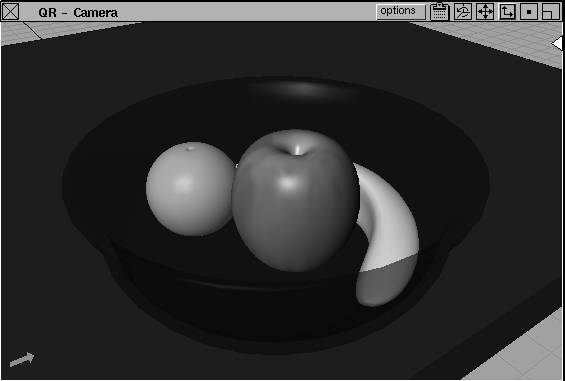
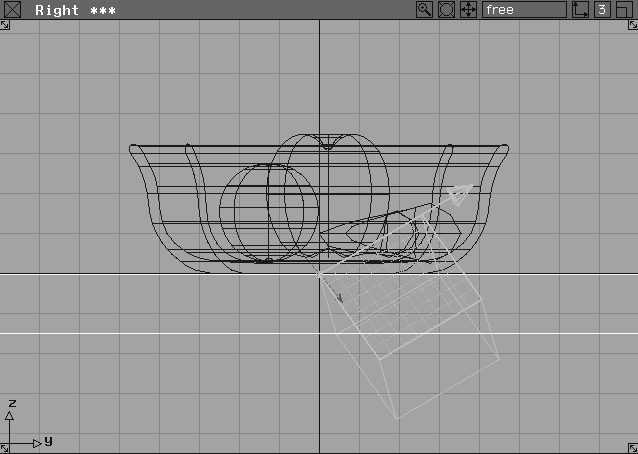
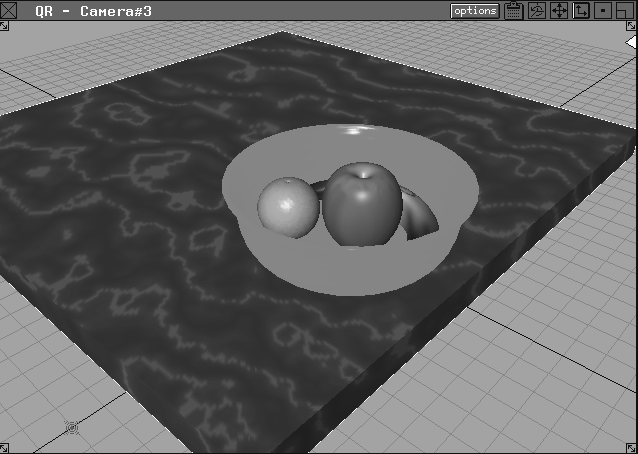
The goal of applying shaders is to give objects color and texture. Lesson 10 showed you how to create color with shaders. In this lesson, you learn how to add texture effects to your shaders to give you more photorealistic renderings. This lesson addresses several mapping techniques such as color, bump, displacement and stencil.
After adding color ramps to the apple and banana, you add a label. Next, you apply a marble texture to the table and a bump map to the fruit bowl's glass shader. By quick rendering the scene periodically, you can evaluate the results at various stages.
You start by opening the fruit bowl file from Lesson 10. You can use either the file you saved or a provided CourseWare project file.
myfruitbowl2 from the CourseWare project folder in the File Lister. The shaders created for this wire file were saved and are accessible in the Multi-lister.
L11_Fruit2 file in the CourseWare directory. It contains the necessary wire file and shaders.
In this section, a planar projection map is used on the apple. A planar projection places the texture on a separate Surface Placement object instead of the object itself. The placement object can be transformed in 3D space until the texture is properly "projected."
When you use projection map, you can ignore the seam that was created when the apple was built, and apply the texture evenly over the whole surface.
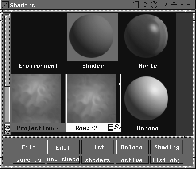
 Shaders from the Windows menu.The Multi-lister lists all the shaders created in
 Apple shader icon to open the Shader editor.
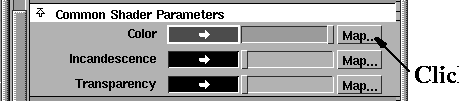
Common Shader Parameters section of the editor, click the Map... button next to Color.
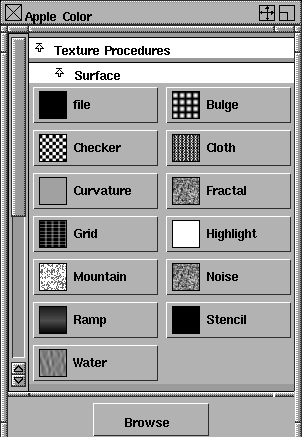
The Texture Procedures window is displayed.
| Note: Choosing a texture map for the apple automatically overrides the previous definition. |
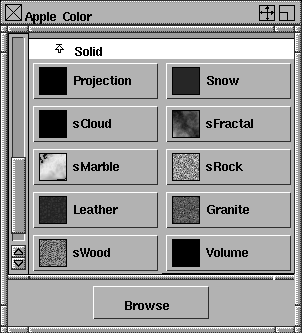
Solid to display the different Solid textures.
Projection button to select a Solid Projection texture. This creates a new icon named Projection #2 in the Multi-lister.
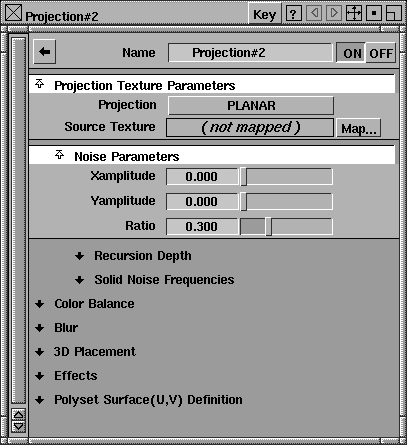
Once defined, this projection map is used as the color map for the apple. The Shader editor now contains the parameters and options associated with the projection texture.
The Projection type defaults to PLANAR, which is the right setting for this exercise.
The next step is to link the projection to the apple.
Apple shader icon in the Multi-lister to make it active.
List Objects An object list appears, displaying surfaces associated with the Apple shader.
revolveA to pick the apple object in the view windows.
Objects window.
|
Tip: Since this is a simple scene, you can easily pick the apple using Pick Object from the Tool Palette. If, however, the scene was complex and it was difficult to find the object belonging to the shader, using List Objects would be a useful alternative. |
Projection#2 icon to make it active.
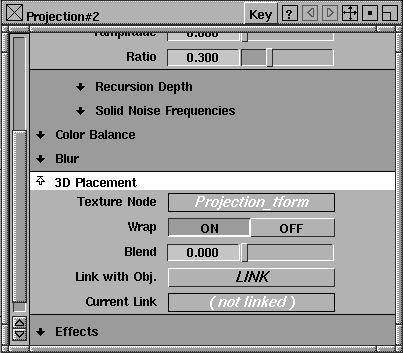
3D Placement section of the editor to view the parameters.
LINK button next to Link with Obj. to link the projection texture with the apple.
This ensures that the texture stays linked to the apple, even if the apple moves in the scene. Although the option now reads UNLINK, you have linked the two items together.
Now that the project map is linked to the apple, you can create the actual color map. To do this, you use a Ramp texture as the source texture for the projection.
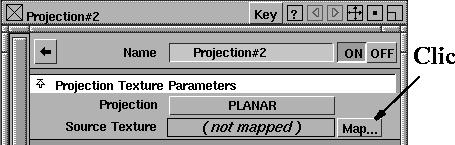
Projection Texture Parameters section at the top of the editor, click the Map... button next to Source Texture to open the Source Texture window.
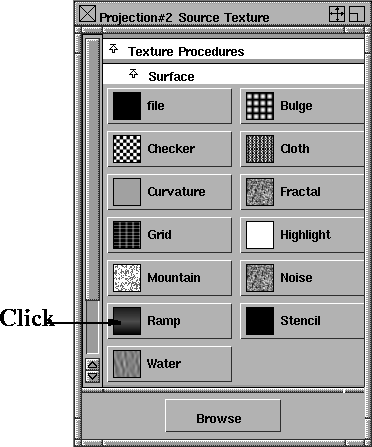
Surface texture section and click the Ramp button.
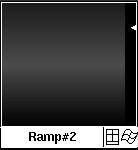
Ramp texture and creates another icon called Ramp#2 in the Multi-lister.
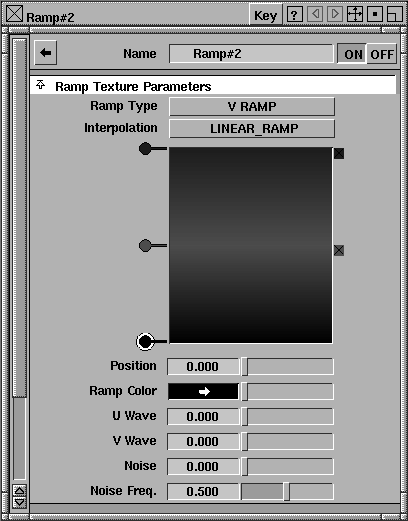
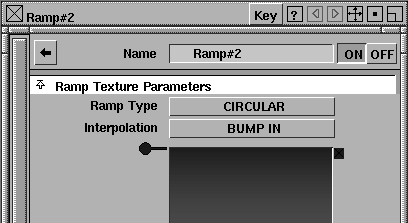
CIRCULAR as the Ramp Type to apply the color in a circular manner, and change the Interpolation to BUMP IN to get a smooth transition between the ramp colors.
Note how this change affects the linked maps and shaders in the Multi-lister.
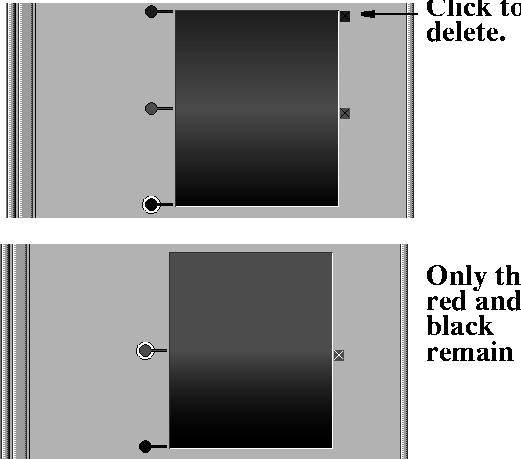
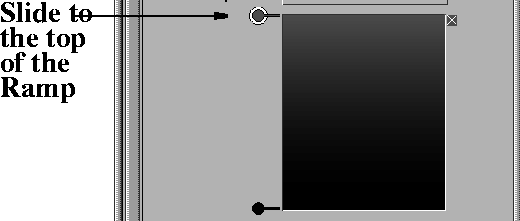
You only need two colors for this particular texture.
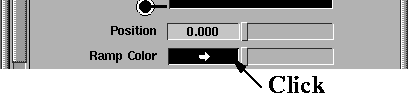
Ramp Color to open the Color editor.
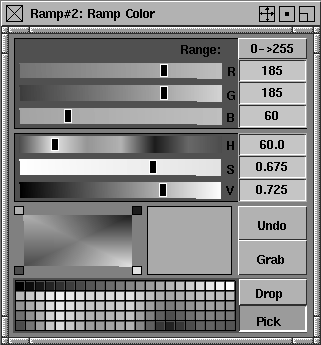
60 for Hue (H), 0.675 for Saturation (S), and 0.725 for Value (V).
You can make the apple appear more realistic by adding surface discoloration.
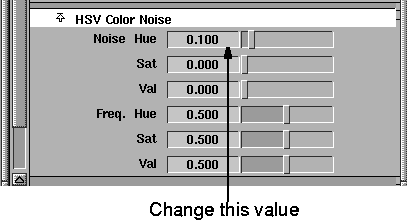
Ramp Texture Parameters section of the editor, change the Noise value 0.1.
HSV Color Noise section of the Ramp editor.
Noise Hue to 0.1 to add a slight, realistic bruising to the apple.
Next, you position the Projection map.
Projection#2 texture icon in the Multi-lister to make it active.
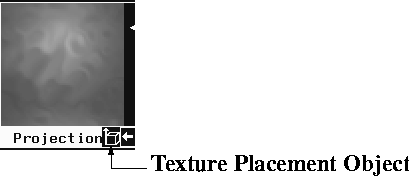
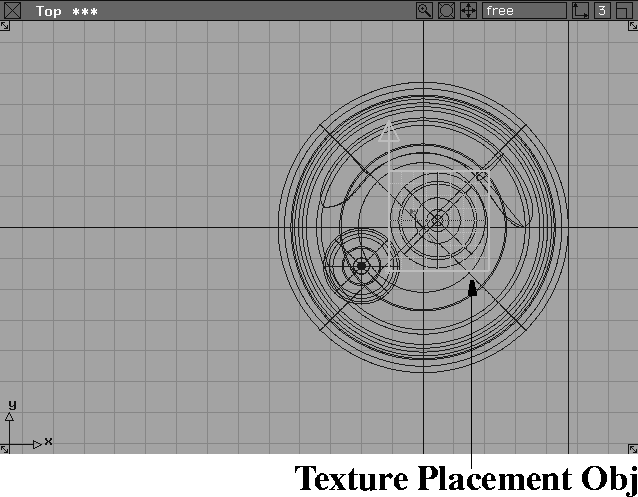
Texture Placement Object. This shows a small, green 3D representation of the solid texture in the modeling windows, which helps place textures.
| Note: This object is invisible by default unless it is either turned on as you have just done, or made visible in the SBD or ASBD window. |
 Select Pick Nothing from the Tool Palette and then select Component-
 to check the settings. Make sure that
 All is set to On, and click Go to continue.
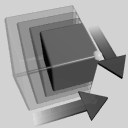 With the Top window active, select Xform Scale from the Tool Palette and click-drag to make the placement object as big as the apple.
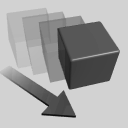 Select Xform Move to move the placement object so that its gridded face covers the whole apple in the Top view.
| Tip: Because this is a projection map, you can align the placement object entirely in the Top view. |
 Select Pick Nothing to de-select the placement object.
, and in the option box change the
Select Pick Nothing to de-select the placement object.
, and in the option box change the Shading Frequency to 10 for a higher quality render. Make sure that Textures and Turbo Assist are toggled on, then click Go.
Projection#2 icon to make it invisible.
| Note: Because the apple and the placement object are linked, the two will move together if the apple is later Xformed. |
Next, you modify the Banana shader by adding a color ramp to make the banana ends black. In this example, however, you place the texture with surface mapping. This means that the texture is "stretched" around the banana surface, instead of being "projected" onto it.
| Tip: In this case, the texture is not mapped into the XYZ world space, but rather on the UV space of the banana's surface. The relationship between UV space and XYZ space is shown below. |
Banana shader to open the Shader editor.
Map... button next to the Color sample to open the Texture Procedures window.
Ramp icon to create a ramp texture. The Multi-lister window now displays a Ramp#3 icon and the Shader editor contains the parameters associated with the Ramp.
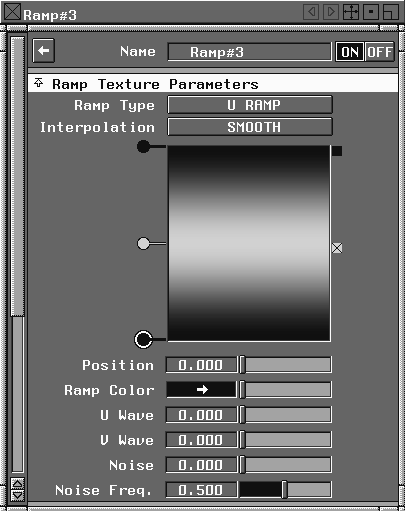
Ramp Type to U RAMP, and the Interpolation to SMOOTH.
Ramp Color to open the Color editor.
0, Sat to 0, and Val to 0. Leave the Color editor open.
47 for Hue, 0.725 for Sat, and 1 for Val.
Add some surface discoloration to the banana so that it looks more realistic.
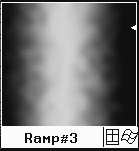
Noise Hue parameter of the Ramp texture to 0.05. The shader icon shows the result in the Multi-lister.
Ramp texture has been mapped along the length, or U direction, of the banana.
Tip: If you wanted the surface texture to map along the width or V direction, you could change the Ramp Type to V RAMP. |
The Stencil texture is used to overlay a label pix and mask file onto the banana. The ability to overlay multiple textures on the same object gives you tremendous flexibility in defining the appearance of objects.
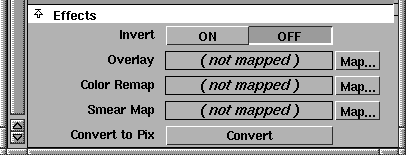
Ramp#3 icon in the Multi-lister to open the Ramp editor. Scroll down and click to open the Effects section of the editor.
Map... button next to Overlay to open the Texture Procedures window.
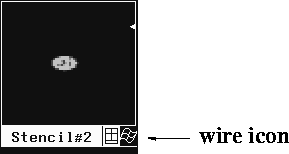
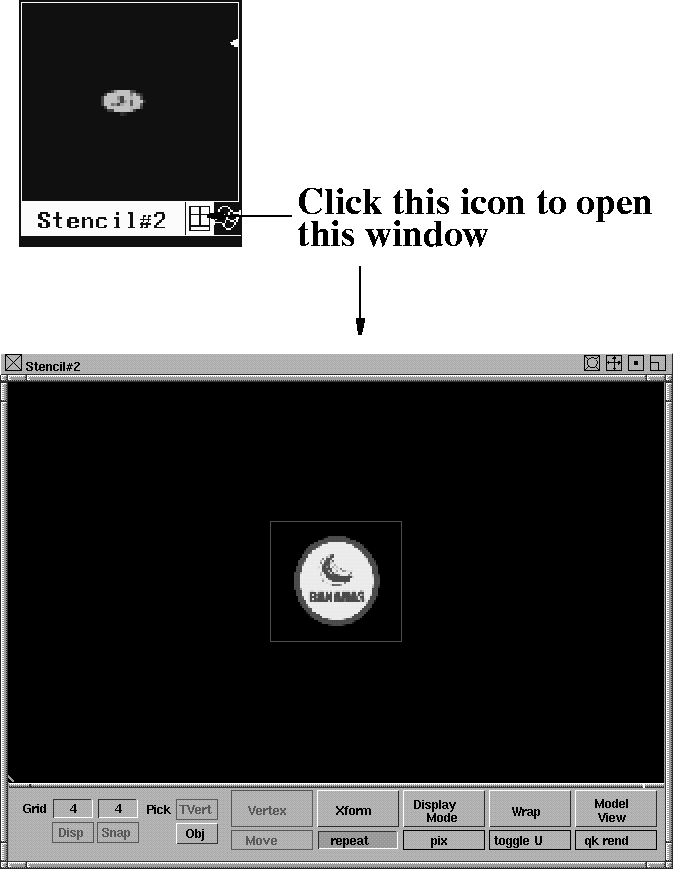
Stencil icon in the Surface section of the window. The Multi-lister displays a Stencil#2 icon.
Map... button next to Image and choose the File texture from the Surface section of the Texture Procedures window. The File texture editor is displayed.
Browse button next to Image to open the File Browser. In the File Lister, select label.pix from the CourseWare/pix directory. Click on Use Pix.
Stencil#2 icon in the Map... button next to Mask and choose the File texture from the Surface section in the Texture Procedures window. The File texture editor is displayed.
Browse button next to Image. In the File Lister, select label.mask from the CourseWare/pix directory.
Stencil#2 icon in the Surface Placement section of the editor.
Rotate value to 270 and close this section. This rotates the label properly on the banana's surface.
Ucoverage: 0.2, Vcoverage: 0.3, Utranslate: 0.4, Vtranslate: 0.35
Blur section of the Stencil editor and change the Blurmult value to 0.1.
Tip: The default Blurmult value of 1.0 creates a blurred image when rendered. You should always lower this value so that the textures are not too fuzzy. |
Pick objects in the Multi-lister to pick the banana from the modeling window.
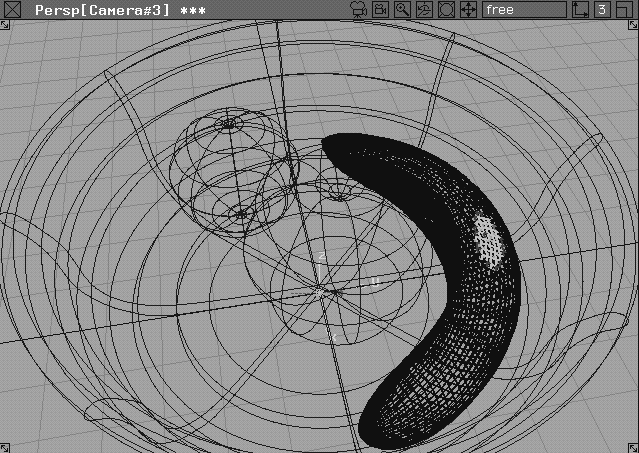
Stencil#2 icon.
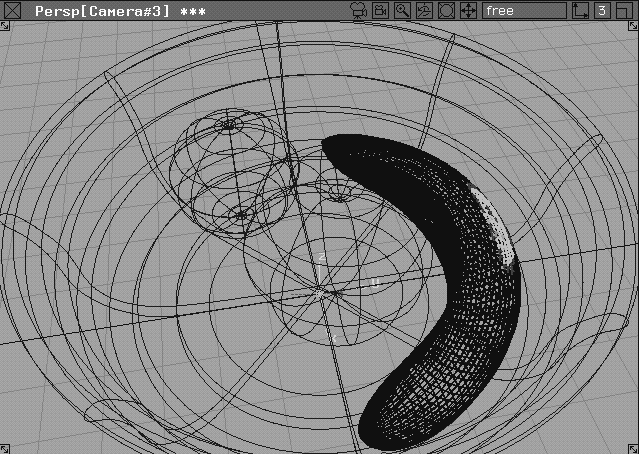
Although the texture is applied to the wire file in a shaded wire mode, the wire is not dense enough for you to see the label. To fix this, you can increase the patch precision on the surface.
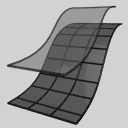 With the banana still picked, select Object Edit Patch Precision from the Tool Palette.
20 at the keyboard and press Enter. Now you can see the label.
In the next steps, you learn how to reposition the label.
Stencil#2 icon to open the Stencil placement window.
Translate and click-drag the stencil about one-half inch to the left.
Coverage from the placement window menu.
Translate, to move the label toward the banana's center.
.
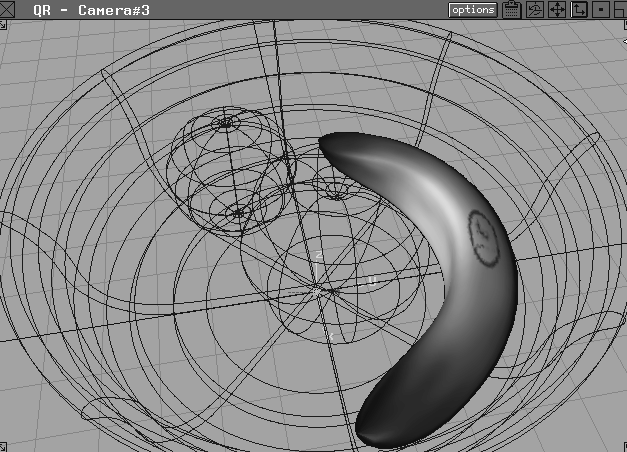
Active button in the Render section of the option window, then click the Go button.
| Note: Only the banana has been quick rendered. Although the label may seem blurry now, it will appear clearly in a final rendering. |
Stencil#2 icon to return to a wireframe display.
Patch precision from the Tool Palette.
a 2 at the keyboard and press Enter. This returns the wire display to normal. Close the Ramp editor.
Nothing from the Tool Palette to unpick the banana.
Next, you apply a displacement map to create a bumpy surface for the orange. The orange currently uses a smooth orange-colored shader. A displacement map forms a bumpy pattern on its surface without affecting its color.
| Tip: Displacement maps actually move the surface of the object. You can see the displacement by looking at an object from the side with the applied maps. |
Orange shader icon in the Multi-lister to open the Shader editor.
Special Effects section of the Shader editor.
Map button next to Displacement to open the Texture Procedures window.
Texture Procedures window, click the Browse button to open the File Browser.
A Mountain texture has been provided to use as the displacement map for the orange.
bumpyorange texture icon from the CourseWare/texture directory. The new texture icon is displayed in the | Tip: If you are wondering why mountains are on the orange, remember that you can experiment with scale. In this case, the bumpy texture for the orange is best created as a scaled-down version of a mountainous surface. By modifying the default settings, you can make a very convincing surface for the orange. In the Alias environment, there are often many ways to achieve similar effects. Experimentation is the key to getting the exact results you want. |
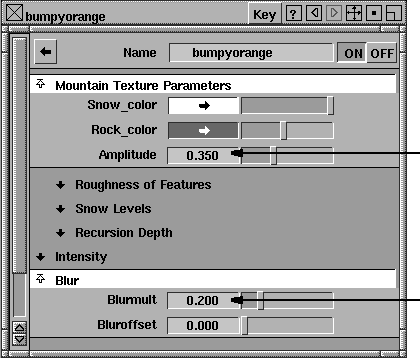
bumpyorange Shader editor, change the Amplitude value to 0.350. This makes the displacement more noticeable.
Blur section and change the Blurmult value to 0.2 to reduce the blur effect.
Pick Objects from the Multi-lister to pick the orange in the modeling windows.
| Note: You needed to pick the object first because earlier you set QuickRender to render only active objects. |
The displacement map on the orange not only gives the appearance of little indentations in the orange's skin, but actually displaces the surface.
Although bump mapping changes the appearance of an object's surface, it modifies the surface normals of an object without actually modifying the surface. Bump mapping affects how light reflects from a surface, creating the illusion of bumps by making surface areas lighter or darker, depending on the direction surface normals are pointing in. The easiest way to see this difference would be to render a displacement mapped object and a bump mapped object side by side. You would notice that the surface edges of the bump map are not bumpy while the displacement map has bumps at the edges. In certain situations, the illusion created by a bump map is all that is required. Since bump mapped surfaces render quickly, you should use them instead of displacement maps wherever possible.
Pick Objects to pick the bowl.
RayTrace Parameters section and change the following values, which will be used for RayTracing:
Refract Index: 1.2, Reflect Limit: 4.0, Refract Limit: 10.0, Shadow Limit: 2.0
Special Effects section of the Shader editor, and click the Map button next to the Bump parameter to show the Texture Procedures window.
Browse button at the bottom of the Texture Procedures window to open the File Lister.
bumpybowl icon to load this file. The Multi-lister now includes the new texture.
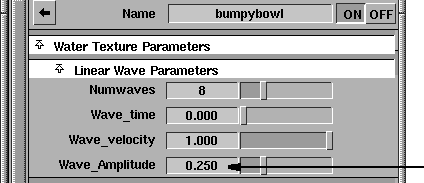
bumpybowl editor, open the Linear Wave Parameters section and change Wave_Amplitude to 0.25, and change NumWaves to 8. This will increase the strength of the bump when it is rendered later.
Blur section of the editor and change the BlurMult value to 0.1. By reducing the blurring, the bump map keeps its definition.
. Make sure that Background is toggled off, then click Go. The resulting render is displayed as a pale green and shows no bump at all.
| Note: You cannot QuickRender bump maps on transparent surfaces. You'll render this surface properly in Lesson 13. |
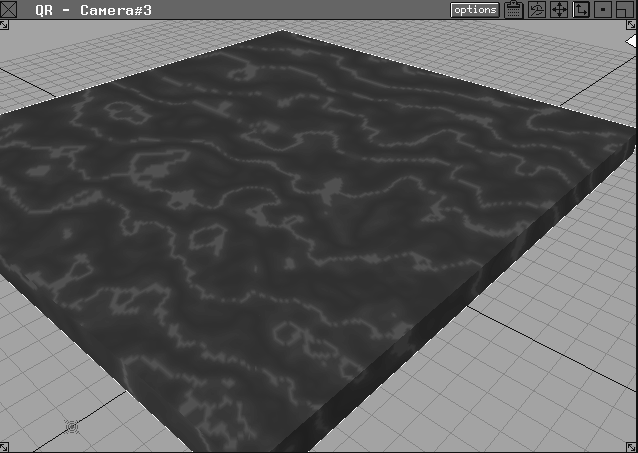
In this section, you give the table a solid Marble texture. Solid textures differ from surface textures because they define a 3D texture space in which an object is located. In effect, objects are "carved" out of the material of the solid texture. In the following, you create a shader that works almost as if the table were chiseled out of a piece of marble. To achieve a similar effect with surface textures, you would have to distort the texture perfectly around corners following the object's surface. Since this is very difficult to do with a surface map, you use a solid texture.
Table shader. In the Shader editor, make sure the Shading Model is set to PHONG to give the table a shiny appearance.
Map button next to Color in the Common Shader Parameters section of the editor.
Browse button in the Texture Procedures window to open the File Browser. A pre-defined solid texture is provided.
CourseWare/texture directory in the File Lister, select the marbletable file. It is displayed in the Multi-lister.
Marble Texture Parameters section of the editor, look at the Vein_color and Vein_width settings, and the Amplitude settings in the Noise Parameters section. Experiment with these parameters to create your own marble design.
Blur section of the editor and change the BlurMult value to 0.2.
marbletable icon to make the icon visible in the modeling window. The Texture Placement icon is displayed as a green cube placed at the origin.
You need to change the placement of this icon to give the table a more convincing marble look.
 Select Pick Nothing and then Component from the Tool Palette.
 Select Xform Rotate, type
 45 45 45 and press Enter. This creates an interesting relationship between the placement object and the table top. Now the veins of the marble texture should flow along the table.
 Select Pick Object and click on the table to pick it.
.
Select Pick Object and click on the table to pick it.
.
All button in the Render section of the option window, then click the Go button to render the entire scene.
From the File menu, select Save as. In the CourseWare project in the File Lister, rename the file myfruitbowl3 and click the Save Wire button. You'll use this file in Lesson 12 to light the scene.
You have applied and edited various texture maps to the objects in the fruit bowl scene. Procedural textures give you a near-infinite number of possibilities for working with and creating texture mapped shaders.
Be sure to open some of the shaders stored on the 3DCD included with your Alias software. These can give you examples to help you better understand what the different parameters are capable of.
Next, you'll explore how to add lighting to the scene before rendering it photo-realistically.