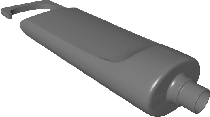
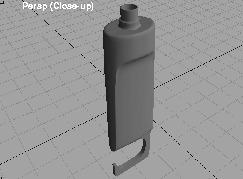
You are now familiar with basic surface construction. This lesson combines modeling techniques such as Revolve, Boundary and Skin to create the pieces of a shower gel bottle. Then, by using the Attach function, you can join separate surface components into a single surface.
To build the bottle, you begin with one quarter of the final shape, and then mirror it twice. In addition, several trimming techniques are used to create a hook for the base of the bottle.
Throughout this lesson, you use pre-made curves to create surfaces. The different sets of curves that you need are located on different layers within the one file. When the file opens, the profile curve that you use to shape the bottle's neck is visible, and the other curves are in Reference mode.
L08_ShowerGel. If prompted, click Yes to delete all existing objects, views, shaders and actions.
Bottle neck Layer button to highlight it as the construction layer.
Note: Although the curve to be revolved is on the Bottle neck Layer, the new revolved surface will be placed on whichever layer happens to be the current construction layer. Here we want the surface to go on the Bottle neck Layer as well. |
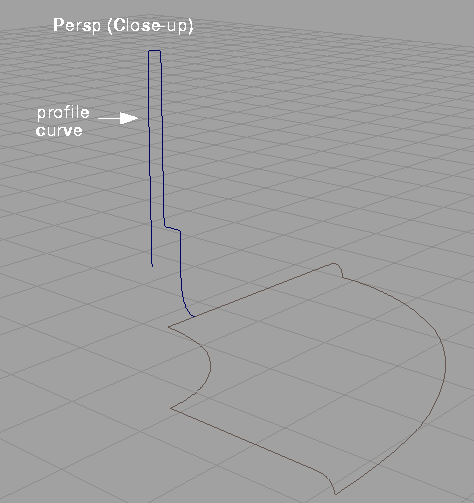 |
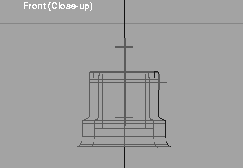
This curve is revolved around the Z-axis to construct the bottle neck surface. Once the surface is updated, you delete the original profile curve to remove history and clean up the model.
 Select Surfaces
  Revolve-
 to display the
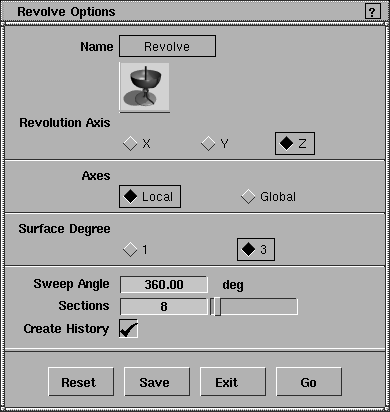
 Revolve Options box. Make sure that the Z-axis is selected.
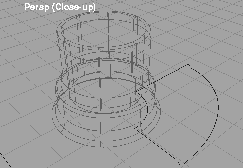
Notice how the Revolve displays the axis line and revolve arrows that indicate its construction history. Since this shape has the proper revolve angle (360 degrees) and the proper radius, you can delete the original construction curve and history.
 Select Pick Object. Click-drag a pick box around the whole revolve surface. The active surface is de-activated and the original construction curve becomes active (picked).
Yes to remove history and delete the construction curve.
Bottle_01 and click on Save wire.
Note: The opened file would have been overwritten. Using Save as to re-save files lets you keep the original files. This enables you to work progressively, without losing earlier work if you need to back up a few steps. |
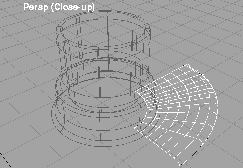
Next, you create a boundary surface that connects the neck with the rest of the bottle. You start by changing the layer options to display the four curves that will be used to generate the body of the bottle.
Bottle body Layer button to highlight it as the Construction Layer.
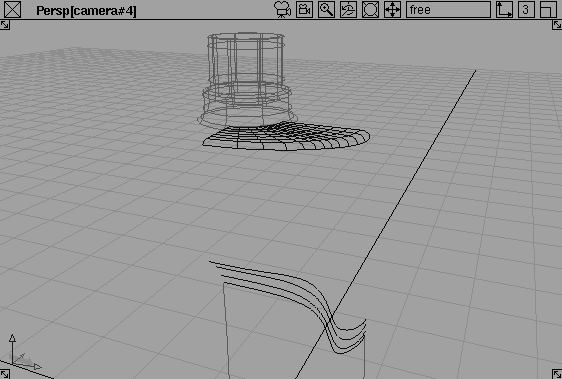
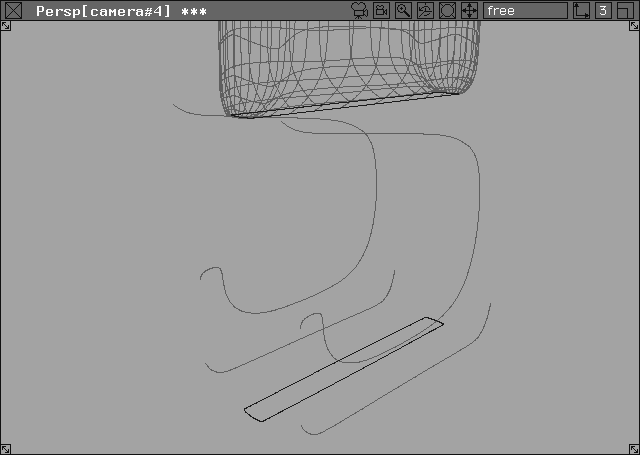
The four curves that will be used to construct the boundary surface become pickable. Curves that will be used in the construction of the rest of the body are located below the view.
Bottle neck Layer pop-up menu, select Set state Reference.
| Tip: Objects on referenced layers can't be picked or edited accidentally. They remain visible for reference, and can be snapped to. |
 Select Surfaces Boundary surfaces Boundary- to display the
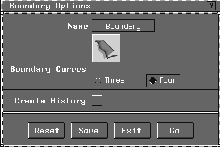
 Boundary Options box. Click Create History to turn it off. Make sure that the Boundary Curves option is set to Four.
 Select Pick Object and click-drag a pick box around the boundary surface and its curves. Don't worry about dragging over the bottle neck, because it is referenced. The construction curves, however, are left active.
Using Surfaces Skin, you can create a ruled surface by skinning over two or more cross-sectional profile curves in much the same way a boat hull is constructed over its ribs. With the Skin tool, you can pre-determine the number of flow line subdivisions on the resulting surface. This way, you can determine the number of times that the surface is subdivided or ruled in the direction of the original construction curves. This is useful for accurate and predictable surface modification at a later date.
| Note: The ability to determine the number of spans (previously available in the Patch tool) has been incorporated into the Skin tool. |
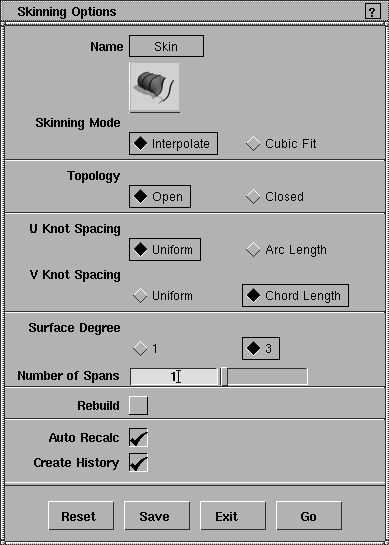
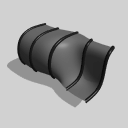 Select Surfaces Skin- to display the
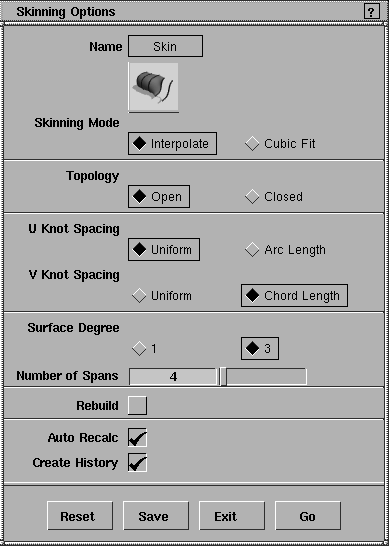
 Skin Options box. Click Reset to insure all the options are set to their default values, then click on the Number of Spans field and change it to 4. This creates a ruled surface with 4 isoparm spans in the direction of the construction curves.
Note: You need to keep Create History turned on if you plan to edit the curves later, and if you want the surfaces to automatically update. |
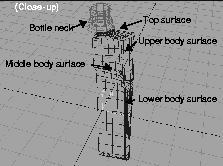
After you pick the second curve, the skin surface is constructed. This surface forms the top part of the bottle body.
| Note: Any isoparm of a surface can be used as a cross sectional profile for a skin surface. |
| Note: Although the Skin tool will be used to construct one surface from the series of four curves, constructing two surfaces creates a cusp along the bottom edge of this first surface. |
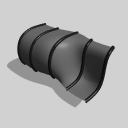 Select Surfaces Skin- to open the
 Skin Options box. Set the Number of Spans to 1.
Because the curves are so closely spaced, a higher number of subdivisions is not needed.
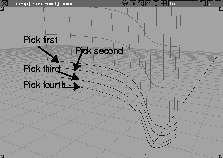
Shift key and click on the two remaining curves.
 Select Pick Object after the four curves have been selected and the surface has been properly built.
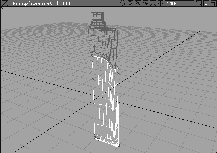
The surface is constructed by skinning over the curves in their selected order. This surface component forms the mid-section of the bottle.
Bottle_02 and click Save Wire.
The lower body is constructed from four boundary curves.
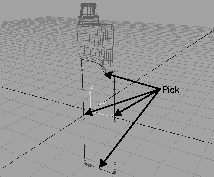
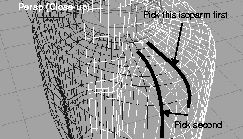
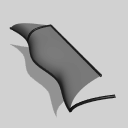 Select Surfaces Boundary Surfaces Boundary. In response to the system prompts, pick the lower edge isoparm of the skin surface and each boundary curve.
Once you select the fourth boundary curve, the surface is constructed. This surface component represents the lower surface component of the bottle body.
Now that the surfaces have been built, the construction curves and history can be removed.
 With Nothing picked, select Pick Component-. Turn all the options to
 Off, then click on the Curves option. Click Go.
Yes to delete construction history.
Next, you attach the lower and middle body surfaces using Object Edit Attach Attach. The Attach function lets you turn two surface components into a single surface.
| Tip: When attaching surfaces, you must make mental notes where each surface boundary being attached is, because it can be difficult to distinguish one surface boundary from another if they share the same boundary curve. |
Sometimes Object Edit Attach Attach will radically change the surface's shape, because the Blend mode deletes the two surface edges when the single surface is created. At other times, it is simply because you have chosen the wrong surface boundaries to attach. |
In either case, if the result is undesirable, select Edit Undo immediately to undo the attach and then try the attach again. Select Object Edit Attach Attach- and set the Knot Insertion option to ON in the Attach Options box. This adds extra constraints to the boundary areas, and reduces the amount of change to the shape of the surface boundaries. |
 Select Object Edit Attach Attach- to display the
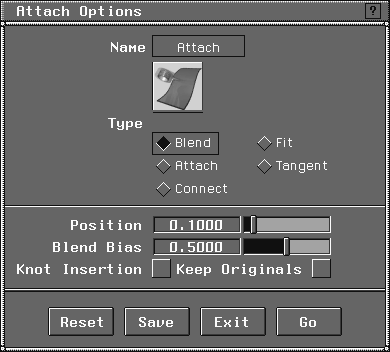
 Attach Options box. Make sure that Knot Insertion is set to OFF and the Type is set to Blend. When this is set, the two surface edges are blended together to create one single surface. Click Save.
|
Note: By saving the option settings, the default parameters are reset for the rest of your working session without executing the action. In this way, the Attach function can be used later in your working session by selecting Object Tools Attach. You don't have to access the option menu again unless you want to change the option settings. |
 Select Pick Object. Click on the middle body surface to show its extent.
 Select Object Edit Attach Attach. All active surfaces are automatically de-selected.
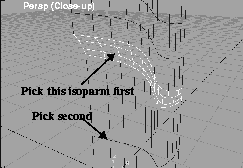
Select first object to attach near attach location. Click on the horizontal isoparm above the lower edge of the middle skinned surface (as indicated below).
Attach Attach, then re-pick the correct isoparm. This can be done as many times as necessary until you have selected the correct isoparm.
Select second object to attach near attach location. Click on the horizontal isoparm of the lower boundary surface as indicated above.
The two surface components are now attached and blended together. Notice that the horizontal isoparms near the blend have shifted location slightly, to reflect the altered shape of the new surface.
|
Note: If you make a mistake in picking the second surface isoparm and the surface appears to wrap around, or the result seems incorrect, select Edit Undo immediately. The attach is then reversed so you can try it again. |
| Tip: To undo an attach you must select Undo before making any other button selections. |
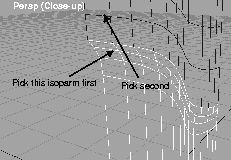
The procedure to attach the upper patched surface to the new lower body surface is the same, but this time, you use different isoparms. Follow the instructions carefully, and don't hesitate to undo the attach if something goes wrong.
 Select Object Edit Attach Attach.
Attach Attach again, and re-select the correct isoparm.
Undo again and start the entire attach procedure over again.
Select Object Edit Attach Attach.
Attach Attach again, and re-select the correct isoparm.
Undo again and start the entire attach procedure over again.
The two surface components are attached and blended together into one surface.
 Select Object Edit Attach Attach. In response to the system prompt, click on the horizontal isoparm of the lower body surface shown above.
 Select Pick Nothing, then
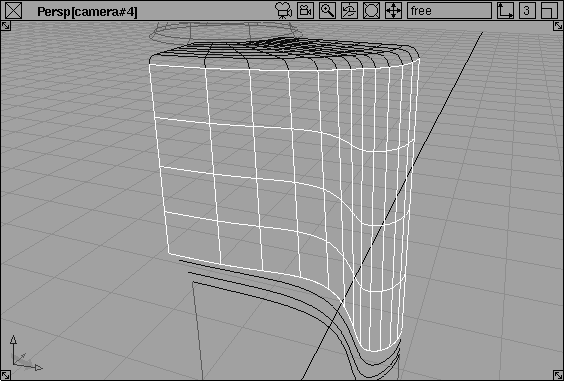
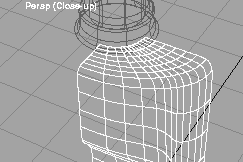
Pick Object. Click on the surface to select it. All of the surface components are attached and blended together. Dolly out to see the whole bottle.
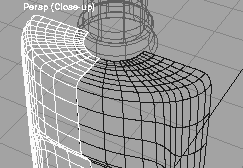
So far, you have created one-quarter of the final bottle shape. Since the bottle is symmetrical in two directions, this partial shape is all that is needed to define the whole. To turn the surfaces into a complete bottle, you mirror it once to create half the bottle, and then mirror the half-bottle into a whole surface.
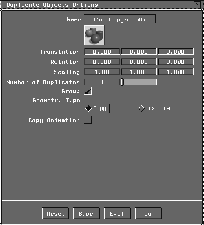
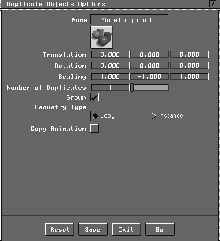
to display the Duplicate Objects Options box. Click on Reset then set the X value for Scaling to -1.
Go to copy the surface.
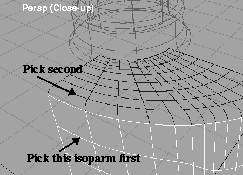
 Select Object Edit Attach Attach. Click on the isoparms shown above to attach and blend these two surface components into one complete half of the bottle body.
to open the
Select Object Edit Attach Attach. Click on the isoparms shown above to attach and blend these two surface components into one complete half of the bottle body.
to open the Duplicate Objects Options. Click Reset to set all parameters back to their defaults. Next, change the Scaling factor on the Y-axis to a value of -1.
| Tip: Before performing the attach, memorize the location of the isoparms to be picked. You may want to maneuver the model over the gridlines, so you can use the grid to identify the required isoparms. |
 Select Object Edit Attach Attach.
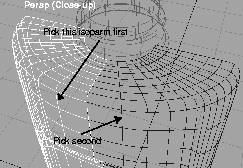
 Tumble your view so that you can see the opposite side of the bottle body. Select Object Edit Attach Attach. Click on those isoparms shown below.
Tip: To help find the seam across which the attach must take place, turn on the surface's CVs using ObjectDisplay Control- and use a Zoom window (magnifying glass icon in window title bar) to look at the bottom of the surface. The seam isoparm is marked by a small square. Click on the isoparms on each side of it. |
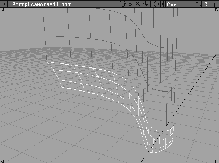
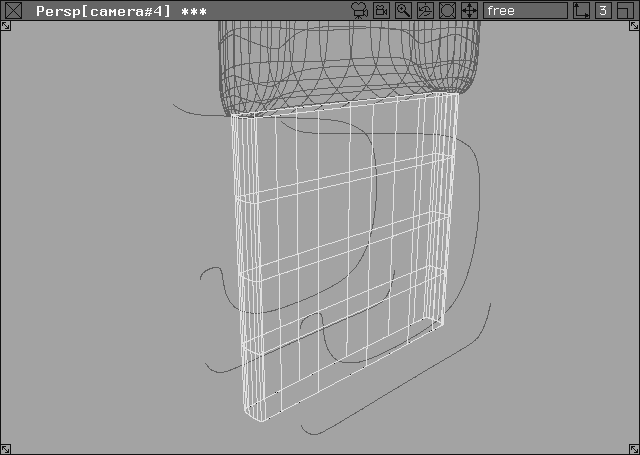
Next, create a hook for the base of the bottle. Start by using the Skin function to create this piece. Later, you intersect and trim the surfaces to complete it.
 With Nothing picked, select Object. Click on the
 Hook Layer button to highlight it as the construction layer. The Bottle body Layer reverts to a Reference state.
 Select Surfaces Skin-. If the
 Number of Spans is not 4, set it to 4. Click Go. Click on the lower rectangular curve, then click on the upper rectangular curve. A patch surface is created between the two curves.
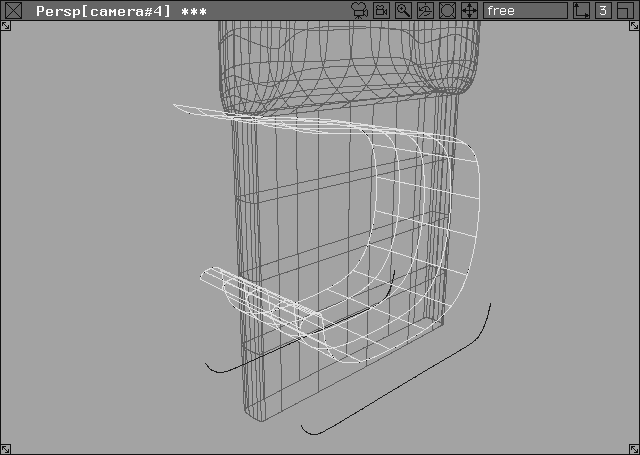
You can use the templated curves to create surfaces that intersect the first skin surface. In the next section, you'll trim these intersecting surfaces.
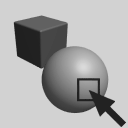 Select Pick Template. With the skin surface still selected, use the left mouse button to click-drag a pick box around all four of the templated curves.
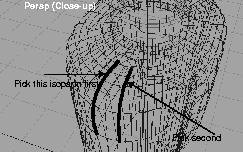
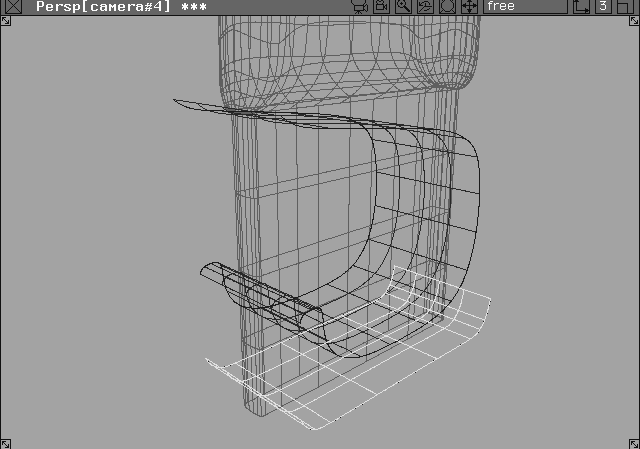
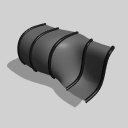 Select Surfaces Skin. Click on one of the upper curved lines, then click on the matching curved line. A second surface is constructed.
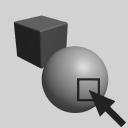 Select Pick Nothing, then Pick Template. Click on the square templated surface to make it active.
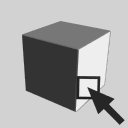 Select Pick Nothing, then Pick Component-. Make sure that only the
 Curves option is selected. Click Go.
Bottle_03 and click Save wire.
With three surfaces completed, you can use the trimming operation to create the shape of the hook. To perform the trim, you must use the Intersect function to add curves on surface. These curves can then be used to execute the trims.
 Select Pick Object and pick the main surface component, ensuring that it is the only active piece of geometry. This is the target surface to be trimmed.
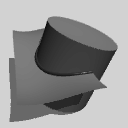 Select Surface Edit Create CurvesOnSurface Intersect- to open the
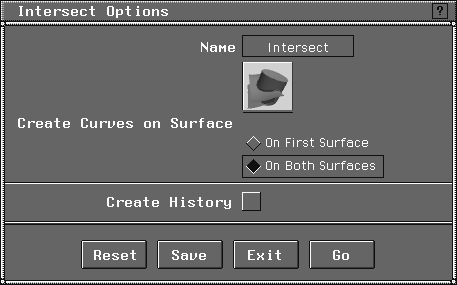
 Intersect Options box. Make sure that Create Curves on Surface is set to On Both Surfaces. Click Create History to turn it off.
Select intersecting curves or surfaces.
Click on any isoparm of the larger curved surface component.
Select intersecting curves or surfaces.
Click on any isoparm of the smaller curved surface component.
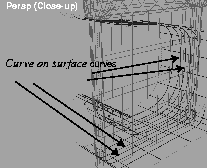
Two sets of trim curves have been constructed on the main surface component. These trim curves plot the points of intersection between the surfaces.
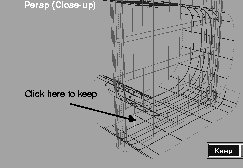
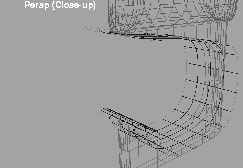
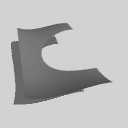 Select Surface Edit Trim Trim. Click directly on the main surface component. The surface changes color again and the system prompts you to:
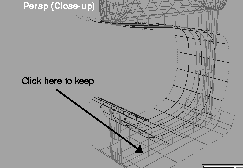
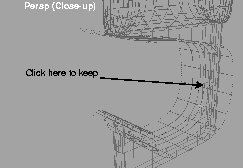
 Select the Regions of the surface TO KEEP, the DISCARD button to switch.
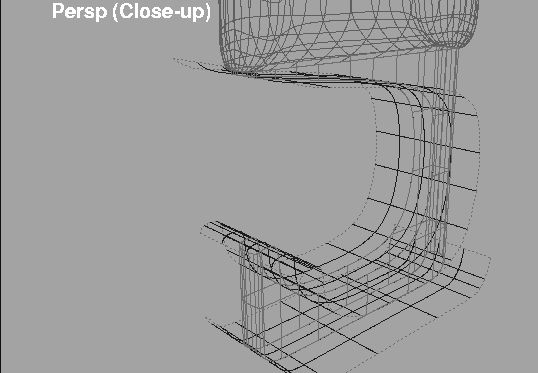
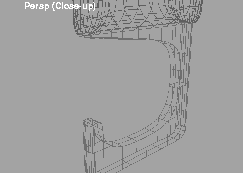
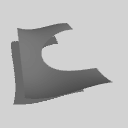 Select Surface Edit Trim Trim. Alias prompts you to select the target surface to trim. Click on any surface isoparm of the lower curved surface.
|
Tip: To see the original surfaces, you can untrim a surface by selecting Surface Edit Trim Untrim. |
Bottle body Layer popup menu, select Set state Pickable. Do the same thing for the Bottle neck and Hook layers.
| Note: The surfaces need to be Pickable in order to render. |
| Note: The model is still there; it just can't be seen. |
. Set the Quality to High and the shading Frequency to 10. Click Go.
If you have Alias Studio or AutoStudio, you can use this model to learn the Mass properties capabilities in your Advanced Evaluation tools. These functions will give you information about the bottle's volume that can be used in designing the bottle.
 Select Pick Object. Click on the body of the bottle to pick it.
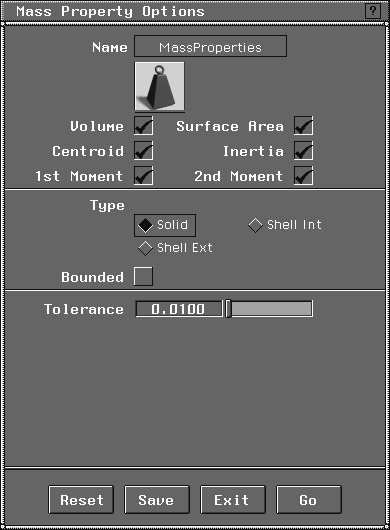
 Now select Evaluate Mass properties -. In the option box, set the
 Bounded option to Off, and the Volume type to Solid. Click Go.
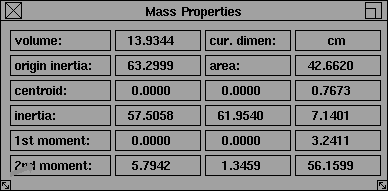
The system calculates the volume, as well as other physical properties of the object and the Mass Properties window displays the results.
| Note: For complex calculations such as this one, the amount of time required is based on the speed of the hardware Alias is running on and the amount of available memory. |
|
Note: If some of the inertia and moment values are negative, it is probably because your surface normals are pointing inwards. Select Object Edit Reverse direction. Click on the surface to display the normal icon (an arrow with the letter N). Click again with the middle mouse button to swap the direction of the normals. The icon should change color. Reselect Evaluate Mass properties to see the difference. |
You have now completed the Shower gel bottle. This lesson has shown you several surface construction tools. You have also learned about the Attach function and how it lets you put together the various surface components to create a single surface.