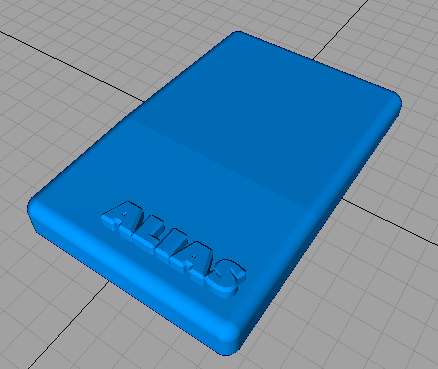
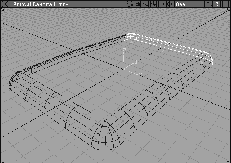
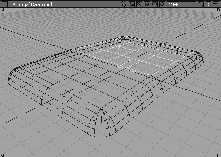
Now that you have used some of the curve and surface construction tools, you can further develop your modeling techniques by constructing a computer mouse. This lesson gives you more practice applying some of the modeling functions you have just learned, and also introduces you to text and beveling.
Starting from an empty scene, you can construct the curves and surfaces needed to build the mouse.
Yes to delete all objects, shaders, views and actions.
You start by constructing a rounded corner using a partial circle and the Boundary function.
 Select Objects
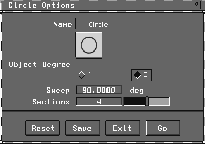
  Primitives Circle-
 . Change
 Sweep to 90, and Sections to 4.
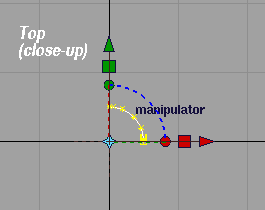
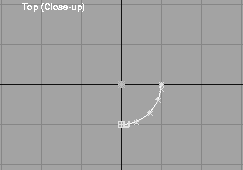
Go. Press and hold the Alt key to temporarily turn on Grid snapping and click in the Top window at the origin.
| Tip: Using grid snap ensures that you place CVs at the grid intersection points. |
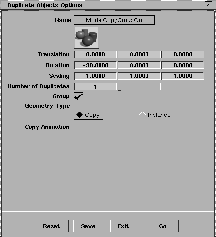
 With the circle still active, select Xform Rotate and enter
 0 0 -90. This rotates the circle 90 degrees around the Z-axis.
 Select Xform Scale, and enter
 2 to scale the primitive to twice its size.
. Set the Rotation to -90 degrees around the X-axis.
Go.
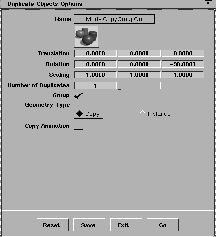
. Click Reset and set the Rotation to -90 degrees around the Z-axis.
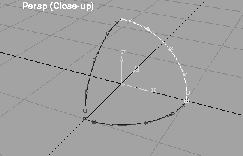
Go. You now have three quarter circles, their ends joined. Dolly into the Perspective window to see the curves.
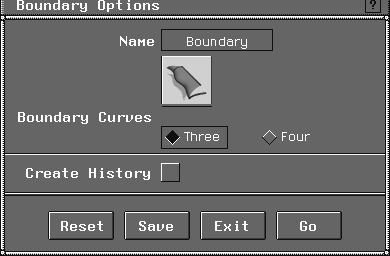
 Select Surfaces Boundary surfaces Boundary-. Set
 Boundary Curves to Three, then turn Create History off.
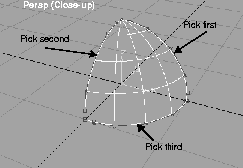
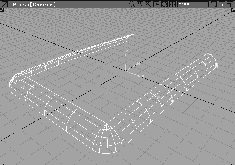
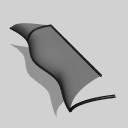
Go. You are prompted to: select the first apex boundary curve; followed by: the second apex boundary curve; and finally: the curve opposite the apex. The order in which the curves are picked determines the isoparms of the surface. Pick them in the order shown below. The resulting surface should appear like the rounded shape.
 Select Pick Object and click-drag a pick box around the surface and the curves. The surface is unpicked and the curves picked. From the Delete menu, select Del active to remove the curves.
You construct the back edge of the mouse by creating a mirror copy of the corner, then skinning between them.
 Select Pick Object and click on the boundary surface.
 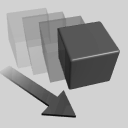 Select Xform Move, and type
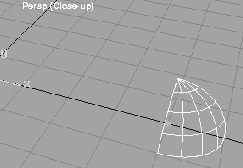
 4 to move the surface 4 units in the X direction. Dolly into the Perspective view to see the new position.
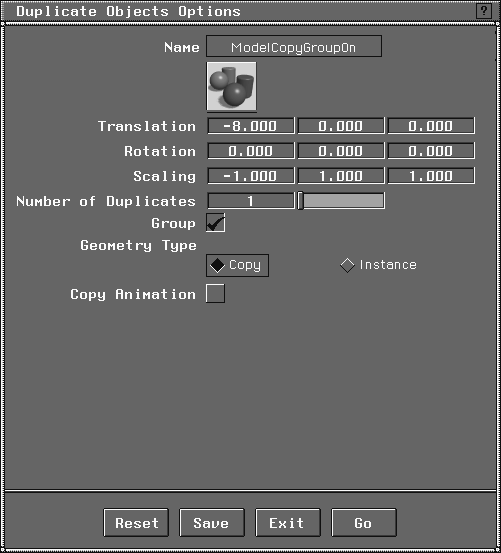
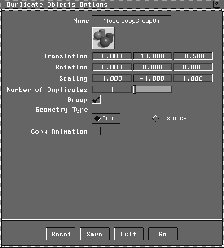
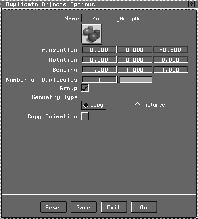
. Press Reset to clear any existing values. Set Translation along the X-axis to -8.0, and Scaling along the X-axis to -1.0.
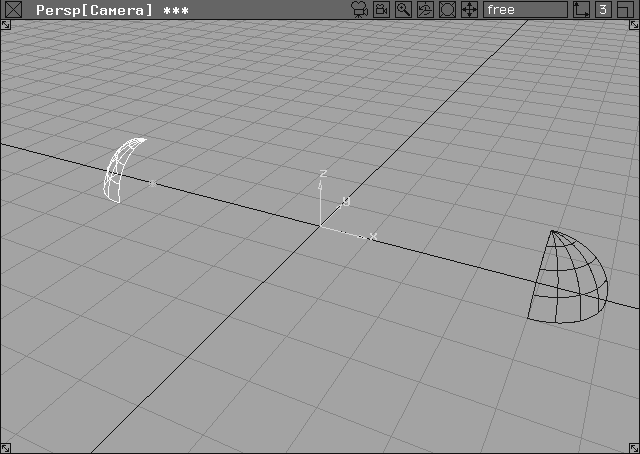
Go. The -1 scaling factor creates a mirror image of the geometry along the X-axis.
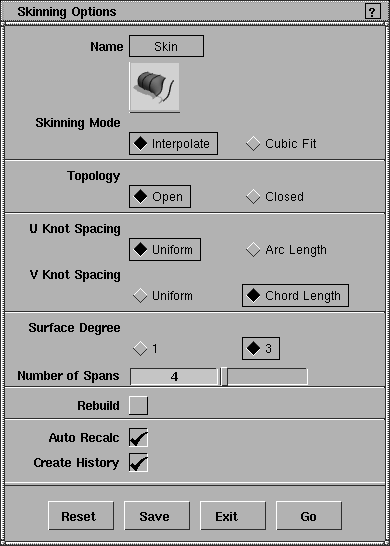
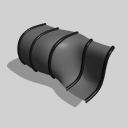 Select Surfaces Skin-
 . Set the
 Number of Spans to 4.
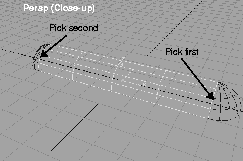
Go. In response to the system prompt, click on the last isoparm of the first boundary surface, then click on the last isoparm of the second boundary surface, as shown in the following image.
| Note: If you accidentally skin the wrong edges together, use Del active from the Delete menu to delete the new surface, and try building the surface again. |
You are now going to duplicate curves from the existing surfaces to create new curves for skinning.
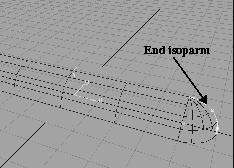
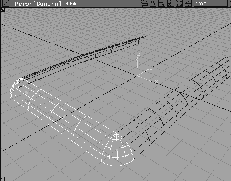
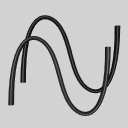 Select Curve Edit Create Duplicate curve. Click on the end isoparm of the right corner surface as shown below.
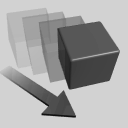 Select Xform Move and enter:
 r 0, 5, 0, to move the curve relative to its current position. Dolly and tumble in the Perspective window to see the curve better.
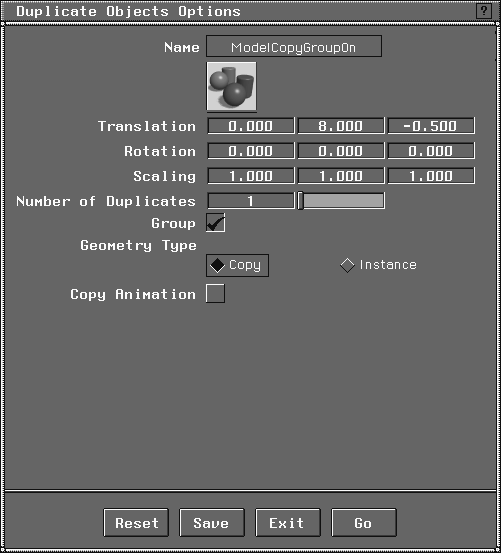
. Press Reset to clear any previous settings. Set the Translation for the Y-axis to 8.0 and for the Z-axis to
-0.5.
Go to copy and translate the curve along the Y- and Z-axis.
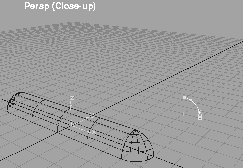
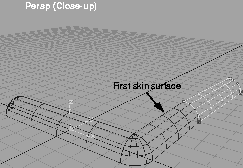
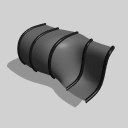 Select Surfaces Skin. Click on the end of the right corner, then the first duplicated curve to build a skin surface.
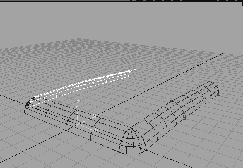
 Select Pick Object and click on the first skin surface to add it to the active set.
. Click
Select Pick Object and click on the first skin surface to add it to the active set.
. Click Reset to clear the previous settings. Set the X-axis Scaling to -1.
 Select Pick Nothing, then Pick Object. Click-drag a pick box around all the geometry.
 Choose Xform Move and enter
 0, -6.5, 0 to move the surfaces in relative mode. Click Yes to remove history.
This centers the geometry in the Top view. You may wish to track and dolly in various view windows to see the entire model.
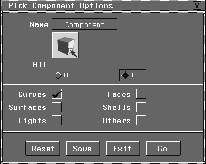
 Select Pick Nothing, then Pick Component- . Turn all options to
 Off, then click on the button next to Curves to turn this on.
To create the back edge of the mouse, you copy the front edge using rotation and translation factors. You then create a skinned surface for the top of the mouse.
 Select Pick Object. Click on the three surfaces that represent the front edge of the mouse.
. Press
Select Pick Object. Click on the three surfaces that represent the front edge of the mouse.
. Press Reset to clear the previous settings. Set Translation for the Y-axis to 13.0, Translation for the Z-axis to -0.5, and Scale for the Y-axis to -1.
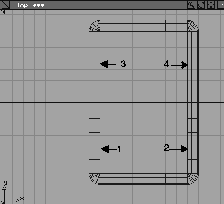
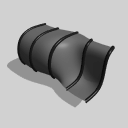 Select Surfaces Skin. In the Top window, click on the top isoparms of the side surfaces, labeled 1 and 2 in the diagram below, to create the first surface.
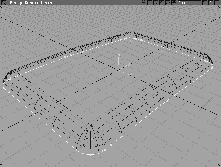
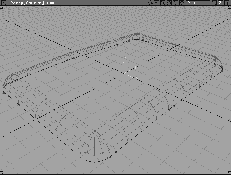
The bottom edge of the mouse is created using the bottom isoparms of the edge surfaces as reference. By duplicating these isoparms and attaching them into a single curve, you can create a construction curve for the bottom edge.
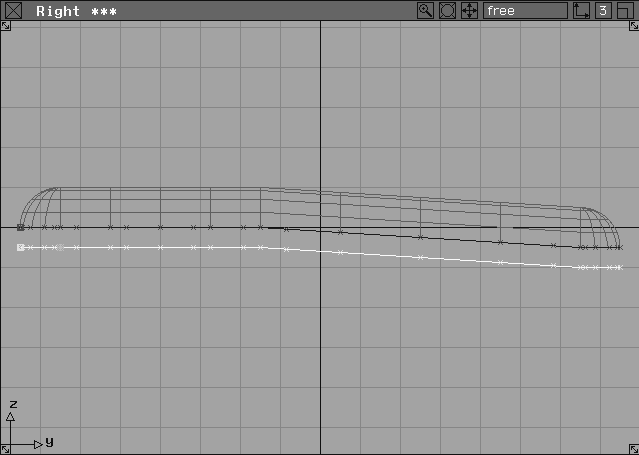
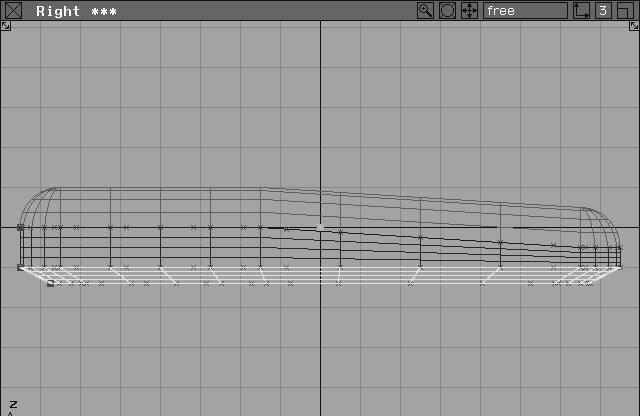
 With Nothing picked, select Pick Object. Click on the two top surfaces to make them active. From the Object Display menu, select Invisible to leave only the side and end surfaces visible.
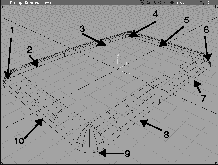
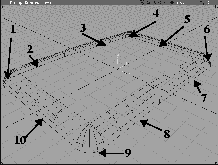
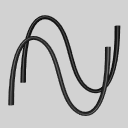 Select Curve Edit Create Duplicate curve and click on the base curves as indicated above.
The curves that need to be selected and duplicated are as follows: 4 corner edge curves, 4 side edge curves (each side being comprised of 2 curves), 1 front edge curve and 1 back edge curve.
| Note: You may need to tumble the view to easily pick the required isoparms. |
|
Tip: If at any time you pick the wrong isoparm, select Delete Active and start again. |
Control -. Turn all the options off then turn CV On. Click Go and close this window.
 Using Pick Object and the left mouse button, click-drag a pick box around the entire model. This picks all the surfaces (and unpicks the duplicated curves).
Reverse direction and click Reverse One. Click the curve again to deselect it. Continue around the bottom edge until you have ensured that all curves are traveling in the same direction.
Using Pick Object and the left mouse button, click-drag a pick box around the entire model. This picks all the surfaces (and unpicks the duplicated curves).
Reverse direction and click Reverse One. Click the curve again to deselect it. Continue around the bottom edge until you have ensured that all curves are traveling in the same direction.
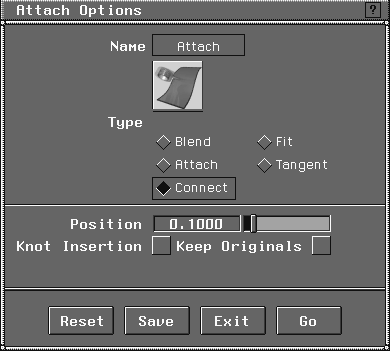
 Select Object Edit Attach . Set
 Type to Connect.
All windows All (Studio) to return to four window views.
 With Nothing picked, select Pick Object and click on the new curve.
. Press
With Nothing picked, select Pick Object and click on the new curve.
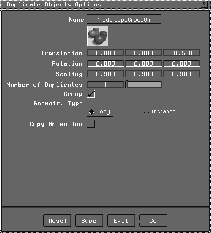
. Press Reset to clear any previous settings. Enter a Translation of -0.5 along the Z-axis. Click Go.
 With nothing picked, choose Pick Point types CV-. Turn
 on Use Lasso.Click Go. Use the mouse to draw a lasso around all the CVs on the duplicated curve.
| Note: Several pick boxes would have been necessary in this case to avoid picking CVs on the other curve. |
 Select Xform Move. Press the
 Alt key (or the appropriate hot key) to temporarily turn on grid snapping.
| Tip: If you use the wrong mouse button, from the Edit menu, select Undo. |
| Note: This method of "flattening" a curve is very powerful. When you move CVs using grid snap, they usually snap to the same point. But, by combining grid snap and the right mouse button constraint, you can flatten the curve. |
 With nothing picked, select Pick Object. Click on the new curve.
 Select Xform Local set Pivot and enter
 a 0, 0, 0 to move the pivot in absolute mode. It is now at the center, ready for scaling.
. Click on Reset, and then enter a Z-axis Translation of -0.5, and a Scaling factor of 0.9 in all directions.
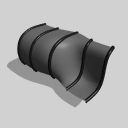 Select Surfaces Skin. Click on the first two curves to create a skinned surface.
Control -, change the
Select Surfaces Skin. Click on the first two curves to create a skinned surface.
Control -, change the Scope to All, and turn all the options off. Click Go and close this window.
 Select Pick Nothing, then Pick Template. Click-drag a pick box around any templated geometry.
From the File menu, select Save as. Enter the name Mouse_01 and click Save Wire.
With the mouse body constructed, use some of the modeling methods outlined in this lesson to construct the mouse buttons and cord connecting the mouse.
This exercise may prove to be a challenge, but in doing it, you'll apply many of the ideas you have learned so far.
| Note: Once you have completed the mouse, pick all the parts of the mouse. From the Edit menu, select Group to group the pieces together. |
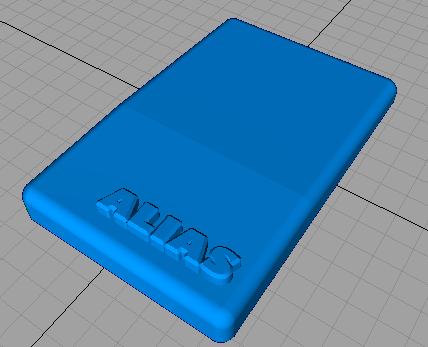
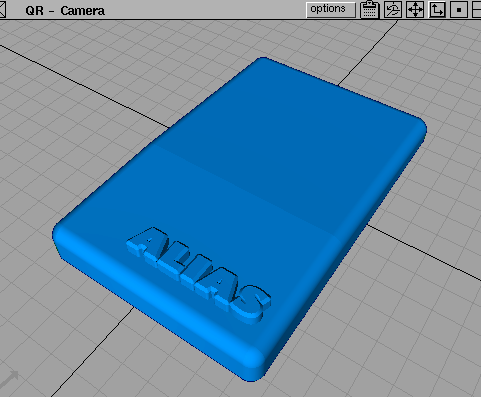
Next, you add a logo to the mouse. It is made of 3D geometry that has been beveled and placed on the top surface of the mouse. First, you create two dimensional text, for later beveling and extruding.
 With nothing picked, select Pick Object. Click-drag a pick box around the completed mouse.
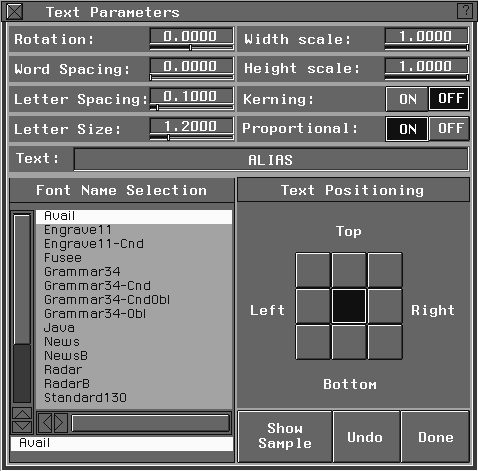
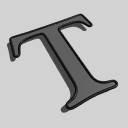 Select Objects Text... to open the
 Text Parameters window. Notice that your login name appears in this window as the default text.
Esc key at the top left corner of the keyboard to clear the existing text. Type ALIAS and press Enter.
Text Parameters window with the mouse, you can see the text ready to be placed, but do not click down on the screen at this point.
Humanist521-Ultra-Bold from the Font Name Selection list to change the typeface. Move the cursor into a modeling window to see the text.
| Note: The fonts shown in this lesson may differ from those available in your version of Alias. |
If you would like to see additional non-keyboard standard characters, click on the Show Sample button which opens the Font Sample window. You can scroll around in the new sample window with the slider bars. Below each letter and symbol is an ASCII number that can be typed with a preceding\ (backslash) in the text window to get a symbol that isn't on the keyboard (for example, /478 produces the symbol for infinity). Close the Font Sample window.
a Letter Size of 1.2 and Letter Spacing of 0.1. These values affect how the text will look when it is placed.
The text is placed as a grouped object made up of face surfaces.
 Close the
 Text Parameter window and select Pick Object to get rid of the text cursor.
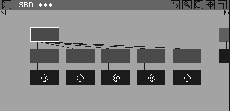
SBD and notice the grouping of the object you have just created by checking with the diagram below. Each letter can be picked as an individual object in the SBD window, and has its own pivot point.
Next, you bevel and extrude the two dimensional text into three dimensional geometry and place it onto the mouse model. The Bevel option works with curves or with face objects.
In order to bevel downwards, you must reverse the direction of the curves making up the text.
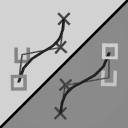 select Object Edit Reverse direction. Click Reverse All to reverse the direction of the curves of all of the letters.
 Select Pick Object and click on the text.
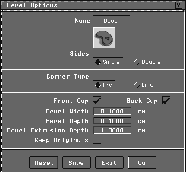
 Select Surfaces Fillet surfaces Bevel - to open the option box. Leave the
 Width, Depth and Bevel Extrusion Depth set to the defaults as these will be set interactively with the mouse later. Set Sides to Single to put the bevel at the front of the text only, and make sure both Front and Back Caps are turned on. Turn Keep Originals off and leave Corner Type at Arc.
| Note: The text is beveled upside down. |
0.1 0.1 0.4 with the keyboard. The bevel is updated. Click on the Go button to accept the bevel.
Now you move the text to the top surface of the mouse. You first group the beveled text under a single node, then use the Xform functions to place the text.
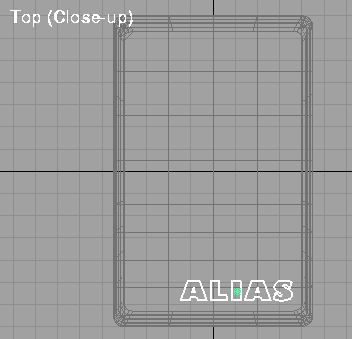
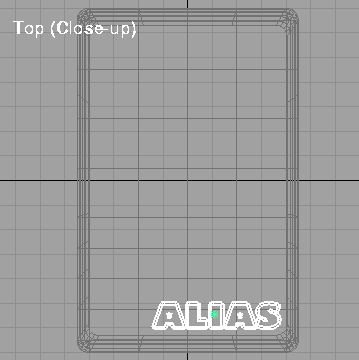
 Select Xform Local Set pivot and move the pivot to the middle of the letter I in the Top window.
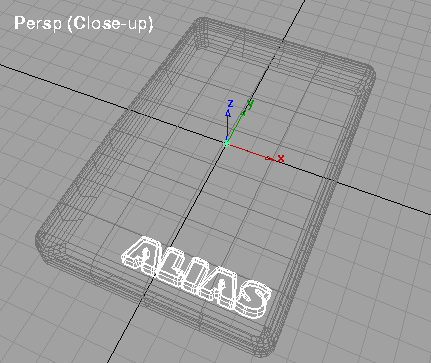
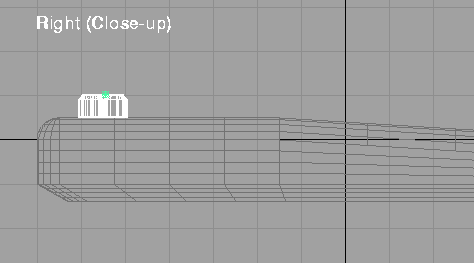
 Select Xform Move. In the Right window, click-drag with the right mouse button to move the text up to the top surface of the mouse.
mouse_complete and click on Save wire.
 With Nothing picked, select Pick Template. Click-drag a pick box around the whole model.
. Change the
With Nothing picked, select Pick Template. Click-drag a pick box around the whole model.
. Change the Quality to High and the Shading Frequency to 5. Click Go.
You have now completed the mouse tutorial. In this lesson you have learned how to:
This exercise represents one method of creating object logos. The other method is through rendering, where labels are mapped onto objects without generation any 3D geometry. Label mapping is covered in an upcoming lesson. After you have applied shaders to models, you may want to return to this lesson and render the mouse properly.
| Note: Some text with very tight curves may produce undesirable results in Bevel, especially if you use a font from outside of Alias. Use with caution! |