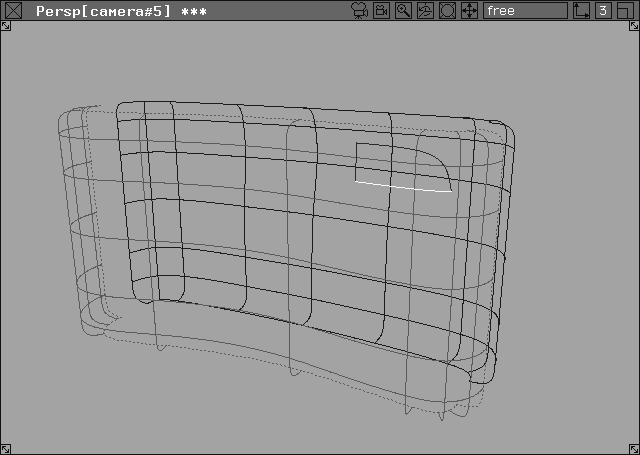
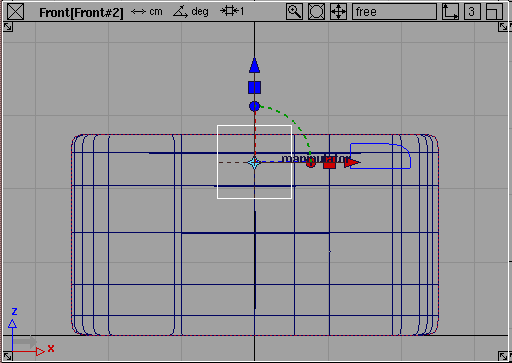
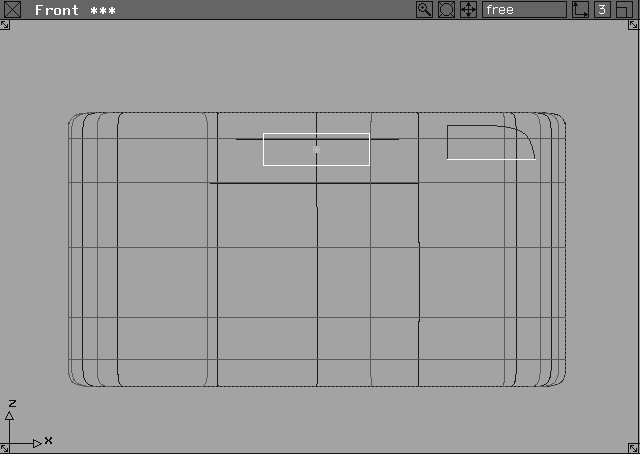
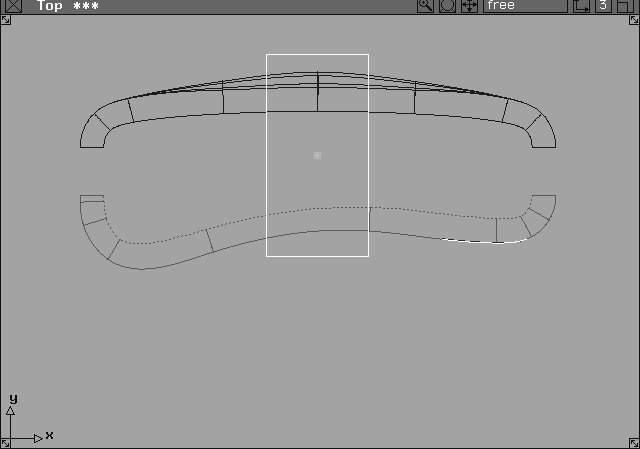
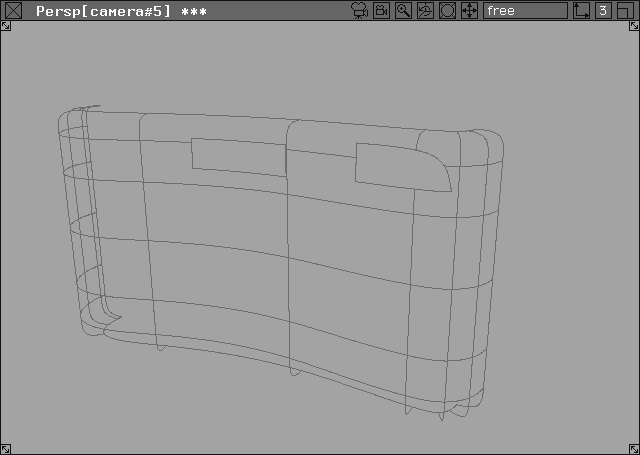
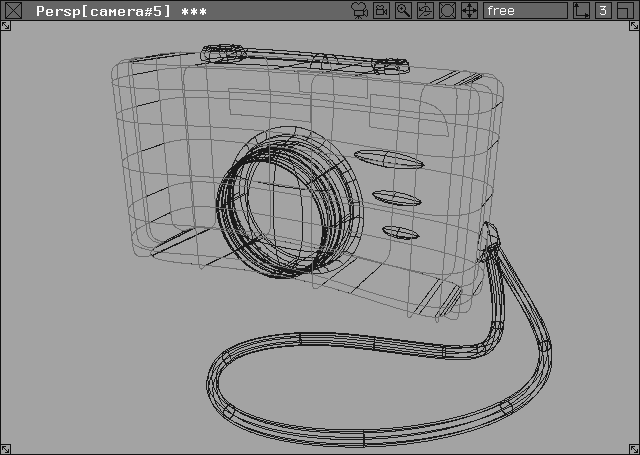
This lesson shows you how to use surface modification tools such as fillets, proportional modification and trimming. The camera model from Lesson 5 is edited using these tools. Modifying and refining a model is crucial to the design process, and Alias provides a range of tools to achieve this.
You refine the back surface with proportional modification. Then, create curves on surfaces and use them to trim new details into the front and back surfaces. Finally, build intermediate surfaces between the lens and camera body with a fillet.
This lesson uses a prepared model based on the camera in Lesson 5.
CourseWare wire directory and click the file called L06_CamMod. Click the Open button.
The completed camera is displayed on a series of layers.
camera front Layer popup menu, select Visible to toggle the layer to invisible.
outer lens and details Layers to hide all but the camera back surface.
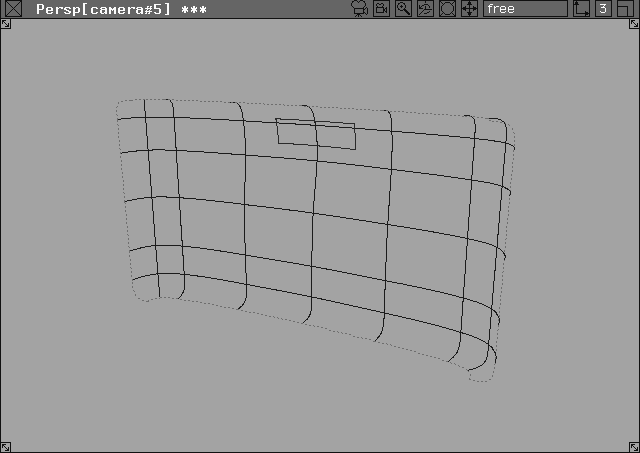
First, modify the back of the camera, using the Proportional modification function. Proportional modification gives you accurate controls over neighboring surface CVs, while modifying another CV. This control can be set in both the U and V directions.
 Select Xform
  Modify Proportional mod-
 to open the option box. Set the
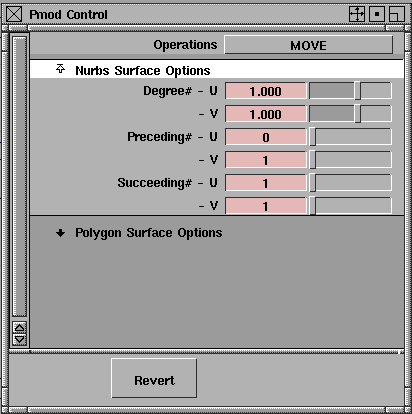
 Operations to Move, the Preceding U# to 0 and V# to 1, and both Succeeding U and V# to 1 and 1 respectively. These settings indicate how many neighboring CVs are to be affected by the move.
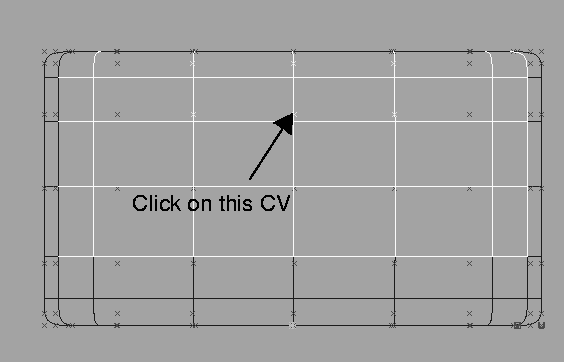
0, 1.15, 2.1 and press Enter to move the CV to its new location. (If you are in relative mode, remember to precede the coordinates with an "a" for absolute mode.)
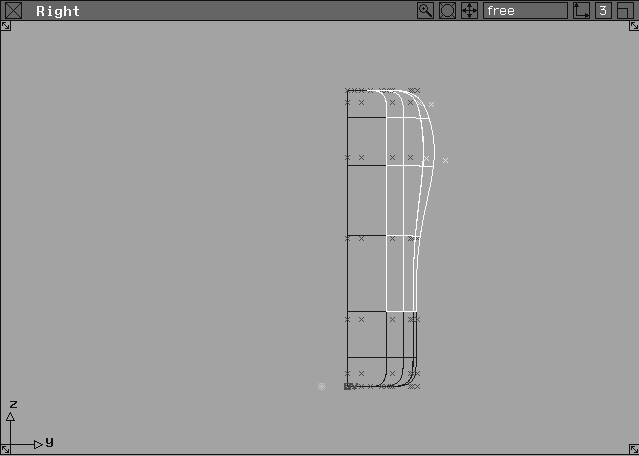
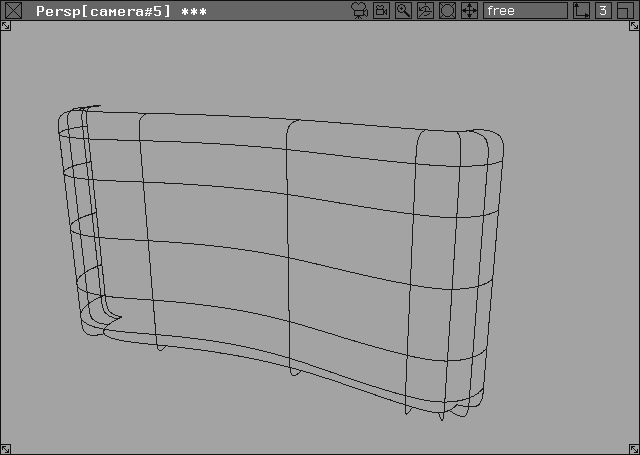
In the other three windows, watch how the movement of the primary CV affects the specified surrounding CVs.
Using a curve on surface, you define a trim region that is used to cut the front surface of the camera. In order to trim a surface you must always start with a curve on surface.
camera front Layer button to make it visible. Note that it also becomes highlighted as the construction layer.
camera back Layer button to display its popup menu, and select Visible to toggle the layer to not visible.
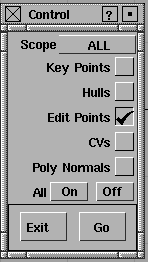
. Change the Scope set to ALL. Set all options to Off and set Edit Points to ON.
Control window.
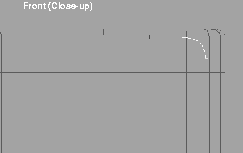
 Select Curves Curves New curve on surface. Alias prompts you to select a surface.
 Select Xform Move and type
 0.84, 1.36 to move the U and V positions of the first point.
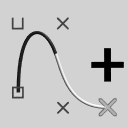 Now, select Curve Edit Modify Add points and type
 0.82, 0.72 for the second U and V positions. Now, type 0.7, 0.58 for the last U and V positions.
| Note: You do not need XYZ coordinates for the curve on surface. Because a curve on surface is drawn directly on the surface space, its location can be defined by U and V coordinates. |
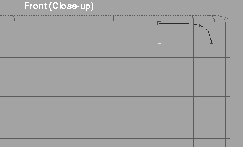
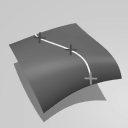 Select Curves Curves New curve on surface. Notice that the front remains magenta and does not need to be reselected.
Ctrl key and click on the top left corner of the first curve to snap the first point.
0.7, 1.36 to place a second point.
Note: The Ctrl key temporarily turns on magnet snapping, which lets you snap to the first curve's edit point. |
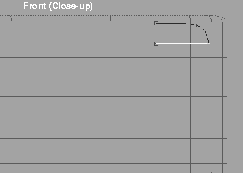
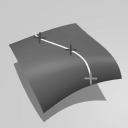 Again select Curves Curves New curve on surface. Press the
 Ctrl key to temporarily turn on magnet snapping and click on the end points of the first two curves. You have now defined the flash area.
| Note: Selecting the tool a second time stops the construction of the first curve and begins a new curve. This allows the construction of a sharp corner. |
Before trimming this surface, a second curve on surface is created for the camera's viewfinder.
Nothing.
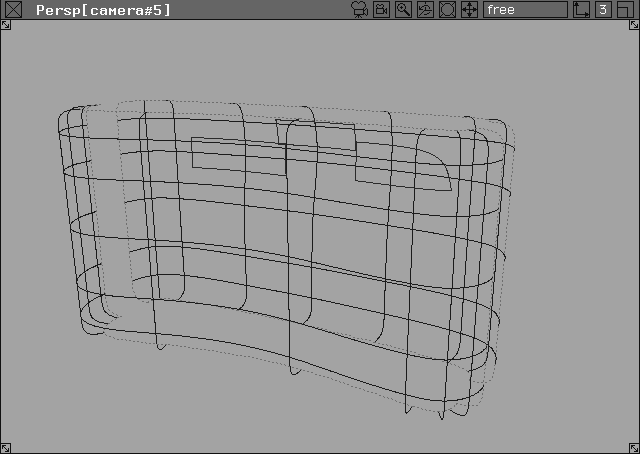
To create the viewfinder, you add two more curves on surface by intersecting a primitive cube with the front and back camera surfaces. Although you can draw a curve directly on the surface, intersections and projections are often the most efficient methods of generating these curves.
camera back Layer popup menu, select Visible.
.
Control window.
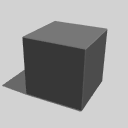 Select Objects Primitives Cube.
Ctrl and Alt keys at the same time to temporarily turn on curve snapping. Place a cube in the center of the camera near the top.
 Select Xform Nonp scale. Click-drag in the Front window to scale the cube. It should be wider than it is tall.
 Select Xform Move. In the Top window, use the right mouse button and click-drag to center the cube between the two surfaces.
 Select Xform Nonp scale. Click-drag with the right mouse button to scale the cube until it intersects the two surfaces of the camera.
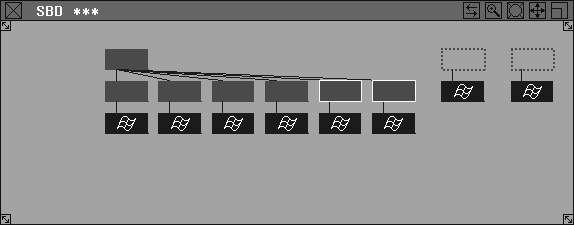
 Select Pick Object. Click on the last two of the lower nodes in the hierarchy to pick the front and back surfaces of the cube.
| Tip: Although 2 surfaces have been deleted, the cube does not change in appearance. |
 With nothing picked, select Pick Object. Click on the front and rear camera surfaces to make them active.
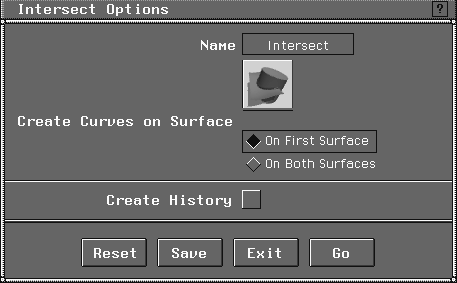
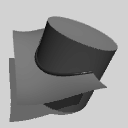 Select Surface Edit Create Curves On Surfaces Intersect-. Under
 Create Curves on Surface, select On First Surface. Click to turn Create history off. This places curves on surfaces on the camera surfaces.
Go. In the SBD window, click on the first of the cube's side surfaces (the lower brown nodes). This creates new curves on surface on the front and rear surfaces of the camera body.
 With nothing picked, select Pick Object. Click on the upper node of the cube to pick it.
Now that you have several curves on surface, you can proceed with trimming the front and back camera surfaces. Trimming uses each curve on surface to "cut" the surface so it appears to be either cut or divided into pieces. By dividing the camera surface, you can create the camera's flash and viewfinder.
camera back Layer button to post the popup menu. Select Visible to hide it.
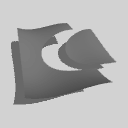 Select Surface Edit Trim Trim divide. When prompted, click on the front camera surface to make it active.
Go. This generates two surfaces. One sits outside the curves on surface and the other sits inside the lines.
| Note: Trimming does not remove geometry from the object. It just makes it invisible. In fact, you can later untrim the surface, if required. |
 With nothing picked, select Pick Object. On the front surface, click on an isoparm inside the curves on surface to pick the flash and viewfinder.
|
Tip: If you had wanted to cut a similar hole for these trims, you could have used Surface Edit Trim Trim. In this case, the smaller surfaces would never have been created. By using the Trim divide, you can add a glass-like shader to these surfaces later, to make them look more realistic. |
camera back Layer button to make this layer the construction layer.
Note: Notice that the camera front Layer has become invisible. Because the two layers had their visibility turned off, clicking the layer button changes it to the construction layer and temporarily makes it visible. To view one layer while another is the construction layer, its visibility must be selected from the popup menu. |
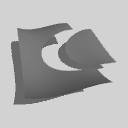 Select Surface Edit Trim Trim divide. When prompted, click on the back surface of the camera to activate it. Now click on any surface point outside of the viewfinder curve on surface.
button. This surface is now divided.
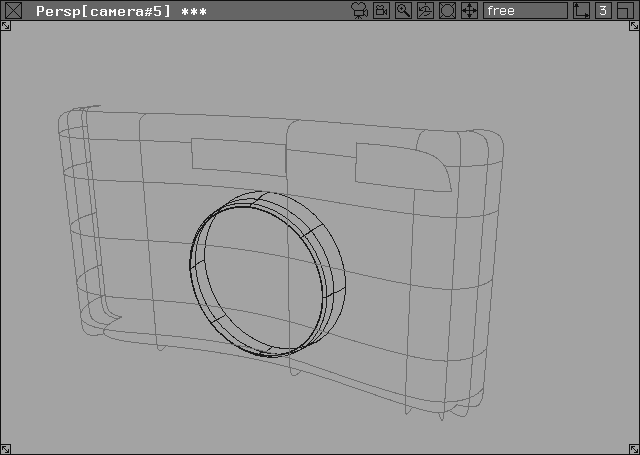
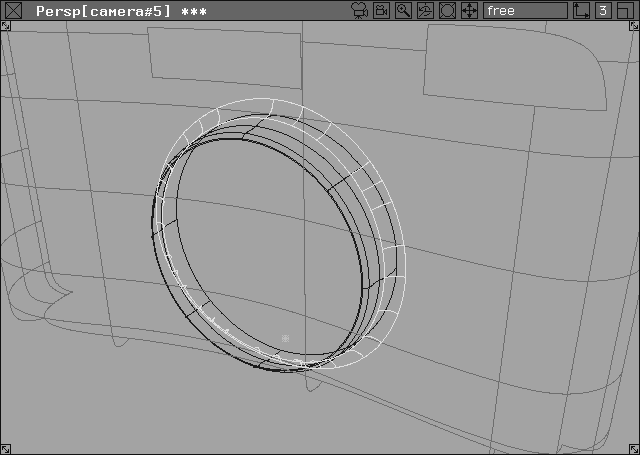
The fillet tool is used to create a smooth surface joint between the lens and the main camera body. In the real world, surfaces seldom intersect each other without some sort of transition. Filleting creates such a transitional surface using a fixed radius set between two surfaces.
 Select Pick Nothing then Pick Object. Click on the
 outer lens Layer button to make it the construction layer. This changes the camera back Layer to its setting of not visible.
camera front Layer pop-up menu select Visible. Both of the surfaces on different layers must be visible to construct the fillet.
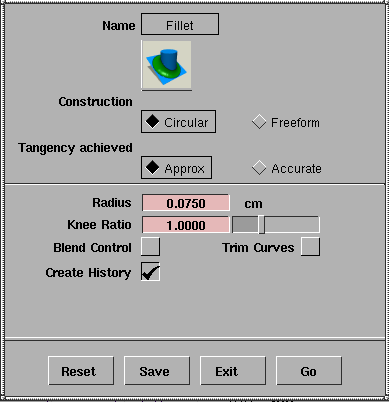
 Select Surfaces Fillet surfaces Fillet -. Set
 Radius to 0.075.
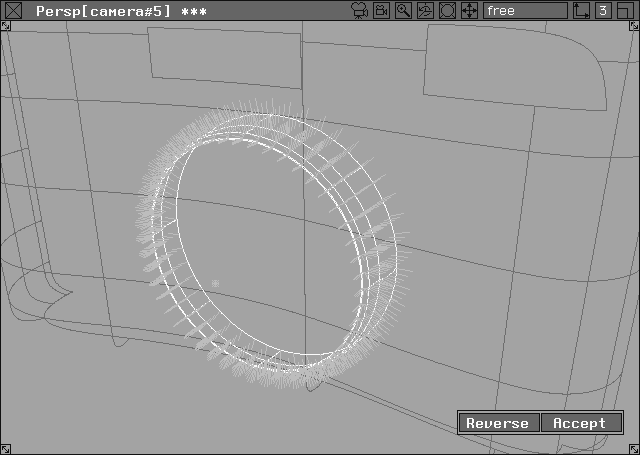
A Reverse/Accept box in the lower right window lets you choose which side of the surface you want to build the fillet on.
Accept.
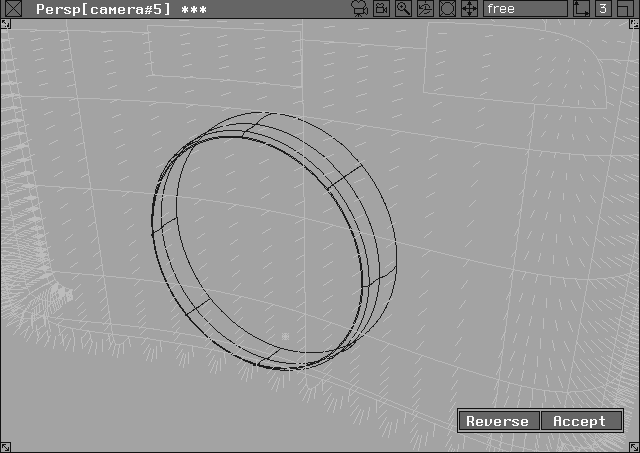
select the secondary filleting surface, pick the camera front. Make sure the normals are pointing out.
Accept. It usually takes a few seconds or so, depending on your hardware.
 Select Pick Nothing then Pick Object. From the
 camera back layer popup menu, select Visible.
details layer.
camera_complete and click on Save wire.
You have created two types of curves on surface that were used to perform a trim divide. You've explored the proportional modification and the filleting tools. These tools are examples of other methods of modifying your surfaces to get desired results.