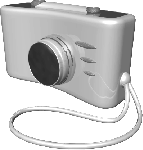
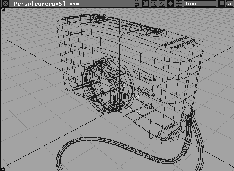
In the last lesson you learned how to use curves to create basic surfaces. This lesson shows you how to use a variety of surface construction tools to model a 35mm camera.
You start by retrieving the construction curves needed to build the camera. This lets you focus on constructing surfaces with the different surface tools available. Although you won't create any curves in this lesson, remember that all surfaces are built from curves drawn in 3D space.
The following surface creation tools are used: Boundary, Skin, Revolve, Extrude, and Set planar surface.
Throughout this project, you'll look at how the placement of profile curves affects the nature of the isoparms on the surface geometry. Start by retrieving the wire file containing the construction curves and details of the camera.
L05_Camera. If prompted, click Yes to delete all objects, shaders, views and actions.
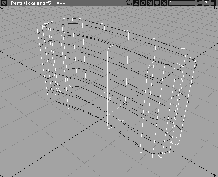
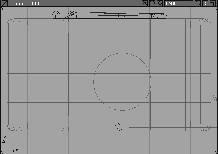
Several profile curves appear in a full screen Perspective view window. These profile curves are used to create the front and back of the camera.
The Layers Bar lists a series of layers. The DefaultLayer is highlighted as active. The camera body layer is visible and contains the displayed curves. The rest of the layers are invisible and contain curves and details that will be used later in the tutorial.
camera body layer to select it as the active layer, indicated by a highlighted band.
The Skin function creates a surface from two or more curves. Skinning is similar to stretching canvas over the poles of a tent. You use Skin to create the front and back of the camera out of a series of profile curves.
 Select Surfaces
  Skin-
Skin-  . In the Skin option box, click to turn
 Create History off. This lets you create the skinned surfaces without linking the construction curves to the resulting surface. Click Go.
| Note: Although history is a useful tool for editing surfaces, it is not always required. You can turn history off from the option boxes of all surface creation tools. |
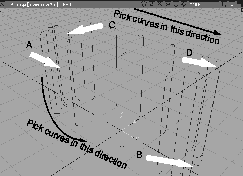
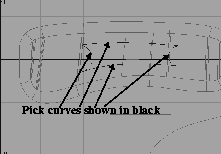
Shift key and continue to pick the profile curves in the direction of the arrows for a total of 10 curves, ending at curve B. The surface is constructed as you select each subsequent curve.
| Tip: If you accidentally pick one of the back curves, click again to deselect it. |
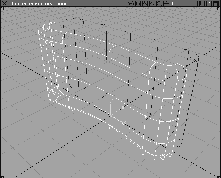
Skin tool. The first skin surface is created.
Nothing when finished.
The resulting surfaces are defined by horizontal and vertical flow lines. These isoparms each correspond to an edit point on the original curves.
 Select Pick Nothing then select Pick Object.
 Select Cameras World Move camera Tumble. Click-drag in the Perspective view to look at the surfaces from above.
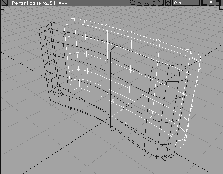
The side and top surfaces of the camera are created by skinning between two profiles.
| Note: The Skin tool has been expanded to incorporate the functionality of the Patch tool of earlier Alias versions. |
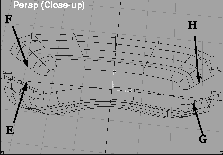
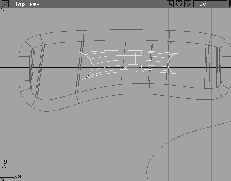
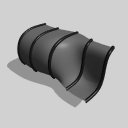 Select Surfaces Skin. Click on edge isoparms E and F to create the skin.
| Note: These construction curves are horizontal isoparms from the skin surfaces. You can use isoparms as curves for any of your surface creation tools. This lets you connect separate surfaces easily into a more continuous surface. |
 Select Cameras World Move camera Tumble and click-drag to view the surfaces from the side.
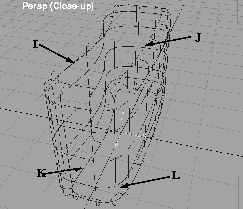
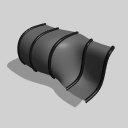 Select Surfaces Skin. Click on isoparm I and then isoparm J, to create the top surface of the camera.
 Click on the Surfaces Skin tool again to start a new surface. Click on isoparm K and L to create the second skinned surface.
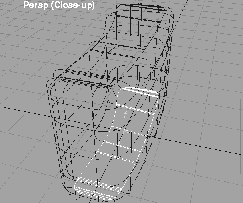
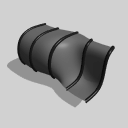
A continuous surface for the camera body is created from the six skinned surfaces.
 Select PickNothing, then Pick Object. Click and hold on the
 camera top layer button to display its pop-up menu and select Visible. Six curves are displayed.
camera top Layer button to highlight it as the construction layer.
All (Studio) to return to a four-window view. You will work first with the four curves on the top of the camera.
camera body pop-up menu, select Set State Inactive. The surfaces of the camera body now serve as a visual reference, but cannot be selected or modified.
| Note: If you want to snap to the surfaces of the camera body, but not modify them, you can set the state to Reference. |
Next, you create a Boundary surface. This kind of surface uses three or four curves that all meet at their ends. The control dial molding at the top of the camera is built with the Boundary tool.
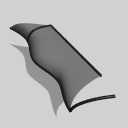 Select Surfaces Boundary surfaces Boundary. When the system prompts you to
 select first curve, pick one of the curves on the top of the camera as the first boundary curve.
Two revolved surfaces are used for the Camera dials, and a third for the camera lens.
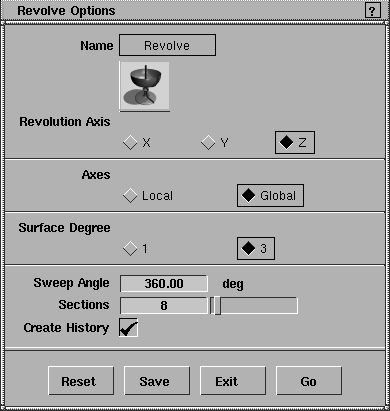
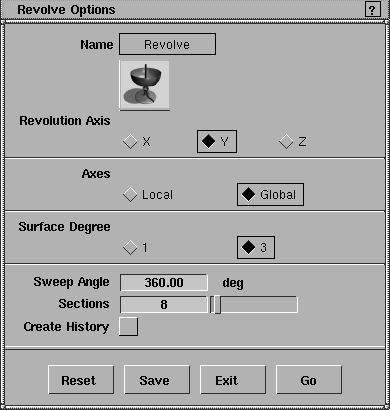
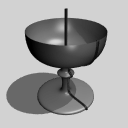 Select Surfaces Revolve- . Using the Z-axis, change the
 Axes to Global. Keep Create History turned on. Make sure that the Sweep Angle is set to 360 degrees.
Go.
 With Nothing selected, select Pick Object. In the Front window click on the larger dial on the left side of the vertical axis.
 Select Xform Move and enter
 -1.1, 0.02, 2.75. You are told that history will be deleted if you move this surface.
Yes.
| Note: If you move the surfaces separately from the original construction curves, you lose all history. |
Yes to delete history.
|
Tip: Xform Move lets you unpick one object and pick a new object at the same time. |
1.2, 0.08, 2.75 to place the dial. This puts a dial at each end of the boundary surface. You can delete the profile curves that are still at the origin later.
 Select Pick Nothing to unpick the objects. Next, you work on the camera lens.
 Select Pick Object. Click and hold on the
 lens layer button to display its pop-up menu and select Visible. Three curves are displayed.
lens Layer button to highlight it as the construction layer.
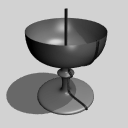 Select Surfaces Revolve- . In the
 Revolve Options box, set the Axis to Y. Make sure that Axes is set to Global. Click on Create History to turn it off. You don't need it.
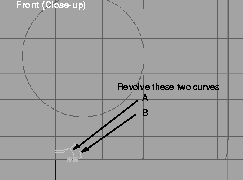
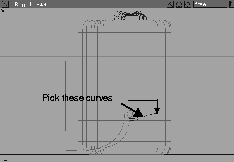
Click Go. Now click on the two areas of the curve group separately to create the camera lens.
Alias revolves surfaces one at a time, with grouped curves chosen piece by piece. In the Front window, notice how this revolve creates an open surface the same size as the distance of the profile curves from the line of the Y-axis.
 Select Pick Nothing then select Pick Object. Click on the two resulting revolve surfaces.
 Select Xform Move and type the values
 0.3, -1.3, 1.2 to position the lens.
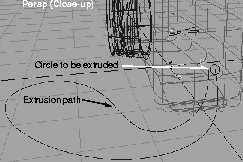
Now, you can create the camera's hand strap by extruding a circular profile along a path.
 Select Pick Object. Click and hold on the
 hand strap layer button to display its pop-up menu and select Visible. Two curves are displayed.
hand strap Layer button to highlight it as the construction layer.
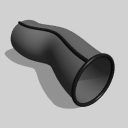 Select Surfaces Swept surfaces Extrude. Click on the small circle as the profile, then click on the
 Go button in the lower right corner. You are prompted to select a path.
You clean up the model by untemplating parts of it and deleting all construction curves. This also deletes any history associated with those curves. In general, if the model is fairly complete and you don't expect to change surfaces, then deleting the construction curves is recommended. It makes the model easier to work with.
 Select Pick Nothing, then Pick Object.
Pickable from the
Select Pick Nothing, then Pick Object.
Pickable from the camera body Layer button.
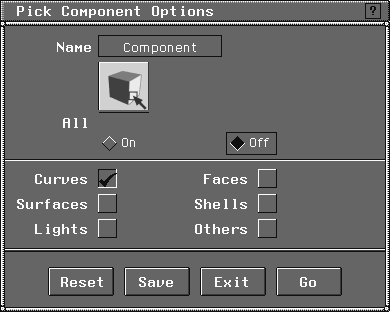
 Select Pick Component- and click everything to
 Off. Click Curves to On.
This is an alternate method to using the component icons on the left of the prompt line.
Go. Click-drag a pick-box around the whole model to select the original construction curves.
details Layer button. Select Visible from its pop-up menu.
Previously constructed geometry that you use to add finishing touches to the camera is displayed.
Camera_finish. Always remember to save your work after it is completed.
You have seen how to turn profile curves into surfaces using a variety of surface construction tools. When you create your own models you should have an understanding of the limitations and strengths of these surface-creation tools. The next lesson shows you how to modify surfaces to add more detail to the camera.