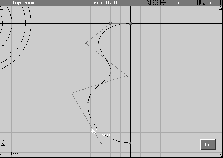
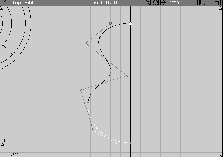
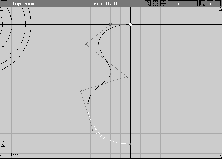
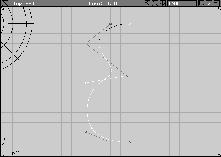
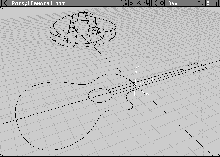
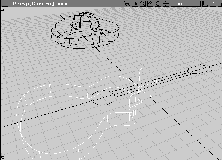
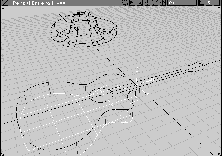
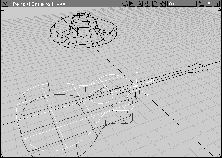
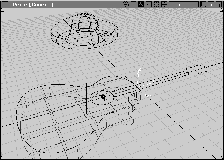
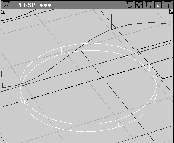
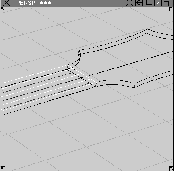
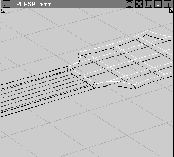
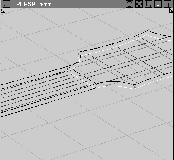
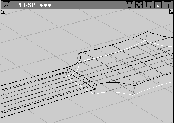
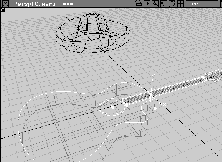
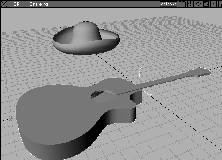
Primitives are easy to model with, but they can only create a limited range of shapes. To model more sophisticated objects, you must learn about curves and how to turn them into surfaces.
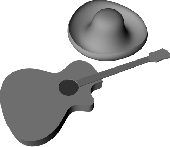
This lesson uses the example of a sombrero and a guitar to demonstrate the use of various curve and surface tools. This lesson also illustrates Alias' multi-level construction history. You can see how construction curves and surfaces can be linked after the surface has been created to give you greater modeling flexibility.
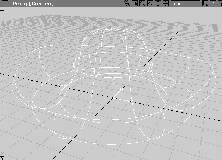
To start modeling with curves and surfaces in 3D, you'll create a sombrero. A profile curve is drawn using control vertices (CVs) and then revolved into a 3D surface.
This lesson demonstrates how the parts of the curve relate to the surface. Using construction history, you can reshape the 3D form by editing the original construction curve. Next, you break the history and edit the control vertices (CVs) of the surface to create a more freeform shape.
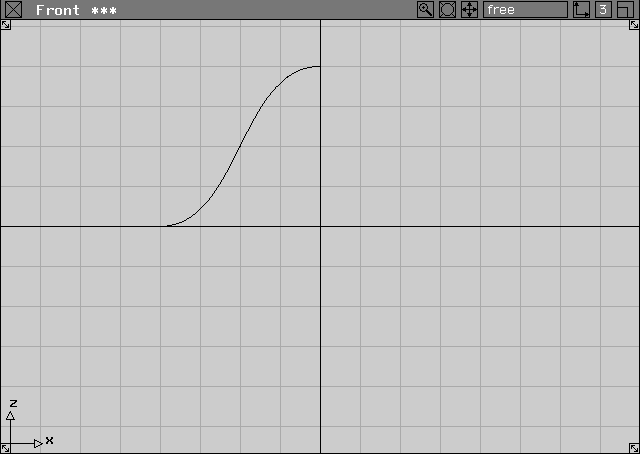
If Alias is already running on your machine, you can either save or delete current work. Otherwise, you should launch Alias and open up four modeling views.
Yes to delete the current stages.
 All(Studio).
| Tip: You should refer to this window even when you are drawing in another window. |
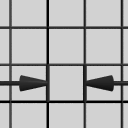 Select Grids Grids Grid Spacing
  . Make sure that the grid spacing is set to
 1 and click Go.
L1 on the Layers Bar and enter the name Sombrero.
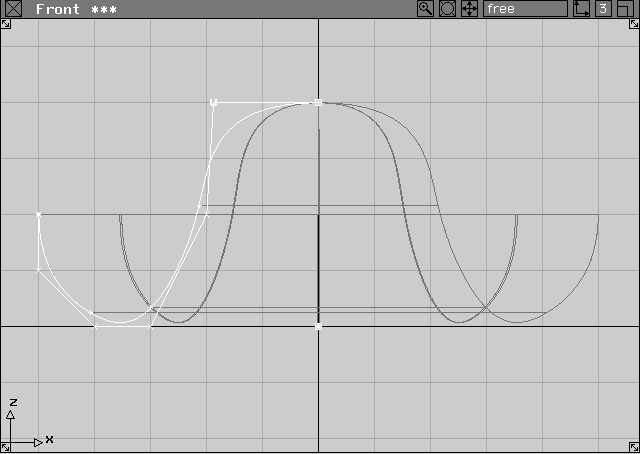
You can draw several types of curves in Alias. You'll start by drawing with control vertices or CVs. CVs define the shape of a curve without being a part of the curve itself. You can create the profile curve of the sombrero by drawing a CV curve.
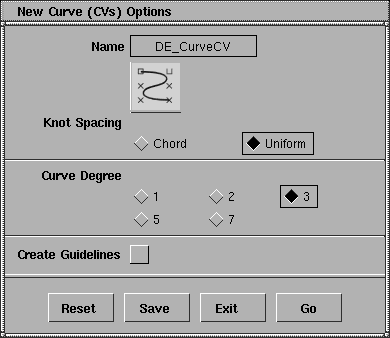
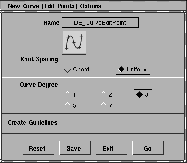
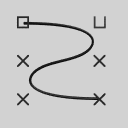 Select Curves New Curves New Curve (cvs)- from the tool palette.
Keep the settings at the default of Uniform knot spacing.
The next default is the curve degree of 3. A value of 3 creates a B-spline curve. With a value of 1, the curve is drawn as a series of straight segments between CVs. Leave it set at 3. Leave the Create Guidelines unchecked.
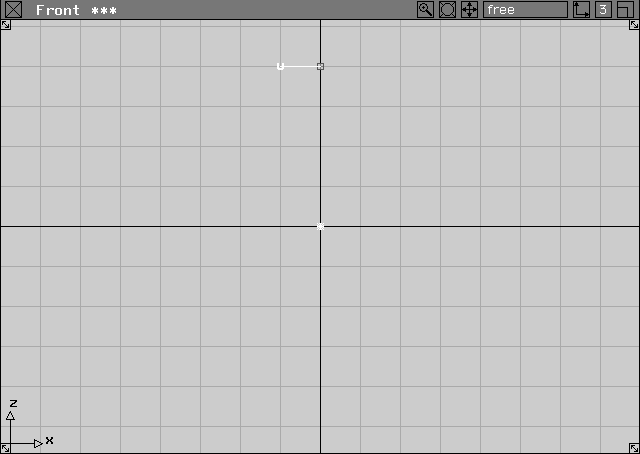
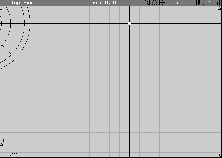
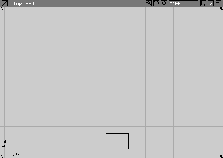
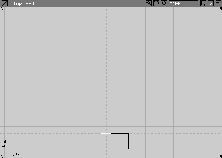
Alt key to temporarily turn on grid snapping and place the first CV on the Z-axis, four grid squares above the X-axis, at point 0, 0, 4.
Because you'll revolve this curve around the Z-axis, either the first or last point of the curve must lie directly on this axis line.
Alt key still pressed, place the next CV one grid square to the left of the Z-axis, four grid squares above the X-axis.
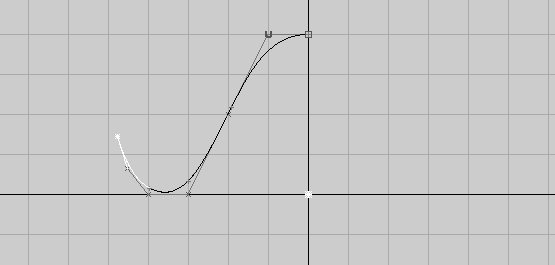
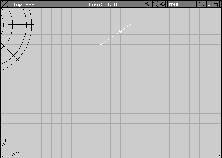
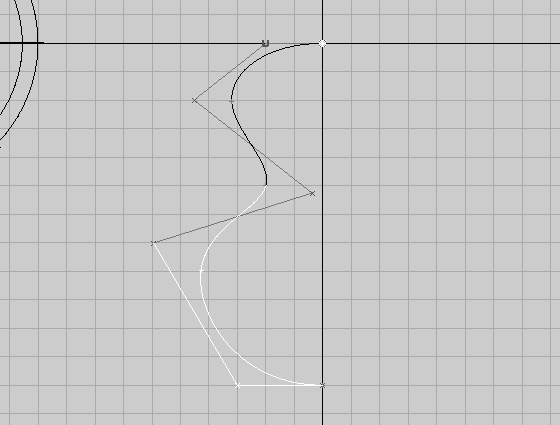
Connecting the two points is a line known as a hull. The curve itself has not yet been drawn. This is because a degree 3 curve needs at least 4 points to describe it.
| Tip: The second point has been placed directly to the left of the first point. As a result, the hull is drawn perpendicular to the Z-axis. To make sure that the top of the sombrero is smooth, the curve must imply tangency at the top. This is guaranteed by making the first hull perpendicular to the Z-axis. |
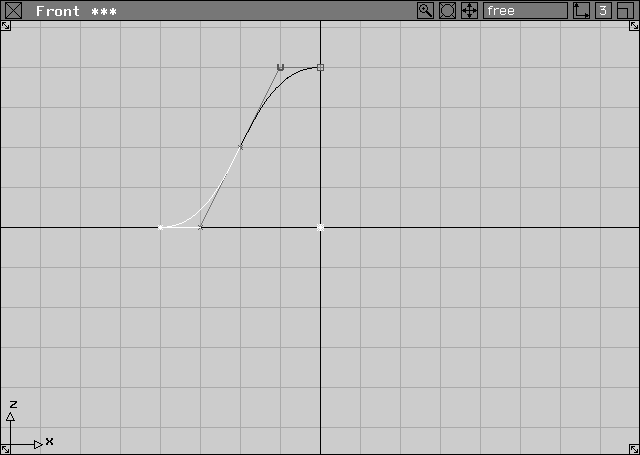
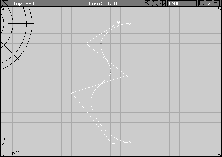
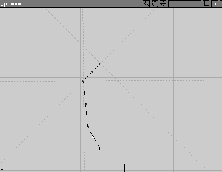
-2, 0, 2 and -3, 0, 0. Note how the curve appears after you place the fourth point.
-4, 0, 0 using either grid snapping or keyboard input.
 Select Pick Nothing from the Tool Palette to deselect the curve.
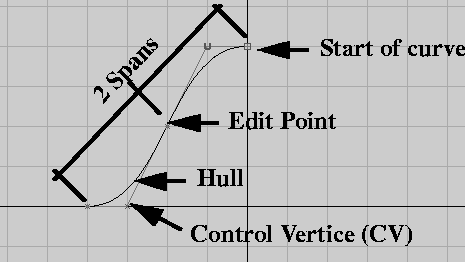
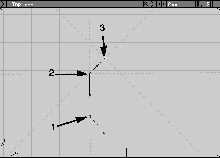
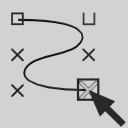
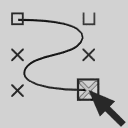
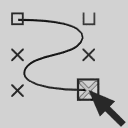
| Note: Curves have several important markers. The first CV is denoted by a square box, the second CV is shown as a "U" and subsequent CVs have a small "x". The box marks the first point of the curve, and the "U" marks the curve direction. |
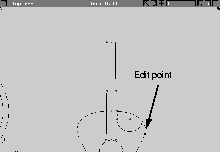
| The hull line connects the CVs belonging to the curve. The small points that sit directly on the curve's surface are known as edit points (EP). Both CVs and edit points always exist at the start and end of a curve. The region of the curve between two neighboring edit points is known as a span. This curve has 2 spans. |
| Except for the first and last CVs, interior CVs do not usually meet the curve itself. |
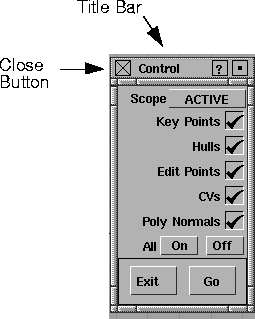
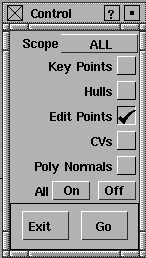
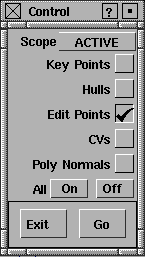
The Control window turns curve controls such as CVs, edit points, and hulls on and off. This feature is useful as your scene becomes more complex. You can keep the model less cluttered by turning the curve controls off for certain curves.
. This opens the Control window.
| Note: If the Control window is blocking your work, click on the title bar and drag it to another location. |
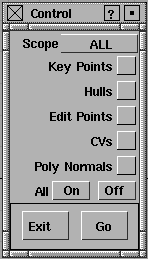
Scope menu in the control window, select All. Turn off any options already turned on by unchecking them individually.
EditPoints. Click Go. The curve's edit points are now visible and can be picked.
| Tip: One advantage of turning controls on and off is that you limit the number of "pickable" controls. For instance, you can now pick and modify the edit points on this curve, but you cannot pick and edit the CVs. |
On button next to All. Click on Go. This turns all the controls back on.
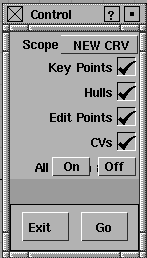
Scope menu, select NEW CRV. All the controls, except Normals, should display check marks. This means that new curves will display all their CVs, hulls, edit points and keypoints.
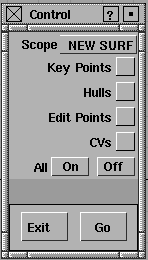
Scope menu, select NEW SURF. Now, all the control options are turned off. This means that new surfaces will be created without any controls shown.
Later, you'll see that there are no controls on the surface when the profile is revolved to create the surface.
| Note: Edit points exist only on curves. They cannot be displayed on surfaces. |
Scope menu, select ALL. Click the On button next to All and click Go. Now all controls are visible for all geometry.
You'll want to continue to work on a curve that has been deselected. Because the sombrero profile still needs a curl, you can add another two CVs to it.
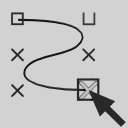 Select Pick Point Types CV in the tool palette. In the Front window, click on the last CV of the curve to make it active. Now, the CV is highlighted, as well as the end segment of the curve.
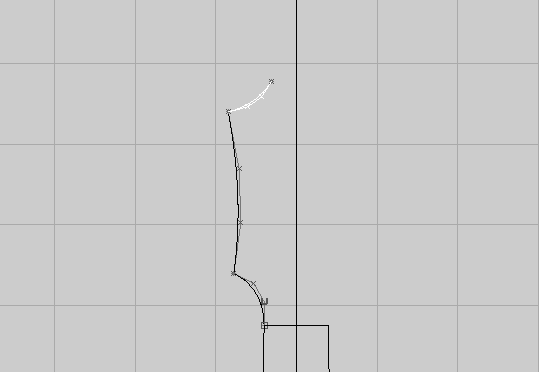
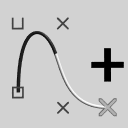 Select Curve Edit Modify Add points from the tool palette. The system prompts you to add CVs. Add two more CVs by clicking in the area up and to the left of the last CV.
These points were drawn interactively on the screen. The advantage of drawing in this fashion is that you can make design decisions visually instead of relying on coordinates.
 Select Pick Nothing from the tool palette to deselect the curve. You can now see the shape of the profile clearly.
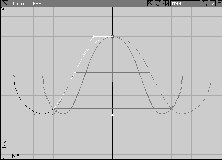
Generally you can edit the shape of a curve by modifying the position of the CVs. To refine the shape of the sombrero profile, you can pick and move the two end CVs.
 Select Pick Point Types CV in the tool palette. In the Front window, click on the last CV you placed.
 Select Xform Move in the tool palette. Click-drag to move the CV around the Front window.
| Note: The same rules regarding absolute and relative coordinates described in the last lesson also apply to transformations made to CVs. |
-5, 0, 2 to place the CV exactly.
| Tip: At any point, you can use coordinates to place your CVs at exact locations. |
Since your last pick type was a CV, the Move tool lets you pick another CV without having to reselect Pick Point Types CV.
| Tip: You may sometimes accidentally pick the wrong CV while click-dragging another CV around the workspace. If you do, select Undo from the Edit menu. When you start to click-drag a Move, always remember to avoid clicking down on another CV. |
-5, 0, 1 using either grid snapping or keyboard input.
This places the CV directly below the last CV to reshape the outer edge of the profile.
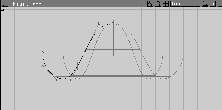
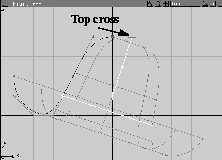
The curve has been drawn sitting to one side of the Z-axis. As a result, you can use the Z-axis as the revolving axis to create the surface of the sombrero.
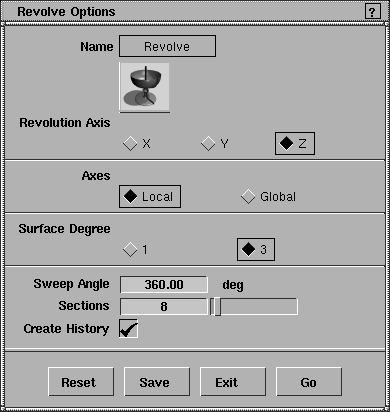
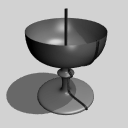 Select Surfaces Revolve- from the tool palette. In the revolve option window, make sure that
 Z is chosen for the revolve axis and that the Sweep Angle is set to 360 degrees. Make sure that Create History is checked on.
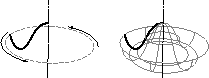
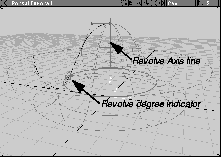
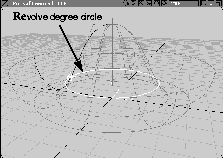
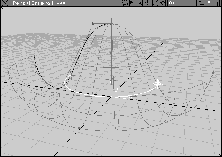
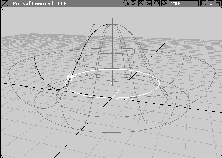
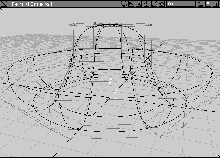
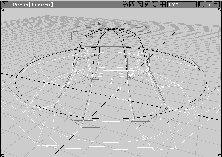
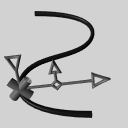
The curve revolves a full 360 degrees around the Z-axis. The revolve axis indicator is visible, shown as a line between two crosses. As well, the revolve degree indicator is shown as a circle with an arrow at one end.
Note: The number of isoparms (5) and their locations are derived from the placement of edit points on the original placement curve. The vertical isoparms were determined by the number of sections parameter in the Revolve options. |
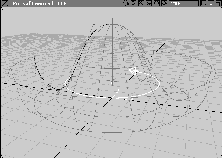
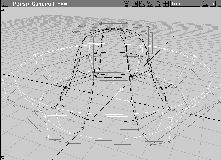
The Revolve tool maintains construction history for both the position of its axis line and the degree of its revolution. You can edit the history of a revolved surface by using the history indicators.
|
Tip: If the revolved surface is accidentally unpicked, the history indicators disappear. If this happens, pick the surface again and select Surfaces Revolve. The history indicators reappear and they can be edited. |
| Note: If you accidentally pick one of the isoparms of the surface, you'll create a second revolved surface. If this happens, delete the second surface and re-pick the first surface. |
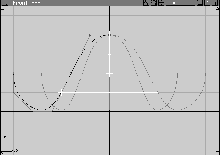
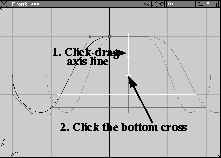
0, 0, 1 to place this point back on the Z- axis.
The revolve is again regenerated using the tilted axis line.
Alt key to temporarily turn on grid snapping. In the Front window, click-drag the point so it is directly above the origin (0, 0, 4) to re-orient the axis.
The surface updates in its original position.
| Tip: As you drag, you may find that you have picked the end of the revolve line which is revolved by click-dragging to the right, instead of the arrow. If this is the case, click-drag the indicator back to 360 degrees and click again on the revolve degree circle to pick it. You can edit the revolve degree circle using either of these two indicators. |
180 in the command line and press Enter to create exactly a half-revolve.
360 in the command line to recreate a full revolve.
A revolved surface's history can be edited using these special indicators for the axis line and revolve degrees. These items are only available when construction history has been kept.
 Select Pick Nothing to unpick the surface and remove the revolve indicators.
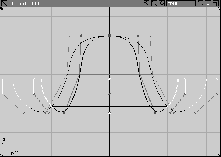
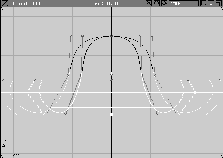
Construction history is also maintained between the construction curve and the resulting surface. This connection exists with all surface creation tools. It gives you flexibility to edit and refine your work. As a result, you can modify the surface by editing the CVs on the original profile curve.
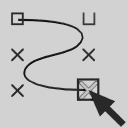 Select Pick Point Types CV. Click on the second CV (labeled with "U") from the top of the sombrero.
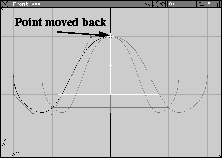
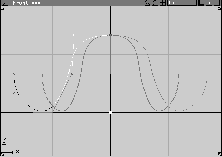
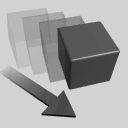 Select Xform Move. In the Front window, click-drag with the middle mouse button to move the picked CV horizontally. Move it slightly to the left and release the mouse button.
| Tip: You restricted this CV's movement to the horizontal to ensure that it maintained its perpendicular relationship with the Z-axis. This preserves the tangency condition at the tip of the revolved surface. |
Maintaining history is useful while you are modifying a surface from its original construction curves. However, when you want to work with the surface itself, history must be broken. You can break history in one of three ways:
Yes button to remove history.
Yes to complete the transformation and break history.
| Tip: To move a surface without breaking its history, first unpick the surface and pick the construction curves. You can then move the curves. The surface follows automatically, according to the rules of history. |
To break the history of the surface, you'll use the second method and delete the construction curve.
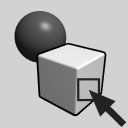 Select Pick Object. Click-drag a pick box around both the sombrero and the construction curve. Next, click on the surface of the sombrero with the left (or right) mouse button, away from the curve. This unpicks the surface while leaving the curve picked.
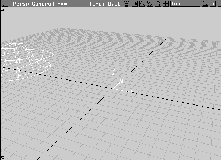
YES button to break construction history and delete the curve. You are left with the surface.
Curves can be displayed with controls such as CVs and hulls. Surfaces can also be displayed with these controls.
 . From the
 Scope pop-up, choose All. Click on the On button next to All and click Go. CVs and hulls are now displayed on the surface.
Note: Although you clicked both keypoints and Edit points On in the Control window, they do not appear on the surface. These control types are only available for curves. CVs and hulls are the only controls for surfaces. |
Earlier you edited and refined the shape of a curve using the CVs. A similar technique applies to surfaces. You can reposition some of the hulls and CVs to create a more asymmetrical look to the surface. Modifying CVs is a good way of adding detail to a surface.
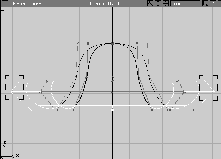
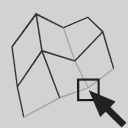 With Nothing picked, select Pick Point Types Hull. In the Perspective window, click on the hull at the outer rim of the hat. Note how all of the CVs connected by this hull are picked.
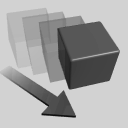 Select Xform Move. In the Front window, click-drag with the right mouse button to move the hulls down a little bit. You are now controlling one part of the overall surface.
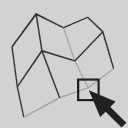 Select Pick Nothing then Pick Point Types Hull. In the Perspective window, click on the two hulls below the outer rim hull.
| Tip: These need to be picked in the Perspective window to avoid accidentally picking a vertical hull at the same time. Make sure that the CVs connected by both hulls are picked. |
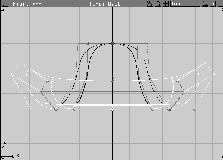
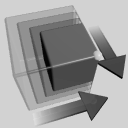 Select Xform Scale. In the Front window, click-drag to scale the hulls out a little bit.
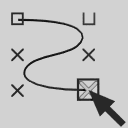 Select Pick Nothing, then Pick Point Types CV. In the Front window, Dolly the view until you see all the CVs.
 Select Xform Move. Click-drag upwards with the right mouse button to reposition the CVs. Note how the surface is only updated in the area next to the picked CVs.
 Select Pick Object and click on the sombrero surface to pick it.
. From the
Select Pick Object and click on the sombrero surface to pick it.
. From the Scope pop-up, choose All. Make sure that all of controls are off and click Go. The surface is now displayed without controls.
 Select Xform Move and enter
 -15, 0, 0 to move the sombrero surface away from the origin.
This gives you room to draw the guitar for part two of this lesson.
L2 on the Layers Bar and enter the name Guitar.
The new curves and surfaces created to form the guitar will be placed on this layer.
Sombrero layer popup menu select Set state Reference. This allows the sombrero to be referenced but not picked or modified.
Save Wire button.
You have now explored a basic curve and a basic revolved surface. You have seen how the curves and surfaces are initially linked using construction history. You have also edited both curves and surfaces using controls such as CVs and hulls to refine the final shape of your object.
Before starting part two, you may want to review what you have learned so far.
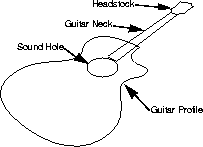
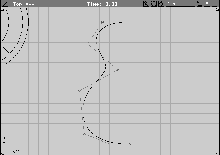
To continue exploring curves and surfaces, you'll create the curves needed to build a simple guitar model. You start by using various curve creation and editing tools to create several character lines for the guitar.
These character curves are turned into surfaces using basic surfacing tools. This section explores the role of construction history in your work and the relationship between curves and surfaces.
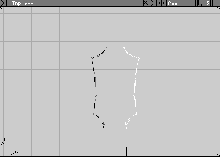
The sombrero was drawn with a CV-based construction curve. To start modeling the guitar, however, use an edit point curve. Edit points actually lie on the curve, so you are placing them directly on the curve when you click (as opposed to CVs).
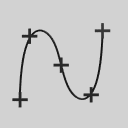 Select Curves New Curves New Curve (edit pts)-. In the option window, change the
 Knot spacing to Uniform. Click Go.
Note: The default setting for an Edit point curve is set to Chord length. This is because chord length gives you more predictable results when you place two edit points very close to each other. Uniform was set because the guitar edit points will be evenly spaced and because you want an even parameterization on the curve. See the Modeling introduction section in this manual to examine the differences between chord and uniform parameterization. |
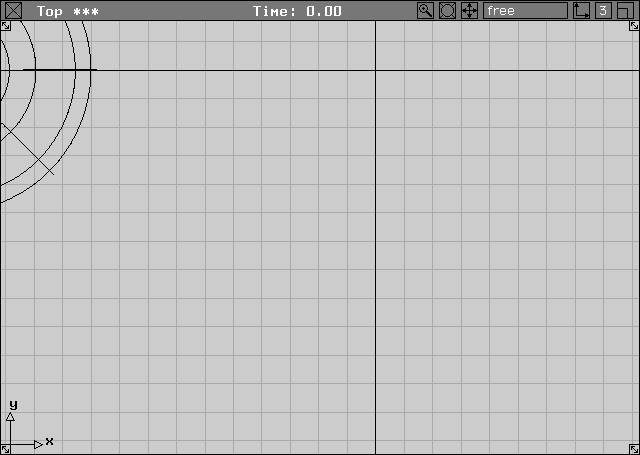
Alt key to temporarily turn on grid snapping. In the Top view, click on the origin to place the first point of the curve.
-3, -2, 0 to place the second point.
| Note: CV curves require at least four placed CVs to create a curve, whereas edit point curves need only two clicks. |
-2, -5, 0 and -4, -8, 0 and 0, -12, 0.
Tip: You can either use grid snap (Alt key) and click the appropriate grid squares or enter the exact coordinate values. |
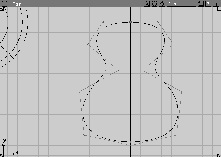
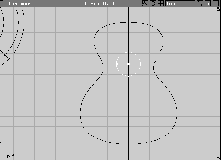
The placed points represent the basic shape of the guitar body. Although the guitar is starting to take shape, the curve still requires work.
| Tip: You'll rarely draw the right curve the first time. A better technique is to lay down a basic shape and then refine it by modifying the CVs. |
The curve only represents half of the guitar profile. You can later create the whole profile by mirror-copying.
| Note: You can also use symmetry planes to create the whole profile of the guitar. Symmetry planes automate the process of mirror-copying by interactively updating the mirrored half as you model. For more information, see What's New in Alias. |
| Tip: You can save time by determining which pieces of your models are symmetrical. For example, you are now going to edit CVs on the curve. If you had drawn both halves, every CV edited on one side of the profile would require a matching CV-edit on the other side. Working with only one-half of the guitar lets you complete your edits in half the time. |
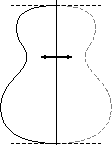
To prepare for the curve mirroring, you need to make sure that the curve implies tangency at the top and bottom of the profile. To achieve tangency at these points, the first and second CVs must line up with the first and second CVs of the mirrored side. In the case of the guitar profile, you only need to make the first hull line perpendicular to the Y-axis. You can edit these second CVs to create the tangency required.
 With Nothing picked, select Pick Point Types CV. Click on the second CV belonging to the guitar curve. It is the CV marked with "U", used to indicate the curve direction.
 Select Xform Move. Press the
 Alt key to temporarily turn on grid snapping and, in the Top window, click the point at -2, 0, 0. Now, the first hull line is perpendicular to the Y-axis.
Remember that your last pick choice (Pick Point Types CV, in this case) is remembered by the Xform commands and you can pick a new CV without leaving the tool.
Alt key to temporarily turn on grid snapping and, in the Top window, click on the point at -3, -12, 0. Now, the end hull line is also perpendicular to the Y-axis.
 Select Pick Nothing from the tool palette.
Now that the curve is in place, you may notice that the bottom part of the curve is a little sharp and doesn't seem round enough. To add more depth to the curve at this point without changing the top of the curve too much, you can add a new edit point to the curve and edit the resulting CVs.
 Select Object Edit Insert from the tool palette.
| Note: Since the Insert tool works with both curves and surfaces, it is found under Object Edit instead of Curve Edit. |
The command line says enter curve parameter:
0 and press the Enter key. This number represents the parametrization value on the curve. The indicator moves to the beginning of the curve, where the parametrization is zero.
1 and press the Enter key. The indicator moves to the second edit point.
| Tip: Because this is a uniform curve, its parametrization is set up so that the edit points represent the whole number parameters. As a result, a curve with 5 edit points (such as this one) has an overall parametrization of 4. |
3.5 and press the Enter key. This places the indicator half way between the second from the end and the end edit points.
| Tip: You can press the Alt key while dragging the mouse to snap the indicator to the middle of the spans. |
 Select Pick Nothing to see the new Edit point on the curve.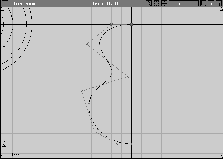
 Select Pick Point Types CV. Click on the second CV from the end. It was tightened up a little and needs to be snapped back to the grid.
 Select Xform Move. Press the
 Alt key to temporarily turn on grid snapping. In the Top window, click the point at -2, -12, 0.
Tip: To place the point exactly as shown in the diagram above, enter -4.5, -11, 0. |
-4.5, -6, 0.
Tip: Press Ctrl and the left cursor key to move through the CVs. |
Since the profile is starting to look like half of a guitar, you can make further refinements to the curve. Creating a great-looking curve is a creative act and often requires several iterative refinements until you create the perfect shape.
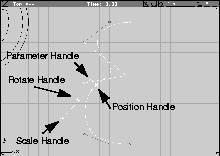
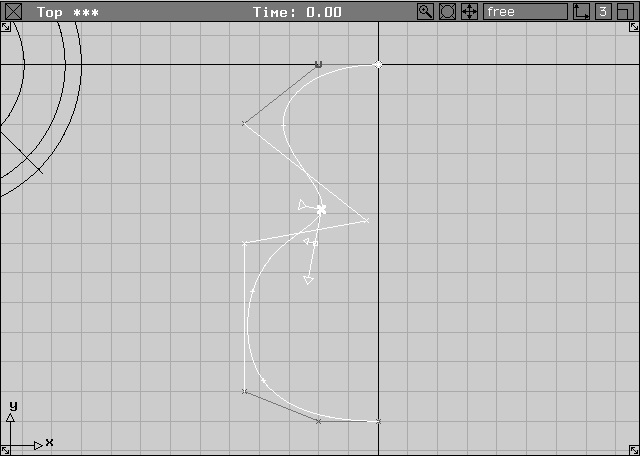
Use the Curve Editor to make the final refinements. The Curve Editor lets you edit the shape of a curve by editing the position, scale and rotation at any point along the curve. The Curve Editor appears directly on the curve just like an edit point, but in refining the curve it moves only CVs.
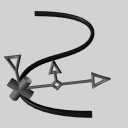 Select Curve Edit Modify Curve Editor. Click on the curve near the center of the profile. The curve editor handles appear on the curve. These handles have several functions to help you edit the curve.
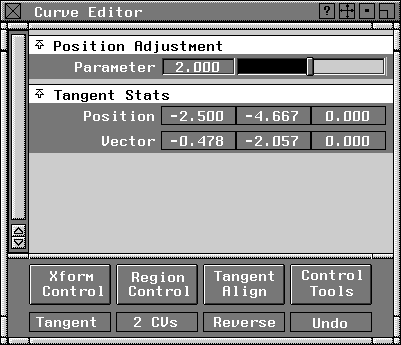
2.0 in the status bar to place the editor. This puts it on the second edit point. The parameter values are similar to when you placed the insert point on the curve.
-2.5, -4.667, 0 to place this point as shown in the diagram below. As usual, you can use an interactive click-drag or XYZ coordinates to place the points.
 Select Curve Edit Modify Curve Editor- from the tool palette, or double-click on the Curve Editor tool.
This opens a window showing edit values for changes made with the curve editor. You can choose how many of the surrounding CVs will be affected by the edit and also create tangency with one of the three axis lines.
| Note: The Curve Editor window has an Undo command under the Control Tools menu. Changes to curves made from the Curve Editor must be undone with this command. |
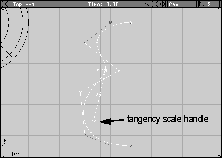
tangency scale handle of the curve editor as indicated below. Click-drag to lengthen the curve.
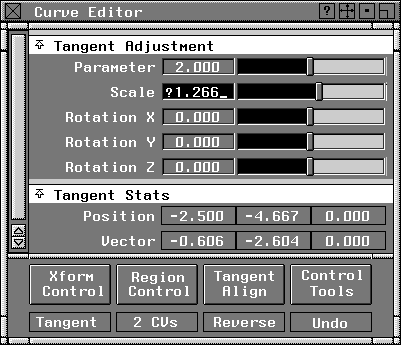
The Scale value in the Curve Editor window changes.
Scale and enter 1.266 to scale the curve by this amount.
| Note: The scale and rotation values entered in the Curve Editor are not persistent. Once you close the Curve Editor, these values return to their default settings in preparation for another edit. |
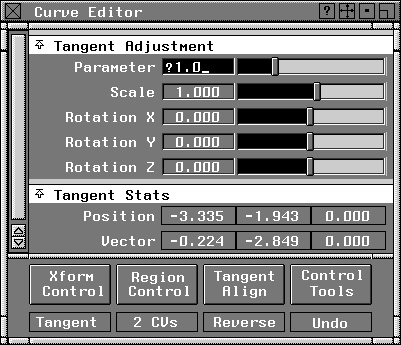
Parameter and enter 1.0. This moves the Editor to a new parameter position.
| Note: Remember that you can also click-drag on the handles to change parameter position on the curve. This lesson uses exact values so that what you draw reflects what is shown in the accompanying illustrations. |
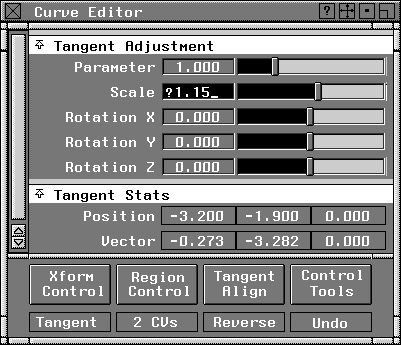
-3.2, -1.9, 0 in the prompt line. This pulls in the curve near the top.
1.15 next to Scale. This makes the curve rounder in this area.
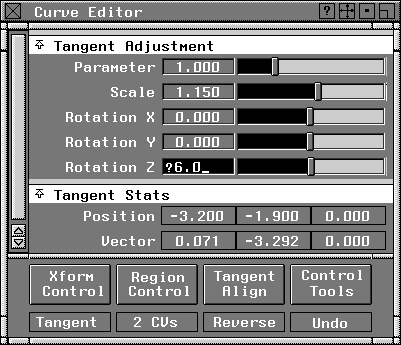
6 degrees next to Rotation Z.
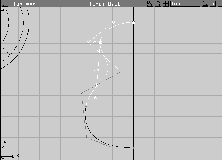
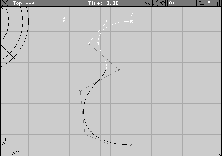
If you look at the top of the curve you can see that the second CV has been moved and cannot satisfy the conditions of tangency needed to mirror this curve properly later. The Curve Editor can be used to re-align the curve at this point.
| Note: The Curve Editor does not actually move, scale, or rotate the chosen point on the curve. In fact it is just moving the neighboring CVs to get the specified result. This is good technique because it is always best to edit the CVs on a curve to preserve its parameterization. |
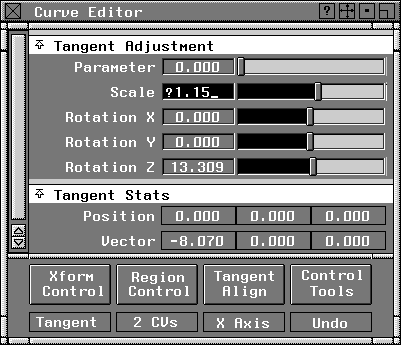
Parameter, enter 0 to move the editor to the start of the curve. From the Tangent Align menu, select X-axis to re-align the curve at this point.
1.15 next to Scale. This lengthens the point of tangency and makes the top of the curve more full.
 With Nothing picked, select Pick Object to leave the Curve Editor. The resulting curve is a much more refined version of the guitar profile. The Curve Editor is useful for subtle modifications needed to perfect the shape of a curve.
A great deal of work has gone into creating and refining this profile curve. Since good curves make good surfaces, it is important that time is spent creating the proper curves and addressing important issues, such as tangency at the edges.
Curves_02 and then click on Save Wire to save the file under a new name.
| Tip: Save your work in increments. This way, if you later decide that an earlier curve was better, you can retrieve it. As part of the design process, it is better to have the evolution of a project saved in stages for your own records. You can always delete unwanted versions later. |
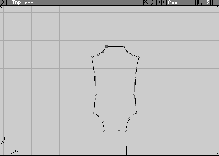
After half of the curve is in place and tangency is set at the ends, the curve can be mirrored using the duplicate function.
 Select Pick Object. Click on the guitar profile curve to pick it.
. In the option box, change the
Select Pick Object. Click on the guitar profile curve to pick it.
. In the option box, change the X Scale factor to -1.0.
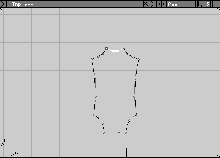
The two curves need to be attached into a single curve. The attach point will be the base of the guitar.
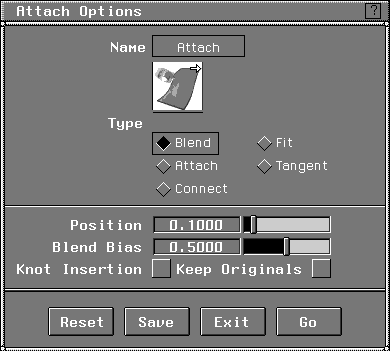
 Select Object Edit Attach Attach-. Make sure that the
 Attach type is set to Blend. This option reshapes the curve at the bottom of the guitar so the two sides blend naturally.
Tip: The reshaping of the curves at the bottom of the guitar is a result of the blend. If you don't want to reshape the curve, you can turn on the Knot Insertion option in the Attach option box. This option inserts edit points to ensure that the curve is not reshaped. For this example, however, the reshaping of the guitar profile creates a better result. |
 With Nothing picked, select Pick Object. Click on the guitar profile curve to pick it.
. From the
With Nothing picked, select Pick Object. Click on the guitar profile curve to pick it.
. From the Scope pop-up, select Active. Turn All to OFF, then click on Go. Close the Control window.
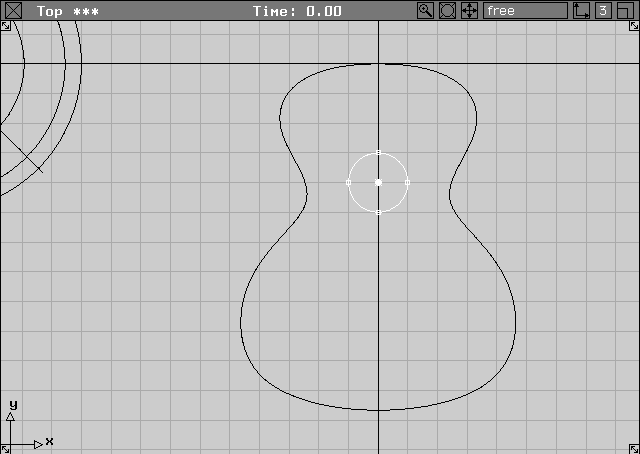
This completes the basic profile of the guitar. More curves are still required to create a complete outline of its parts. The 3D surfaces are created once the curves are finished.
Some Alias tools create curves that use keypoints. Keypoints, like Edit point and CV curve controls, maintain construction history, but only in relation to the curve's length, angle and, if it is an arc, radius. Curves with keypoints are useful if you need "drafted" straight line and arc curves and want to work with length, angle and radius parameters instead of XYZ coordinates.
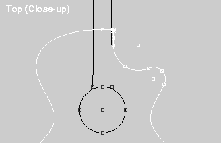
After creating the guitar's sound hole with the circular arc tool, you can edit it with the Object Info window.
 Select Curves Arcs Circular Arc. Press the
 Alt key and in the Top view window, click at 0,-4,0 to place the center of the circle.
Alt key still pressed, click one grid square up at 0, -3, 0 to complete the circle.
 Select Pick Object. Click on the sound hole circle with the middle mouse button to pick it.
| Note: Although the circle may have appeared to be picked when you placed the last point, only the keypoint was actually picked. |
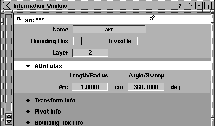
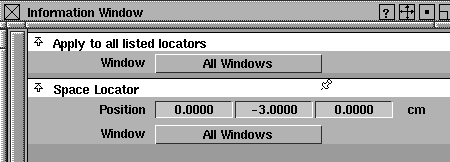
Information window.... This opens the information window, which displays the information associated with any picked object.
Attributes to open the section that contains the radius and sweep angle of the arc.
Radius field of the Information window. Type 1.15 and press the Enter key. The circular arc now has the new radius. Keep the Sweep at 360 degrees.
Tip: The Information window is very useful when working with keypoint curves and should remain open while creating them. |
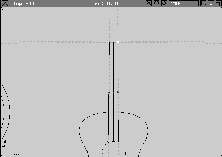
The next step is to create the neck of the guitar using keypoint curves and guidelines. As you start to combine keypoint curves, guidelines help you build accurate curves.
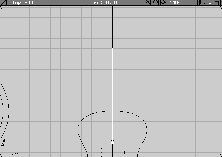
To start creating the guitar neck, place a line along the Y-axis. The sides of the guitar neck will be derived from it using the parallel line tool and the guidelines.
 Select Curves Lines Line.
Alt key to turn on grid snapping, then click at the grid point near the top of the sound hole circle at 0, -3, 0 to place the first point. The XYZ coordinates of this point are shown in the Space Locator section of the Information window.
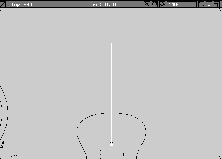
Alt key still pressed, click six grid squares above the X-axis (0, 6, 0) to place the second point. The curve is now drawn and its attributes are shown in the Information window.
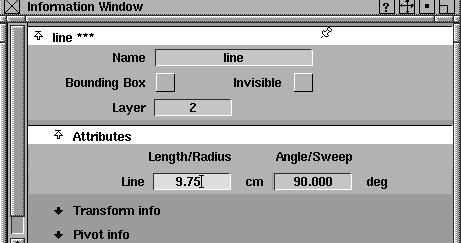
Attributes section of the Information window. Enter 9.75 to lengthen the line.
Grid.
| Tip: Because you'll have the assistance of guidelines to draw the next series of lines, you won't need the grid. |
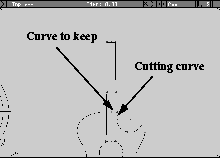
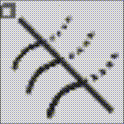
The bottom of the line should be aligned with the top of the circle, so they don't overlap. You can use the cut section tool to trim the line.
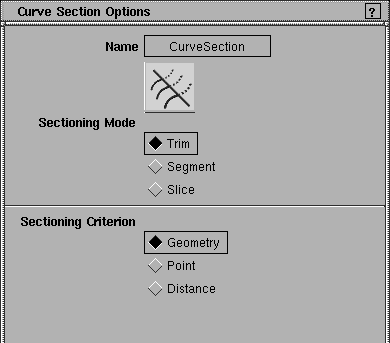
 Select Curve Edit Curve section-.
Trim is selected under Sectioning Mode. Click Go.
Note: While the Trim sectioning mode cuts and removes a section of the curve, the Segment mode cuts the curve into two new curves. The Slice sectioning mode inserts edit points at the projected intersection of two or more curves, or creates a new curve that follows the intersection points of one curve projected onto a series of other curves. |
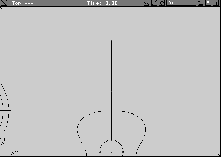
The line is cut at the intersection point, with the part of the line within the circular arc being removed.
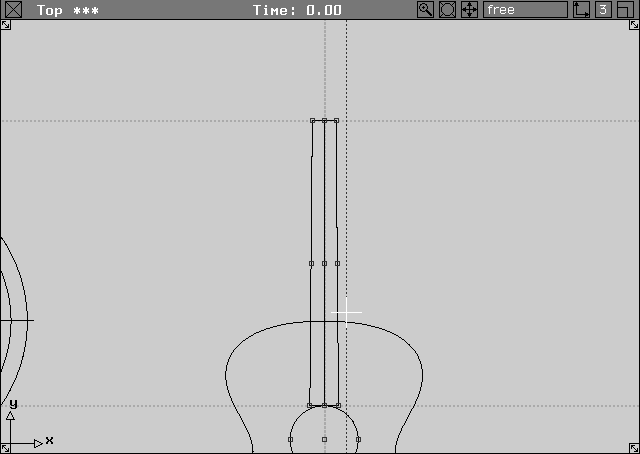
This line is the appropriate length of the guitar neck. Because it lies on the Y-axis, you can use the parallel line tool to create the edge line of the neck.
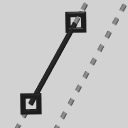 Select Curves Lines Parallel Line. Click on the existing line, as the
 curve to make line parallel to.
Guidelines are automatically placed in reference to the first line. One guide follows the Y-axis, while the other two start at the ends of the line and run perpendicular to it. You can now use these guides to snap the parallel line.
A new guide appears, showing where the parallel line will be drawn.
Once the second point is placed, the Attributes section of the Information window shows the Length, Angle and Offset of the line. The Line Offset is only available until you unpick the curve. As a result, you must edit this value first.
| Tip: Generally, keypoint curves snap to guides, curves, edit points, CVs, guide intersections and guide-curve intersections. If you were to click too close to the circle, you would snap to the intersection of the guide and the circle by accident. As the scene gets more busy, be careful when you are clicking points. |
Line Offset in the Information window. Type 0.4.
Enter key. The exact value of the offset is now set.
Angle in the Information window. Type -89.5 and press the Enter key. This adds a slight tilt to the line.
 Select Pick Object. Click on the new line to pick it.
 Select Xform Local Set Pivot. Enter
 0 to set the pivot at the origin.
| Tip: Although CV and edit point curves have their pivot points placed at the origin by default, keypoint curves place the pivot point at the initial keypoint position. Because you need to mirror copy the line around the origin, the pivot was moved. |
| Tip: Since the last duplication was a mirror copy around the X-axis, this duplication uses the same settings. |
| Tip: With the line rotated, the guides no longer represent the ends of the lines. Also, you don't want them to interfere with snapping in the next step. |
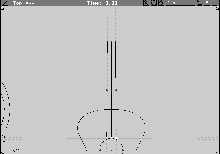
The next step is to add lines at the top and bottom of the guitar neck and then join these points at the corners so they can be treated as a single curve.
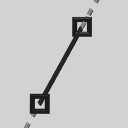 Select Curves Lines Line. Press the
 Ctrl key to turn on magnet snapping and click near the top end of the right curve.
The resulting guidelines represent the extension of the angled line and the perpendicular line passing through the end point of the line. Note that the perpendicular line doesn't pass through the end point of the second line because the two ends of the lines are aligned along the X-axis instead of relating to the guides.
Ctrl key still pressed, click near the top end of the left curve to complete the line.
The second point is placed and guides appear. Again the perpendicular guide from this curve is angled slightly, based on the other guide.
| Tip: Magnet snapping lets you snap to edit points and CVs as well as keypoints. Snapping can help make sure that the ends of curves meet, especially in this case where you didn't want the second point to snap to the guide by accident. |
Ctrl key to turn on magnet snapping and click near the bottom end of the right curve.
Ctrl key still pressed, click near the bottom end of the left curve to complete the line.
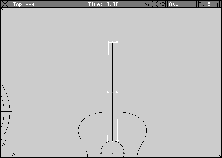
Don't delete the center line yet. This curve can help put a notch in the guitar profile in the next step.
 Select Curve Edit Cut/Join Join curves.
| Note: When you join two curves that meet at a straight corner or cusp, the resulting curve inserts a multi-knot at the cusp. A multi-knot is where several edit points exist instead of only one. They are hard to detect after they have been created, although generally you can see them where a single curve has a cusp. Detaching at this point removes the multi-knot. |
| Multi-knots are acceptable in some designs and most animations, but may cause problems later on if you are outputting to CAD or need to create continuity with this curve or its resulting surfaces. |
| Neither of these situations will arise for the guitar model, so you can join the curves. Because the four curves can now be treated as one, surface creation will be a little easier. |
| If, however, you later wanted to produce CAD output or achieve continuity, in relation to this joined curve, you would either have to leave them unjoined or detach the curves at the cusp. |
Continuing with the guitar profile, you can use an arc to create a notch in the right side. The arc begins parallel to the center axis of the guitar and is filleted at the other end. Various curve and curve edit tools are needed to create the notch.
At the left edge of where the notch is going to be, next to the guitar's neck, a small straight line is required. This line should start the notch and help create tangency for the arc of the notch.
 Select Curves Lines Parallel Line. Click on the center line, as the
 curve to make line parallel to.
Line Offset to 0.55 and press the Enter key.
 Select Curve Edit Curve section. Click on the new line below the guitar profile to choose the
 part of the curve to keep then click on Go.
geometry to trim with.
 Select Pick Object. Click on the line.
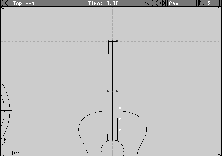
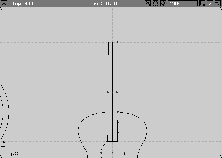
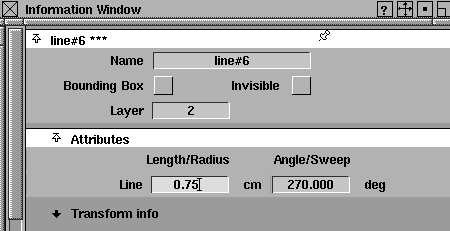
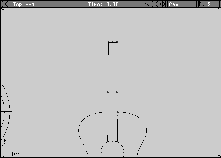
Information window, double-click on the field next to length. Type 0.75 and press the Enter key. You only need a small line to start the notch
 Select Pick Object and click on the center line. From the Delete menu, select Delete active to remove this line. It is no longer needed.
| Tip: You may want to delete any guidelines that are still visible. |
The basic shape of the notch is an arc. It should be drawn tangent to the small line and given an appropriate Length and Sweep value.
 Select Curves Arcs Arc tangent to curve. This tool creates an arc in relation to the line.
curve to make arc tangent from.
Information window, double-click on the field next to Radius. Enter 1.25 and press the Enter key. The radius and the arc orientation changes.
| Note: The following illustration has a sweep angle of 160 degrees. Yours may be different. |
The connection between the arc and the guitar profile needs a round connection. A 2D fillet can create this roundness. First, you must detach the guitar curve to allow for the fillet.
 Select Pick Object and click on the guitar profile.
. With the
Select Pick Object and click on the guitar profile.
. With the Scope set to Active, turn only Edit points on. Click on Go, then close this window.
 Select Object Edit Attach Detach. Click on the Edit point to the right of the arc to detach at this point.
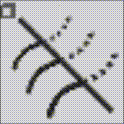 Select Curve Edit Curve section. Click on the small line segment of the guitar profile that sits within the guitar neck to choose the
 part of the curve to keep, then click Go.
geometry to trim with.
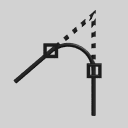 Select Curve Edit Create Fillet curves. Click the arc belonging to the notch as the
 primary filleting curve.
secondary filleting curve.
0.6, then press the Enter key to change the fillet radius.
approximate fillet location. The fillet is created.
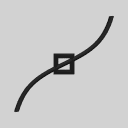 Select Curve Edit Cut/Join Join curves.
OK to delete construction history.
| Note: Remember that multi-knots are being created. These would have to be removed from the model if you later wanted to create CAD output. |
 Select Pick Nothing.. From the
 Scope pop-up, select All. Turn All to OFF, then click on Go. Close the Control window.
To create the guitar's headstock, you can use a simple polyline to trace out half of the basic shape. Once the CVs of the curve are edited, the final shape will be defined.
Grid.
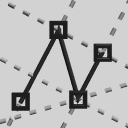 Select Curves Lines Polyline. Since there are no control points on the neck of the guitar, use Curve snap to place the first point.
Ctrl and Alt keys at the same time and click-drag on the guitar neck curve. You can now drag until you reach the top left corner of the guitar neck curve and release the mouse button.
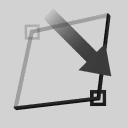 Select Pick Object and click on the polyline. In the
 Information window, enter a Length of 0.75 and an Angle of 120 degrees for the first line.
Length of 2.0 and an Angle of 92 degrees for the second line.
Length of 0.65 and an Angle of 35 degrees for the third line.
. In the Control window choose Active from the Scope pop-up. Turn All to On and click Go. The polyline now displays CVs. Close this window.
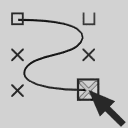 Select Pick Point types CV. Click-drag over the two middle CVs belonging to the first line segment.
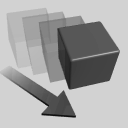 Select Xform Move. Click-drag up and to the right to give the line a slight curve.
Note: When the CVs on a keypoint curve are edited, the curve loses its keypoints and can no longer be edited using the attributes in the Information window. |
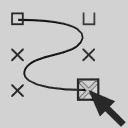 Select Pick Point types CV. With the middle mouse button, click-drag over the two middle CVs belonging to the second segment of the polyline.
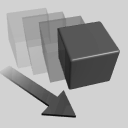 Select Xform Move. Click-drag to the right to give the line a slight curve.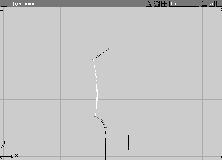
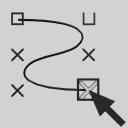 Select Pick Point types CV. With the middle mouse button, click-drag over the two middle CVs belonging to the third segment of the polyline.
 Select Xform Move. Click-drag down and to the right to give the line a slight curve.
 Select Pick Object and click on the polyline.
 Select Xform Local Set Pivot. Enter
 0 to place the pivot at the origin.
. Make sure the X scale factor is set to -1.0 and click Go. The polyline is duplicated around the X-axis.
 Select Object Edit Attach Attach-. Set the attach type to
 Connect and click Go.
Note: The Connect option under Attach creates multiknots at the connect points. |
 Select Pick Point types CV. Click-drag over the two middle CVs belonging to the top segment of the headstock.
 Select Xform Move. Click-drag down to give the line a slight curve.
 Select Pick Nothing.
. From the
Select Pick Nothing.
. From the Scope pop-up, select All. Turn All to OFF, then click on Go. Close the Control window.
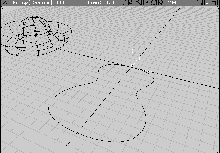
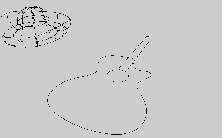
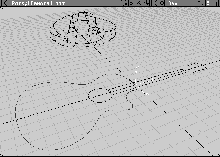
You now have the basic profile curves needed to create a 3D shape based on surfaces. By using the extrude, skin and set planar surface tools, you can create the guitar model out of the profile curves.
To extrude the guitar body, you need the profile of the guitar and a path curve. You don't have a path curve, so one will have to be drawn.
 Select Curves Lines Line. Enter
 0 to place the first point.
0, 0, -1.5 to complete the straight line.
| Tip: You may have to dolly in to be able to see the line. |
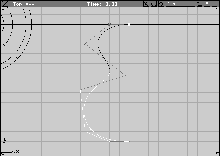 With Nothing picked, select Surfaces Swept surfaces Extrude.
curve to extrude then click on Go.
extrude path. The side surface of the guitar is created.
The top and bottom surfaces of the guitar still need to be created. The Set Face tool is used to turn a closed planar curve into a surface.
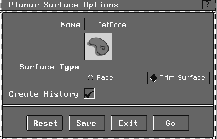
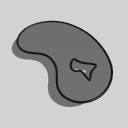 Select Surfaces Set Planar -. In the Planar Surface options, you can choose either a
 Face or a Trim Surface. Make sure Surface Type is set to Trim Surface. Click Go.
Note: Although faces are useful for planar conditions such as the guitar surfaces, they don't have a UV parameter space. This makes it difficult to add textures to them. Later, you might want to use the Trim option to add texture or graphics to the guitar. This option is also useful later if you want to make the surface non-planar. Faces must remain planar, but with trimmed surfaces, it is not necessary. You'll learn more about trimmed surfaces in a later lesson. |
Go.
| Tip: Because two curves were picked, the Set Planar tool treated the outer curve as the extent of the surface and the inner surface as a hole. Set Planar can also create surfaces with many holes. |
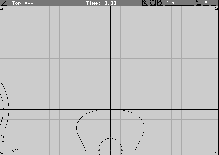
Another powerful surfacing tool is Skin, which creates a surface based on two or more curves. By creating a small skinned surface, you can give depth to the sound hole.
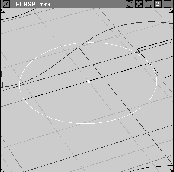
 Select Pick Object. In the new zoom window, click on the edge of the sound hole. Because both the edge curve of the sound hole and the top surface of the guitar overlap, a small box appears listing both objects. Click on
 arc to choose the desired curve.
|
Note: To see or change the name of an object, select Window Information Information window. |
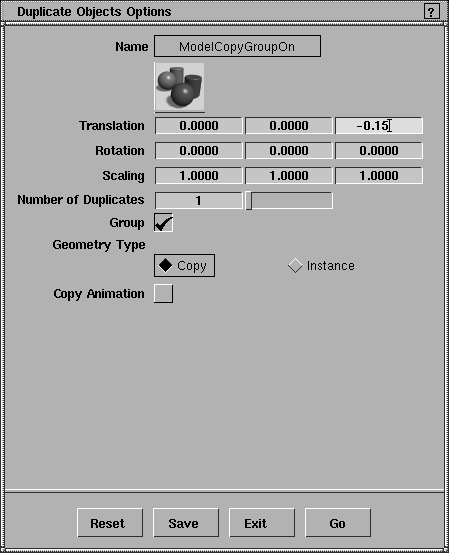
. Click the Reset button to go back to the default settings, then change the Z translation value to -0.15.
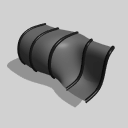 Select Surfaces Skin. Click the circle at the center of the guitar surface, then click the duplicated circle. The skinned surface is created.
 With Nothing picked, select Pick Object. Click-drag a pick box around the headstock and the end of the guitar's neck to pick these two curves.
. Change the Z translation value to
With Nothing picked, select Pick Object. Click-drag a pick box around the headstock and the end of the guitar's neck to pick these two curves.
. Change the Z translation value to +0.1. Click Go.
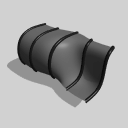 Select Surfaces Skin. Click on the top guitar neck curve then on the bottom neck curve.
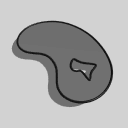 Select Surfaces Set Planar. Click on the bottom guitar neck curve, then click on the
 Go button. Next, click on the top neck curve and again click the Go button.
The headstock should be thicker. Since both the skin surface (the side) and the set planar surface (the bottom) are both linked to this curve with history, it can be moved so the surfaces update accordingly.
 Select Pick Nothing then select Pick Component. Six small icons appear on the left of the prompt line. They represent, from left to right: lights, faces, curves, surfaces, shells, and others. By default, all these buttons are pressed (turned on). Click on all of them, except curves, to turn them off. Now, only curve components can be picked.
 Select Xform Move. In the Perspective zoom window, click-drag with the right mouse button to pull the curve down a little. When you release the mouse button, the skin surface and the bottom set plane surface automatically update. Construction history has kept the curves and surfaces linked.
Since the guitar surfaces are now complete, you can delete the construction curves. Remember, this removes any construction history.
 Select Pick Component. Click-drag a pick box around all the guitar surfaces. Only the curves are picked.
yes to delete construction history while deleting the curves.
 Select Pick Object. Click-drag a pick box around all the guitar surfaces. The surfaces are now picked.
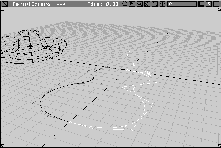
Sombrero layer highlighted, select Layers Set state Pickable. This allows the sombrero to be rendered, while maintaining the Guitar layer as the working layer.
Curves_final and click Save Wire.
Now you have a good understanding of curves and their relationships to 3D surfaces. This lesson has shown you quite a number of concepts and essential techniques that you will use on a regular basis in Alias.