The animation techniques you have seen so far all consist of motion that you create yourself. The quality of the motion is a direct result of your ability to animate a particular effect. With dynamics and particles, Alias lets you create natural effects such as a ball falling and bouncing, or smoke blowing in the wind.
These natural effects can be easily integrated with other objects and can react to and work with other parts of an animation. For instance, the smoke could be blown by a passing character or the ball could collide with another object in your scene and bounce away realistically.
Motion dynamics is all about applying forces to objects to create simulations of the resulting motion. These simulations can be refined at various levels and then replayed to create the desired effect. Keyframes can then be set and the results animated with the rest of your scene.
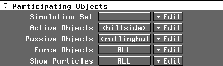
Dynamic simulations are set up and executed in the Run Dynamics window. In this window, you decide which objects will participate in a simulation, how long the simulation will run, whether or not Torque is used and whether or not keyframes are set.
The physical qualities of the objects participating in a dynamics simulation are set in the Shader editor. The shader of a participating object is used to define its dynamics settings such as Elasticity or Mass.
When setting up simulations, you must decide which objects will be participating in the simulation. Active objects are objects that react to forces and collisions as the simulation progresses. Passive objects provide colliding surfaces for active objects; however, passive objects will not react during the collision with objects or forces. When you decide whether or not an object is Active or Passive, you are also deciding which objects in a scene should have their motion animated by Dynamics.
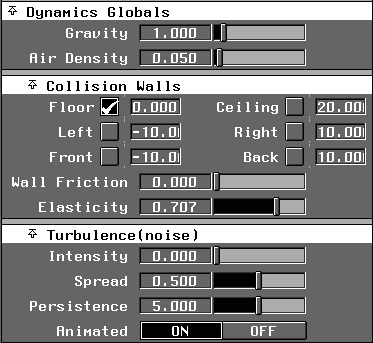
In the real world, forces cause objects to move and in effect "animate" them around us. When running a dynamics simulation, the same is true. In the Environment editor, you can set up several global force settings such as Gravity and Air Density. These settings give a realistic basis for any simulation. To account for random effects, you can also set Turbulence in the Environment editor so that your objects react in a less predictable manner.
The Environment editor also lets you set default collision plates (such as the floor or walls) for object collisions.
In addition to environment forces such as Gravity, there are several other forces you can define individually. You can set up a force using a Light object that has been turned into a Force in the Light editor. Any light type can be used as a Force, and each light type creates a different method of emitting the force field. Because lights are used, you can even link forces to certain objects in the scene for more localized results.
The different force types available are:
 Gravity - This creates an acceleration field that causes active objects to accelerate at the same rate regardless of their mass.
 Magnet - This creates a true force field, where the acceleration from the force field is inversely proportional to the object's mass. Light objects are accelerated more quickly than heavy objects.
 Wind - This creates a field that defines the motion of air at a point. Air drag is calculated relative to the wind in the vicinity of the active object.
 Drag - This creates a force that is proportional to the object's velocity and relative to the air flow in the vicinity of the object.
 Damp - This creates a force that acts on active objects and is proportional to the object's absolute velocity.
From the descriptions of the forces, you can see that forces affect objects in very different ways. These differences must be considered when you choose the forces for a simulation.
Once you have Active and Passive objects and Force objects chosen, you must create participating object sets that will be used in the simulation. These sets are created in the Run Dynamics window. While it is possible to set All objects to participate in a simulation, you may want to restrict those objects being used to a smaller, more focused set.
Since simulations can't solve all of your animation needs, they should only be used on those objects requiring a true natural motion.
As you run a simulation, you can edit the various settings in the Shader Editor, the Environment Editor and the Run Dynamics window itself. You can either stop the simulation and make your edits or you can interactively edit the settings during a simulation.
Once a simulation is creating the desired effect, you can choose to "record" the motion as keyframes on the various active objects. These keyframes can then be played back using the Time Slider without having to re-run the simulation.
Particles are actual bits of geometry that are emitted from lights and shaders. This particle geometry can be generated and terminated at any time and can be animated using Dynamics forces. Particles can be rendered to mimic the properties of special effects such as smoke, water, snow, grass, or hair. Particles are fully integrated with other object types and can be animated as part of a larger set of actions.
The process of creating particles can be broken down into four steps:
Generating Particles - Determines the number of particles emitted and the physical qualities the particles are trying to simulate.
Adding Forces - Determines the movement of the particles within the scene using Motion Dynamic simulations. These forces can be added as lights or set in the Environment Editor.
Setting Particle Rendering Properties - Determine the look of the particles when rendered.
Rendering the Particles - Creates the final image with particles and objects reacting to each other. Alias can display rendered particles in the modeling views when running a simulation.
You can emit particles from both shaders and lights, so you must consider which best suits your animation needs.While the particles emitted use similar properties, shaders and lights emit particles differently.
When emitting particles from lights or shaders you must open the light editor or the shader editor and go to the Active Effects section and set Emit Particles to ON. Remember that if you are emitting particles from a shader, the shader must be assigned to geometry.
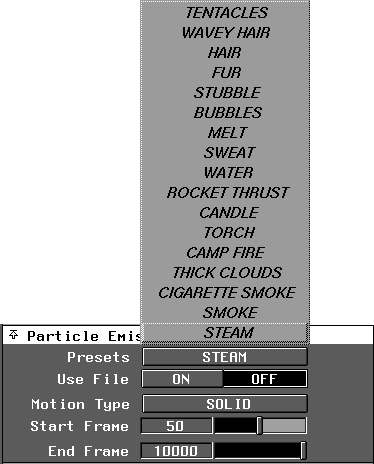
Once you have turned Emit particles on in either the shader or light editor, a new set of options appearsin the editor. In the particle emission section of the editor, choose the type of particles desired by setting the Motion Type to either Gas, Solid, or Hair. The type of setting defines how the particles behave and also how they are affected by their surroundings. In general, gas particles are unaffected by gravity and tend to flow up, while solid particles are pulled down by gravity. Hair particles are a little different, since a connection is maintained between each particle along to a certain length.
In the particle emission section, you'll also find a list of prepared particle samples that can be used as starting points for creating your own effects. When you choose one of these effects, Alias automatically makes all the necessary changes to various settings so that the simulation will behave correctly.
Particles can only be created within a Dynamics simulation. This begins by generating the particles and then letting the various forces take affect. To run a particle simulation you must use the Run dynamics window.
To run the simulation, you must pick the light or object and use it as a participating object in the simulation. Later, you can add objects to the Active, Passive and Forces section in this window to integrate the elements of a scene into the simulation.
While the simulation is running, you can interactively adjust the generation of particles in the light or shader editor. This information is found in the particle emission section under generation.
The following parameters can be adjusted to change the look of the simulation:
Particles/Sec - This sets the number of particles released.
Speed - This sets how fast the particles are released.
Speed range - This sets the amount of deviation from the above speed.
Speed Decay - This sets how quickly the speed decays over time.
LifeSpan - This sets how long the particles will live in the animation.
The simulation will give you an idea of the direction, speed, and behavior of the particles. The final fine-tuning will probably occur after you have set the rendering parameters and rendered a few test images.
Motion dynamics and particles give you a powerful means of supplementing your own animations with more natural motion and special effects. Because these tools combine many settings to get a result, you'll find yourself refining parameters a great deal to get the desired effect. Remember that these effects are meant to be integrated with your animations and should not be used as the only means of animating. You may find that in some cases, you need cleaner motion than "nature" can offer. In these cases, you'll have to keyframe the motion yourself.