So far, you have learned how to:
The ability to add life to the objects in your scene using deformations is the essence of character animation. Whether you are animating a dancing chair, or making a clown trip and fall, you need realistic surface deformations to create the bending of body parts or the squashing of a character. Often you can't accomplish this by simply animating individual CVs.
To create realistic character motion, you need to use special skeletons that help you control the motion of a character. In CGI, you can use Inverse Kinematic features to create skeletons so they can be easily animated.
Inverse Kinematics, often referred to as IK, is similar to a simple grouped hierarchy structure. But unlike the grouped hierarchy, each joint does not need to be moved independently. When using IK, moving a lower joint node automatically influences joints, objects, and clusters further up the hierarchy structure, eliminating the node-by- node adjustments.
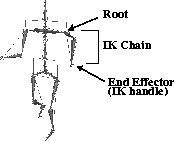
The movement influencing a skeleton is achieved by setting up a special hierarchical setup known as an IK chain. An IK chain is created from a Root joint to an End Effector joint. When moving the chain, Alias uses either its Single-chain or Multi-chain IK solver to figure out how the other joints in the chain need to move. This keeps the joints connected as you move the end effector.
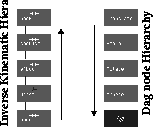
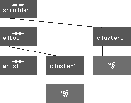
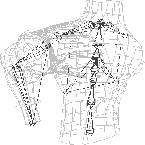
An IK hierarchy can be differentiated from a grouped hierarchy by the fact the nodes are represented by joints which are connected by bones. Shown below is a typical skeleton hierarchy as compared to an object hierarchy.
Before learning more about the IK solver, you need to learn how to build skeletons. Skeletons are built by placing skeleton joints into the world space.
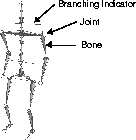
The Objects  Draw skeleton tool is used to place the skeleton joints. After Draw skeleton is selected, clicking in any of the orthographic windows, or typing in coordinate values, places joints. The first joint acts as the top node of the skeleton hierarchy. When subsequent joints are placed, a bone is automatically drawn between each joint.
These bones are icons that help you visualize the connection between the joint pivots.
The bones don't appear in the final rendering. Instead, your character's surfaces are rendered to show the motion. In the same way that hulls help link CVs on a curve, the bones provide a framework for the joint hierarchy.
While the Draw skeleton tool is selected, you can keep adding joints to the skeleton chain. Joints can be added to a skeleton at any time, even while modeling or animating. To start new branches in the chain, pick the desired joint along the chain, and continue from that point. Wherever several joints meet at one node such as the Hip or Neck joints of a biped, a bounding box appears around all the adjoining joints to show where the branching occurs.
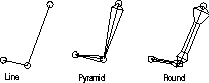
Once a skeleton is created, the bones are iconized to help you visualize the hierarchy in the modeling windows. There are three bone types available - line, pyramid, and round.
Pyramid is the default because it is simple enough to redraw quickly while still giving a good 3D representation for previewing motion in the skeleton.
Round is more complex but more visually satisfying.
Line is the simplest display option. The skeleton display can be set in the Line style option box found in the Object Display menu.
When working with skeletons, you may need to reshape the skeleton by moving the skeleton joints or dragging the end effector to simulate the motion of a character. In Alias, there are several Xform tools to help you edit the skeleton joint. Each of these tools affects the skeleton in a different manner.
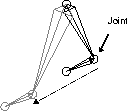
Xform Move - This tool moves the active joint and the lower skeleton hierarchy, changing the distance between the active joint and the joint higher up in the hierarchy.
Xform Set pivot - This tool moves the pivot point of the active joint node. Since the joint is at the pivot point, you are moving the joint, but unlike Move, the lower hierarchy remains in position while both bones change length.
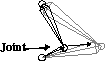
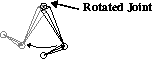
Xform Rotate - This tool rotates the active joint, rotating the lower hierarchy with it. Since, ultimately, rotating joints best simulates a skeleton's action, sometimes IK actions will ultimately result in keyframes being set for rotational information for other joints.
You can use grid snap or type in exact figures to build the skeleton, or roughly build the skeleton, then use the Xform Move, Rotate, and Set pivot tools to adjust the location of the joints.
The rest pose is a pose that is set on a skeleton that can be easily returned to at any time. The rest pose also plays a key role in how the Single-chain IK solver sets up its solution. You can choose both Set Rest Pose and Assume Rest Pose from the Edit menu.
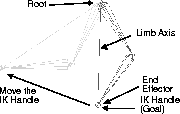
When using Inverse Kinematics, the IK solver allows the hierarchy to move in the opposite direction of a typical hierarchy. To invoke the solver, you must set up an IK chain. You do this by adding special IK Handles to the skeleton. Each handle is placed first on a Root joint, which acts as the anchor of the chain, then on the end effector, which can be moved to invoke the IK Solver.
Alias has two IK solvers you can use to set up IK chains. The Single Chain solver offers a simple, predictable solution that can handle most of your IK needs. For more complex motion, you can use the Multi-chain solver. They are similar in that they both use IK handles to set up their IK chains.
The biggest difference between these two solvers is that the Single-chain solver carries its animation directly to the renderer while the Multi-chain solver requires Run IK to turn the animation from an IK chain into rotation keyframes on the joints. This ability to quickly Set keyframes, then Render an animation without relying on Run IK, means the Single Chain solver is a more streamlined approach to animating characters.
The Single Chain solver sets up an IK solution by using the Rest Pose of the skeleton joints involved in the chain as the reference point of all motion performed by the solver. Therefore, no matter how you Move the IK handle, it can always return to its original Rest pose.
A typical Single IK chain lets you Move and Set keyframes on the IK handle. This information is then sent directly to the renderer without requiring the use of Run IK.
When working with the Single Chain IK solver, there are a few items that you should keep in mind:
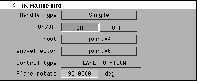
The Single-chain solution has three levels of control that can all be animated. The default Control type is called Translation only. This means that at first, you can only Set keyframes on the IK handle's translation channels. If you want more control, you can change the Control Type in the Information window.
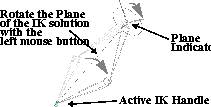
The second level of control is called Plane Rotation. This lets you rotate the plane in which the IK chain is being solved. By doing this you can create more complex motion in the chain. The rotation of the Plane can be controlled by picking the IK Handle and using the left mouse button and the Rotate tool.
The ability to translate the IK Handle and rotate its plane gives you many types of motion. In some cases, the combination of translation and plane rotation might cause the IK solution to
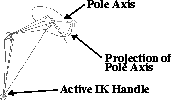
flip uncontrollably. In these cases, you must use the third Control Type, called Pole Rotation. Pole rotation lets you use the middle and right mouse buttons to basically rotate the IK solution's Pole Axis and its projection "out of the way."
Keyframes can be set on all of the IK Handle parameters so you can keep the various parts of the solution in a desirable location. Of course, you would only want to work with these parameters if the first two Control Types can't meet your needs.
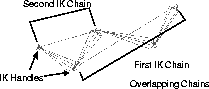
In cases where the Single-chain solver does not give you an appropriate motion, you may wish to invoke the Multi-chain solver. This is also accomplished by adding an IK Handle to your skeleton. This solver is more complex and lets you overlap joints, set limits on the roots and even keyframe interior joints.
As mentioned above, this added functionality requires the use of Run IK to convert the IK handle animation into joint rotations before rendering.
The Multi-chain IK solver encounters many possible solutions when it is animated. For this reason you must try to give the IK solver more information to help limit the number of possible results. Therefore, you need to set limits on joints to narrow the number of possible solutions available, to make the resulting motion more predictable.
When you Move an IK Handle, the IK solver must calculate how the other joints in the hierarchy will rotate. By default, this joint rotation can be unpredictable because the joints are free to rotate in any direction.
For the Multi-chain solver, you need to set limits for each of the skeleton joints to limit how the IK solver can calculate the movement of the joints. Limits are not as important for the Single chain solver, which is more predictable.
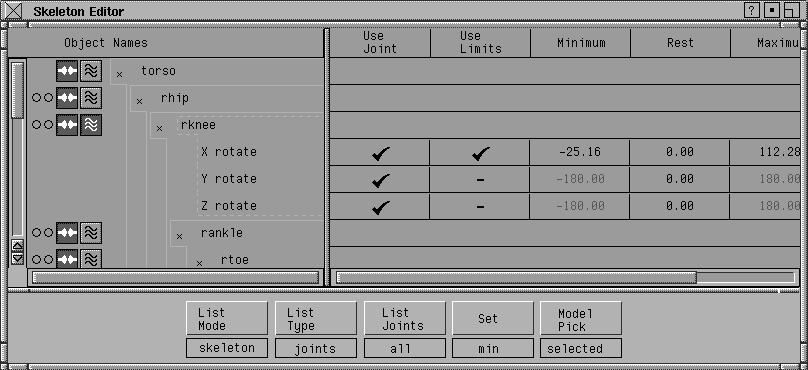
Limits are set for each joint in the Skeleton editor, which is found in the Windows menu. In the Skeleton Editor, you can limit a joint to rotate in one or more directions and you can set a Minimum and Maximum setting for these rotations. Joint limits should use settings that are logical for the chosen joint. You may want to refer to your own body joints to evaluate what natural limits your body sets on your motion.
To animate skeletons, you actually could rotate each joint and Set keyframes. Using this approach on a complete skeleton would be very difficult, however, because you need to know how various joints work together as you set keyframes. This is why IK chains are used to simplify the process. Keyframing rotation directly on joints is a good technique later on in the process-for adding secondary animation to the character.
With the Single chain solver, you can animate the chain by simply positioning and keyframing the translation and plane rotation of the IK handles. This can then be previewed and rendered appropriately. For the Multi-chain solution, you must first animate the IK Handles, then apply Run IK.
Other animation techniques include the use of constraints and expressions to help drive the more complex and realistic motion of the character's IK handles and joints.
For the Multi-chain solver, you use the Run IK function, found in the Animation menu, to convert the motion of the constraints into joint rotations. Each time you edit the keyframing of the constraints, or apply extra keyframes on the skeleton itself, you must reapply the Run IK function.
You can also use it to convert the Single chain solver's animation into joint rotations. This is useful if you need to subtly refine the rotation on the joints in the later stages of an animation.
A Constraint is an object used to constrain the position or orientation of another dag node. Constraints can be applied to objects, joints and IK Handles, depending on your needs. You can have a character's eyes follow another object or use one object to control the movement of another.
Since IK handles now provide some of the functionality that constraints used to, the one question is "why use them?" Since IK Handles don't have dag nodes in the SBD window, they cannot be grouped and therefore they cannot be part of a hierarchical structure. As a result, constraints are still needed because they create dag nodes in the SBD that can be grouped in a hierarchy.
A constraint can be any node, such as a curve or an object. You can even use other skeletons, cameras, or lights. The pivot point of the constraint and orientation of the constraint's local axis are the most important factors to consider.
There are three type of constraints; Point, Orient, and Aim. Each of the constraint types is used for different reasons but can easily be combined in a single animation.
The Point constraint is the touching constraint. The constrained object moves and rotates to touch the Point constraint. As the Point constraint moves, the constrained object keeps trying to touch it.
Point constraints can be used on IK handles to control their motion. If you use the Create Constraint to apply a new constraint on an empty skeleton joint (that is not part of an IK chain) then an IK handle is created with its root placed as far up the skeleton as possible. Point constraints lock down the foot in the same manner as IK handles themselves but now you have the added bonus of a groupable dag node to work with.
The Orientation constraint is the aligning constraint. The constrained object rotates and moves to align to the local axis of the Orient constraint. As the Orient constraint is rotated, the constrained object maintains the constrained joint's local axis in the same orientation as that of the Orient constraint's local axis.
Unlike the Point constraint, the Orientation constraint can be placed anywhere, as only its orientation is important. The main use of the Orient constraint is to maintain orientation, regardless of the movement that occurs higher up the hierarchy.
The Aim constraint is the aiming constraint, where the local axis of the constrained dag node points at the constraint but does not try to touch it. As the Aim constraint is moved, the local axis always follows the constraint and points in its direction within the limits of the joints. This technique is useful when trying to get a character to "look" at something. The constrained joint aims at the Aim constraint in the direction of one of its local axes. It is best to determine which axis to constrain to before adding the Aim constraint.
Once a constraint has been set, you can edit its attributes in the Information window. You must pick the constrained object. In the Information window, the constraint is listed with all its attributes. You can turn the constraint off in this window or set its weight in case you have two or more constraints on a single object.
On its own, a skeleton defines the motion of a character. To create a final rendered character, you must attach surfaces to the skeleton. This way, the surfaces can be rendered to show the animation of the character.
The simplest way to attach surfaces to skeletons is to group surfaces into the skeleton hierarchy. While this is useful for characters exhibiting rigid motion, such as a robot or a knight in a suit of armor, you do not get the level of freeform deformations necessary for most characters. To learn about deforming a character's surfaces, you must learn about clusters and deformation frames. But first you should look at grouping surfaces into the skeleton hierarchy.
In some cases, such as a knight in a suit of armor, you can group the pieces of armor to the skeleton and they'll move accurately when the skeleton joints are rotated. This grouping will result in rigid motion with no deformation at the joints.
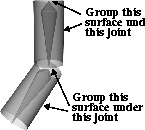
When grouping the surfaces into the skeleton, it is important that you position the surfaces properly in the hierarchical structure. Since you want the surface to move with the bone, you should group the surface underneath the joint that lies above this bone. This ensures that the surface and the bone move together when the joint is rotated.
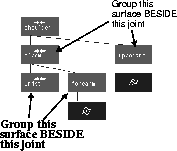
One way of working in the SBD window is to pick the joint under the desired joint and group the surface beside it. You can set the Beside option in the Group option window.
Since most characters are unconvincing when animated using rigid surfaces, you must begin deforming your surfaces in order to achieve more realistic results. Deformation means that you are animating the topology of your surfaces and that they change shape over time. To begin animating deformations you need to learn about clusters.
Earlier in this book, you animated CVs to apply deformation to the walking wine glass. This low-level deformation animation worked well enough, but it contains certain inherent problems that limit the use of this technique when animating more complex characters. The key limitation is that CVs can only be animated based on their position in space. They contain no facility for setting keyframes for rotational or scaling information. Also CVs on their own cannot be grouped into a skeleton hierarchy, except as part of their parent surface.
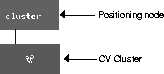
To deal with these limitations, you must begin using clusters when working with deforming objects. The use of clusters is an important aspect of complex deformations since clusters offer a mechanism to animate CVs in a more controlled and predictable manner. Clusters are sets of CVs that are assembled into a geometry node with its own positioning node. This node lets you pick, transform, animate and edit the particular CVs during deformation.
Clusters provide a higher level of deformation by having their own positioning node that can have its own pivot point. Note that while CVs themselves cannot be rotated or scaled, clusters can use these transformation types for added control.
You can create clusters by picking a group of CVs from the modeling views and then assembling them into clusters. Also, clusters can be created automatically using various deformation functions. Since the cluster creates a new dag node structure separate from the CVs' original surface, you can attach and group the Clusters into skeleton hierarchies. An added bonus is that when working with clusters, the original surface is left intact. If you later decide to delete the clusters, the surface reverts to the shape it held before any deformations.
Some of the advantages of cluster animation over CV animation are:
Clusters are a logical collection of CVs and are created by assembling CVs from one or more objects.
There are two types of clusters: the exclusive cluster and the multi-cluster. CVs that make up an exclusive cluster can only belong to that one cluster. CVs that make up a multi-cluster can belong to other clusters at the same time. If a CV is to belong to two clusters, both clusters must be multi-clusters. The exclusive clusters are the default type because they are easier to set up and to integrate into an animation.
Multi-clusters offer more subtle control over deformations but require more skill to group into a hierarchy. One rule is that you cannot use two Multi-clusters that share CVs in the same hierarchy or you will get strange behavior as the CVs move twice - once for each time the CV appears in the hierarchy. It is therefore a good idea to start with exclusive clusters and then change them to Multi-clusters as you become more skilled.
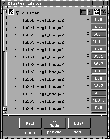
Clusters can be edited in the cluster editor. Select Windows Edit Clusters to open the cluster editor window.
The cluster editor lets you change the assembly of the CVs but does require some skill to learn how to obtain the desired deformation effects. One feature of the Cluster editor is the ability to weight the various CVs in a cluster so that they react differently when transformations are applied to the Cluster. For example, if a CV is given a weight of 75, it will only transform 75% of the value applied to the whole cluster.
Refer to Animating in Alias for more information about the cluster editor.
While it is possible to create clusters by hand, it is easier if you create clusters using the various deformation types available in the Deformation Control window. In this window, you can use various types of deformation frames to assist you in assembling and creating clusters. Each deformation frame works differently and is capable of creating, assembling and weighting CVs based on the settings in the deformation control window.
The following lists the four types of deformation Frames you use to create Clusters:
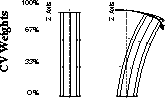
Axial - This frame type creates a single cluster containing weighted CVs. By default the CVs are weighted so that those CVs with the smallest value on the chosen axis are weighted 0 for no deformation, while those CVs with the highest value on the chosen axis are weighted 100 for maximum deformation. You can change the minimum and maximum weighting and the interpolation between using deformation control options.
Curve - This frame type creates clusters by relating CVs on the object to CVs on a curve. The curve's CVs become handles that can be used to manipulate the clusters. The weighting of the CVs in the clusters is based on their positioning in relation to the curve.
Skeletal - This frame type lets you attach an existing skeleton to an object. One cluster is created for each joint or bone on the skeleton frame. These clusters consist of all the CVs that surround the joint or bone. In most cases this deformation type results in kinks at major joints. For this reason, you'll usually rely on the fourth deformation type, character builder, when attaching surfaces to skeletons.
Character Builder - This frame type creates a more complex version of a skeletal attach. It lets you determine how the geometry attaches to the skeleton, especially around the joints. You can also add expressions to the clusters for proper bulging of the pieces.
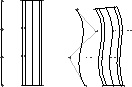
Within the deformation control window, the Character Builder options are available. Shown below are the Bulge options which include interactive diagrams for setting the extent of the bulge. You can work with preset bulge types or create your own that best suit your own character.
As you work, you can choose between the various deformation types to create realistic movement in your characters.
Another useful tool that results in the creation of clusters is Shapeshifter. Shapeshifter is available in the Set Key Shape option window. With the basic Set Key Shape option, you animate CVs; Shapeshifter lets you animate using Clusters. Also Shapeshifter lets you set several shapes for interpolation instead of just two.
Creating animated characters is an exciting endeavor that involves many aspects. To begin, you need to understand and work with IK skeletons and constraints, and then you can begin working with clusters and surface deformations. In the end, these two aspects can be combined to create a moving, living character that walks and talks to your audience.