|
|
Tip:
|
The File Browser contains a button labelled either Save
Wire, or the last file format you selected in the Save Active
Options window (for example, Save DXF).
|
|
|
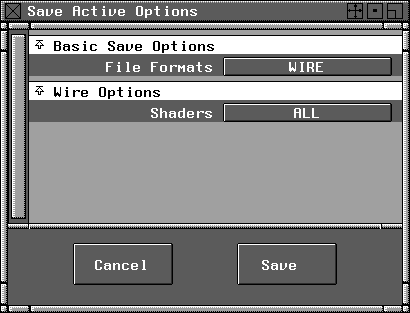
If the file format displayed is not the one you want to save
in, select Cancel and then File > Export > Active as- to
display the Save Active Options window, and choose the
correct format. to
display the Save Active Options window, and choose the
correct format.
|
-
2
-
Click the Show List button to display the File Lister.
-
3
-
To overwrite an existing file, click the file's icon in the File Lister. If you prefer, you can type the filename and/or the path in full, without selecting anything in the File Browser.
-
The filename and its UNIX path appear in the File
Requestor.
-
4
-
Click the Save Wire button. The following message is displayed until storing is complete:
-
Saving...
All active (or picked) wireframe scene information is stored. If you are storing in wire format, this applies to all active information in your model, including:
Notes:
- Not all file formats are capable of storing all the information in the Alias model. Files stored in formats such as DXF or OBJ only store a subset of the model. To store your model for later retrieval into your Alias system, choose the Wire format.
- The filename should not contain spaces or other invalid characters such as `$<>'.
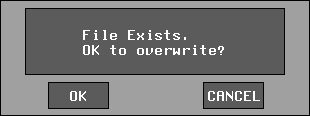
- If a file is selected from the list or if a file name entered already exists, the following confirmation box appears:
-
Click OK to erase the old file and replace it with the new
file. Click CANCEL to cancel File > Export > Active as.
|