|
|
Edit > Cut
Edit > Copy
Edit > Paste
|
Cutting, Copying, and Pasting Objects
|
|
|
|
|
Purpose
To cut, copy, and paste objects.
How to Use
-
1
-
Select any object.
|
|
These tools work the same as
if you picked an object,
selected File > Export >
Active as and then selected
File > Open.
|
-
2
-
To remove the object and store it to the clipboard, select Edit > Cut.
-
To keep the object where it is, and make a copy of it in the
clipboard for pasting, select Edit > Copy.
-
To paste an object that is stored in the clipboard, select Edit
> Paste. The object is pasted on top of itself or into the
creation layer. (To determine how layers are handled,
select Edit > Paste-
 . The Paste Options window appears.) . The Paste Options window appears.)
|
|
If you paste an object while
other objects are picked, the
picked objects are unpicked
and the pasted object is
picked instead.
|
Paste Options
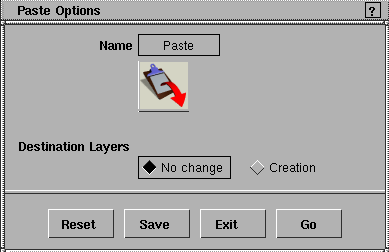
No Change
-
- The layer assignments of the pasted objects remain the same. If the object's layer doesn't exist, the layer is created.
Creation
-
- All pasted objects are placed in the creation layer.
|


