|
Deletes selection handles without deleting the object or node that the selection handle is attached to.
How to Use
-
1
-
Select the nodes with the selection handles you want to remove.
-
2
-
Select Delete > Del selection handles or click its icon.
-
A confirmation box appears asking if you want to delete
the selection handles for active objects:
- To delete the active selection handle, click YES or type the letter Y. The object or DAG node remains, but the selection handle is deleted.
- No action is taken if you click NO or type the letter N.
Delete Selection Handles Options
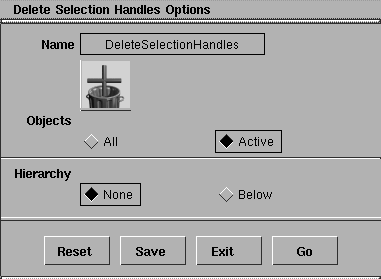
Objects
All
-
- This option deletes selection handles from all objects.
Active
-
- This option deletes selection handles from active objects only.
Hierarchy
None
-
- If Active is specified, then this option deletes selection handles only from the active objects themselves. If All is specified, this option has no effect.
Below
-
- If Active
is specified, then this option deletes selection handles from active objects and their descendants in the hierarchy. If All is specified, this option has no effect.
>
|
Note:
|
For DAG nodes, CVs and cameras, the hierarchy refers to
the hierarchy as represented in the SBD window. For
shaders, textures, and lights, it refers to the implicit
hierarchy in the Multi-lister (see the Rendering in Alias book).
|
|


