Setting
Microsoft FrontPage to Type and Display
International Characters on a PC (Windows Platform)
Step 1
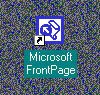
Launch Microsoft FrontPage HTML generator application.
Step 2
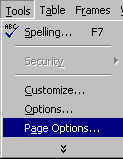
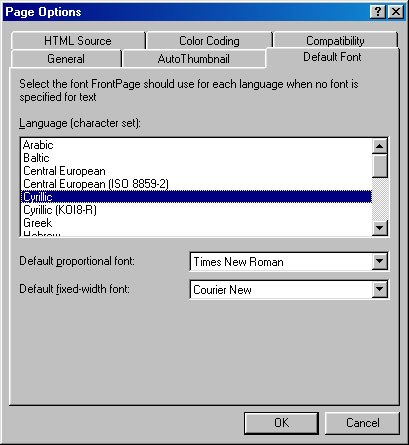
To choose font encoding for a Web document, go to Tools - Page Options.
Step 3
In Page Options window, under Default Font tab, select Cyrillic in the Language (character set) list and click OK.
Step 4
Having Cyrillic Font Encoding selected for your current document will add a new charset meta tag into HTML code of your document. You can check it by viewing the source (HTML) view of your document (click HTML tab at the bottom left corner of your FrontPage window).

Step 5
To start typing Cyrillic characters in your FrontPage document activate Cyrillic (Serbian) keyboard language settings by clicking the keyboard indicator icon in the lower right corner of your computer monitor.
If Serbian language is not provided in the list of languages within an indicator, install it by following the procedures for keyboard language setup.