Setting Netscape Composer to Type and Display
International Characters on a PC (Windows Platform)
Step 1
Launch Netscape Composer HTML generator application.
Step 2
Create a New Document or open an existing document.
Under Edit - Preferences you will adjust font and language settings that will enable you to type international scripts within a Web document.
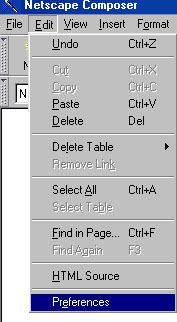
Step 3
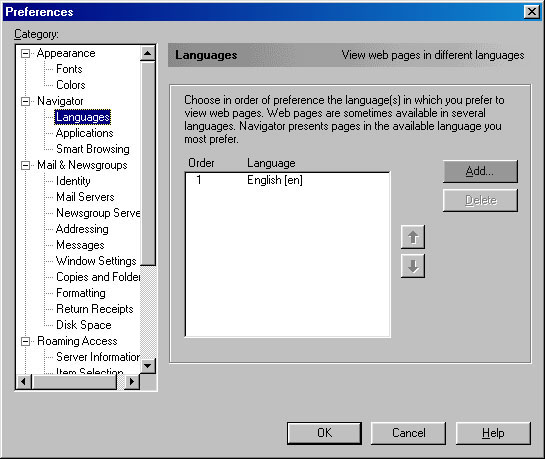
Under Preferences window click on Navigator and Languages to see how many languages you have available to use with Netscape Composer. If English is showing, like in this example, click the Add button to add the language in which you desire to type in your Web document.
Step 4
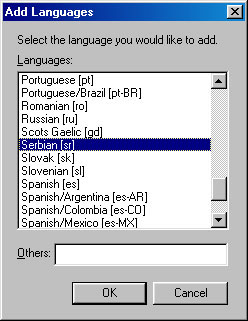
After you click Add button, Add Languages window will show up displaying list of languages to choose from.
In this example, we are choosing a language that uses the Cyrillic script such as Serbian language.
When desired language is selected (highlighted) click OK button.
Step 5
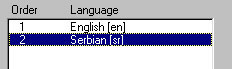
You are now back in the Preferences window where you can see Serbian language showing along with previously existing English language.
Step 6
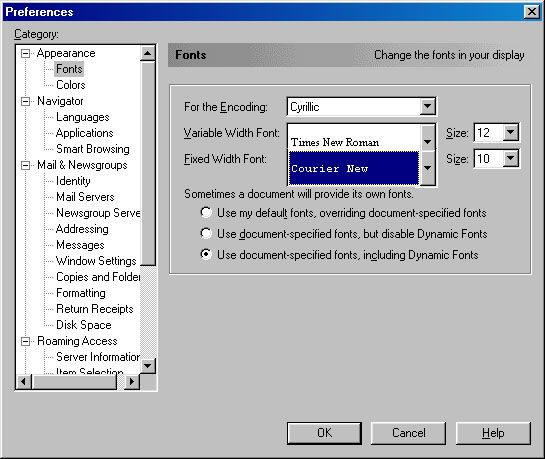
Remain in the Preferences
window and select Fonts under Appearance menu.
In the For the Encoding
list, select Cyrillic if you want to write your Web documents in Serbian
language and Cyrillic script.
Click
OK when done.
Step 7
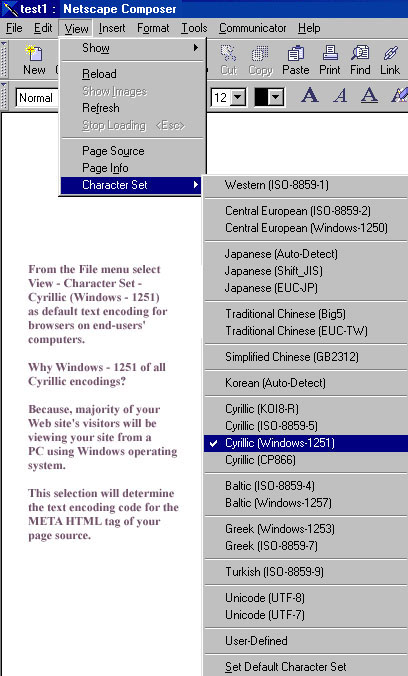
The last Netscape Composer's setting that you need to adjust before you start typing your document is to select Character Set encoding for your document.
You will select Cyrillic encoding if you want your Web site's visitors to see Cyrillic scripts on your documents.
Cyrillic (Windows-1251) selected as a Character Set encoding will insert a "charset=windows-1251" code as the meta code in the head of your HTML file:
<meta http-equiv="Content-Type" content="text/html; charset=windows-1251">
which defines that your document is supposed to be encoded with Cyrillic characters on viewers' browsers.
Step 8
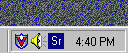
To start typing Cyrillic characters in your Netscape Composer document activate Cyrillic (Serbian) keyboard language settings by clicking the keyboard indicator icon in the lower right corner of your computer monitor.
If Serbian language is not provided in the list of languages within an indicator, install it by following the procedures for keyboard language setup.