Step 1: Print Setup tab
|
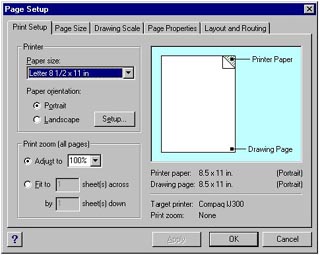
1. The Print Setup tab allows you to set the printing options for your drawing page. From this tab, you can select paper size, page orientation, reduce or enlarge the drawing, and how many pieces of paper you want the drawing to be printed across. |
Step 2: Page Size tab
|
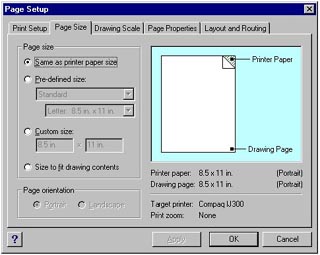
2. The Page Size tab allows you to resize the pages, giving you the ability to add where you need it and remove extra space that is unused. The resizing options do not change the drawing scale. |
Step 3: Drawing Scale tab
|
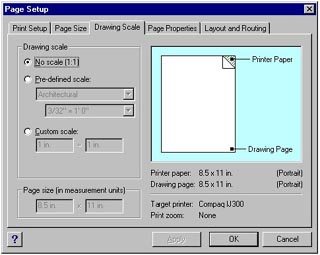
3. The Drawing Scale tab allows you to set a drawing scale if it is needed. You can use a predefined scale, or a custom scale. You can even use "real world" dimensions. |
Step 4: Page Properties tab |
4. The Page Properties tab allows you to set characteristics of the page. You can set the type of page you want (foreground or background), name of the page, name of the background page if used, and measurement units. |
Step 5: Layout and Routing tab
|
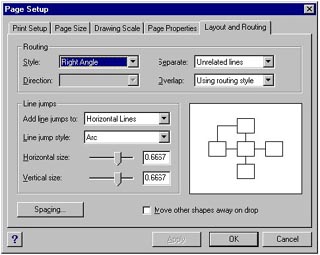
3. The Layout and Routing tab allows you to set the style and properties of the connection lines. |