Page 25 - Auto Setup Pages

Step 1: Open solution

1. From the File menu, select New. Then select Choose Drawing Type and open a solution for the type of drawing you want.

Step 2: Open Page Layout Wizard
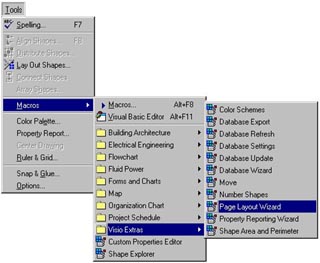
2. With your solution on display, you need to access the Page Layout Wizard. From the Tools menu, select Macros. Then select the Visio Extras folder. From this folder, select the Page Layout Wizard option. The Page Layout Wizard launches.
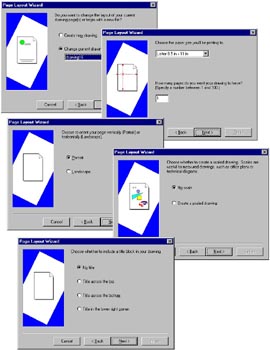
Step 3: Follow the Wizard

3. Proceed through the wizard screens, selecting the printed page size, orientation (landscape or portrait), the number of pages, the drawing scale, and whether or not you want to include a title block and a border.

Step 4: Finish the Wizard

4. On the last screen, click Finish. The drawing pages are set up according to the selections you made through the wizard.

Proceed to the Next Page!

Return to the Previous Page!

Hosted by www.Geocities.ws

1