Step 1: Import CAD file
|
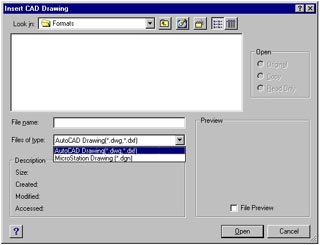
1. To convert a CAD drawing to Visio, you will need to use the Convert Wizard. But first, you need to import the CAD file. With a blank Visio drawing open, go to the Insert menu and select CAD Drawing. The Insert CAD Drawing dialog box displays. In the Files of type field, select AutoCAD Drawing (*.dwg, *.dxf) or MicroStation Drawing (*.dgn). Find the file and click Open. |
Step 2: Select Convert |
2. With the CAD file now on the drawing page, right-click on CAD image. From the pop-up menu, select CAD Drawing Object, then Convert. The Convert Wizard launches. |
Step 3: Proceed through Wizard
|
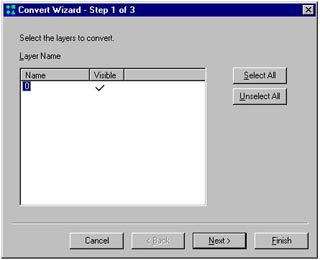
3. In the Convert Wizard, select the layers or levels containing CAD objects that you want to convert, and then click Next. Select whether you want to delete the converted layers or hide them. If you imported an AutoCAD DWG or DXF drawing, select how you want to convert the dimensions. |
Step 4: Finish off the Wizard |
4. Once you reach the final screen within the Wizard, click Finish to convert the objects on the selected layers. |