Page 23 - Create a Template 1-2-3

Step 1: Step 1: Create a drawing file
1. Creating a template can be very simple and easy. Simply open a blank drawing page (File > New > Blank Drawing) and set up the page as you need it. Add text, or shapes, or page settings, or whatever you need to situate the layout of the page.
Step 2: Associate stencils

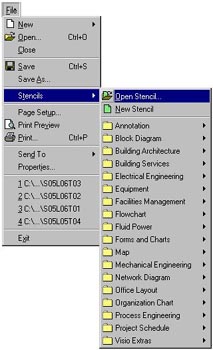
2. Open the stencils that you want to associate with this file. From the File menu, select Stencils. From the sub-menu, select the Open Stencil option. The Open Stencil dialog box display. From this dialog box, open up the appropriate stencils.

Step 3: Save as .vst file type

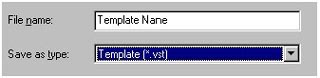
3. Once you have all of the items associated with the file, save the drawing as a template (.vst) file. From the File menu, select Save As. The Save As dialog box displays. Select the folder to which you want to save this file. Give it a meaningful file name. And in Save as type filed, select the Template (*.vst) option.

Step 4: Retrieving the saved file

4. From the File menu, select Open, select the folder to look in. Select Files of Type choosing the *.vst option. Select the saved file to be displayed.

Proceed to the Next Page!

Return to the Previous Page!

Hosted by www.Geocities.ws

1