Step 1: Insert page
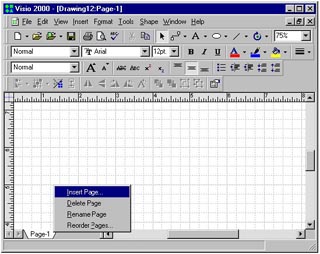
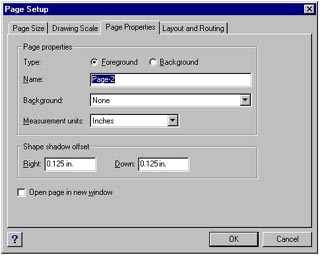
1. With a drawing open, right-click on a page tab in the bottom-left corner of the window. From the pop-up menu, select Insert Page. The Page Setup dialog box displays.
Step 1: Insert page
|
1. With a drawing open, right-click on a page tab in the bottom-left corner of the window. From the pop-up menu, select Insert Page. The Page Setup dialog box displays. |
Step 2: Name the page
|
2. Give the page a name. From the Page Setup dialog box, on the Page Properties tab, enter a name for the page for a future reference. Or you can just use the given default name. |
Step 3: Additional adjustments |
3. If you want, you can click the other tabs and enter any additional adjustments to the page setup that you feel is necessary for this new page. When you are finished, click OK. |
Step 4: Delete a page
|
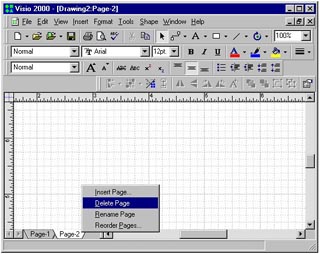
4. With a drawing open, right-click on a page tab in the bottom-left corner of the window. From the pop-up menu, select Delete Page. The selected page is deleted form the file. |
Step 5: Delete a background page
|
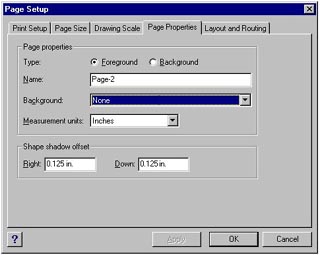
5. If you want to delete a background, you must first cancel its association with any foreground page. You cannot delete a background page assigned to a foreground page. A background might be associated with many foreground pages; so you would have to repeat this cancellation process for each assignment. You will find this association in the Page Setup dialog box, on the Page Properties tab, in the Background field. |
 Proceed to the Next Page!