Step 1: Displaying Rulers |
1. To display rulers in the workspace, select View > Rulers. This displays the rulers on the top and left side of the workspace. The ruler starts measuring up the left side from the bottom and across the top from left to right. The default setting for the ruler is in inches for most styles of drawings. The ruler is also subdivided. You can change the subdivisions in settings. |
Step 2: Changing Subdivisions
|
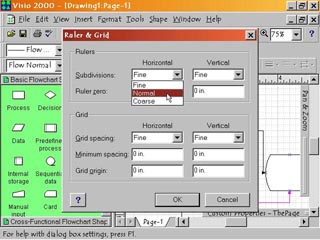
2. To change the units the ruler is subdivided into, select Tools > Ruler & Grid. This opens the Ruler & Grid dialog box. At the top is the Ruler section, split into two columns, one for vertical settings, and another for horizontal. Click the pop down menu arrowhead in the Subdivisions fields to access the three choice menu. Select Fine for 1/32" subdivisions. Select Normal for 1/15" subdivisions. Select Coarse for 1/8" subdivisions. Then click OK to accept the values. |
Step 3: Changing Starting Point |
3. To change where the ruler zero point starts on the page, select Tools > Ruler & Grid. This opens the Ruler & Grid dialog box. At the top is the Ruler section, the second field from the top is Ruler Zero. Click inside the text box and type in the measure from the bottom (or from the left) that you want the ruler's zero point to be. |
Step 4: Changing Ruler Units
|
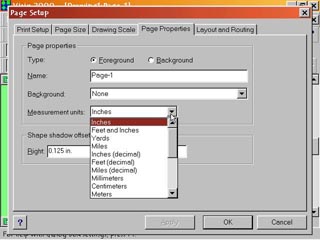
4. If you want to work in units other than inches you will need to change the page settings. Select File > Page Setup. In the Page Setup dialog box click the pop down menu arrowhead in the Measurement Units field. Select the measurement unit desired. Then click either Apply or OK to change the measurement units used by the rulers and the page. |