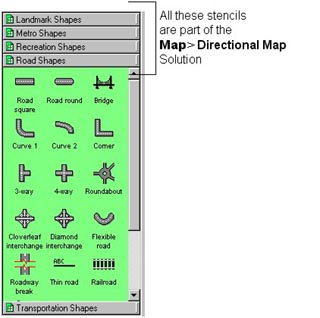
Step 1: Stencils store master shapes
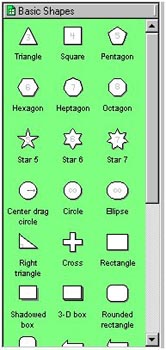
1. Stencils store "master" shapes that you drag-and-drop to your drawing page. You can use these "masters" over and over again, providing consistency throughout all of your drawings.
Step 1: Stencils store master shapes
|
1. Stencils store "master" shapes that you drag-and-drop to your drawing page. You can use these "masters" over and over again, providing consistency throughout all of your drawings. |
Step 2: Part of a solution
|
2. When you create a new drawing by opening a solution, one or possibly more stencils open to the left of your drawing page. These stencils comprise the solution that you opened. A solution provides the "total package" for your drawing, including the drawing page, all sized and ready to go, as well as the necessary shapes and styles. |
Step 3: Create your own stencil |
3. You can also create your own stencils. You can draw unique shapes, drag them to the stencil, and name the master shapes accordingly. Or you can use shapes from other stencils and modify them for your own use. Or you can just copy shapes from existing stencils and drop them to your stencil. |
Step 4: Stencils dock to your page |
4. When you open a stencil, by default, they are docked to the left side of the drawing page. However, you can alter the stencil display option to have the stencil be displayed at the top, right, or bottom of the drawing page. You can also have the stencil "float" as opposed to being docked. |
 Proceed to the Next Page!
Return to the Previous Page!