Adding Graphics
Web users have to download your page to view it, including all the graphics associated with the page. Couple that fact with the Web speed issue, and the need for smaller graphics files become apparent. A good average size Web graphic, is between 10K and 30K. Currently you can choose from either of two file types: GIF (Graphics Interchange Format) or JPEG (Joint Photographic Experts Group).
To create your own graphics you'll need the following graphic programs: Paint Shop Pro, which you can download from the following URL (Internet address) - http://www.jasc.com/pspdl.html or from my download page. You will also need Microsoft Paint, which should be available if you use any Microsoft Windows. Note however, there are several graphic editors, and you do not have to be limited by the applications mentioned above, but these are the graphic applications I used to help explain graphics. Also keep in mind that you don't always have to create your own pictures, you can display any graphic: from photographs to pictures that you scanned; to images created in some graphic paint application.
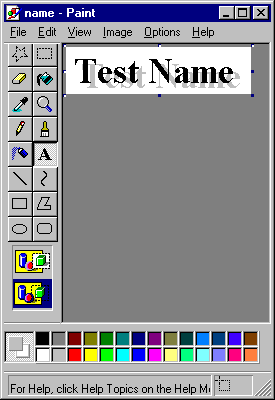
Now let's create our own graphic using Microsoft Paint.
Figure 1.
But now it's in .bmp format and we can only use .gif or .jpg format. It can be converted using Paint Shop Pro. Start Paint Shop Pro and open your image. Select File and then Save As, when the save window pops up, select JPG from the Save as type drop down list box and then save the image as name.jpg. Now you are set to use the image on your Web page.
The next tag is used for displaying images.
Tags and Meaning |
Description |
|||||||||
| Image Tag <IMG> |
When your graphics are created
and saved in the appropriate formats, you're ready to add them to your web pages as
follows: <IMG SRC="path / filename"> SRC is an attribute that accepts the name of the file that you want to display. This is an example of path / filename: <IMG SRC="c:\graphics\image1.gif"> In this case the browser will retrieve the picture "image1.gif", from the directory "c:\graphics". However if the image could not be found in the specified directory, no picture will be displayed. If you were to just enter it as follows: <IMG SRC="image1.gif"> the browser will search for the image in the current or default directory or path. By default directory or path it means the browser will search for the image in the same directory or path the HTML file was opened or called from. In short, both the image and the HTML file using that image is stored in the same directory. The image and HTML file using that image does not have to be stored in the same directory. Consider this, the image, called "photo.gif" which you want to display is stored in the directory "c:\homepage\graphics", while the HTML file using that image is stored in the directory "c:\homepage". This means referencing the image like this: <IMG SRC="photo.gif"> will result in no picture or image being displayed on the screen, since the browser will search for the image "photo.gif" in the directory "c:\homepage", the same directory the HTML file was called from. The correct way to display the image thus would be: <IMG SRC="c:\homepage\graphics\photo.gif"> which tells the browser to go search for the image "photo.gif" in the directory "c:\homepage\graphics". There is another way that this can be done. All references to images can have as their source the complete URL (Universal Resource Locator is just a fancy name for Internet address). For example: <IMG SRC="http://www.site.com/graphics/image1.gif"> But what does this mean? Well, in short, the image you want to display on the screen is somewhere else on the Internet, and therefore you have to point to that image by providing it's URL or Internet Address. Looking at the example above with the image being stored in one directory and the HTML file using that image being stored in another directory, the URL path could be seen as more or less the same principal, only difference is, the image and the HTML file using that image, is on two different computers or servers on the Internet. In layman's terms, let's say you had two computers, one machine called "http://www.graphics.com" had all your graphics and the other, called "http://www.application.com" held all the HTML files referencing those images. This means declaring the image like this: <IMG SRC="photo.gif"> will result in no picture or image being displayed on the screen, since the browser will search for the image "photo.gif" on the machine "http://www.application.com", the same machine the HTML file was called from. The correct way to display the image thus would be: <IMG SRC="http://www.graphics.com/photo.gif"> which tells the browser to go search for the image "photo.gif" on the machine "http://www.graphics.com". An example of this would be an Internet guest book signature, you know, those sections on people's web pages they always want you to go sign or read. Anyway, let's say you want to sign someone's guest book but you also want to leave a signature or calling card of sorts. In most cases this would be an image stored on the same machine or server your Web Page could be found at, on the Internet, so you will write your message, plus add a piece of HTML code that will display your signature image. But since that image is not on the current machine or server of the Web Page being viewed, you have to point to that image on your machine or server where it is stored at. So your message would look something like this:
Take note that the <IMG> tag is case sensitive, meaning if you uploaded your stuff to the Web, and some or all of your image links are broken, you might have a case problem. To a Windows based system, Image.gif is the same as IMAGE.GIF is the same as ImAgE.gif. Put that image on a UNIX server and they become 3 distinct filenames. You're telling the server to look for Image.gif, but all it can find is IMAGE.GIF. The fix? Always use lower case filenames. Make this a definite habit and you'll never get bitten by the case bug. Another habit you may want to get into, is to avoid spaces in your web filenames. It is good practice to always specify the width and height of your image if you know it. When your browser knows in advance how big your image is going to be, it loads the page faster. To define the size of your image you need to use the WIDTH and HEIGHT attributes of the <IMG> tag, like so. <IMG SRC="image.gif" WIDTH="20" HEIGHT="25"> To determine the size of an image, open it in Paint Shop Pro. In the bottom left corner of Paint Shop Pro the width and height of the image will be displayed, so just use those values. The image tag also contains attributes, being ALT and ALIGN. The ALT attribute for the <IMG> tag is designed to accept text that describe the graphic, in case a particular browser can't display the graphic. Consider the plight of users who use text-based programs to surf the Web or users of graphical browsers that choose not to auto-load graphics. Because those users can't see the graphic, they'll want to know what they're missing. In short the ALT attribute provides a description of the image displayed on the screen until the image is loaded in it's place. The ALT attribute works this way: <IMG SRC="image" ALT="Text description of graphic"> and with proper values will look like this: <IMG SRC="photo.gif" ALT="Photo of me and my dog"> The ALIGN attribute is designed to align text that comes after or before a graphic with a certain part of the graphic itself. Lets take a Web page designed to look like a photo album. The person who created it wanted to display pictures and a small description next to the image. With the ALIGN attribute that person can align the short description either next to the image on the top, middle or bottom (bottom being the default). Lets take the following examples:
and this is how you would define it in your HTML file: <IMG SRC="image.gif" ALIGN="TOP">Text to align <IMG SRC="image.gif" ALIGN="MIDDLE">Text to align <IMG SRC="image.gif" ALIGN="BOTTOM">Text to align |
Look at the following example of an image being displayed on an HTML page. This is the minimum amount of HTML code required to display the image below inside a Browser window.

 |
Click here to see what the output of the above code would look like. To come back to this page when you've finished looking at the result, close the new window it opened in. |
Backgrounds
Now that we have done colors and how to use images, we have to go back to the <BODY></BODY> tags. With the <BODY></BODY> tags you can also specify a background image or color. To do this you have to specify one of the following attributes for the <BODY></BODY> tags: BACKGROUND, BGCOLOR or FGCOLOR.
The BACKGROUND attribute can be used to display an image as a background. The following is the format for a background image:
<BODY BACKGROUND="image">
Lets say the background image is saved as flowers.gif then the statement will look like this:
<BODY BACKGROUND="flowers.gif">
Take note that you can also specify the full path or URL as a value for the BACKGROUND attribute, refer to the <IMG> tag for a more detailed explanation of this. An example with the full path will look like this:
<BODY BACKGROUND="c:\graphics\flowers.gif">
And an example with URL will look as follows:
<BODY BACKGROUND="http://www.graphics.com/flowers.gif">
Take note however that the image is tiled, meaning, if you use a small picture it will be duplicated across the screen to fill it.
Instead of displaying an image as a background, the BGCOLOR attribute changes the background color of the Web page to a specific color. The format will look as follow:
<BODY BGCOLOR="color or color code">
The value of BGCOLOR can either be just the color name like green, red, yellow or a color code like #008000. Here is an example of each, both display the background color green:
<BODY BGCOLOR="GREEN">
<BODY BGCOLOR="#008000">
The FGCOLOR attribute specifies the foreground and text color, and works just like the BGCOLOR attribute where values are concerned. Both the following example sets the foreground to black:
<BODY FGCOLOR="BLACK">
<BODY FGCOLOR="#000000">
By now you will be able to create a very interesting Web page of your own, so then let's do just that. Follow the following specifications as a guide to create your very first complete Web page. Although the solution is available, try and create the Web page without having to look at the answer until after you have completed the exercise.
	        ,,,
	       /'^'\
	      ( o o )
     +----oOOO--(_)--OOOo----+
     |                       |
     |      oooO             |
     |      (  ) Oooo        |
     +-------\ (-(  )--------+
              \_)) /
                (_/
|
Click here to see what the output of the above code would look like. To come back to this page when you've finished looking at the result, close the new window it opened in. |
 |
Click here to see the solution to this exercise. To come back to this page when you've finished looking at the answer, close the new window it opened in. |
 |
Click here to go to the personal homepage example, for this section of the tutorial. |
[Next Section - Hypertext And Creating Links] [Back To Index Page]

