Next
we'll look at adding a start button to control the Juggler. This button Bean is
an instance of the OurButton Bean class.
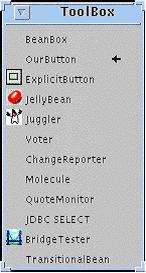
3. Click the OurButton Bean name in
the ToolBox, then place an instance of the button in the BeanBox. Select the
button in the BeanBox so that the button's properties display in the Property
sheet.
4. Edit the label field in the
button's Property sheet so that the button's label reads "start."
Notice
that the text for the button in the BeanBox changes from "press" to
"start" after you type "start" into the label field of the
property sheet editor.
5. Use the BeanBox Edit menu to
select an action event to be fired by the start button. Before choosing the
event action, be sure that you have selected the start button.
Notice that once you
select the actionPerformed menu item, BeanBox enters a state where a line
emanates from the start button and follows the mouse as you move it around the
window. This indicates that the button is the selected source for the action
event, and that your next mouse press should be over the target Bean which
defines appropriate event-handler methods, in this case the Juggler Bean.
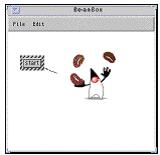
6. Drag the line from the start
button and release it over the Juggler Bean. A dialog appears listing applicable
event handlers defined by the Juggler Bean.
7. Select the
startJuggling method as the target for the event, then press OK.
Back
to top
Back | Main
Page | Next