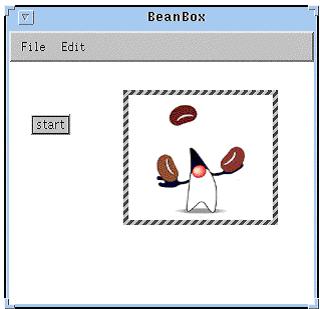
Now, when you press the start button Duke should start tossing beans around in a circle over his head like a professional juggler.

You can control Duke's juggling speed by manually setting the property value labeled animationRate in the Juggler's property sheet editor. For the appropriate property sheet editor to appear, the Juggler must be the currently selected Bean within the BeanBox frame.

Completing your Program

To complete the example program, add a stop button. Repeat the steps you took when you added the start button and connected it to the appropriate Juggler action.
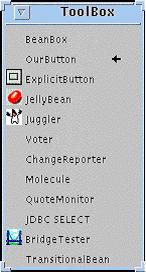
Select OurButton from the list of available Beans in the Toolbox menu, then drop it below the start button in the BeanBox.

When the new button is the currently selected Bean, the appropriate property editor appears.

  1. Edit the label field of the property sheet to read "stop."
  2. Hook up the action event from the stop button to the Juggler's stopJuggling event-handler method. Make sure the stop button is the currently selected bean.
  3. Select the actionPerformed event from the Edit/Events menu.
  4. Drag the event line from the stop button source to the Juggler Bean target. Press and release the mouse button with the connection line over the Juggler.
  5. The dialog of applicable event-handler methods defined for the Juggler Bean displays; select the stopJuggling event and click OK.

You should now be able to start and stop the juggler by pressing the appropriate button.

Back to top

Back | Main Page | Next

Hosted by www.Geocities.ws

1