For
your first JavaBean, let's look at the BDK BeanBox. Although in this tutorial we
use the BeanBox to create a JavaBean, the BeanBox is generally used to test your
JavaBeans. The BeanBox is considered a reference builder tool environment. It is
not designed for building GUI applications, nor is it meant to have a look and
feel of such other builder tools as Visual Age, Delphi, or Visual Basic.
You can
create a JavaBean and then use the BeanBox to test that it runs properly. If a
JavaBean runs properly in the BeanBox, you can be sure that it works properly
with other commercial builder tools.
When you
start the BeanBox, you'll see three windows:
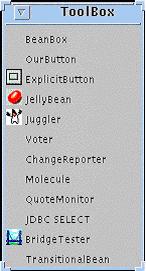
The
ToolBox window displays
the JavaBeans that are currently installed in the BeanBox, such as the Beans the
come with the BeanBox demo. When the BeanBox starts, it automatically loads its
ToolBox with the Beans in the JAR files contained in the bean/jars directory.
You can add additional Beans, such as your own Beans, to the ToolBox. The next
lesson, Writing a Simple JavaBean, explains how to add Beans to the ToolBox.
The
BeanBox window
itself appears initially as an empty window. You use this empty window,
sometimes referred to as a "form" by other builder tools, for building
applications.
The
third window, the Properties window, displays the current properties for
the selected Bean. If no Bean is selected, such as when you first start the
BeanBox or if you click in the BeanBox window's background, then the Properties
window displays the BeanBox properties. You can use the Properties window or
sheet to edit a Bean's properties.
The
easiest way to understand how the BeanBox works is to use it. The BeanBox
enables you to construct simple Beans applications without writing any Java
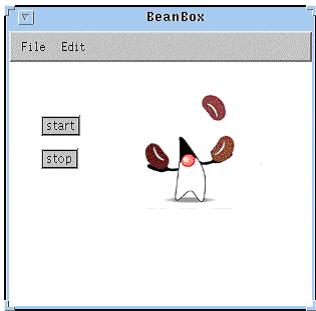
code. As a first example, you can build a simple "Juggling Duke"
application in which Duke will start or stop juggling depending on which of two
buttons you push.
In this
lesson, you'll learn how to:
We'll
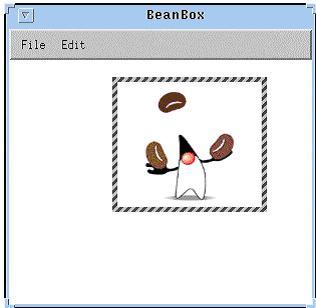
start by dropping the Juggler Bean from the ToolBox into an empty BeanBox.
Notice
that the cursor changes to a crosshair.
This
inserts a Juggler Bean into the BeanBox window. The highlighted box surrounding
the Juggler indicates the Juggler is the currently selected bean.