
Screenshot #1
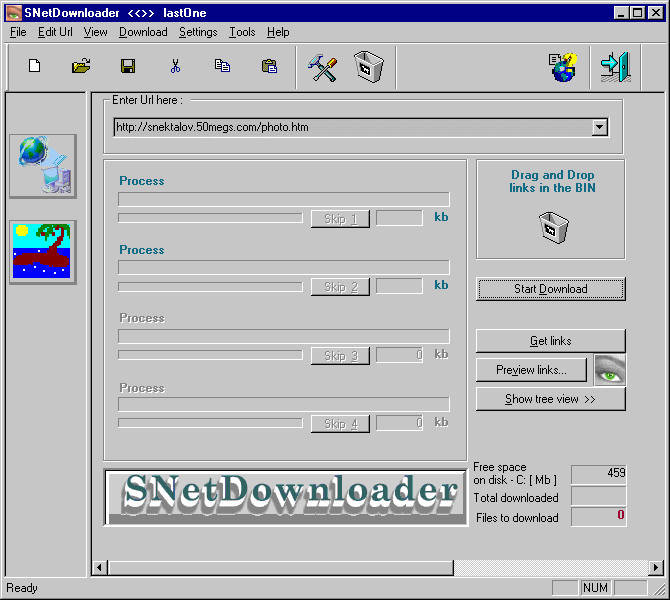
The new and compact view has a "view selector" that currently allows you
switch from Downloading View (upper button) to Image View (lower button).
Each view has toolbar and menu associated with it.
Here, on the main view, you can see that this version has support for multiple
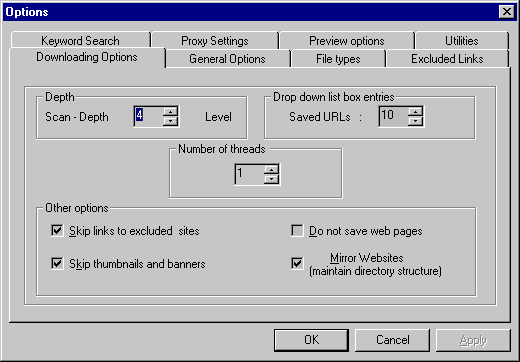
processes running simultaneously. You can change the number of processes from
"Downloading Options" tab (see screenshot#2)
Options (settings)
Screenshot #2
The second view - new addition in version 1.5 (see screenshot #3)-allows
you to search for images on your computer and then preview as thumbnails or
in the full screen mode (defaults image formats in the list are: BMP, JPEG, GIF, ICO ).
You can add or remove image formats to and from the list. If you will try to add not image
extension to the list you will get a warning... but it will let you add it to the list.
Image Preview
Screenshot #3
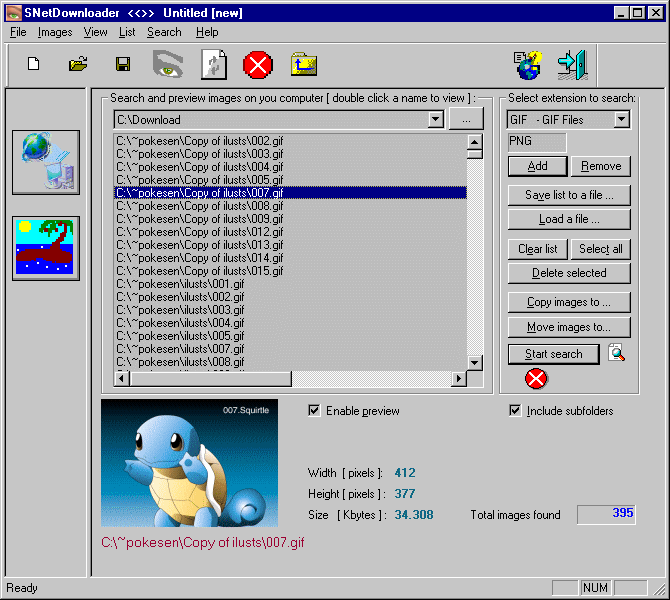
You can also save this list to a file or load a list from the saved file, copy or move
this list of found images to other specified directory or delete files from your hard disk.
There are also a tab to set your preferences (look below).
Screenshot #4

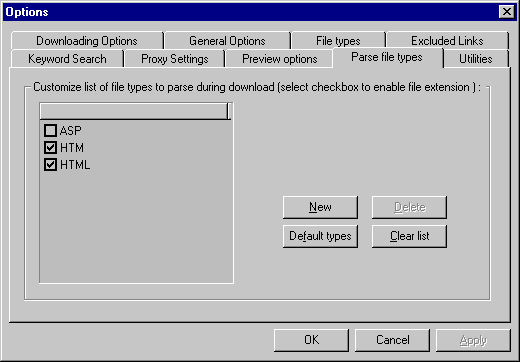
Screenshot #5 shows the tab where you can set the file extensions
 to parse by SNetDownloader
Screenshot #5
To start downloading files you must be connected
to the internet. Start a SNetDownloader application,
then specify your preferences,
Enter URL address you would like to download and press
"Download" button. See "Tips and Tricks" page in case
for more information how to use SNetDownloader applications.
© SNetDownloader Copyright 2000 - 2002.