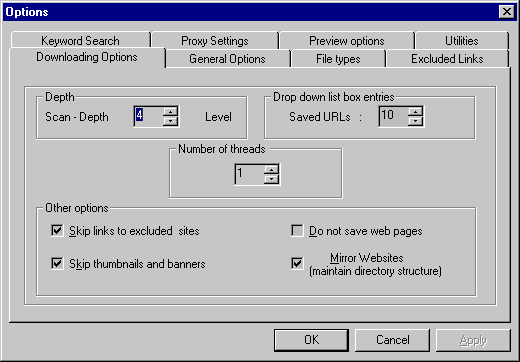
To set you download options click on "Settings" button on the toolbaror from the application menu select " Settings | Options". or hit Ctrl + T keys on your keyboard. This action should bring "Options" dialog box (see screenshot #1 bellow).
This dialog box allows you to set different downloading options such as :
    1) Scan-depth of the page ;
    2) Number of URLs you want to save in history of drop down list box ;
    3) Number of ( simultaneous threads ) files to download at the same time
    4) Not saving HTML pages on your computer
    5) Mirroring a web site to reflect web site on your hard drive;
    6) Skipping thumbnails and banners during download;
    7) Skipping links to sites that you've specified in excluded list.
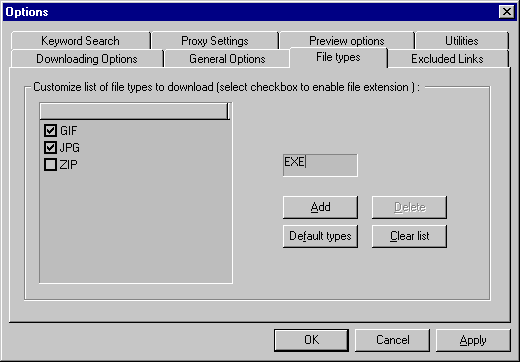
Setting file types to download got much easier;
press "File Types " tab in "Options" dialog box " to get screenshot below.
Screenshot #2
"Add ..." button adds extension to the list.
"Delete" button deletes a selected item from the list.
"Default types" button inserts default set of items into the list. (Note : First it clears a list )
"Clear"  button clears the list.
"OK or Apply "  buttons will save your changes.
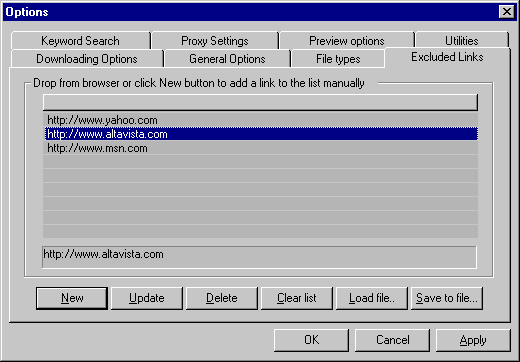
To add URL links into the Excluded Links list in order to skip
them during download click on Excluded Links tab.
In this dialog box you can manually :
Or you can add links to the list by dragging the link from the
HTML page or select a valid URL address from any text and drop it
into the list.
To learn more about "Drag and Drop" click here.
When program starts download it creates a log file in the
 target directory. The URL addresses of all files, that downloaded
successfuly during download, program writes into the log file.
URL addresses of files that has status ERROR during download,
will be inserts into the "Excluded Links" list and LOG file.
If download of files were interrupted it will be inserted in LOG
file with <-> interrupted appended to it
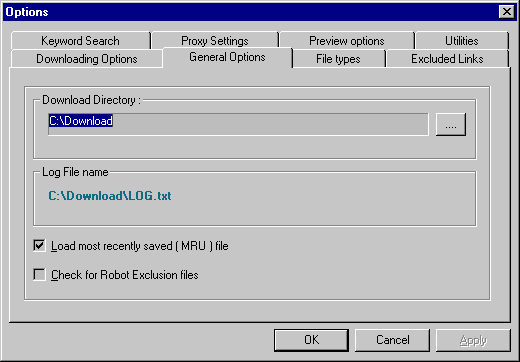
When you start new application, the default log file name is "LOG.txt".
 To change the target directory click on "General Options..." tab
(see screenshot # 3).
The program will automatically search for any existing log file in
the target directory and if there any it will increment the log file
name LOG_1.txt and so on...
Here you can also set the program to load latest saved file (document) and
check if the server of the downloading site has robot exclusion file.
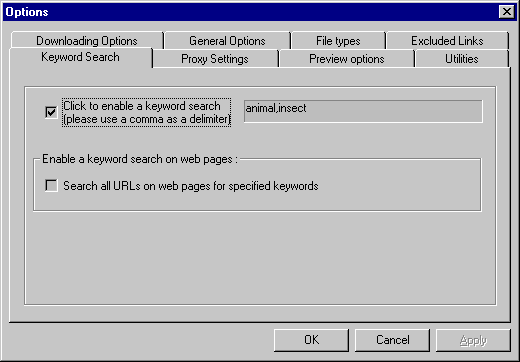
Keyword search
In order for an application to parse this list of keywords you must
use a comma as a delimiter. This lisst is case insensitive
( you can type words in upper, lower case or mix of upper and lower).
The program will search for keywords specified in the links (HREF)
on the fist page only!
To enable the program search for specified keywords on all page select
second checkbox .
© SNetDownloader Copyright 2000 - 2002.