
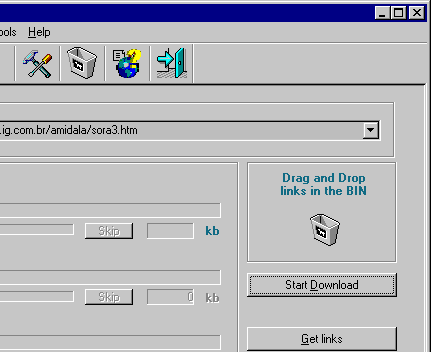
Drag and drop is a new addition to SNetDownloader in version 1.1 . This feature
allows a user to Drag and Drop an URL or any image link from HTML page to the
"Drag and Drop Bin " on the application window (see a screenshot #1 ):
Screenshot #1
or "Excluded Links" list in "Settings | Options" (see a screenshot #2 ).
Screenshot #2
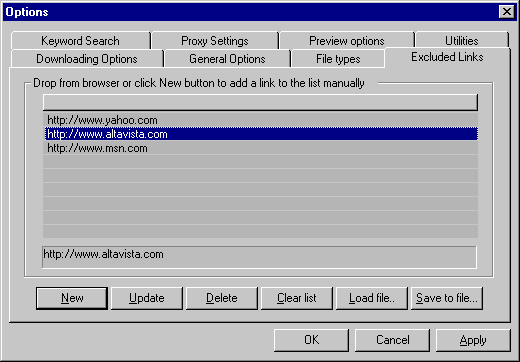
Or you can also select the URL address from any text file and drop it there.
To Drag and Drop an URL click on the link or select a valid URL from any text file and
drag it while holding a mouse button down over the Bin or Excluded Links list and then
release the mouse button.
To maintain a Directory structure of the Web Site that you about to download,
select a checkbox "Mirror Websites" in "Options" dialog box.
This will enable downloading of files specified by user in subfolders
according to the path in URL address.
For example, if the URL address is "http://www.microsoft.com/insider/internet/default.htm",
then file default.htm will be downloaded in the directory tree as follows :
"#Download_directory#\insider\internet " on your hard drive .
Where #Download_directory# is a directory that you specified
during setting or is C:\Download by default.
It is another new feature in the version 1.1.
When keyword search enabled the application will download only the links that have
keyword(s) that user entered into the edit box. See screenshot #3 for details.
Screenshot #3
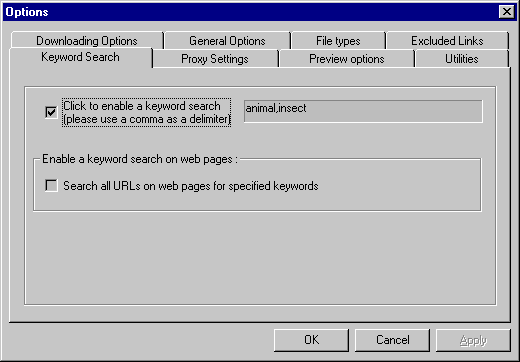
In this case program will grab only links on the page that contain
one of keywords: animal, insect.
Note : Please note that keywords must be delimited (separated) by comma,
otherwise program will search for the first keyword in edit box only.
By clicking "Advanced" button you will get dialog box another two options :
1) Enable keyword search on the first page only
 2) Enable keyword search on all pages.
If you select this checkbox, the application will try to skip
downloading of thumbs and banners. The checkbox inactive initially
when user loads a new document. In order to make the check
box active click on "File type options..." button to add the image
file extension to the list.
Ex.: "jpg", "gif" or any other image file extension you want to download.
If you downloading files from two and more applications into the same directory or
if the target directory already has the log file with the name that you specified,
the program will create new log file for each application instance.
Usually, when I download images from the internet using my application, the names
of the images are sometimes the same, though they downloaded in separate directory.
And when I try to move all downloaded images into one folder the I get an annoying
message that the file with the specific name exists and asks me if I would like to
override existing file.
That is why I added this new utility to my application (see a screenshot #4 ).
You can get this dialog by selecting Tools | Rename Files from application menu or
hit Ctrl + R keys or press " Rename Downloaded files " button.
Screenshot #4
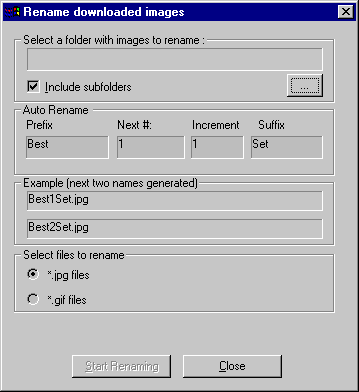
This dialog box allows you to create file name by specifying prefix, number, number's
increment and suffix of the name. It will generate next file name with specified increment
and rename all the file in the current directory.
If  " Include subfolders " checkbox is selected then it will also rename files in
subdirectories of the current directory.
You have an option to select type of files to rename (ex.  jpg or  gif )
Getting links on downloading pages.
This feature like I said was suggested by one of the SNetDownloader User
and I found it very useful. The idea is to parse all files for links,
save them in the list and then modify the list.
There are two buttons added to the main application dialog :
"Get links "  and  "Preview links " (initialy disabled).
To get links on all pages,  set a scan depth (number of levels you
wish to download) then  press "Get links " button.... sit back and relax.
Clck "Preview links" button to preview all links.
The dialog allows you to "Find..." links in a list with the specific keywords,
delete selected links and so on.   See screenshot #5 bellow :
screenshot #5
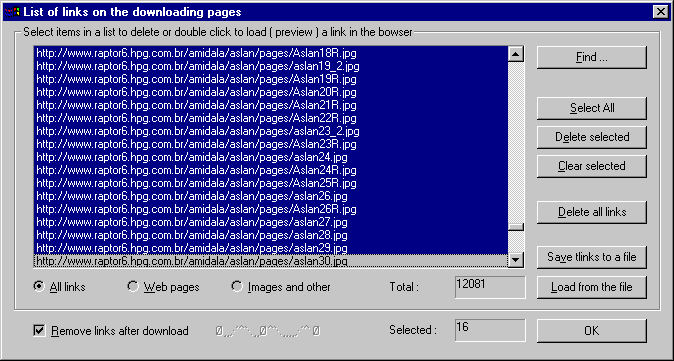
This dialog allows user to view all files,  web pages or images and other file
types specified by the user. Buttons on the dialog are self explanatory.
Clicking "Find" button calls next dialog form (look screenshot #6).
screenshot #6
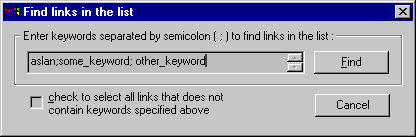
Here you can enter list of semicolon separated keywords to search for
in the Links List. Cheking a checkbox allows users to select all links
that does not include all keywords specified in the edit box.
This feature is a very convinient way to modify the Links List and
download only files that user wants.
New features added to save or load links list to a file on your hard drive.
Clicking the button "Save list to a file " brings the following dialog box:
screenshot
#7
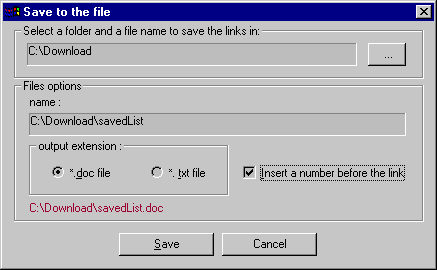
This dialog allows you to select target directory name of the file and
choose one of two extensions for this file ( DOC or TXT).
If checkbox is selected the program will insert accending
numbers in front of each link
Clicking "Load from a file" button will allow you to load
saved file of links from you hard drive.
Double click on the list item will load selected link in
the Web browser.
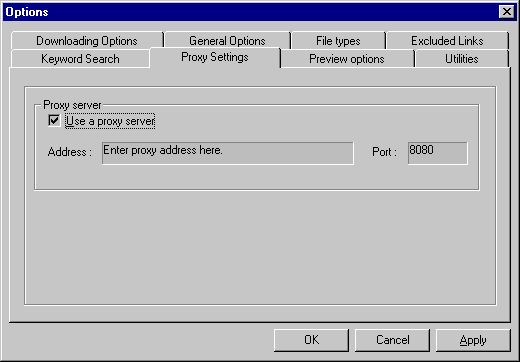
If you using a SNetDownloader behind a firewall,
then maybe you need to set proxy address.
To get a proxy server setting dialog click a
tab "Proxy Settings" on the Options dialog box.
screenshot #7
© SNetDownloader Copyright 2000 - 2002.