 |
|
|
|
|
|
|
|
|
|
|
|
|
|
|
|
|
|
|
|
|
|
|
|
|
|
|
|
|
|
|
 |
|
|
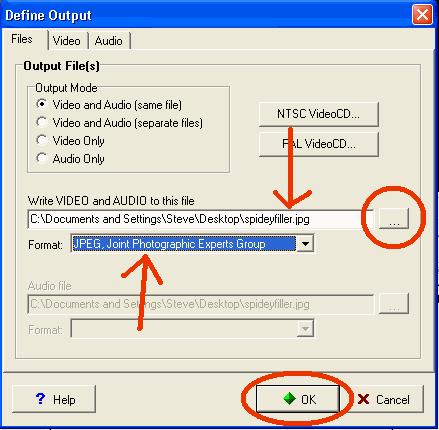
Name your output file, seems familiar huh? If you click on the ' ... ' button, you can browse the folders on your computer to find an output location (you can also do this when compressing). In the 'Format' drop down list, select Jpeg. When your finished, hit 'Ok'. |
|
|
|
|
|
*NOTE* It is suggested that you create a seperate folder for your output. If you just set it as Desktop/filename.jpg, your desktop will be flooded with files. I know the pic does not show this, but it makes organizing the files easier. |
|
|
|
|
|
|
 |
|
|
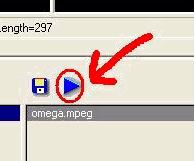
Last thing we do is hit the 'Play' button. |
|
|
|
|
|
|
 |
|
|
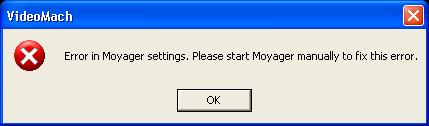
If you get an error message, don't worry, everything is fine. Go check your output folder, everything should be fine. |
|
|
|
|
|
|
Combining many video files into one: |
|
|
|
 |
|
|
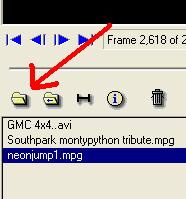
First step, of course, is to open the files we wish to combine. To open more thatn one file, simply click on the 'Open' button after opening the previous file. |
|
|
|
|
|
|
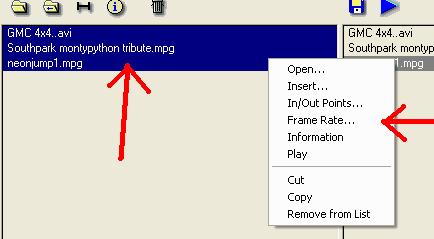
This step is not always necessary. You can click on the top file, then hold 'Shift' and use the arrow keys to highlight all the opened files. You can then right-click on the highlighted files, and you get a small list of choices. If you select 'Framerate', you set the framerate for all of the files that are higlighted (10 fps, 15 fps, that whole thing). |
|
|
|
 |
|
|
|
|
|
<<< PREV |
|
NEXT >>> |
|