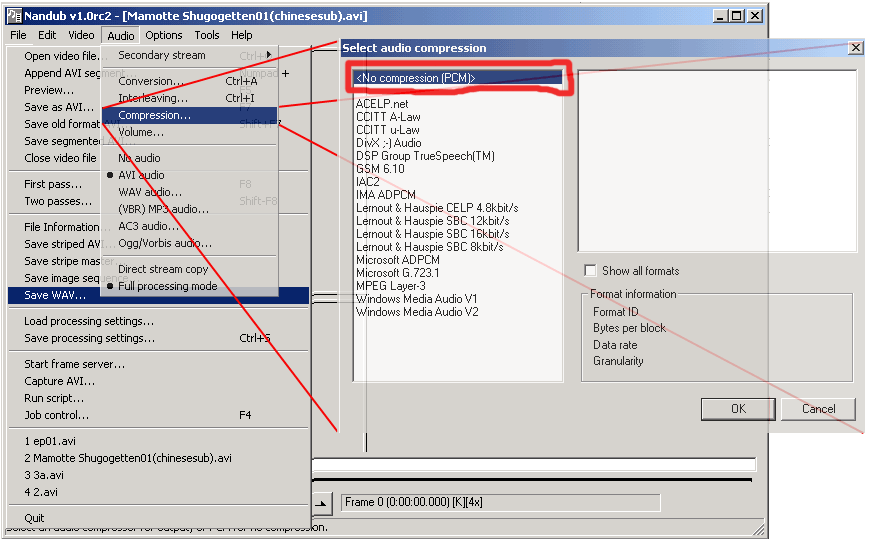
To make VBR MP3 you must extract the audio first. If you are ripping from DVD, DVD2AVI should have done it for you already. If you are using mpeg source or an avi that comes with audio, you can extract the audio to wav format using VDub.
First, use VDub to open the file, go to audio menu and make sure full processing mode is checked, and the go to compression and make sure the "<No Compression PCM>" is chosen. Now come back out and choose file-> save wav, choose a directory and filename and save it, make sure you have no space with file names.
Don't like how this pic shows you the steps? I don't care.....
Once you finish saving the wav file (might get big sometimes, as a rule of thumbs, one minute of wav is about 10 MB, so a 22 minute episode of anime is about 220MB). Get a copy of LAME and its GUI, LAME stands for Lame Ain't Mp3 Encoder, its command line based (DOS), so someone created the GUI (Graphical User Interface) for it. Open the LameGUI.exe and you will see the screen below (the red stuff are highlights).
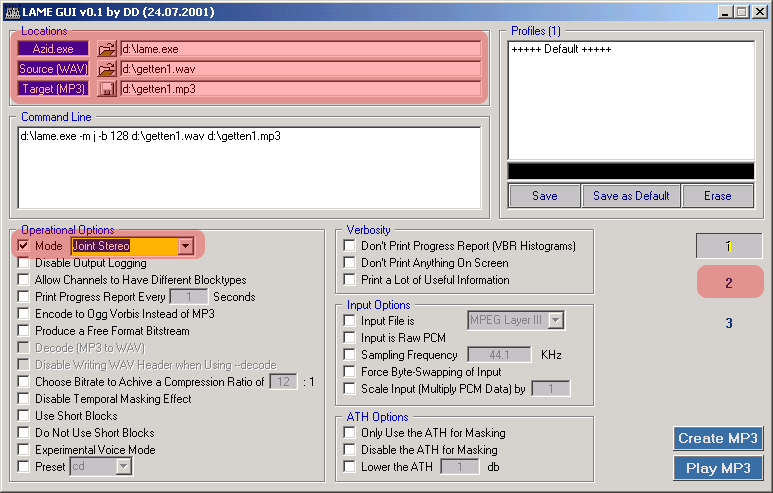
Becuase this exe is an extra program to help you use a DOS based program, you need to specify where the original Lame.exe was, the programmer messed up and put Azid.exe there, just ignore it and point it to where you have lame.exe, I suggest move the lame.exe out to the root of the drive and use it from there. The next 2 entries are where the wav source is and the target filename. Click on the buttons next to it and set it accoringly. Go to Operational Options, if your source is only one language, choose Joint Stereo to achieve best use of data. If your source has one language on one side and another on the other side, choose stereo and make sure you use higher bitrate in the later section. Now click 2 on the right side to proceed to the next part.
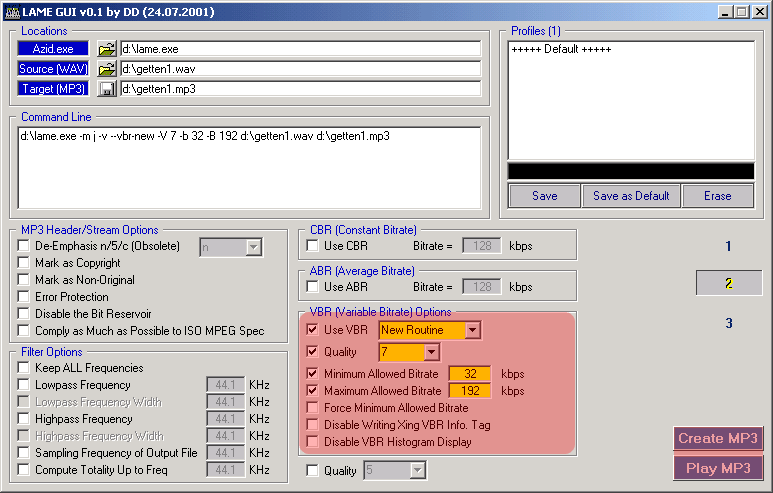
The purpose of using LAME is to utilize the VBR encode feature, if you don't use VBR here you are wasting your time extracting the audio. Check VBR and use New Routine (assuming newer is better, heh). I choose quality to be about 7 becuase I want to save more space. The smaller the number the higher bitrate the encoder will tend to use, 1 is the highest quality (also the highest overall bitrate) and 10 is the lowest. Set the minimum allowed bitrate to 32 and max to 192 , that should work for most situations. Click on create MP3, and another window will open up to do the encoding. When its done, click on Play MP3 to open that file with your default player. See if it comes out ok, then proceed.
Next-> |
||
 <- Back