
MSM-Workstation Tutorial (part 2/5)
Let's analyze what $$Init does.
Window — CommonCode
Init() N Path,Result,Args,Sucess
%%Set(TextBox1.Value,"Initialising")
%%Set(TextBox1.Value,"Loading DB Parameters")
S Result=$$GETENTRY^%mprof("MWM007","DBNAME",.DBNAME,"")
I $G(DBNAME)="" D
.%%Set(TextBox1.Value,"New Setup Detected")
.I '$$NewInst D Q ""
..D E^%msgbox("Installation Invalid","MWM007")
MSM-Workstation allows you to read and write data to the Windows 95 registry. You are only allowed to tinker the area applicable to your application. The function GETENTRY (part of the routine %mprof) lets you read a value into a variable. You supply the section, key and variable (observe the period before the variable name). The last parameter is an optional default value that will be stored in your variable if the entry is not found. It also returns (Result in our code) whether it was successful or not.
In our case DBNAME must store within it database and path. If it is empty a new installation is assumed. We mentioned at the beginning that this program automatically handles a 2nd level installation. What we meant was that it lacks a procedure to to place the archive in a directory, register with Windows 95 the application, add an uninstall feature and create the necessary icons (for more on this check out our review of installers). But sets up and creates a database automatically.
D
JustifyW^%ViEg1(%%CurrWin,$G(ViEWsets("PosJustifyH"),"C"),
$G(ViEWsets("PosJustifyV"),"C"))
; Here the code will read the various registry settings, auto-install itself and initiate
the database
; if it is not already created
%%Set(TextBox1.Value,"Loading PS Parameters")
S Result=$$GETENTRY^%mprof("MWM007","DBPASS",.DBPASS,"")
In the chunk above, we read from the registry the password.
; Check that the database does exists
S Result=$ZOS(12,DBNAME,"")
I $E(Result)'?1A D
.%%Set(TextBox1.Value,"Trying to load Database")
.I '$$NewInst D Q ""
..%%Set(TextBox1.Value,"Unable to load database.")
..H 1
E S Result=$ZOS(16,Result)
S Sucess=$$PssOK(DBPASS)
D JustifyW^%ViEg1(%%CurrWin,$G(ViEWsets("PosJustifyH"),"R")
,$G(ViEWsets("PosJustifyV"),"C"))
I Sucess D
.%%Set(TextBox1.Value,"Password Correct.")
E D
.%%Set(TextBox1.Value,"Invalid Password.")
.H 1
; Force exit out of module as % % Cancel does not exit module and will therefore stop
due to an error if Sucess=0
Q:'Sucess ""
Here we use the $ZOS function to check that the database physically exists (assume the user deletes it?) For an explanation of $ZOS check help or refer to the section at the end of this tutorial.
Observe closely the comment line % % Cancel. If you join it up you will get an error during compilation because %%Cancel will be translated into code. Remember that macros can be applied anywhere (even within comments). We will discuss macros next time.
; Mount Database
%%Set(TextBox1.Value,"Loading Database.")
N InParam,OutParam,VgNum,VgName,FreeSpc,Failed
; Check that database if not already mounted. If yes, unmount it
S Result=$$HOSTVOL^%msv(DBNAME,.VgNum,.VgName)
I Result'<0 S Result=$$UNMOUNT^%msv(VgNum)
The chunk above calls function $$HOSTVOL^%msv(DBNAME,.VgNum,.VgName). It receives the Database path and returns (note periods) the Volume Group Number and Name id the database is mounted. If Result is +ve the database is somehow already mounted and we must therefore unmount it.
S InParam("DBNAME")=DBNAME
S InParam("LOCAL_ACCESS")="M"
S InParam("MONIKER")="MWMdb"
S Result=$$LMOUNT^%msv(.InParam,.OutParam)
I Result<0 D Q ""
.D E^%msgbox("Cannot Open Database","Initialise")
Next we must mount the database. There are three types of database mount functions: Local mount, remote mount and memory mount. Workstation provides a the function $$MOUNT that determines automatically whether the database is local or remote or in memory. To mount a database you must set up an array specifying the database parameters. A second array will contain the details of the mounted database. If the function returns a –ve number the operation would have failed. See the section Mounting a database for in this tutorial more information.
To see the above code in action, try running two instances of Tutorial.EXE.
One important parameter is the Moniker (our database is given a moniker of MWMdb). This is the alias to our database. We will use this moniker to refer to the database.
;Get Free space and expand if necessary
%%Set(TextBox1.Value,"Checking Database Integrity.")
S VgNum=$G(OutParam("VGNUM"))
S FreeSpc=$$FREESP^%msv(VgNum)
I FreeSpc<50 D Q:Failed ""
.%%Set(TextBox1.Value,"Expanding Database.")
.S
^$W(%%CurrWin,"PTYPE")="M,WAIT"
.S Failed=$$EXPAND^%msv(VgNum,100)
.S
^$W(%%CurrWin,"PTYPE")="Z,POINTER"
As we want our program to be self maintaining, we sometimes have to expand our database. The chunk above checks how many 1K blocks are free and expands as necessary. The code marked in Red changes the mouse pointer from the arrow to the hourglass and back.
%%Set(TextBox1.Value,"Done.")
; Send to calling module the database name
Q DBNAME
This module finally returns the database name and path to the calling module.
; A new installation is detected. Create the database
allowing user to select path and define
; a system password. Also set the correct registry entries. Return 1 if successful,
otherwise 0
NewInst() N Sucess,Array,Result
%%DoWin(Install)
S Sucess=%%RetCode
I Sucess D
.S Result=$$GETSECT^%mprof("MWM007",.Array)
.S DBNAME=$G(Array("DBNAME"))
.S DBPASS=$G(Array("DBPASS"))
Q Sucess
Whenever a new setup is detected this routine gets called. It calls window Install which in turn returns whether the operation was successful (1) or whether it failed (0). This is returned to the calling module.
;Return 1 if the correct password has been entered,
otherwise O
PssOK(pass) N UPass,Cnt,Args,Exit
%%Set(TextBox1.Value,"Enter Password")
S Args("TITLE")="Enter Password"
S (Cnt,Exit)=0
F D Q:Exit
.%%DoWin(GetPss,.Args)
.S UPass=%%RetCode
.I UPass="" S Exit=1 Q
.I UPass'=pass D Q
..S Cnt=Cnt+1
..I Cnt=3 S Exit=1
..Q
.E S Exit=1
.Q
Q $S(UPass=pass:1,1:0)
Window — Destroy
K DBNAME,DBPASS,Done
Control TextBox1 — Create
%%Set(TextBox1.Value,"Welcome")
Control Timer1 — timer
N DBNAME
%%Set(Timer1.Active,0)
S DBNAME=$$Init
%%Return(DBNAME)
Control Version — Create
N OutParam,String
D INFO^%mdlcnse(.OutParam)
S String="Version: "_OutParam("VERSION")
%%Set(Version.Value,String)
The library ^%mdlcnse stores information about your exe program (Check Help for more information). Many of the details can be filled in when you choose the Make EXE option.
INFO^%mdlcnse fills up your array (notice the period) with some or all of the following:
| APPNAME | Application name |
| CREATED | Creation date and time |
| DEMO | TRUE (1) if the application was built as a demonstration |
| DISPLIC | TRUE (1) if license information is to be displayed |
| EXPIRES | Expiration date, if any |
| LICTYPE | Type of license being used ("Internal" or "External"). |
| SN | Micronetics license serial number |
| VARNAME | VAR name |
| VERSION | Application version, format: major.minor.revision |
Window Install
The code in this window is quite simple to follow. One thing you should note is that we create too small a database which will need expansion immediately. This does not make sense and would have been better had we set the correct size initially. The reason for this approach is that we wanted to demonstrate the automatic expansion facility.
The password boxes display asterisks. This is done automatically by defining the PasswordChar property of your textbox object. Other than the user interface change it can be manipulated like any other text box.
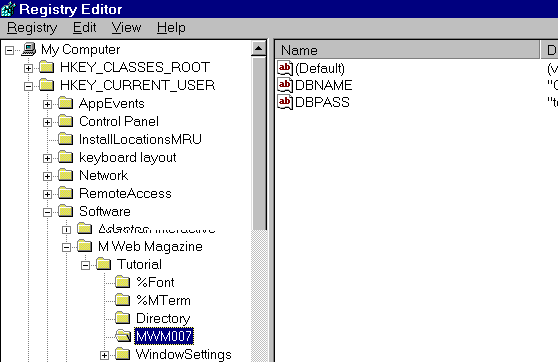
Check out Setup – Push for information on how to write to the Windows 95 registry. Couple that with the Intro Window which reads from the same location.
| Chris Bonnici email: [email protected] |
