Recently I opted for High Speed Internet connection with my Cable TV provider (Comcast). I don't have my Mac near the cable modem and our house is not wired for ethernet connection. I chose to connect through wireless (WiFi).
Airport Extreme is bit expensive and I started to look for alternatives. I found out with Airport (Software) Ver 3.1 and above, Mac OS 10.2.6 or later supports third-party 54Mbps IEEE 802.11g Broadcom chipset based PCI and Cardbus card client adapters.
After some research I ended up buying Buffalo AirStation 54Mbps Desktop PCI Adapter (WLI-PCI-G54) for my G4 Tower. The WLI-PCI-G54 comes with an external antenna and linksys Wireless-G Broadband Router (WRT54G) which can be configured via a web browser as my base station (AccessPoint).
I choose Linksys WRT54G because the source code is GPLed and there are many projects underway to enhance the capability.Wifibox Firmware,OpenWrt to name few.
Linux WLAN maintains a Adapter Chipset Directory. You can choose a manufacturer of your choice based on the broadcom chipset.
My setup:html {margin: 0; padding: 0;}
Computer: G4 tower
OS: 10.3.2 ( panther )
Wireless Adapter: Buffalo WLIPCIG54
Wireless Access Point a.k.a Base station: Linksys WRT54G
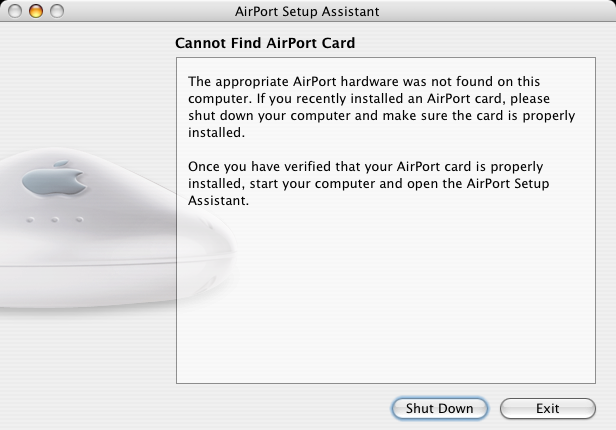
Without installing PCI Adapter I opened Applications/utilities/AirportAssistant. The AirportAssistant says "Cannot Find Airport Card".
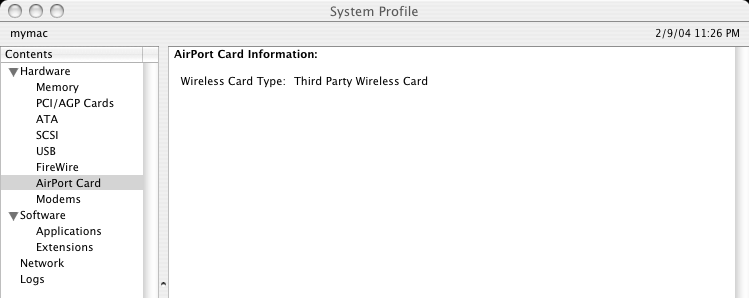
I powered down the computer and installed the WLI-PCI-G54 card in a vacant PCI slot. After powering up, checked if the computer has recognised my card. I opened System Profile. There it is! It has recognised it as AirPort card!. So there is no need of installing device drivers.
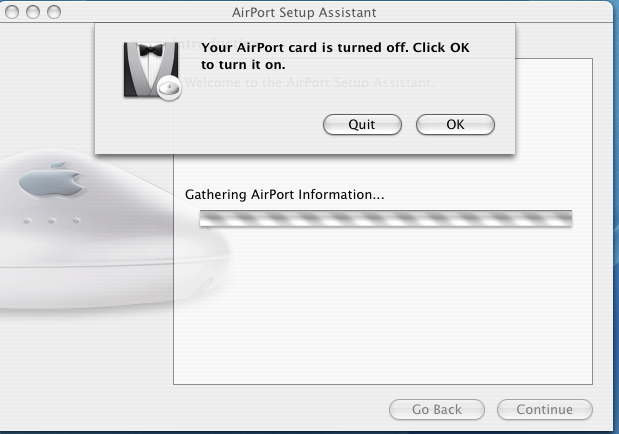
Using AirPort Setup Assistant I turned on my Airport card (which is WLI-PCI-G54 that I installed).
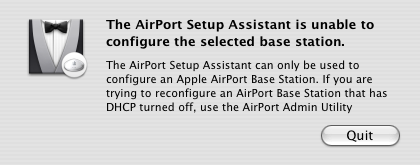
The airport setup assistant returns and says "Unable to configure the selected base station". That is because the seting up the base station wirelessly is proprietary. You can configure wirelessly using a Web browser after initial setup over the ethernet.
Connected the base station with a direct cable (Ethernet). You can use either a straight or a crosswired cable. The Linksys base station has a default IP address of 192.168.1.1 and Subnet mask 255.255.255.0
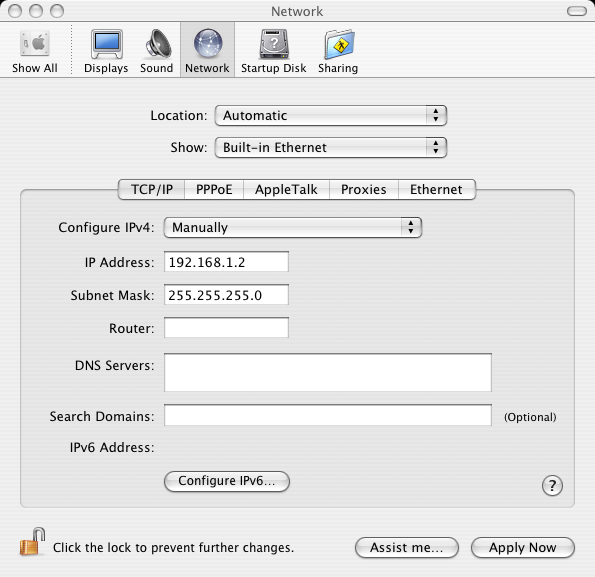
I had to configure my builtin ethernet as one of the subnet so my Mac can communicate with the base stations configuration software. I chose 192.168.1.2
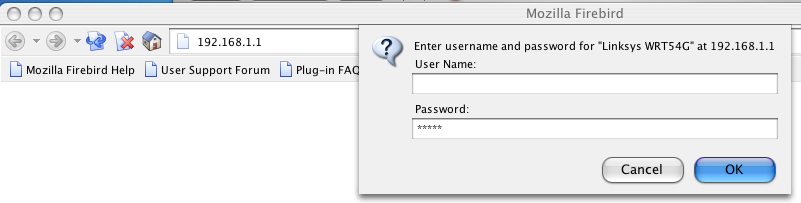
I started my Web browser and typed http://192.168.1.1 as the URL. The user name is left black and the default password is
admin.
I changed my admin password, changed the SSID (Gateways Name), I enabled the Wireless MAC Filter.
The MAC address is the unique hardware address of the wireless adaptor and is usually printed on the adapter itself,
Mac displays it as Airport ID. This is a way to makes sure only the listed wireless devices can access the network.
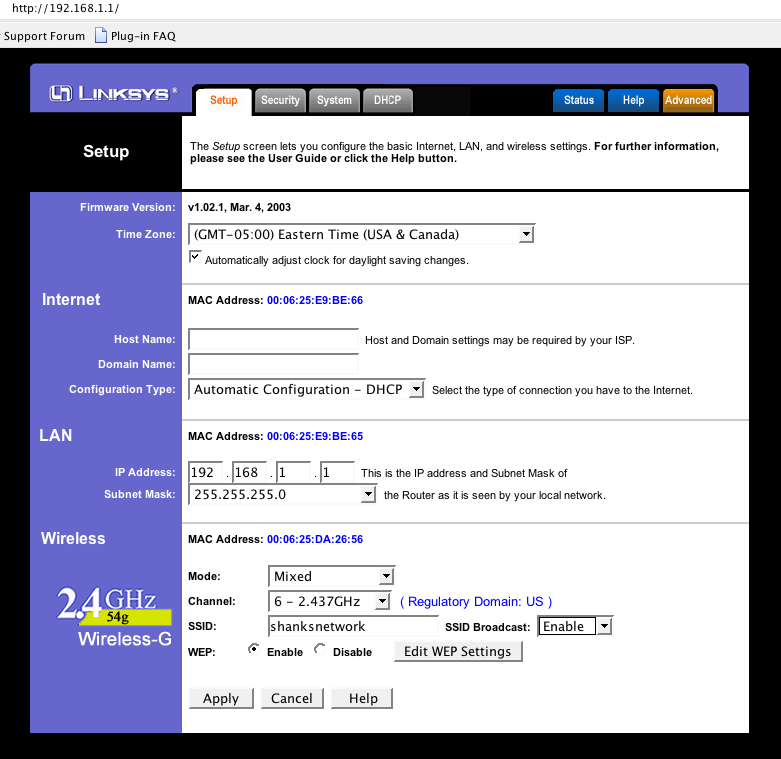
To encrypt the wireless communications(WEP) I Selected the Enable radio button next to WEP. Then clicked the Edit WEP Settings button. Selected 128-bit 26 hex digits and entered 26 digit HEX number. I noted this number because I need it later to connect to the wireless network.
Note: Linksys WRT54G has Passphrase to WEP Key generator which can be used to convert your password to 26 hex digits. You can copy this to clipboard.
or
you can use WEP Key Maker to generate the WEP Key from your password.
To test if I can configure the base station wirelessly, I removed the cable and modified the Airport IP address to be one of the base stations subnet (192.168.1.3)
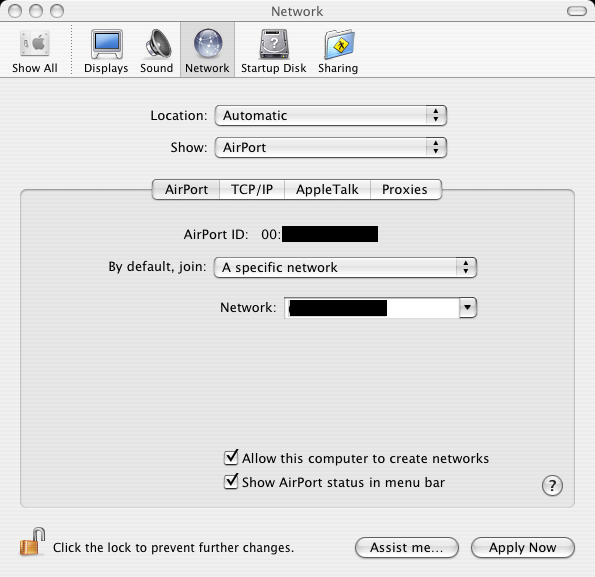
I clicked on the Airport menulet on the status bar selected my wireless network and entered the 26 digit hexnumber as I entered into my base station. There is no need of appending $ in panther.
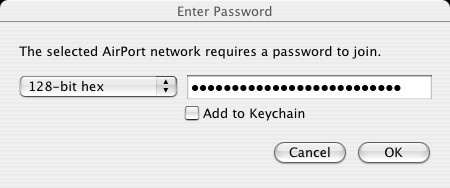
Use AirPort Setup Assistant to set the computer for wireless Networking.

Use /Application/Internet Connect Application to check the signal strength and status.
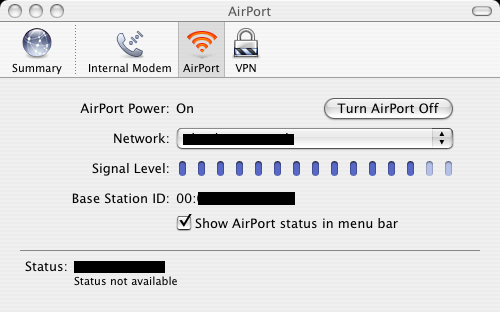
Note: The Airport menu in the Status bar changes dynamically showing the wireless strength connection status etc.
I was able to configure the base station wirelessly by pointing my browser to http://192.168.1.1
Now the fun part of connecting to the internet. Connected the cable modem to the WAN port of the base station. Used the Ethernet cable that came with the modem. Called the ISP provider to find out about the protocol. They use DHCP. I modified the Airport TCP/IP settings to use DHCP.
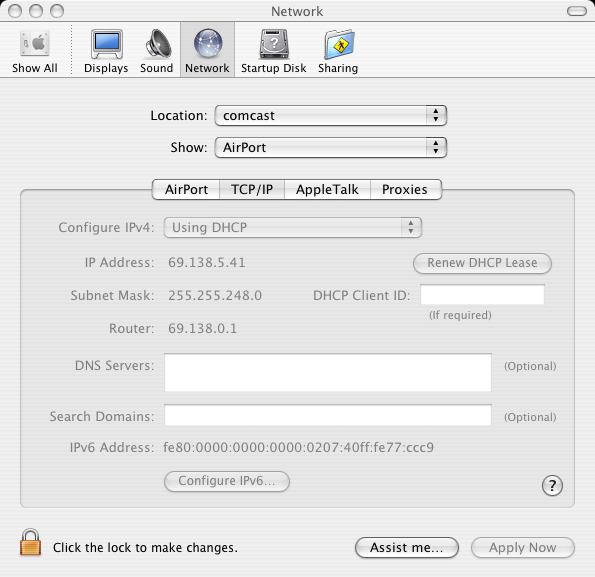
Note: I just selected "Using DHCP" in Configure IPV4, the IP Address and Subnet Mask were filled automatically when I clicked "Apply Now" button.
Use Internet Connect application in /Application directory to connect to internet. It is also availabe in airport menulet as Open Internet Connect...
I was able to surf on the internet at full speed.
Update: Now I am using the DHCP service of the Linksys Access point, but the configuration remains the same.
My firmware was old, and there was a new release of the firware. I chose to upgrade the firmware. You can upgrade via the command line tftp (Trivial FTP) or using the java enabled browser. I chose to upgrade using safari.
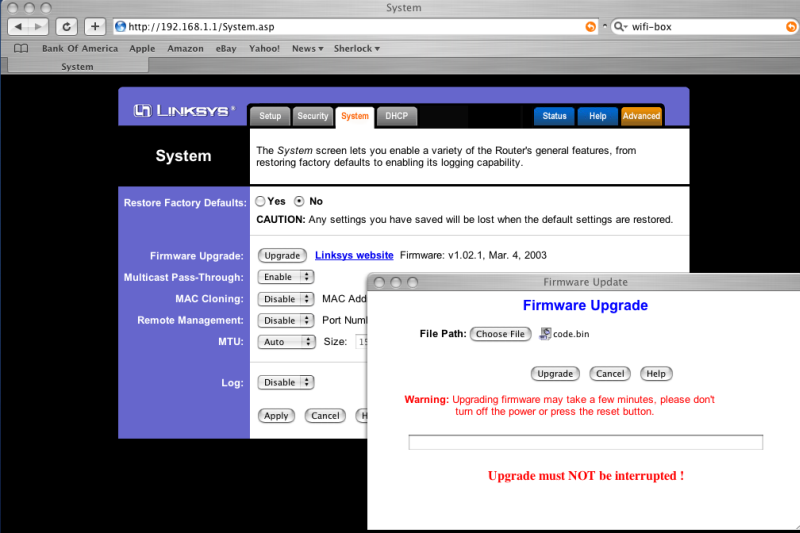
Note: I renamed the firmware name as code.bin
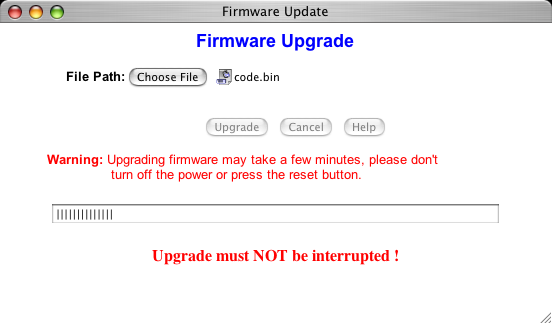
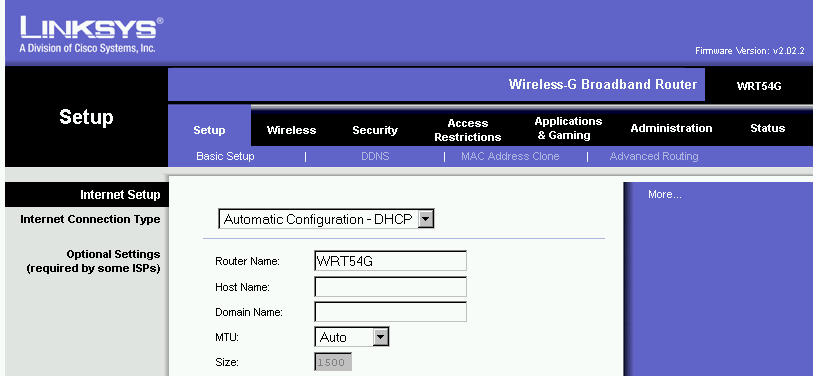
Note: The updated Firmware version.
These are the troubleshooting knowledge I acquired with use.
When the router is not getting the IP address from the ISP.
1. Hold Reset button on the linksys router for 15 sec.
If it does not fix
2. Power down cable modem and linksys router and wait for about 30 sec.
2a. Power up cable modem and linksys router in that order.
3. Clone the MAC address.
Instead of writing down all the configuration done to the base station, I save all the configuration pages on the harddrive while configuring. I can review these pages later or make a hard copy. I use mozilla for this purpose, the safari does not have a option of saving the web page complete.
Last Update : March 20, 2004, 7:21 am
You are  th guest on my page.

This page is on http://www.geocities.com/shankara_c/airport.html