"I Share For The Better"
Lesson 2: Kitchen World
-
Steps:
- Open Adobe Photoshop Cs 3 (or any version will do).
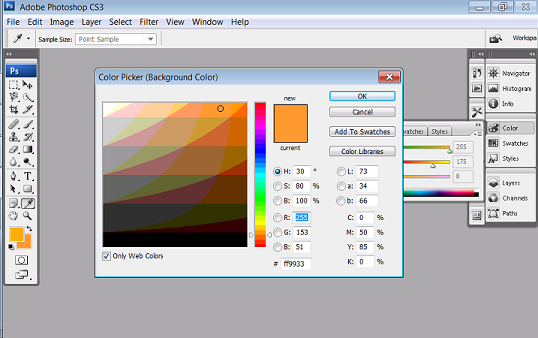
- Set the background color into orange.Then create a new canvas. Go to the Application bar.You can see first the "File" button. Click the file button then there will be a pop-up menu.When the pop-up menu appears click the "New" button.
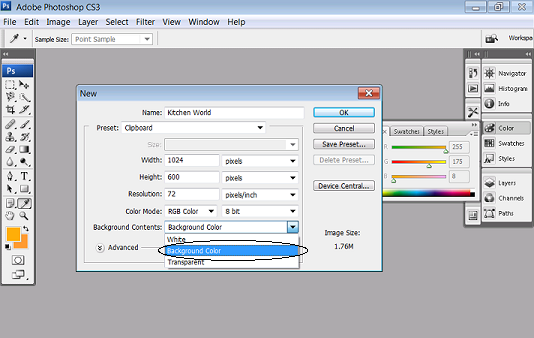
- After clicking the New button, the customizing canvas will appear use 72pixels as your resolution and the size will be width ="4" height ="5". Name it as Vegeman. And choose Background color for the Background contents. Then click "OK".
- To open the images that you will need, again go to the Application bar then click the file button. When the pop-up menu appears click the "Open" button. Open the neccessary image such as the finished product and resource images.
(Peeled Sticker)
(Futuristic Grunge)
(T-shirt)
(Hair Color)
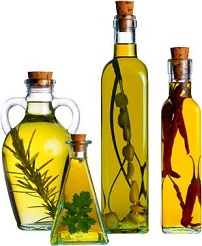

5. Using the magnetic lasso tool select the spices or for some tips try to use the polygonal lasso tool
then drag it tou your canvas. And the remaining white spaces can be deleted by using
the magic wand then delete.
6. Remove the white spaces in the glass to make it looks like transparent.
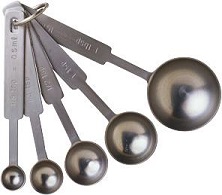
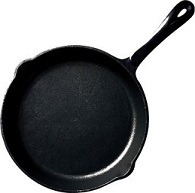
7. Then repeat the process for the scoops and for the pan.
8. Position and arrange the images like the positions in the author's product.
9. While there is a detail in the pan use magic wand to delete the white spaces in the surface of
the pan so that the orange color will be seen.
10. Use Type tool and type your name. Use Times New Roman as your font style and for the font
size it will depends on your work. Observe if it is proportional within your work.

11. Save your work as KitchenWorld_(your name).psd. Then you can also save it as a jpeg file or
png file (eg.KitchenWorld_(your name).jpg,KitchenWorld_(your name).png)
12. Congratulations now you have learn another use of Adobe Photoshop!