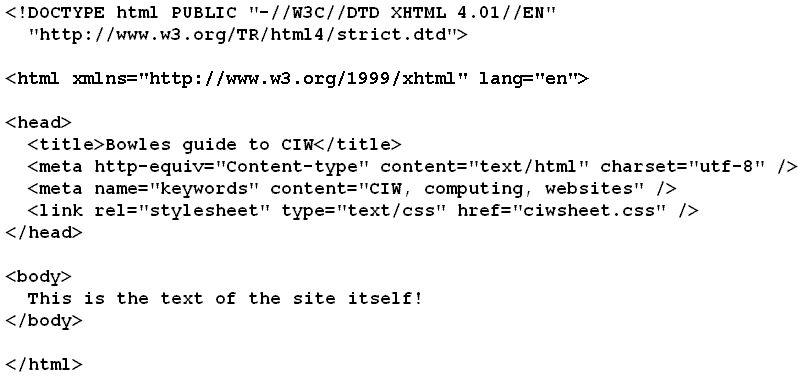
Container tags have an opening and closing tags with contents between. Empty tags simply mark a point in the page:
Empty tags can be converted to container tags by ending them with />, so <br> becomes <br /> (equivalent to <br></br>). HTML permits empty tags, but XHTML does not.
A tag has three parts:
In the tag <table width="50%">, table is the element, width is the attribute with the value "50%".
If you want your XHTML web page to pass validation:
Click on the different areas of this picture to find out about the different tags - all essential if you want your page to validate!
Block level tags control entire blocks/paragraphs of text. They are always preceded and followed by a paragraph break (blank line):
<h1>h1 gives the largest header</h1><h2>h2 gives the next size down</h2><h3>As the number increases, the size decreases!</h3><h6>all the way down to h6 (the smallest!)</h6><blockquote> Indent a block of text </blockquote> <div> Text division </div> <p> Paragraph break </p> |
Text-level (or inline) elements format small sections of text (down to individual characters). They don't produce a paragraph break unless you specifically put one in.
<b> or <strong> Bold text</strong>,</b> <i> or <em> Italic text</em>,</i> <font> controls the colours, size and face of text </font>
<strike> <big> big text </big> <sub> and <sup> subscript text and superscript text</sup>,</sub> |
Nest text-level elements within block-level elements, and block-level elements within each other in the order you see above (so <p> ... </p> within <blockquote> ... </blockquote>, do not put header tags within <p> ... </p> etc.)
Here is an example of the code for a list:
<ul>
<li> This is the first item.</li>
<li> This is the second item.</li>
<li> and here is the last item!</li>
</ul>
Normally, you have to specify the formatting of a web page with tags. However, if you want the browser to take note of the formatting of the text as it appears in the HTML file (extra white space, line breaks and all), enclose it within <pre> and </pre> tags:
<pre>
This text        contains lots of space

           and

some rather            illogical line breaks!
</pre>
This text        contains lots of space

           and

some rather            illogical line breaks!
A comment is any text that does not appear on the screen. To turn any text into a comment, enclose it within <!-- and -->:
<!-- This text would not appear! -->
For a guide to Cascading Style Sheets, see General topics - Cascading Style Sheets (CSS).
 |
 |
 |