Home
Back
Recording A Macro
Macros can speed up any common editing sequence you may execute in an Excel
spreadsheet. In this example we will make a simple macro that will set all the
margins on the page to one inch.
-
Click Tools|Macro|Record New Macro from
the menu bar.
-
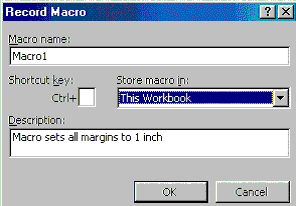
Name the macro in the Macro name field.
The name cannot contain spaces and must not begin with a number.
-
If you would like to assign a shortcut key to the
macro for easy use, enter the letter under Shortcut key. Enter a lower
case letter to make a CTRL+number shortcut and enter an upper case letter to
assign a CTRL+SHIFT+number shortcut key. If you select a shortcut key that
Excel already uses, your macro will overwrite that function.
-
Select an option from the Store macro in
drop-down menu.
-
Enter a description of the macro in the
Description field. This is for your reference only so you remember what
the macro does.
-
Click OK when you are ready to start
recording.
-
Select options from the drop down menus and Excel
will record the options you choose from the dialog boxes, such as changing the
margins on the Page Setup window. Select File|Page Setup and change all
the margins to 1". Press OK. Replace this step with whatever commands
you want your macro to execute. Select only options that modify the worksheet.
Toggle actions such as View|Toolbars that have no effect on the
worksheet will not be recorded.

-
Click the Stop button the recording
toolbar. The macro is now saved.
Running
A Macro:To
run a macro you have created, select Tools|Macro|Macros from the menu
bar. From the Macros window, highlight the Macro name in the list
and click
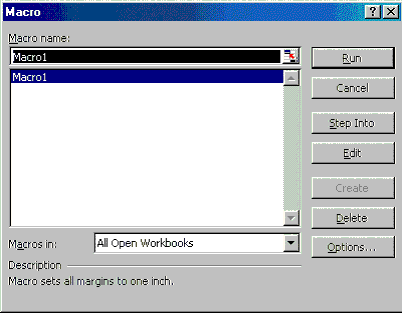
If the
macro is long and you want to stop it while it is running, press BREAK
(hold CTRL and press PAUSE).
Next Page