Home
Back
Customizing Excel
Menus
Unlike previous versions of Excel, the menus in Excel 2000 initially list only
the commands you have recently used. To view all options in each menu, click
the double arrows at the bottom of the menu. If you would like to revert to the
way older versions of Excel displayed menu options, follow these steps:
-
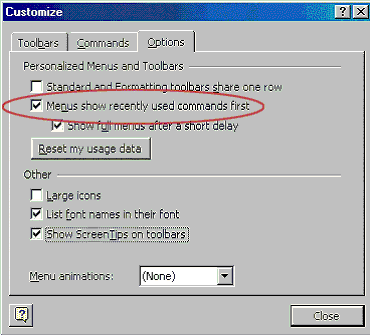
Select View|Toolbars|Customize from the
menu bar.
-
Click on the Options tab.
-
Uncheck the Menus show recently used commands
first check box.
Toolbars
Many toolbars displaying shortcut buttons are available. Select View|Toolbars
from the menu bar to select more toolbars.
Customize Toolbars
Customizing toolbars allows you to delete certain shortcut buttons from a
toolbar if you do not use them and add the shortcut buttons for commands you use
often.
-
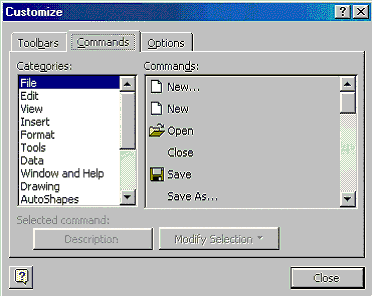
Select View|Toolbars|Customize and select
the Commands tab
-
By clicking on the command categories in the
Categories box, the commands will change in the Commands box to the
right.
-
Select the command you would like to add to the
toolbar by selecting it from the Commands box.
-
Drag the command with the mouse to the desired
location on the toolbar and release the mouse button. The shortcut button
should now appear on the toolbar.
-
Remove buttons from the toolbars by reversing
these steps. Highlight the button on the toolbar, drag it off the toolbar with
the mouse, and release the mouse button.
Next Page