
Modifying A Worksheet
Moving Through Cells
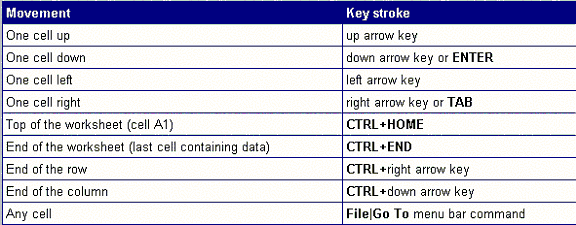
Use the mouse to select a cell you want to begin adding data to and use the keyboard strokes listed in the table below to move through the cells of a worksheet.

Column - Add a column by selecting Insert|Columns from the menu bar, or highlight the column by click on the column label, right-click with the mouse, and choose Insert.
Resizing Rows and
Columns
There are two ways to resize rows and columns.
Adding Worksheets, Rows, and Columns
Worksheets - Add a worksheet to a workbook by selectiing Insert|Worksheet from the menu bar.
Row - To add a row to a worksheet, select IInsert|Rows from the menu bar, or highlight the row by clicking on the row label, right-click with the mouse, and choose Insert.
Column - Add a column by selecting Insert|Coluumns from the menu bar, or highlight the column by click on the column label, right-click with the mouse, and choose Insert.
Resizing Rows and
Columns
There are two ways to resize rows and columns.
Selecting Cells
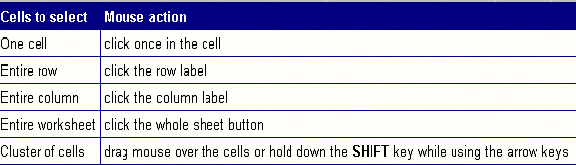
Before a cell can be modified or formatted, it must first be selected
(highlighted). Refer to the table below for selecting groups of cells.
To activate the contents of a cell, double-click on the cell or click once and press F2.
Moving and Copying Cells
To cut cell contents that will be moved to another cell select Edit|Cut from the menu bar or click the Cut button on the standard toolbar.