


|
|
|
|
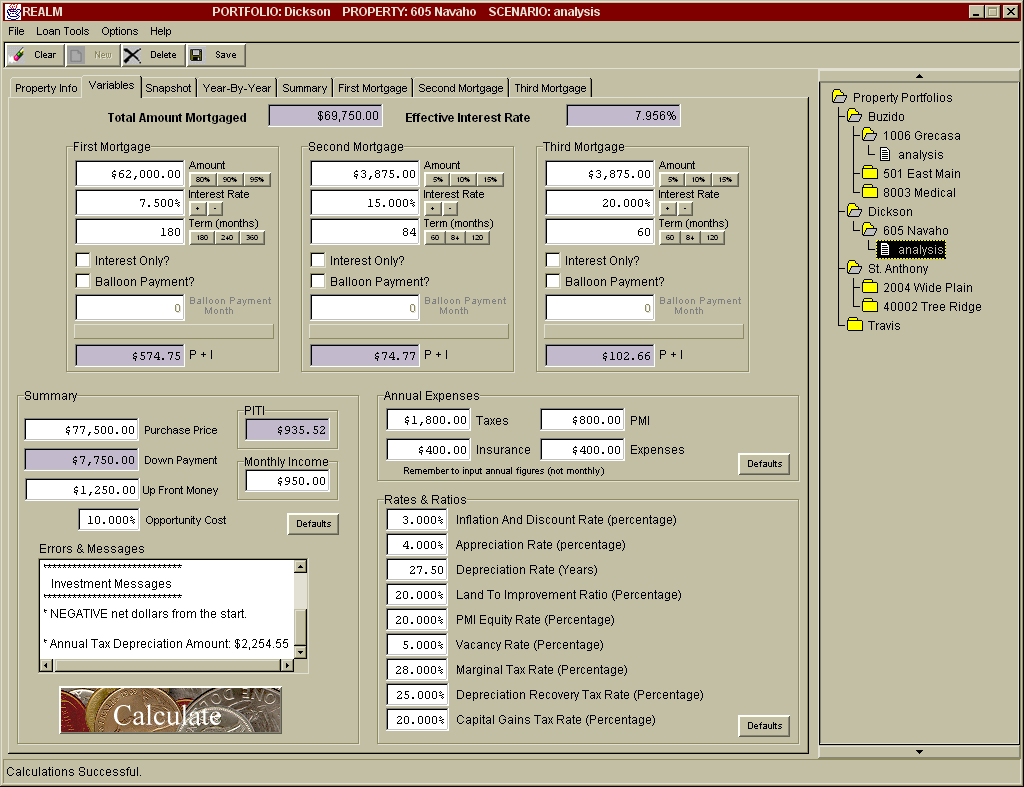
This tab holds all the user-inputted variables for a property including mortgages, rents, and economic factors. It is divided into four distinct areas: Mortgages, Summary, Annual Expenses, and Rates & Ratios. Note: All the shaded boxes hold computed values that cannot be edited. Some of the boxes are automatically updated when a field they depend on has been changed. Others are updated when the Calculate Button is pressed. MortgagesThe top half of the Variables Tab contains the mortgage
information for the scenario. There are areas for up to three mortgages. You can
use any, all, or none of them. The Total Amount Mortgaged and Effective Interest Rate fields at the top are computed based on the information entered for the three mortgages. They combine the effects of the three mortgages to give you a single number that represents exactly how much money is being borrowed and at what effective rate. The First, Second, and Third Mortgage boxes are where you enter the parameters for the loans on the property. The Amount Field is the principal amount of the loan, the Interest Rate Field is the interest rate you are paying for the loan, and the Term (months) Field is the length of the loan in months. Each of these fields has quick set buttons that allow you to conveniently change the values. The Amount quickset buttons set the Amount Field to 80%, 90%, or 95% of the value in the Purchase Price for the First Mortgage. For the Second and Third Mortgage boxes, there are quickset buttons for 5%, 10%, and 15%. The “+” and “-“ quickset buttons for the Interest Rate Field allow you to conveniently change the interest rate by 0.125 percent (1/8). The quickset buttons for the Term (months) Field allow you to quickly set the mortgage term value to the most typical term lengths (180, 240, or 360 months for the First Mortgage and 60, 84, or 120 months for the Second and Third Mortgages). If you are analyzing an Interest Only or Balloon loan, then check the appropriate checkbox. Doing so will enable the Balloon Payment Month Field. Enter the number of the month when the balloon payment will come due in this field. The P+I field represents the monthly principal and interest payment due for the loan. This field is automatically updated when changes are made to the loan parameters. There is a status bar between the Balloon Payment Month Field and the P+I Field. Check this box for any informational and error messages that pertain to this loan. If the message is too long to be entirely visible in this bar, simply place the cursor pointer over the status bar and the message will be displayed in a popup window. SummaryThe bottom left of the Variables Tab contains the summary
information for the scenario. Enter the amount actually paid for the property in the Purchase Price Field. The Down Payment Field is automatically calculated based on the Purchase Price and the Total Amount Mortgaged. Up Front Money is the total amount of money needed to acquire the property (closing costs, fees, etc.) The Opportunity Cost percentage represents the rate of return you could get on your money (in some other investment) if it wasn’t used to acquire this property. PITI is the total monthly principal, interest, tax, and insurance (property insurance and private mortgage insurance) amount due. It is computed from values in the Mortgages and Annual Expenses Areas. Monthly Income is how much you will charge in rent for this property the first year. The Errors & Messages area displays information about this current scenario’s variables. If there are any errors with the user-inputted data, you will see a message here. Also, pertinent data (annual depreciation amount, cash flow info) is also printed here for your convenience. Use the Calculate Button to force REALM to re-compute the investment data. Some of the calculated fields (the shaded fields) are automatically updated when data they depend on changes, but some are not. Also, none of the investment data on the other tabs is recomputed automatically. Anytime data is added and/or changed, the user must press the Calculate Button to update the investment data. The easiest way to tell if your data is stale and needs to be recalculated is to look at the right side of the Status Bar in the bottom right corner of the screen. When the green dollar sign icon is present there, the investment data needs to be recomputed. To do so, either click on the icon itself, or click on the Calculate Button. To set the Summary fields to the defaults specified in the Program Options, click the Defaults Button. Annual ExpensesThe middle right of the Variables Tab contains the annual expense information for the scenario. Enter the amounts of the property taxes, property insurance, private mortgage insurance (PMI), and maintenance costs for this scenario. Make sure to enter the annual amounts (not monthly). To set the Annual Expenses fields to the defaults specified in the Program Options, click the Defaults Button. Rates & RatiosThe bottom right of the Variables Tab contains the rates and ratios used in the investment calculations for the scenario. The Inflation and Discount Rate is used to increase the costs and income (monthly income, annual taxes, annual insurance, annual expenses) of the property each year as well as to discount future dollars to today’s dollars (year net dollars, discounted average annual return if sold). The Appreciation Rate is the rate at which the property appreciates in value. The Depreciation Rate is the number of years over which the IRS allows you to depreciate investment property. The Land To Improvement Ratio is how much of the total market value of the property the land itself represents. This number is needed in the depreciation calculations (since only the structures, not the land, can be depreciated). The PMI Equity Rate is how much equity you must have in the property before the private mortgage insurance (if any) can be cancelled. The Vacancy Rate is the percentage of each year the
property is not generating income (due to tenant turnover, etc.). The Marginal Tax Rate is your IRS defined tax bracket. The Depreciation Recovery Tax Rate is the IRS defined rate at which your depreciated value is taxed when the property is sold. The Capital Gains Tax Rate is the IRS defined rate at which your capital gains are taxed. To set the Rates & Ratios fields to the defaults specified in the Program Options, click the Defaults Button.
|
|
Send mail to [email protected] with
questions or comments about this web site.
|