Goto the Macromedia Site
and do the Beginners Tutorials.
You will recall from Java the difference between Classes and Objects. An object is an instance of the class, it has the same general properties, say a Circle has an area dependent on its radius. Each circle object will have a different radius but it is still a circle.
In Flash Symbols are equivalent to Classes and they are stored in the Library Window->Library. You can create an instance of the symbol.
Start Flash and do lesson 03 Symbols. Click on Help -> Lessons -> 03 Symbols Have a look at this. Load the corresponding .fla and click on each button and press Ctrl+Alt+A to view the action window.
If you click on each of the circles and look at their name in the instance panel, it should be clear what's happening. We are refering to the object by it's name and then just changing it's x position on the screen by adding or subtracting 10 from the position depending on which button is pressed.
Learn about the Project Explorer.
Load the file MovieExplorer.fla and go
through the exercises in the handout.
A clone of the classic "Arkanoid" arcade game will be written.
Step 2
: Improving the Code
Step 3
: Including a paddle
Step 4
: Improving the Code
There are a number of things that we can do to make it more interesting.
Create a scoreboard using dynamic text.
Vary the speed of the ball.
Have different levels, e.g. if the score reaches a certain number make
the paddle smaller in size (myPaddle._width -=10; say) or increase the
speed of the ball.
Have a restart function so that when the game finishes we can have another go.
Give the player three lives.
Make it a two player game by creating a second paddle. You will have to using
boolean variables to check whose turn it is.
Try doing some of these things. Some of them have been done already on the next exercise. Browse through the handout of the next exercise to implement them or go ahead and do the next execise.
A few things to note. Make sure you follow the instructions carefully and fully.
When you're putting in the "Game Over" text ensure it is static rather
than dynamic text.
Ensure all the instances are named correctly. Use the Movie Explorer
to compare your code against the one on the
tutorial website
Pressing the Tab key hides the panels.
To run through the frames use the Controller (Windows -> Toolbars -> Controller)
Use the x and y coords in Windows-> Panels -> Info to change the size and position of the objects.
Double Click on the Layer Name to change the name of the layer.
Change the name of objects by using Windows -> Movie Explorer right click on the name
e.g. Symbol1 and choose Rename
Properties of the movie such as the Frame Rate can be changed in Modify -> Movie (Control M)
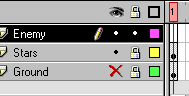
Lock layers (click on the . below the padlock symbol) that you are not using so that you don't accidently
delete things in them. You can also hide the layer be clicking on the . under the eye symbol.
The panels can be rearranged by dragging and dropping them.
Create your own panel setup of the panels you use most and then
choose Window -> Save Panel Layout to save this for future reference.
You can load this panel setup via Window -> Panel Sets ->
If you create a rectangle and want to delete it, clicking once on a side will highlight that side, double clicking on it will highlight the entire rectangle.
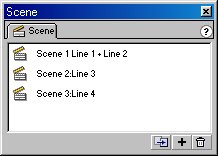
When creating "cartoons" use the Movie Explorer (Control+Alt+M) and the Scene panel
to edit the movie. Note that scenes can be duplicated in the Scene panel. (Use the button
at the bottom of the scene panel to the left of the "+" and "wastebin" button).
When writing ActionScript code it is useful to put in comment using "//" like in Java. It helps if there's a comment at the top saying which object the code is for and what the code does.
In Edit -> Preferences Choose Flash 4 Frame Drawing so that blank key frame are symbolised by an open circle.