|
Open up a new movie 550px X 400px insize.
|
|
Change the name of Layer 1 to Boundary.
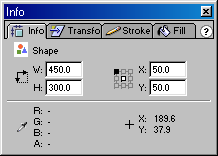
Place a rectangle on the stage and in the Window -> Info
change it's width (W) to 450, it's height (H) to 300
and the X and Y coordinate to zero, as in the figure.
|
|
|
Create a new layer and call it Ball.
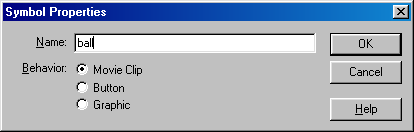
Create a circle and convert it to a MovieClip Symbol (F8) naming it "ball".
|
|
We now need to create some code to position the ball.
Firstly, Click on the ball and press Ctrl+Alt+A to call up the
Action Window.
Type in the following code into the action, ensuring you are using
Expert mode (Ctrl+E)
			onClipEvent (load) {

				this._x = 200;
				this._y = 200;
				x_speed = 10;
				x_direction = 1;
			}
this._x sets the X position of the ball to 200. Similar for Y.
The direction variable is going to be used in the next part to
turn the ball around when it "hits" the wall.
|
Type the following code below the previous code, in the ball action window.
				onClipEvent (enterFrame) {

				if ( this._x < 495 and this._x > 55 ){
					this._x+= x_direction*x_speed;
				} else {
					x_direction*=-1;
					this._x+= x_direction*x_speed;
				}
			}
This checks if the ball has moved out past the rectangle that we have drawn.
If it has change the direction of the ball.
You should now have a ball bouncing over and back across the screen.
|
This is obviously quiet boring so we will get the ball to move in the Y direction also.
Type the following in the onClipEvent (load) function below the code for
the X coordinate.
				y_speed=10;
				y_direction=1;
Next type the following in the onClipEvent (enterFrame) function below the code for
the X coordinate.
				if ( this._y > 0 and this._y < 350 ){
					this._y+= y_direction*y_speed;
				} else {
					y_direction*=-1;
					this._y+= y_direction*y_speed;
				}
You should now have a ball bouncing within the rectangle.
Watch the ball bouncing around and think how this can be improved before going onto
the next section. (Hint: what path does the ball follow?)
|