Change the code in the onClipEvent (enterFrame); function as follows.
			if ( Key.isDown(Key.RIGHT) and this._x < 500-(this._width/2.0) ){
				this._x+= paddle_speed;
			} else if ( Key.isDown(Key.LEFT) and this._x > 50+(this._width/2.0) ){
				this._x-= paddle_speed;
			}
1. It hits the paddle and bounces back in.
2. It leaves the area and the player loses.
The hit test function has the syntax
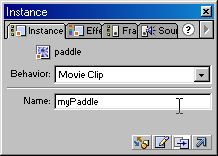
In order to test this we need to name the paddle. You might think the paddle has a name
but it doesn't yet. The paddle is the symbol from the library, like a class in Java.
We need to name the paddle say something like myPaddle. To do this click on the paddle and
bring up the instance panel.
			if (this.hitTest(_root.myPaddle) ) {
				y_direction*=-1;
			this._y+= y_direction*(random(randomness)+1)*y_speed;
			}
				// This code keeps the ball below the upper side of the rectangle
				if ( this._y > 50  ){
					this._y+= y_direction*y_speed;
				} else {
					y_direction*=-1;
					this._y+= y_direction*(random(randomness)+1)*y_speed;
				}
Now if the y position of the ball is below the paddle we call move to the gameOver frame. Type the following code into the Actions for the ball.
			// This code calls the Game Over frame if the ball leaves the area
			if ( this._y > 365 ) {
				_root.gotoAndStop("gameOver");
			}
We can make the ball disappear when the game is over by putting a blank key frame (F7) in frame 3 of the ball layer. Also to prevent the Game Over notice coming up at the start place a blank key frame (F7) in frame 1 of the Game Over layer.
We also need to put a stop(); function in Frame 1 of the Ball Layer so that it doesn't continually restart a new instance each time it enter the frame.
You should now have a basic game working.