Your chart may not appear quite right. Let's adjust the horizontal
bars.
- Move the cursor over to the bars (i.e., data series).
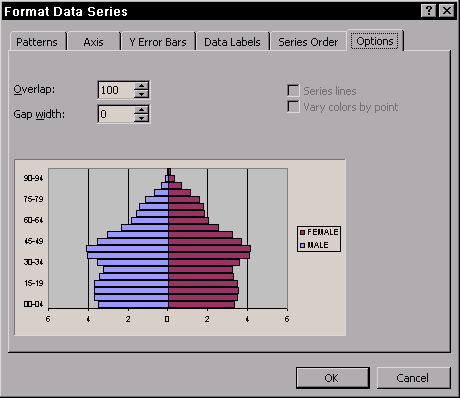
- Right-click and select Format Data Series... from the
pop-up menu. Either male or female data series will do. A dialogue
box will appear that is titled Format Data Series.
- Left-click on the Options tab and make the following adjustments.
- Overlap:
 Type 100 in the appropriate text box. Type 100 in the appropriate text box.
- Gap width
Type 0 in the appropriate text box.
- Left-click
 to exit. to exit.
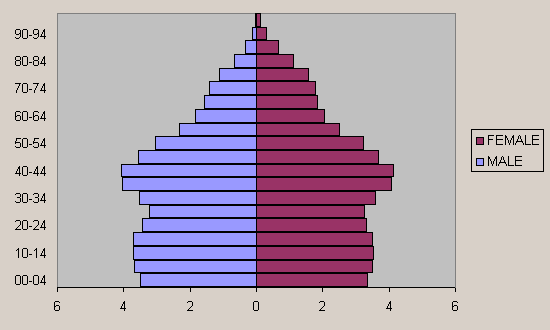
You will now find something like the one shown below. I have
eliminated the grid while I was on the chart wizard. However, that
was not necessary, as you can do all the tweaking after creating a
chart.
|