 |
is
a Tagalog/Filipino phrase HOW-TO |
|
is
a Tagalog/Filipino phrase HOW-TO |
Assign a static IP address to your computer
Routers normally employ a scheme called a Dynamic Host Configuation Protocol (DHCP) server wherein your computer is assigned an internal IP address automatically every time you start it and connect to the (internal) network. (A DHCP server also allows you to share a single internet connection with several computers at the same time.) However, there are applications and services which requires your computer's IP address to remain the same (static) every time you connect. By forcing your computer's IP address to remain static all the time, you'll be able to configure your router to divert specific services to one computer with minimal setup.
|
IF YOU ARE USING A D-LINK ROUTER (a
DI-704P or
similar model) |
To assign your computer a static internal IP address, follow these steps:
1. Click Start > Settings > Network and Dial-Up Connections.
2. Right-click your LAN Connection and select Properties. The following box will show up.
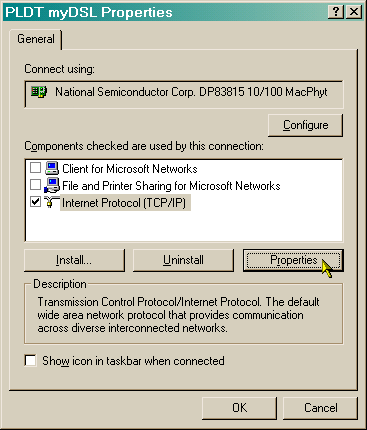
3. Select the Internet Protocol (TCP/IP) component and click the Properties button. The following box will show up.
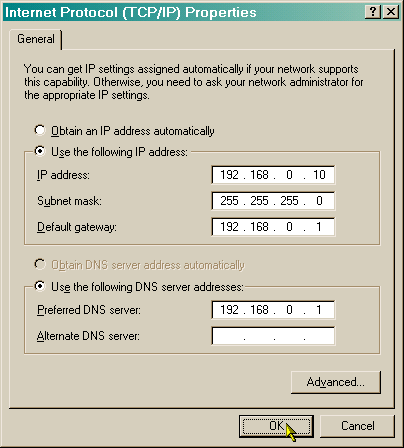
4. This is the part where you have to refer to your router's user manual. Determine first your router's LAN IP address. Usually, routers use something like 192.168.0.xxx or 10.0.0.xxx as their default LAN IP address. Once you have this information, click the radio button beside the item Use the following IP address and fill in the appropriate fields (Use the following DNS server addresses will also be selected automatically).
IP
address = your computer's IP address. The first 3 numbers should
match your router's internal IP. The last number is at your own
discretion, and can range between 2 to 254. Avoid using 0, 1 or 255 as the
last digit since these are reserved (x.x.x.0 - network number, x.x.x.1 - router
IP and x.x.x.255 - broadcast address). Keep it simple -- use a number
outside your router's DHCP server's address pool.
Subnet mask = leave it to the default setting of
255.255.255.0 (Windows should fill in the numbers for you, otherwise, key them
in manually).
Default gateway = your router's LAN IP address.
Preferred DNS server = your router's LAN IP
address.
Alternate DNS server = leave it blank.
5. Click the OK button to close the TCP/IP properties box and another OK button to close the LAN connection properties box.
6. If you're asked to restart your computer, do so.
Did this page help you solve
your problem?
| Tell me what you think
| What
others have to say | Back
to main page |
 TIPS AND TRICKS